AI PDF Renamer
Automatically Rename PDF Files Based on Content
PDFs show up everywhere.
Invoices. Bank statements. Contracts. Reports. Class readings. Research articles. Scanned paperwork. Medical records.
The problem? Most of them arrive with filenames that mean nothing later.
You get:
scan_0934.pdfDocument (12).pdffinal_v3_.pdf
Weeks later, you waste time opening files just to figure out what they are. The hidden cost of bad filenames is decision fatigue.
An AI PDF renamer removes that friction by naming files based on what’s actually inside them.
AI Renamer is an AI-powered PDF file renaming tool for Windows and Mac. It reads your PDFs and suggests structured, searchable filenames automatically.
Why PDF Naming Becomes a Real Workflow Problem
Manual PDF naming sounds simple.
It is not simple when you do it all day.
You have to:
- Open the file
- Scan for vendor, client, date, or topic
- Type a name that matches your system
- Repeat
That creates three problems fast.
First, it steals focus. Every rename is a micro-interruption.
Second, names become inconsistent. Different people use different formats.
Third, search gets slower over time. Because your system is not predictable.
If you have ever reopened ten PDFs just to find one statement, you understand the pain.
What an AI PDF Renamer Should Do?
A smart PDF renaming tool should:
- Rename PDFs based on content, not just patterns
- Work in batches, not one file at a time
- Let you preview before applying changes
- Follow your naming rules (custom instructions)
- Handle scanned PDFs and image-based documents
That is exactly what AI Renamer is built for.
If you are new, start here:
How to Automatically Rename PDF Files Based on Content
If you want to automatically rename PDF files based on content, the workflow should look like this:
- Add your PDFs to the AI Renamer
- Let AI analyze the file
- Preview results
- Apply renames in bulk
(Bonus Tip) Generate structured names by using custom instructions
The key difference between AI renaming and traditional batch renaming software is content understanding.
Instead of matching filename patterns, AI reads the document itself.
Getting Started Is Simple
 AI Renamer works on both platforms. Installation takes minutes.
For Mac users:
How to Install AI Renamer on macOS (Step-by-Step with Screenshots)
For Windows users:
How to Install AI Renamer on Windows (Step-by-Step with Screenshots)
No complex setup is required.
Example: Before and After
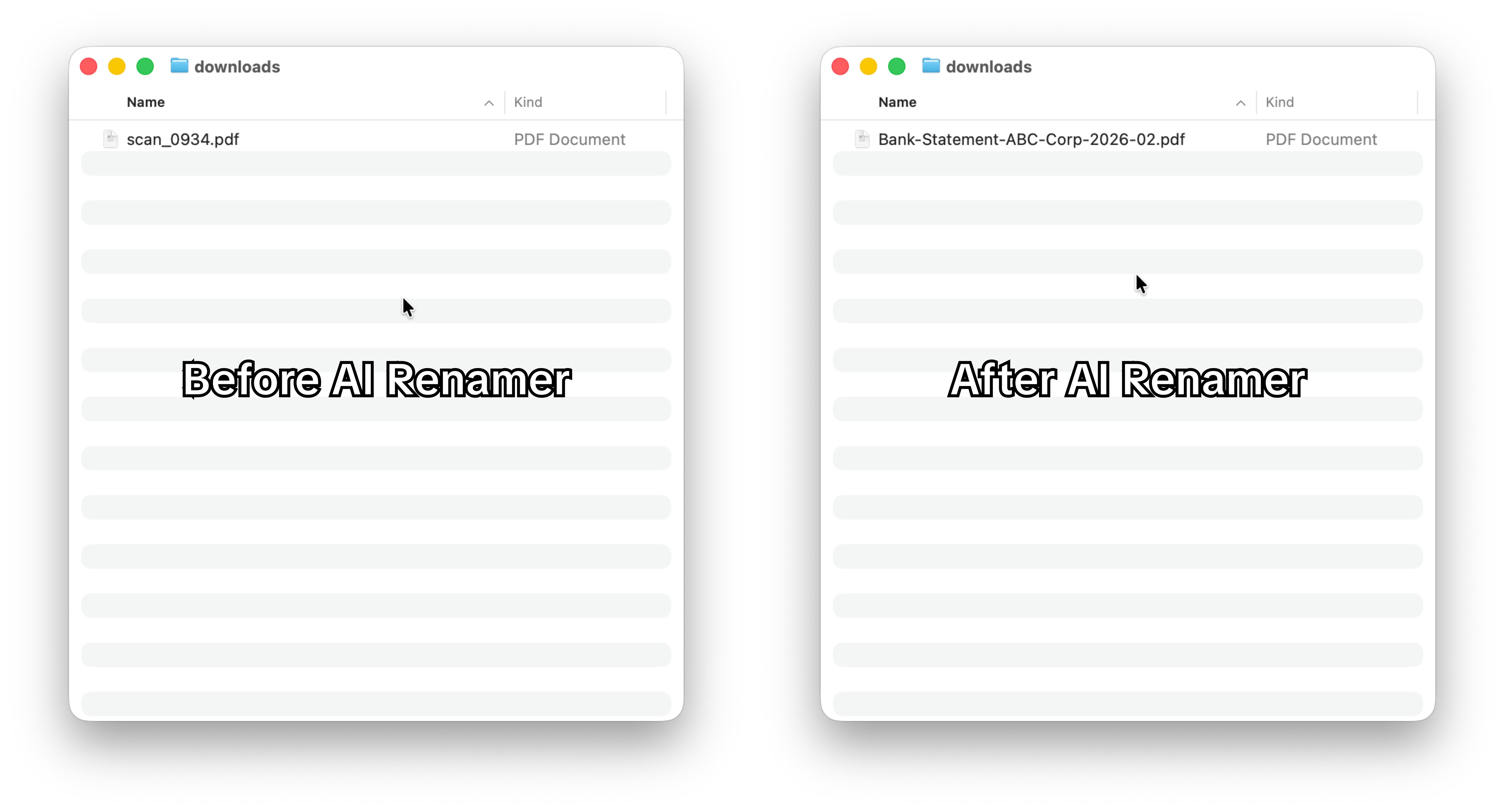 Before:
scan_0934.pdf
After:
Bank-Statement-ABC-Corp-2026-02.pdf
Now you know what it is without opening it.
You never have to check it again just to identify it.
Multiply that by 50 files during month-end close.
Batch Rename PDF Files in Minutes
The biggest win is not renaming one file.
The real win is cleaning up a folder of 50 or 100 PDFs at once.
This matters during:
- Month-end close
- Audit preparation
- Legal discovery
- HR onboarding
- Academic research organization
Batch renaming turns “I’ll organize this later” into “done.”
Custom Instructions Keep Filenames Consistent
 Most professionals do not want fancy names. They want predictable names.
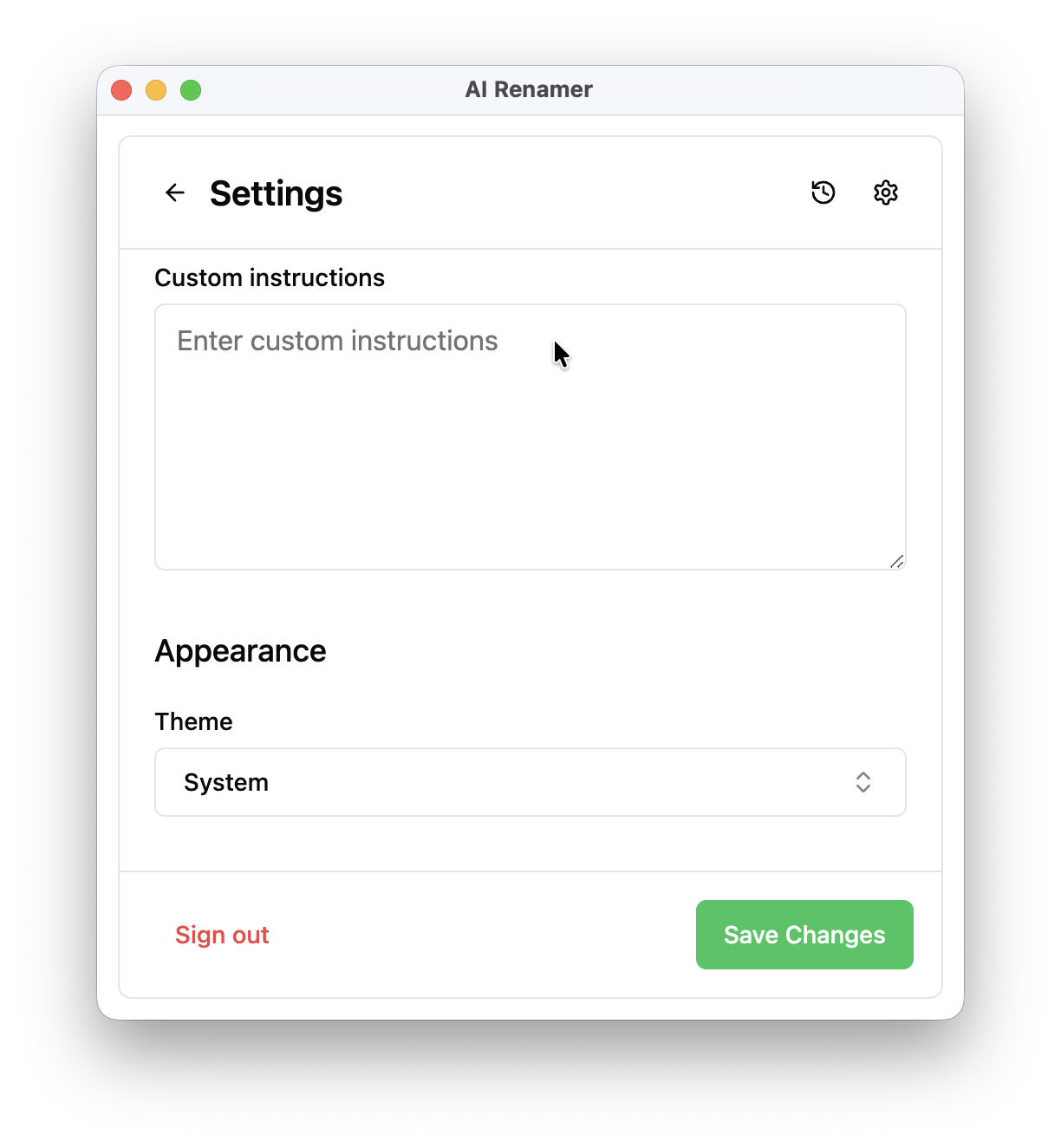
AI Renamer supports custom instructions so you control the output.
You can define:
- What to include
- What to ignore
- The order of elements
Common naming formats include:
- Client + Document Type + Date
- Vendor + Invoice Number + Date
- Matter + Document + Status + Date
- Course + Topic + Author + Year
When filenames follow a clear system, search becomes instant.
See real examples here:
10 Professional Use Cases for AI File Renaming Tool
AI PDF Renamer vs Traditional Batch Renaming Tools
Traditional renaming tools:
- Rename based on filename patterns
- Cannot read inside PDFs
- Require manual tagging
- Work poorly with scanned documents
AI Renamer:
- Reads PDF content directly
- Extracts document type and dates
- Works with image-based PDFs
- Suggests structured filenames automatically
- Supports batch processing
That difference matters if your workflow depends on documents.
Privacy and Security
PDFs often contain sensitive information:
- Bank statements
- Contracts
- Client records
- Payroll documents
AI Renamer is built with privacy in mind.
Files are never stored.
You also have two usage modes depending on your needs.
Local Mode vs Cloud Mode
Local Mode is for full privacy and unlimited usage.
It is a $19 one-time purchase.
You can rename unlimited files using local mode. You stay in control:
- You choose the AI model provider
- You can use local AI models or API-based models
- Files are processed directly on your device
Ideal for accountants, lawyers, and anyone handling sensitive documents daily.
Cloud Mode is pay-as-you-go.
$10 for 200 credits.
1 rename = 1 credit.
Credits never expire.
If you process large volumes regularly, Local Mode pays for itself quickly.
If you rename occasionally, Cloud Mode keeps it flexible.
Who Uses an AI PDF Renamer?
AI Renamer is useful anywhere PDFs are part of the job.
- Accountants and auditors managing statements and invoices
- Legal teams organizing contracts and signed documents
- HR teams structuring employee records
- Consultants delivering client reports
- Students managing research papers
- SMB owners handling vendor paperwork
- Healthcare professionas trying to organize medical histories of their patients
If your work is PDF-heavy, naming is not optional. It is part of the workflow.
Here are some real-world examples: How to Automatically Rename Files Using AI (10+ Real World Use Cases)
Build a Daily PDF Cleanup Habit
Instead of letting PDFs pile up:
- Set aside 2 minutes each day
- Drop new files into AI Renamer
- Apply your naming system
- Keep your archive clean
The best file systems are maintained, not fixed once.
Frequently Asked Questions
Does AI Renamer work with scanned PDFs?
Yes. It supports image-based PDFs and can analyze scanned documents.
Are my files uploaded or stored?
Files are never stored. You can also use Local Mode for complete offline privacy.
Does it work on Windows and Mac?
Yes.
Can I batch rename hundreds of PDFs?
Yes. AI Renamer supports batch processing.
A Simple Way to Start
Pick one folder that frustrates you. Run a batch through AI Renamer.
Set one naming style you like.
Preview. Apply. In a minute, your folder looks professional.
Final Thoughts
An AI PDF renamer is not a gimmick. It is a practical way to remove daily friction from document-heavy work.
AI Renamer helps you automatically rename PDF files based on content. It works on Windows and Mac. It supports full privacy with Local Mode and flexible usage with Cloud Mode.
If file naming keeps slowing you down, this fixes it. Try AI Renamer.