How to Use OpenRouter Free Models with AI Renamer (Step-by-Step Guide)
Who This Guide Is For
If your computer is:
- Old or slow
- Not powerful enough to run local AI models
- Overheating or crashing with large files
You don’t need a better machine.
By connecting OpenRouter to AI Renamer, you can rename files using free or low-cost cloud AI models via API.
This guide shows you exactly how to set it up, step by step.
If you are new to AI Renamer, start here:
Why Use OpenRouter with AI Renamer?
Benefits
- ✅ Works on low-end computers
- ✅ No local model installation
- ✅ Access to free AI models
- ✅ Pay-as-you-go (or free tiers)
- ✅ Supports PDFs, images and text documents
Perfect for:
- Accountants & auditors
- Lawyers
- HR teams
- Students
- Indie hackers
- Web designers
- Notion, Obsidian, and PKM Users
What You’ll Need Before Starting
- AI Renamer installed (Mac or Windows)
- An OpenRouter account
- Internet connection
- 2 minutes
Need AI Renamer installation help?
How to Install AI Renamer on macOS
How to Install AI Renamer on Windows
Step-by-Step: How to Set Up OpenRouter with AI Renamer
Step 1:
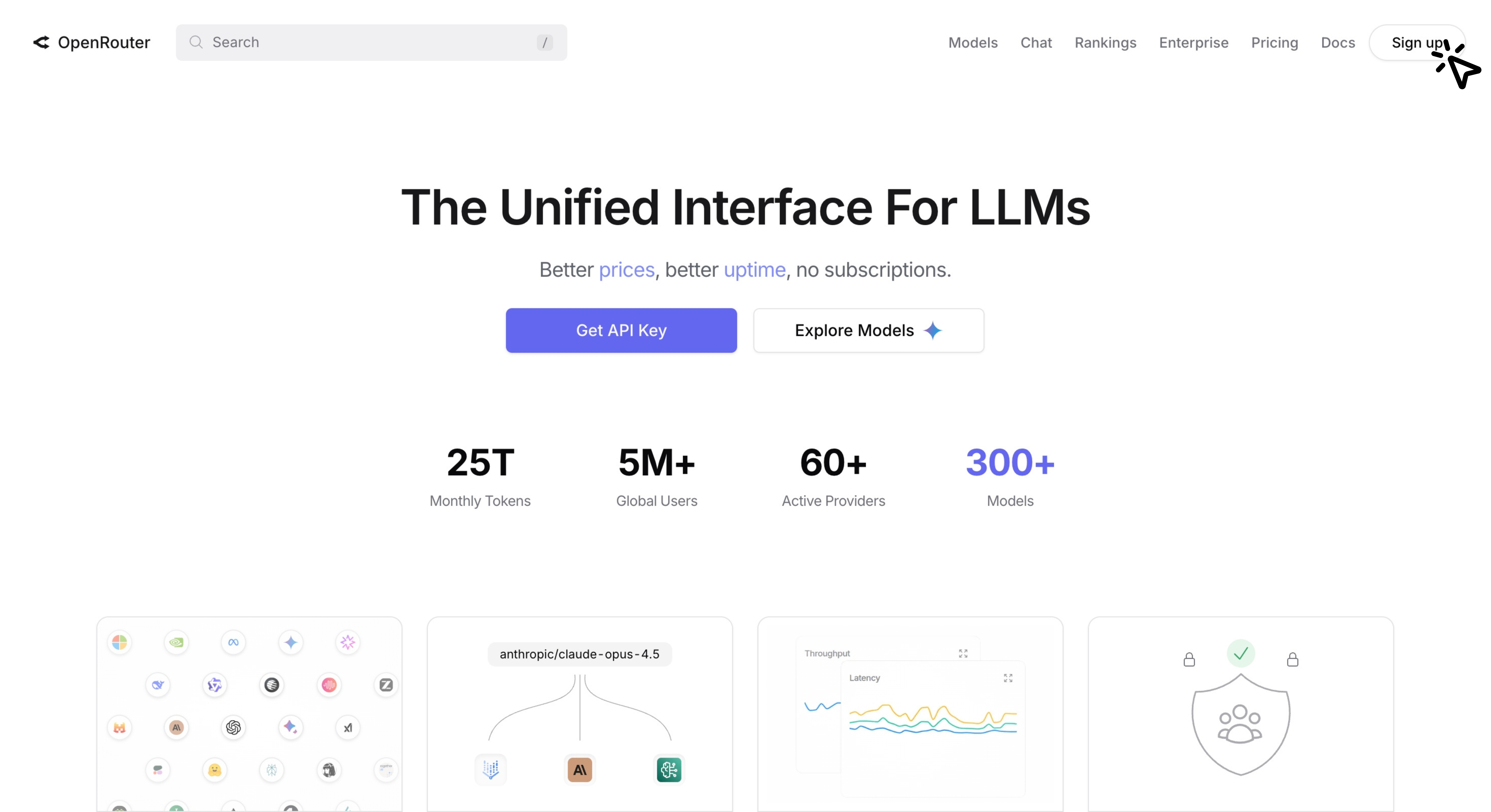 Go to the OpenRouter website and click Sign Up.
Step 2:
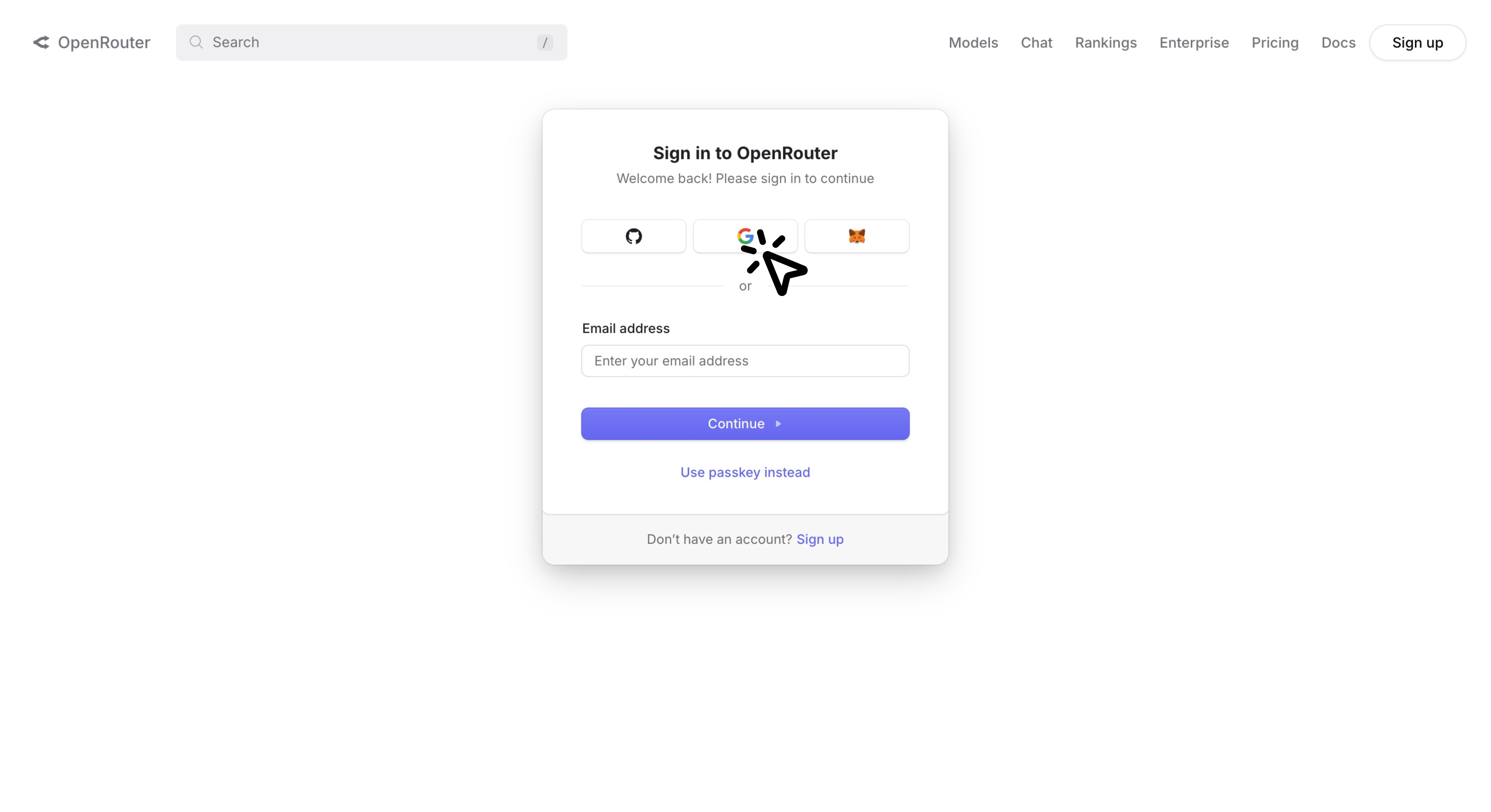 Sign up using your email, Google account or other choises. I'll continue with Google account.
Step 3:
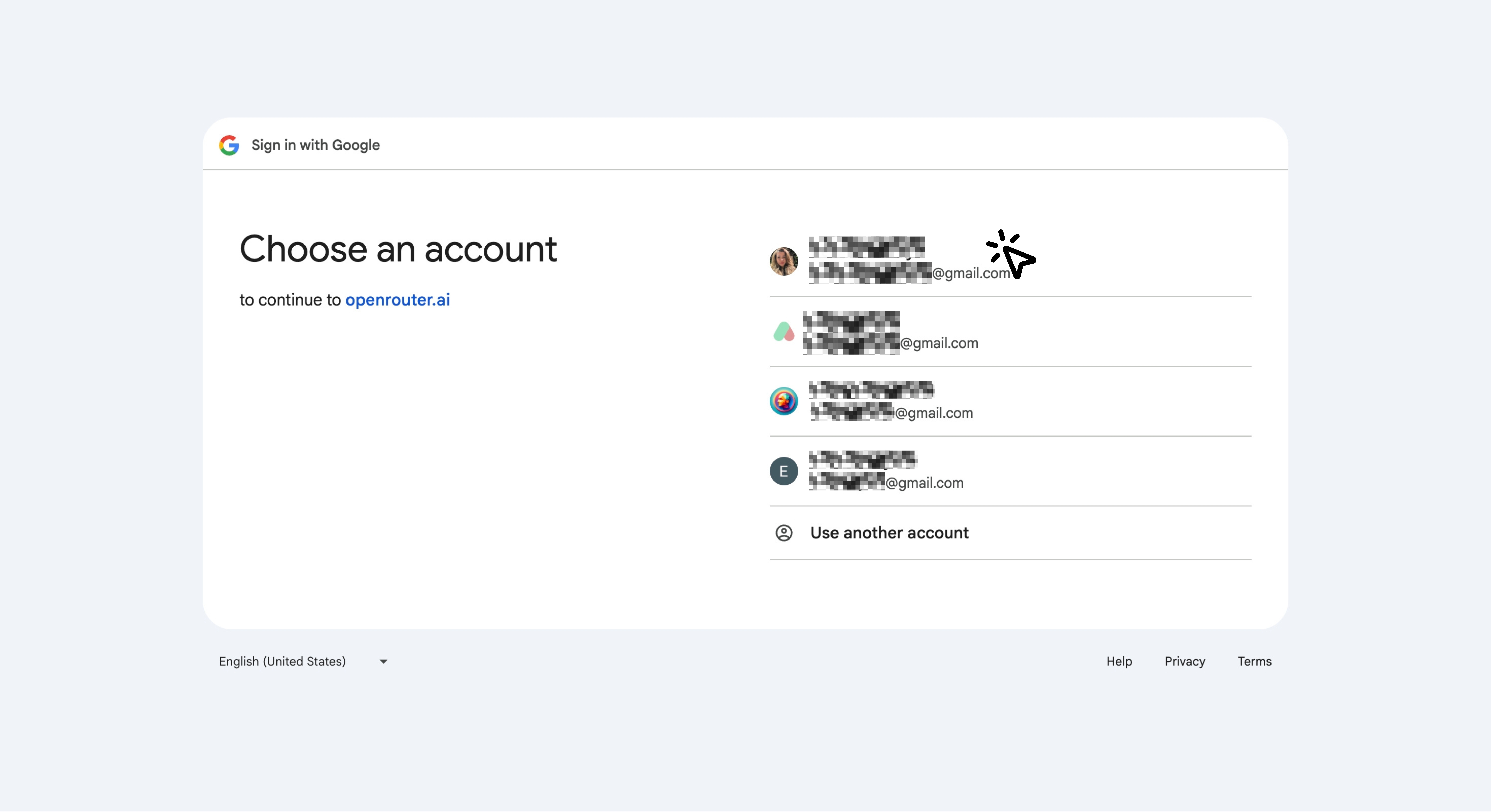 Simply choose your account to continue.
Step 4:
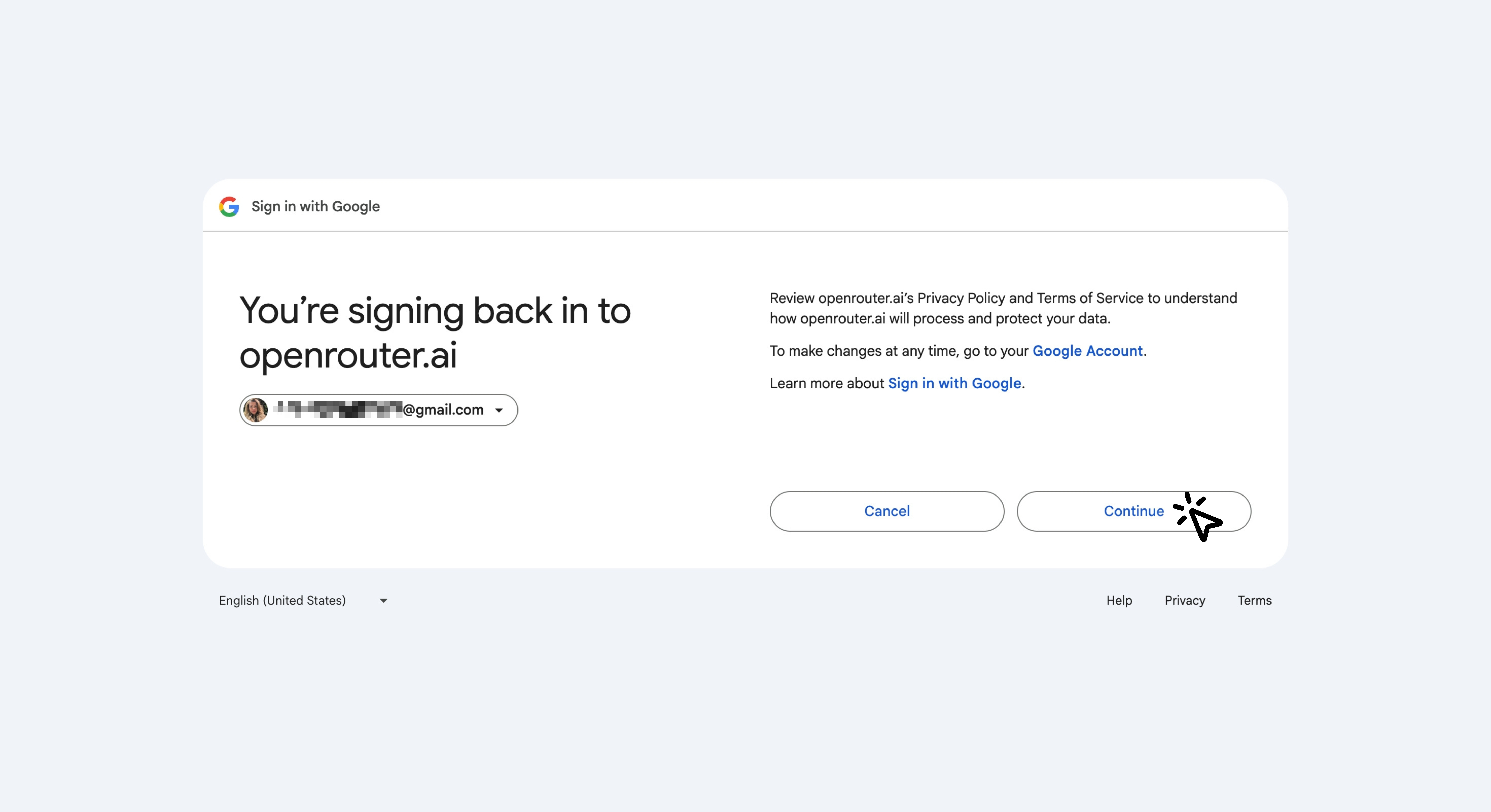 Click Continue to confirm signing in to OpenRouter using your Google account.
Step 5:
 Click Create API Key.
Step 6:
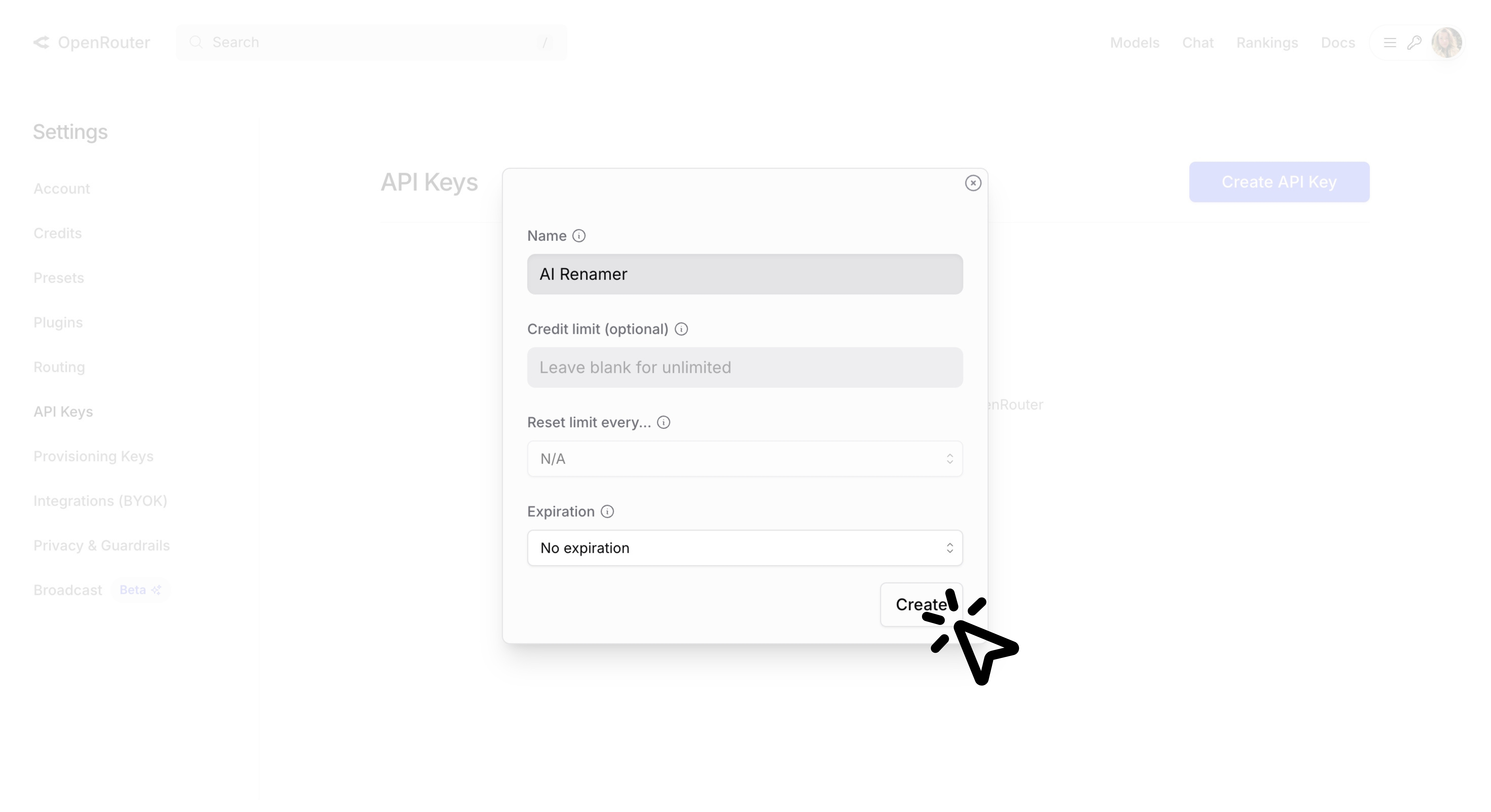 Give it a name (e.g., “AI Renamer”), and click Create.
Step 7:
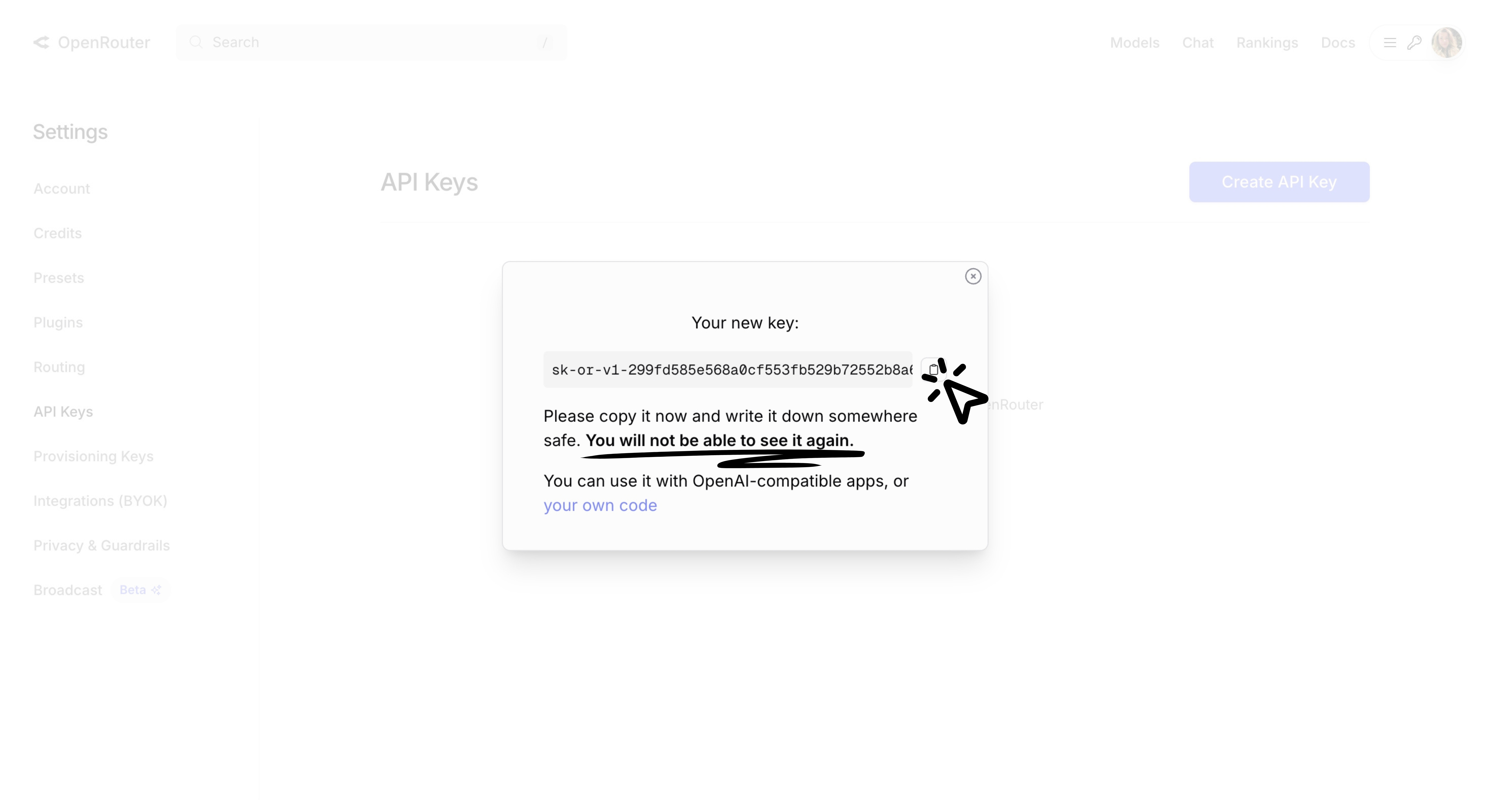 ⚠️ Copy the API key and store it somewhere safe, as you’ll need it in the next steps.
Step 8:
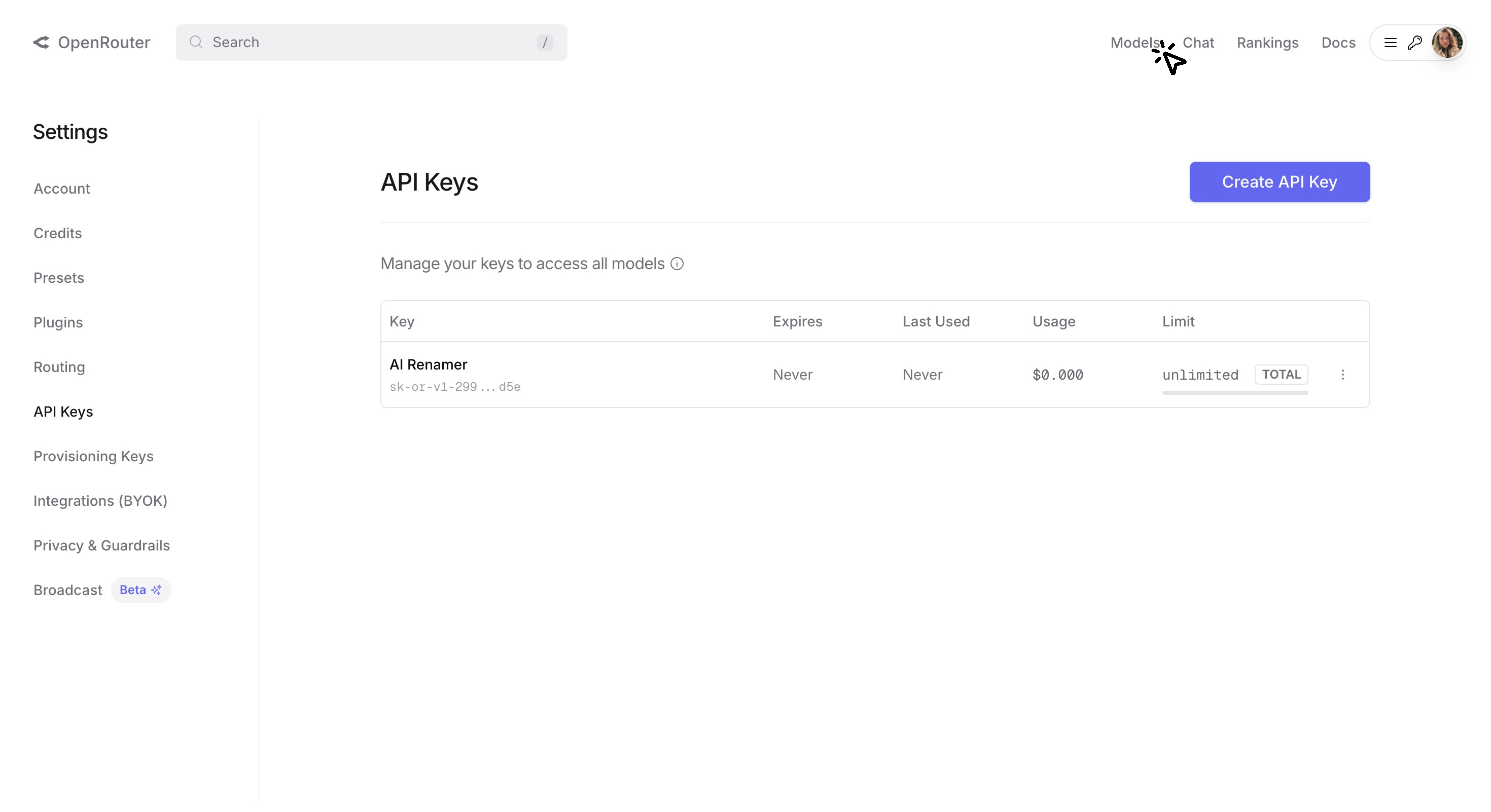 You have successfully created the API Key. Now it's time to select the AI model you will use. Click on Models located in the top right corner.
Step 9:
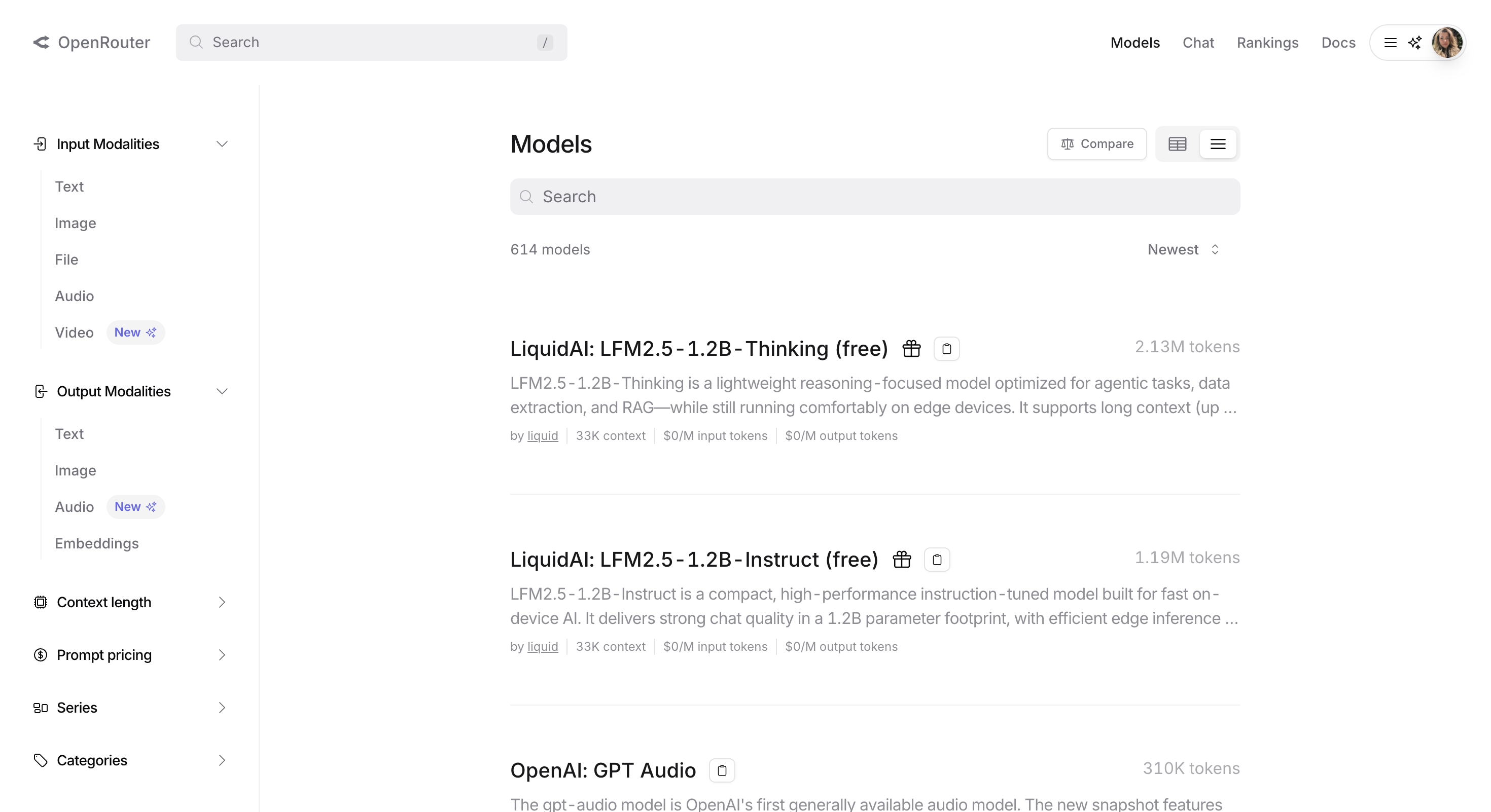 There are AI models available that you can use both for free and for a fee.
Step 10:
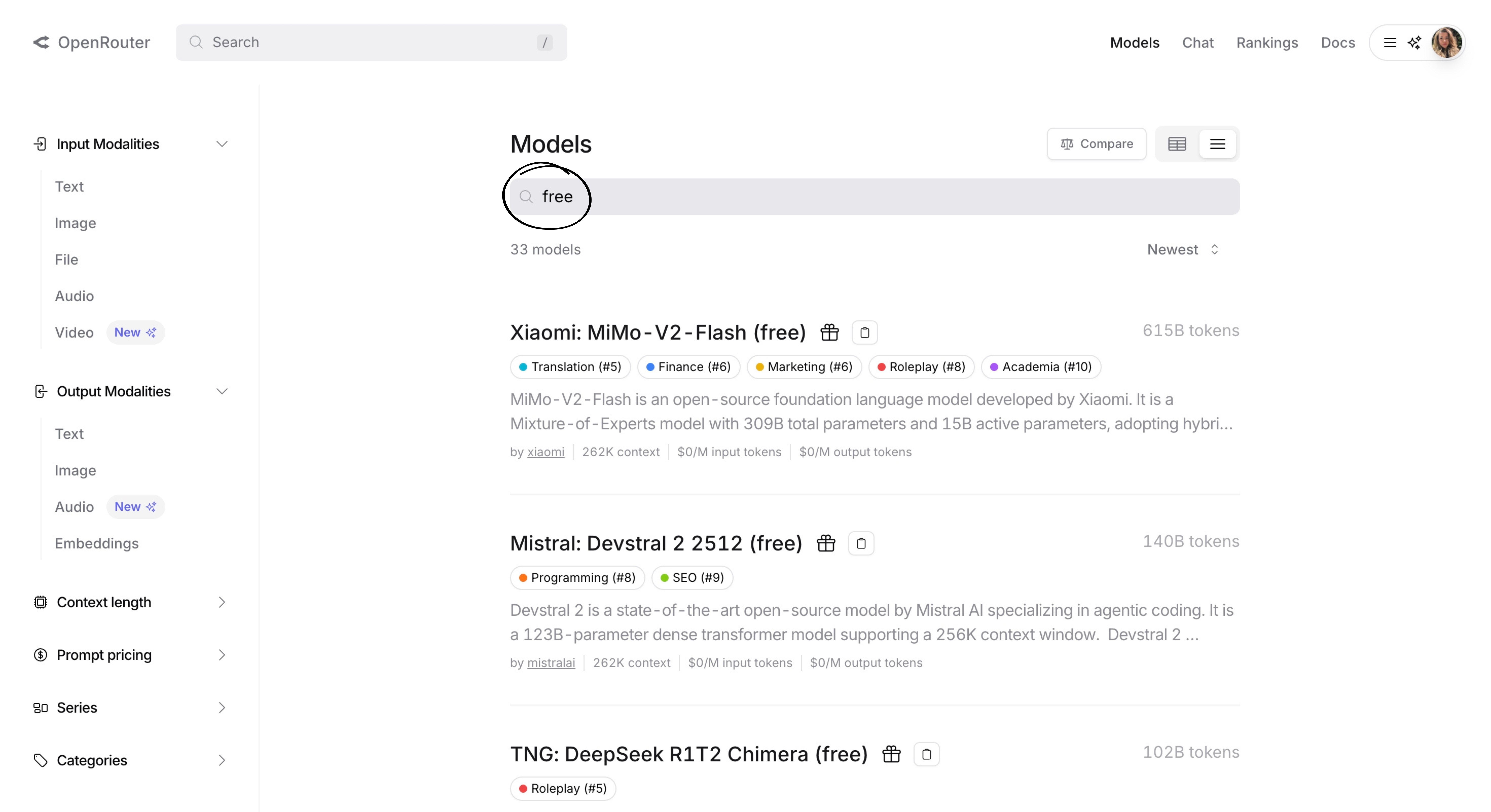 Search for “free” to see free AI models.
Step 11:
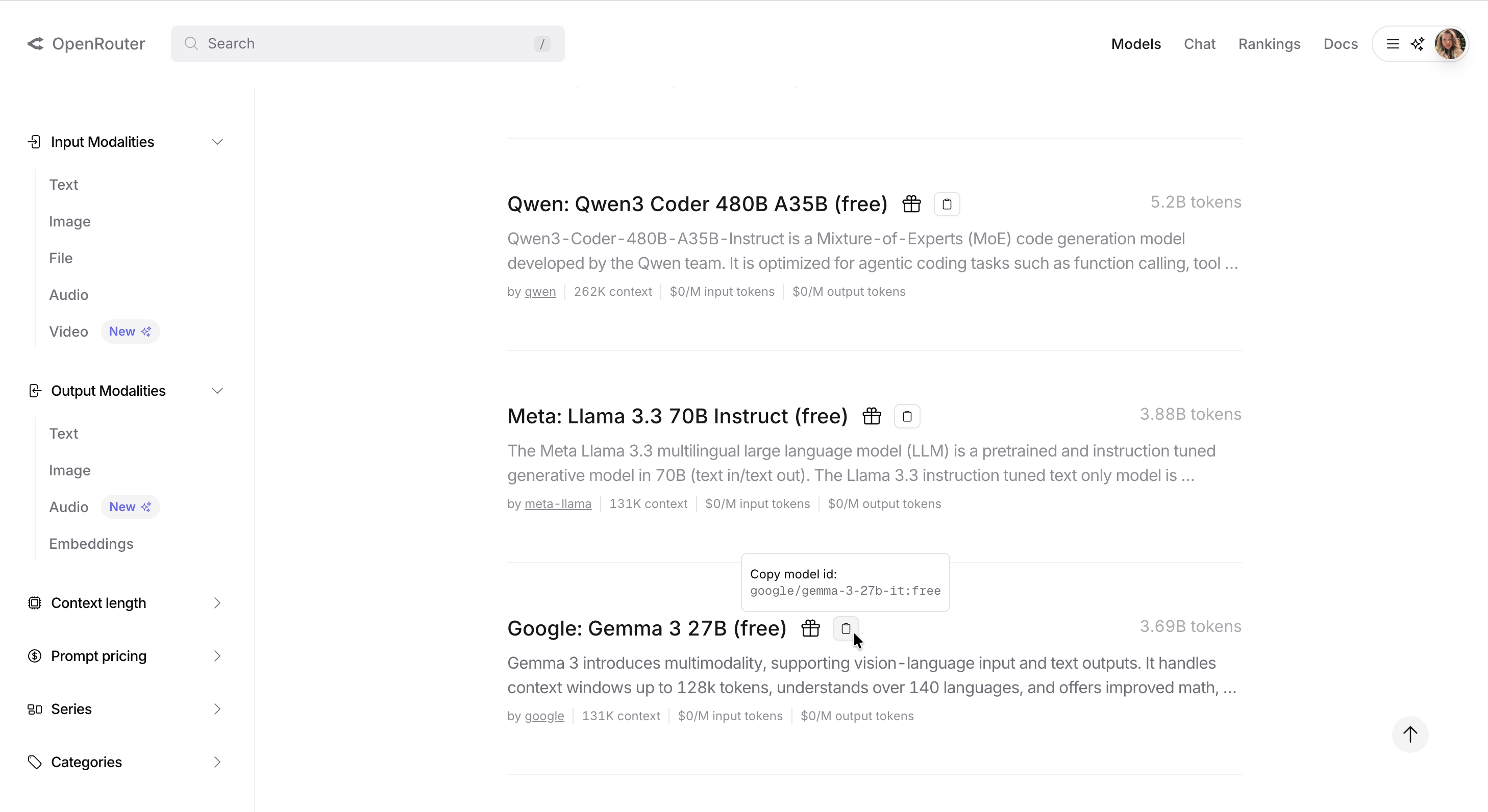 You can use any of the free models you like. I chose Google’s Gemma 3 27B (free) model. Also copied the model ID because I’ll need it later in AI Renamer.
Step 12:
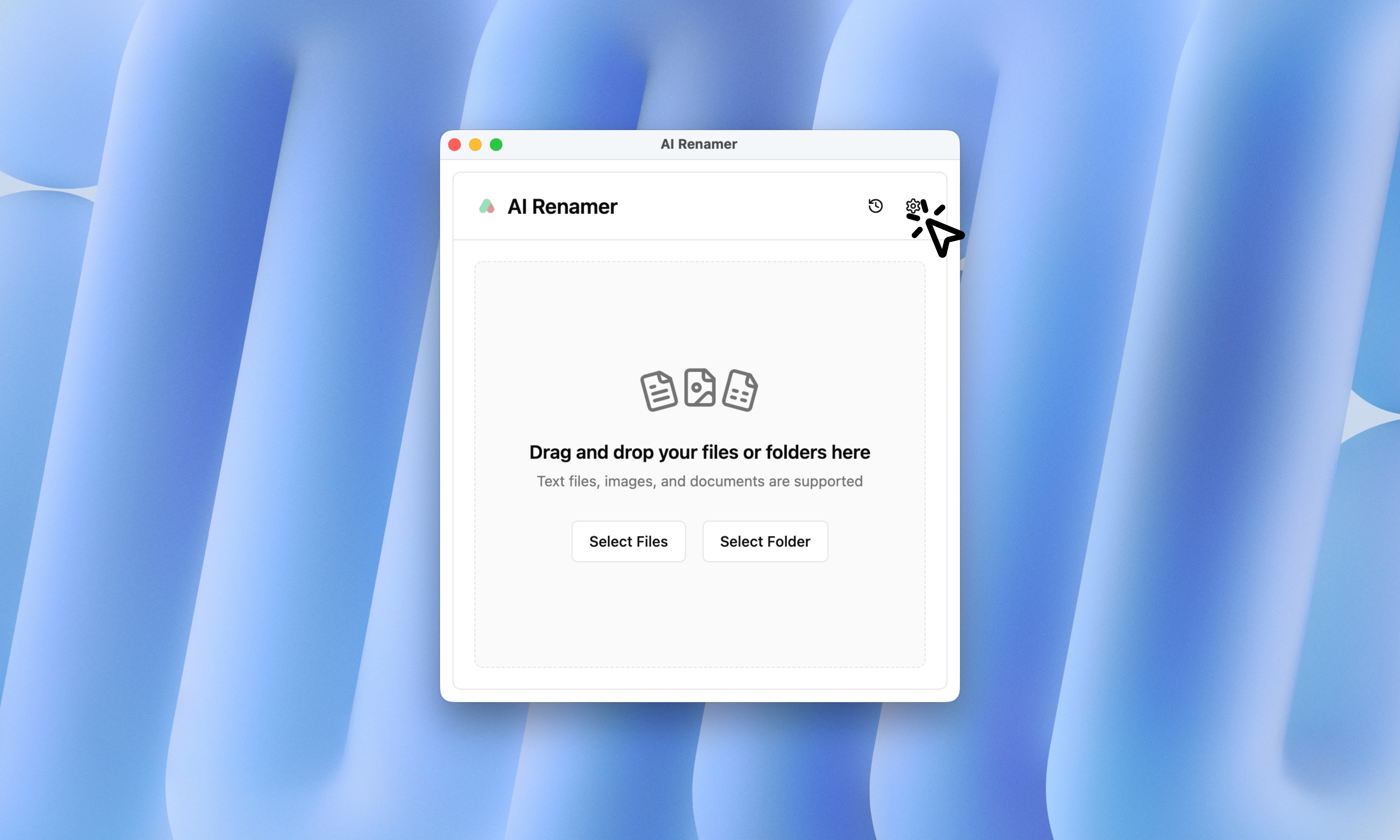 Open AI Renamer on your computer and go to settings.
Step 13:
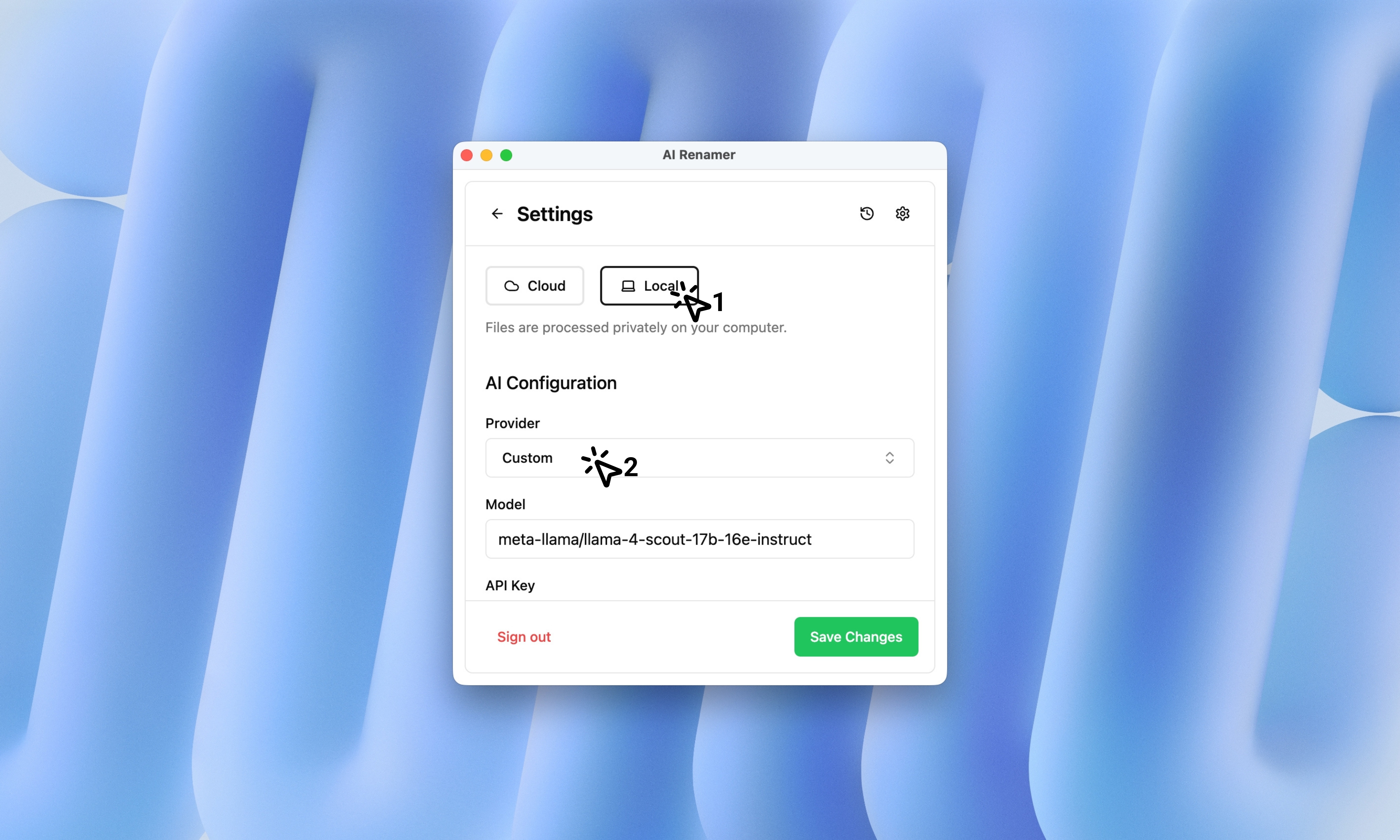 In the Settings section, select Local Mode, then click the Provider field in the AI Configuration section.
Step 14:
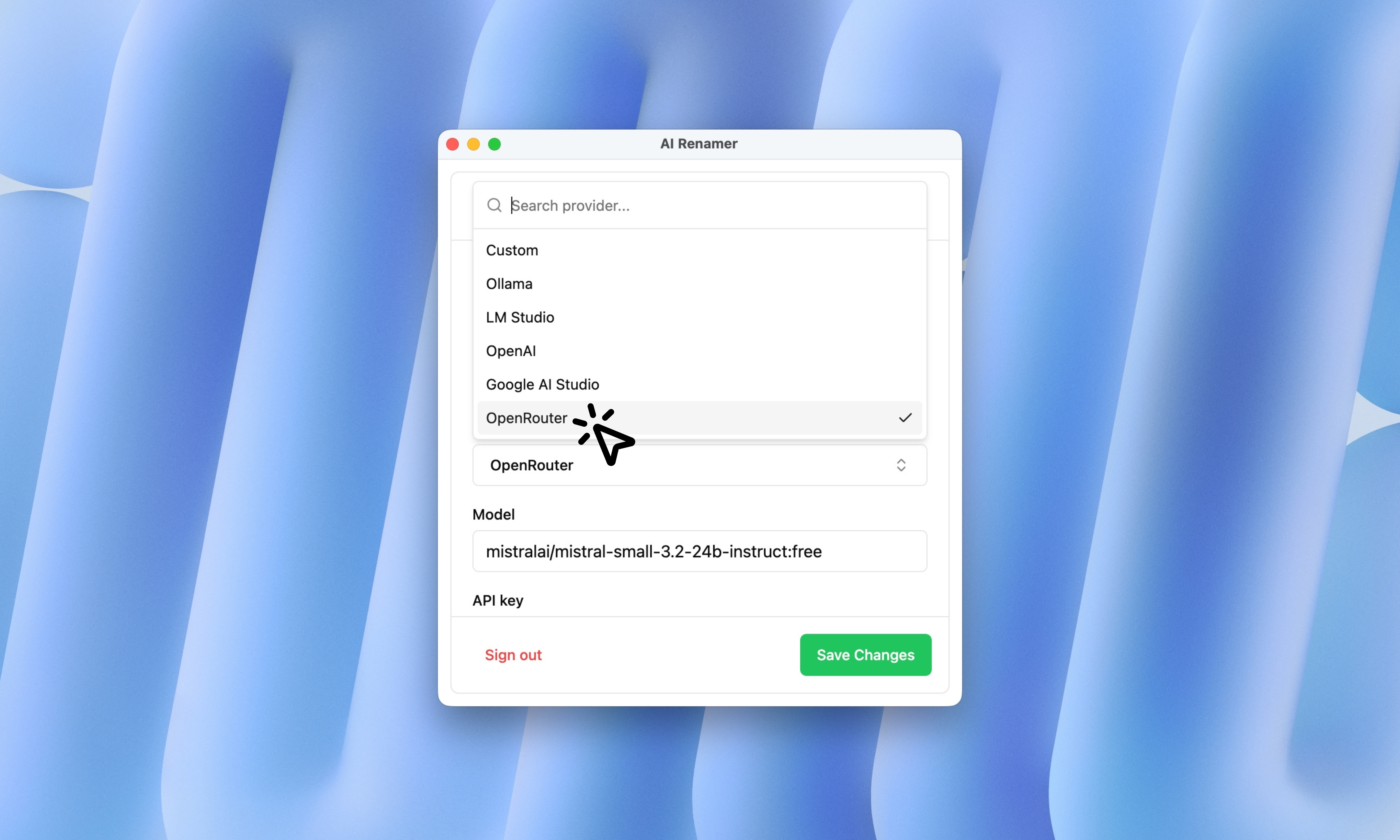 In the Provider section, select OpenRouter.
Step 15:
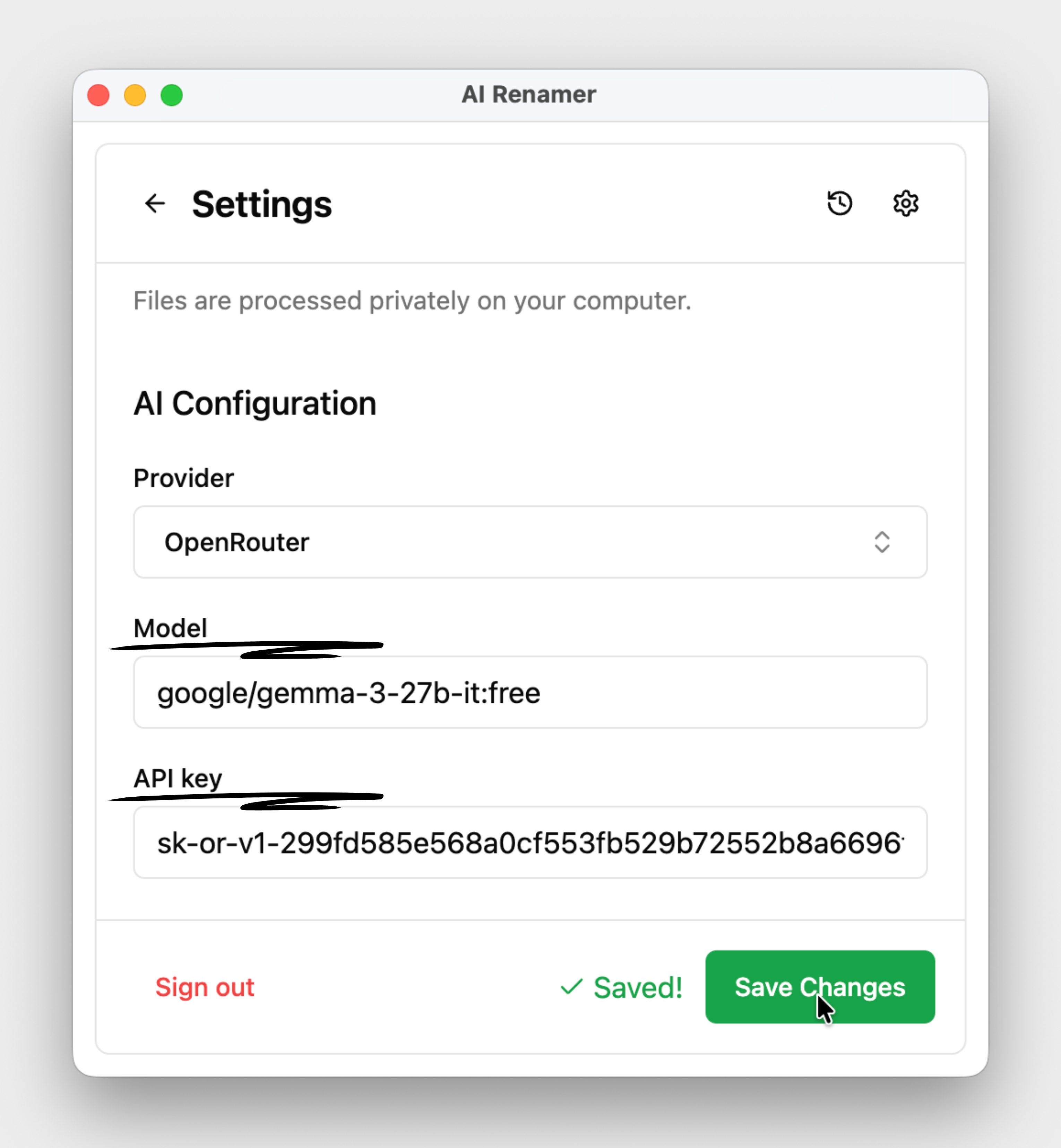 Paste the model ID into the Model field. Then paste the API key you copied earlier into the API key field. Then click Save Changes.
Step 16 (bonus info):
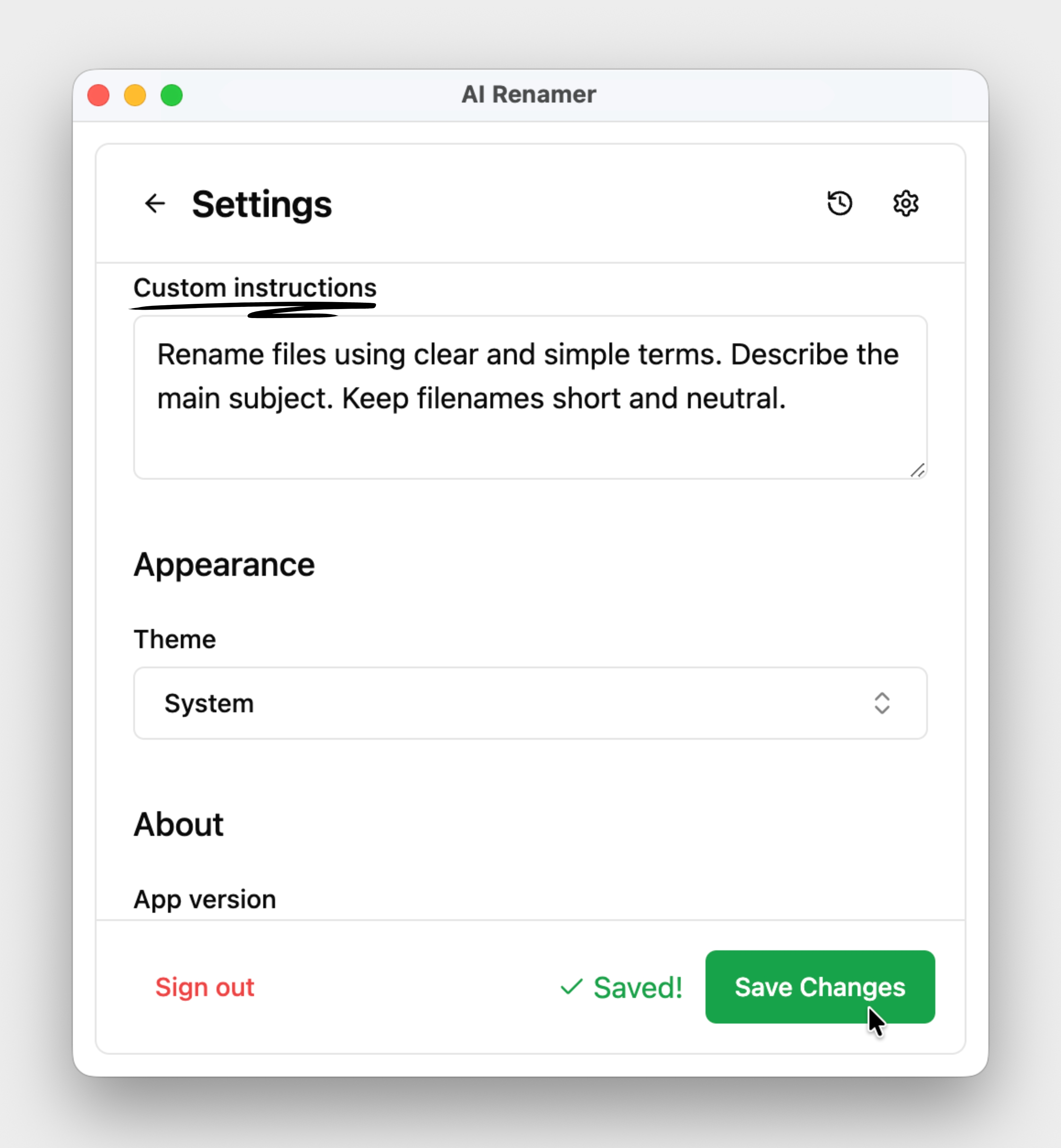 In the Settings section, you’ll also find Custom Instructions.
Custom Instructions allow you to define how your files should be named, such as including the date, document title, or the main subject of an image.
Use Custom Instructions to define file names the way you want:
A general prompt example:
Rename files using clear and simple terms.
Describe the main subject.
Keep file names short and neutral.`
Don’t forget to click Save Changes after adding your custom instructions. For more workflow ideas, see:
👉 10 Professional Use Cases for AI File Renaming Tool
Step 17:
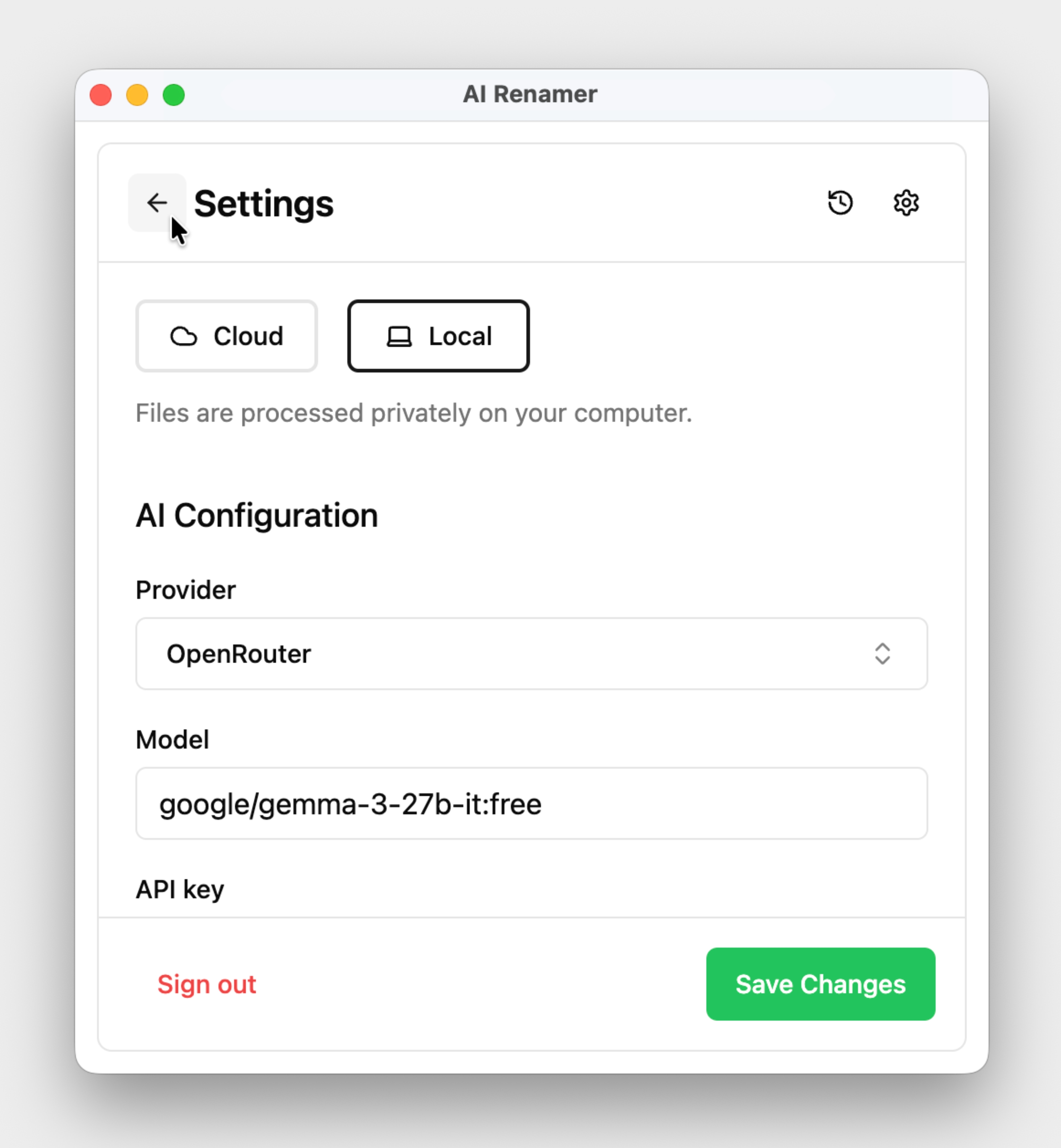 After saving your changes, click the arrow to exit Settings and move on to the file upload section.
Step 18:
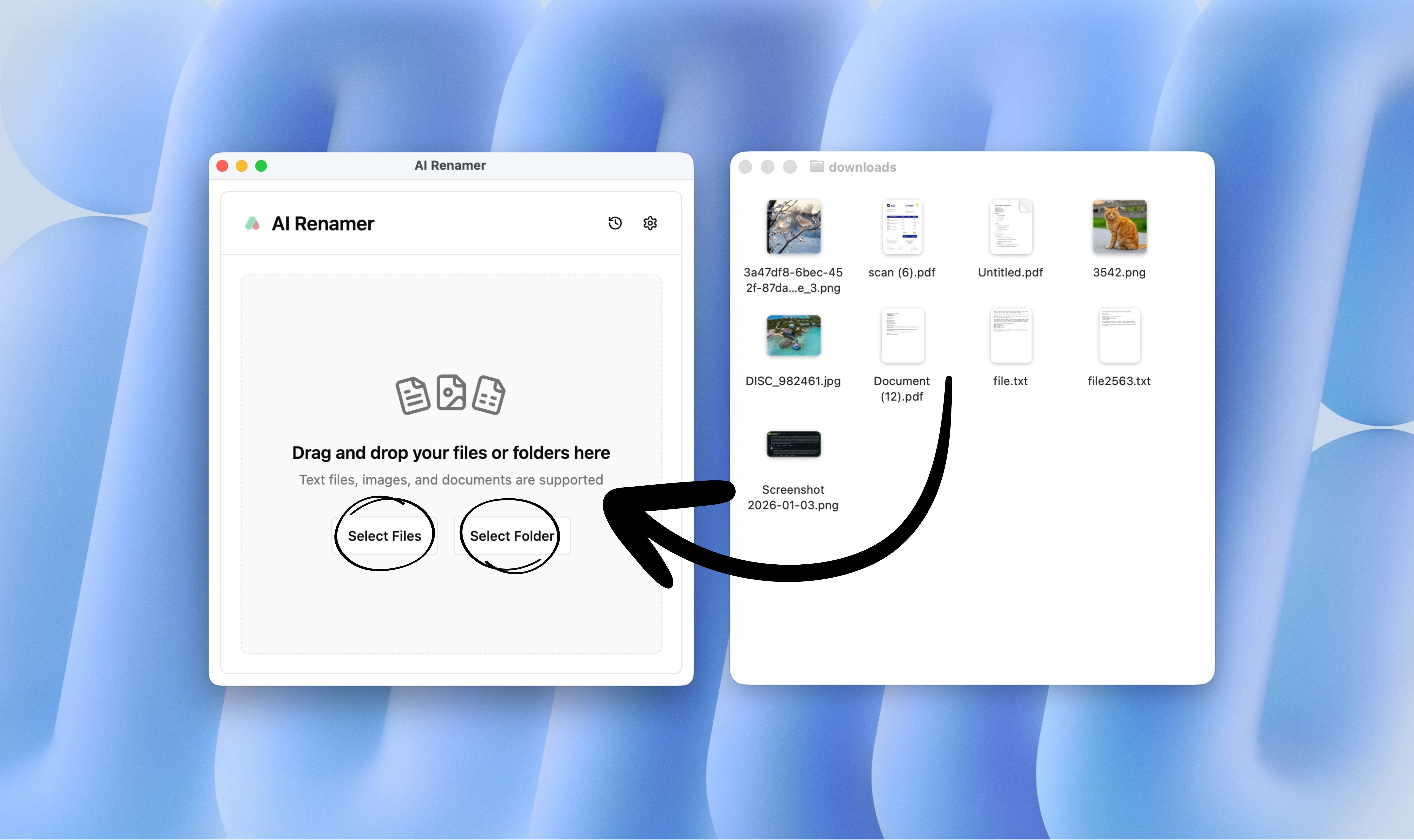 Drag and drop PDFs, images, or documents into AI Renamer. Also you can click Select Files and Select Folder.
Step 19:
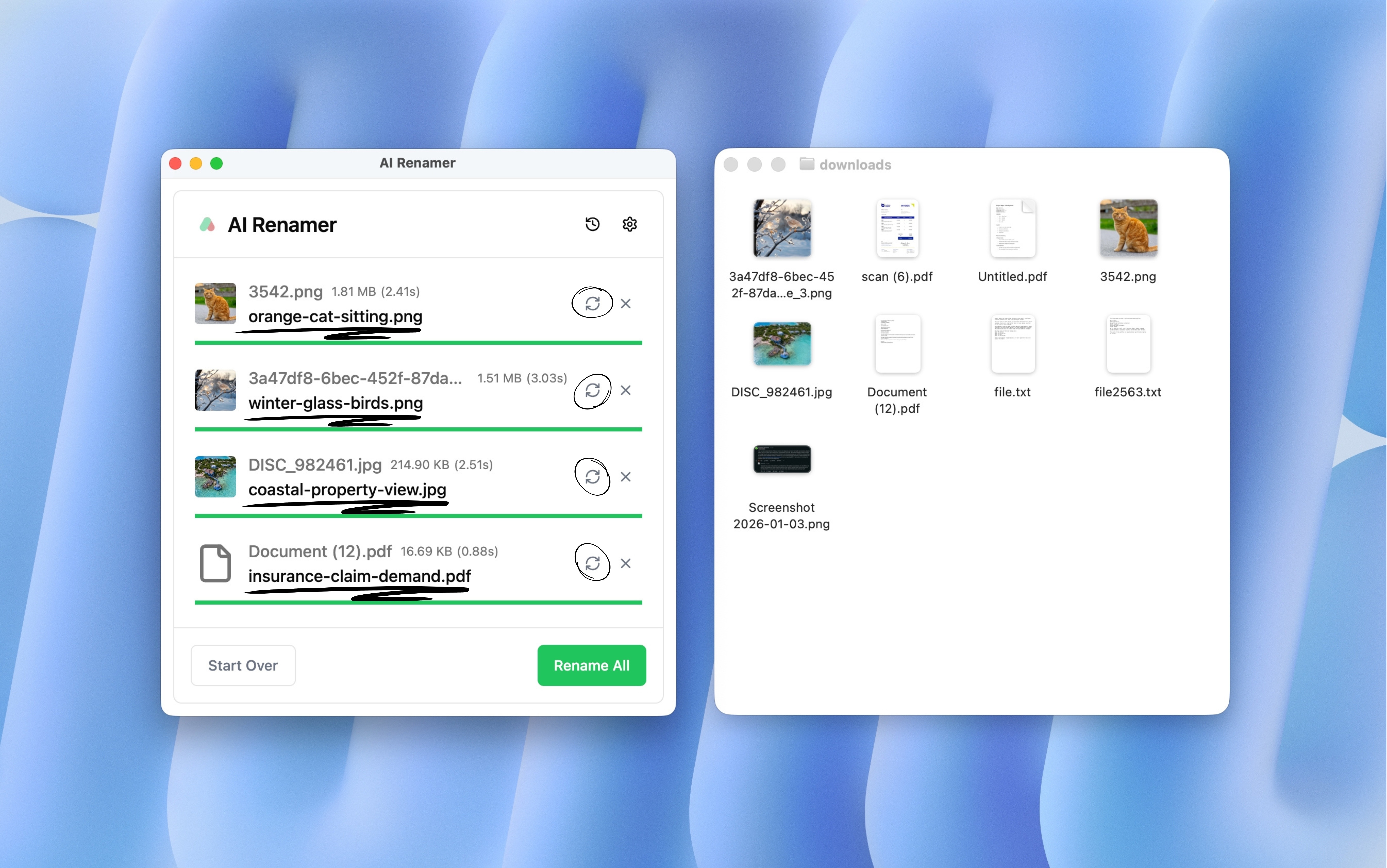 AI Renamer shows a preview of the new file names before renaming, allowing you to review everything before applying any changes.
If you’re not happy with the suggested name, you can click Regenerate to get new suggestion. For better results, it’s recommended to use a more powerful AI model and well-written Custom Instructions.
Step 20:
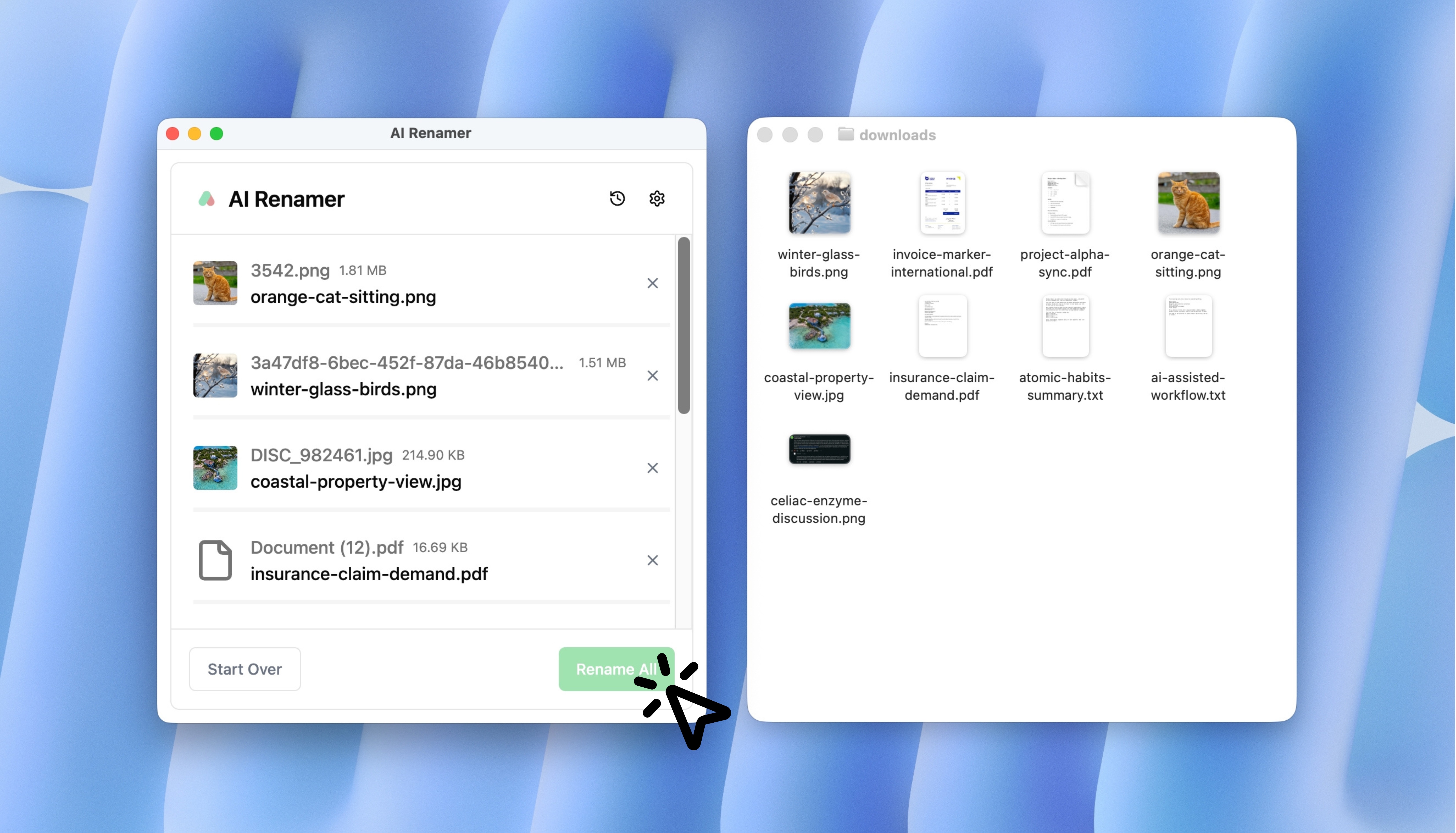 Click Rename All to apply the new file names.
You’re Done 🎉
You’re now using AI Renamer with OpenRouter, no powerful computer required.
Common Problems & Fixes
Model returns gibberish?
→ Use a higher-quality model.
Slow responses?
→ Try a smaller model.
API error?
→ Double-check your API key. Additionally, you may have exceeded the time/request limit set by the chosen AI model. Try changing the model or wait for a minute and try again.
When Should You Use Local Mode Instead?
AI Renamer Local Mode is designed for users who want full control over their AI provider.
With Local Mode, you can connect:
- Local models (Ollama, LM Studio)
- API-based providers like OpenRouter, OpenAI, Google AI Studio etc.
Local Mode is a good fit if:
- You want unlimited renaming with a one-time payment
- You prefer using your own API keys
- You work with sensitive files and want maximum control
Local Mode features:
- One-time $19 payment
- Unlimited renaming
- Works offline with local models
- Works online with API providers like OpenRouter, Groq etc.
Final Thoughts
Using OpenRouter + AI Renamer is the easiest way to rename files with AI if your computer isn’t powerful.
No local AI models setup.
No heavy models.
Just clean, structured file names fast.