How to Rename 1000+ Screenshots with AI

Your Screenshot Folder Is Not the Problem
The filenames are.
If you’ve been taking screenshots for years, your computer is probably full of files like:
Screenshot 2025-10-03 at 08.41.22.pngScreenshot (1467).pngScreenshot 2021-07-19 at 21.09.01.png
You know there’s valuable information in there:
- receipts
- invoices
- error messages
- ideas
- designs
- conversations
But finding anything later is almost impossible.
The issue isn’t volume.
It’s that screenshots are named in a way that means nothing to humans.
Why Renaming Is the Real Organization
Most people think they need:
- more folders
- better tagging
- another productivity system
In reality, renaming solves 80% of the problem.
When filenames describe what’s inside the screenshot, you can:
- search instantly
- delete duplicates safely
- move files into folders later (if you want)
Renaming isn’t a boring task. It’s the foundation of file organization.
Why Manual Renaming Doesn’t Work at Scale
Renaming one or two screenshots is fine. Renaming hundreds or thousands is not. Manual renaming fails because:
- it’s slow
- it requires context switching
- it’s inconsistent
- you quit after 5 minutes
Once you cross a few hundred screenshots, manual methods stop being realistic.
How AI Can Rename Screenshots
AI can:
- read text inside screenshots
- understand context
- recognize things like receipts, invoices, error messages, chats, and UI screens
- generate clear, human-readable filenames
Instead of:
Screenshot 2023-08-21 at 14.22.09.png
You get:
app-store-subscription-receipt.png
That’s the difference between guessing and knowing.
Step-by-Step: How to Rename 1000+ Screenshots with AI
Step 1: Gather All Screenshots Into One Folder
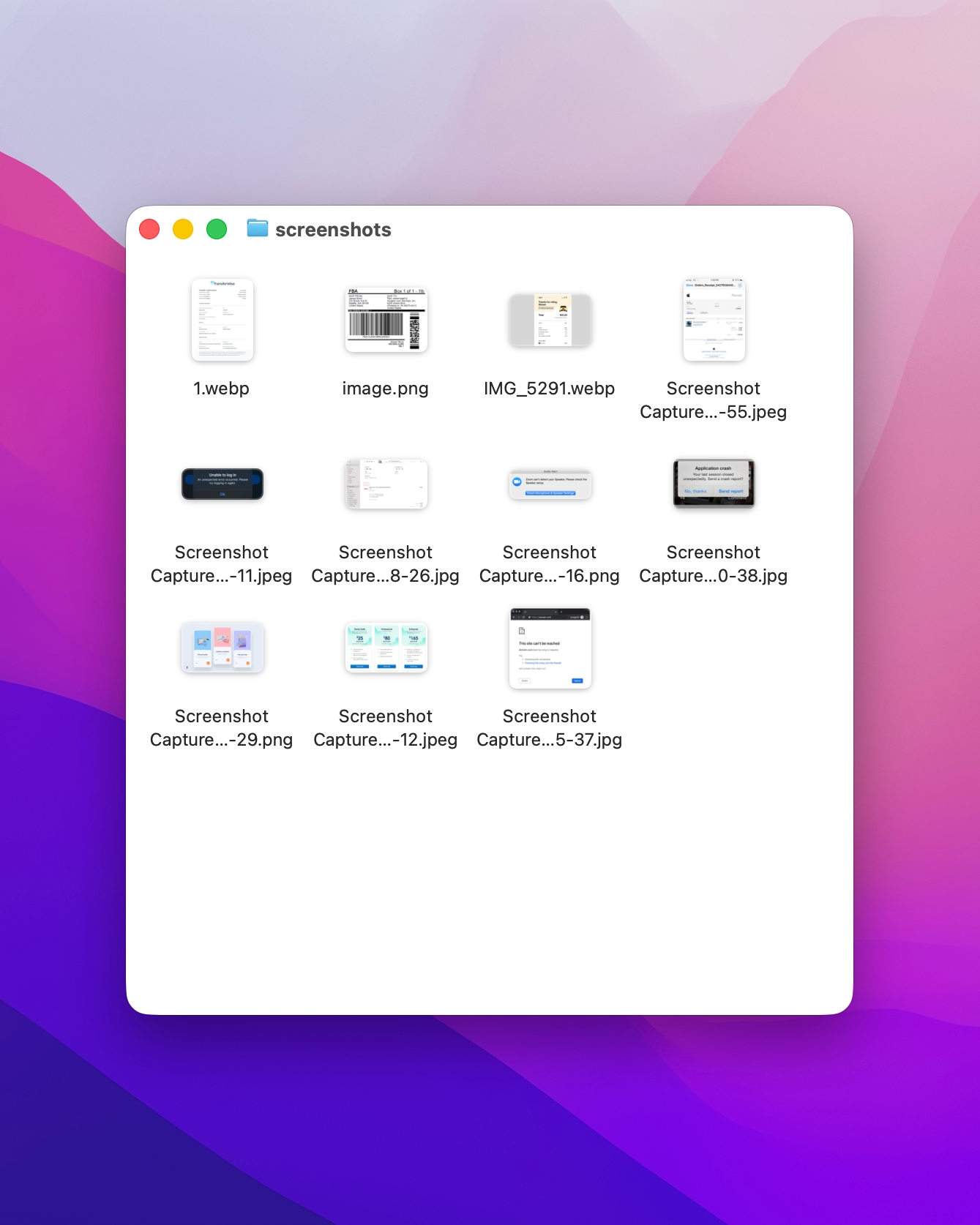 Yes, even the messy ones. We’re going to process everything in one pass. You don’t need to separate files by type or clean anything up beforehand.
This means you can drop mixed files into a single folder and let AI handle them together.
Step 2: Use an AI-powered File Renaming Tool
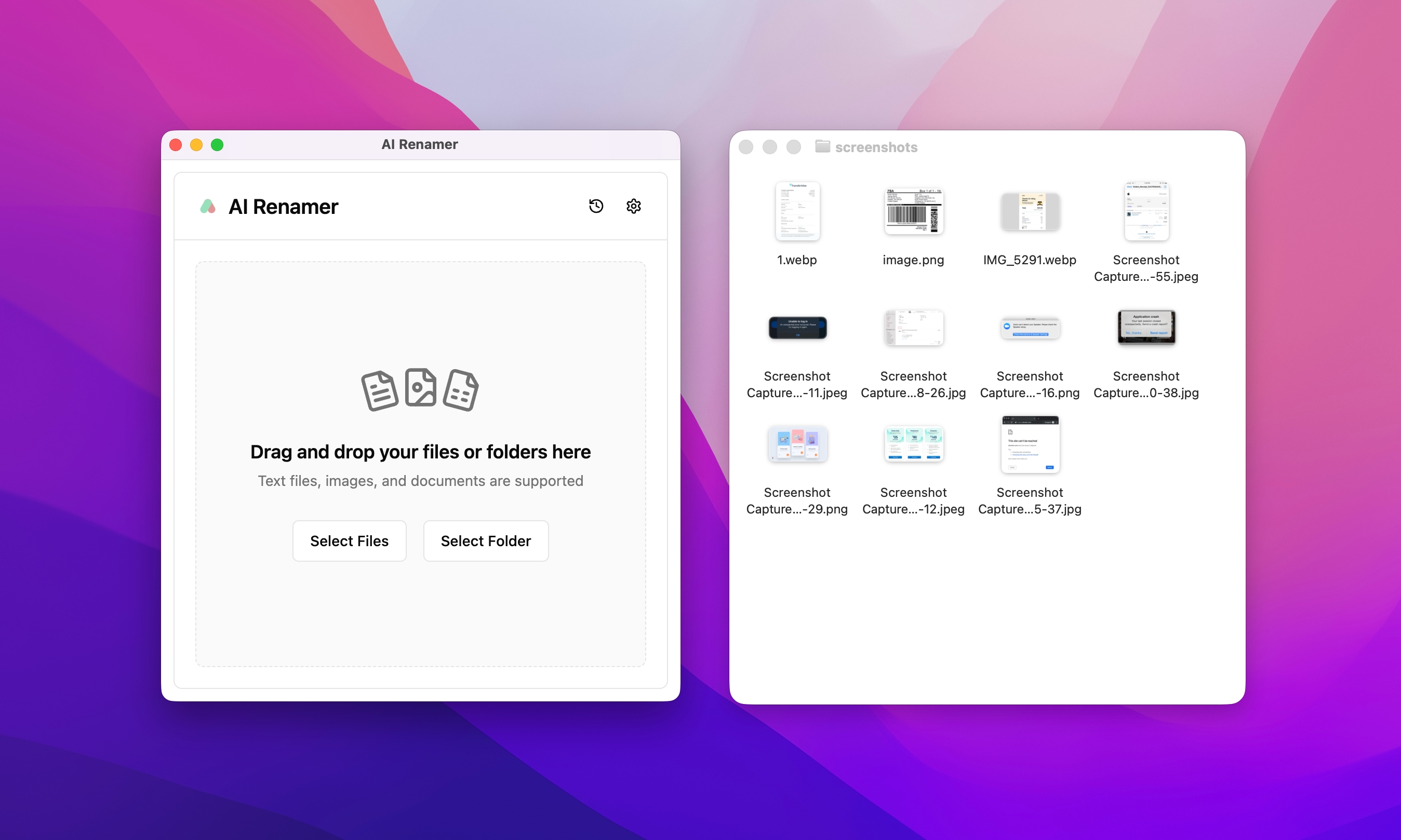 You need a tool that:
- understands image content
- supports batch renaming
- lets you preview names before applying
- doesn’t store your files
AI Renamer is designed specifically for this workflow. If you are new, start here:
Step 3: Let AI Analyze the Screenshots
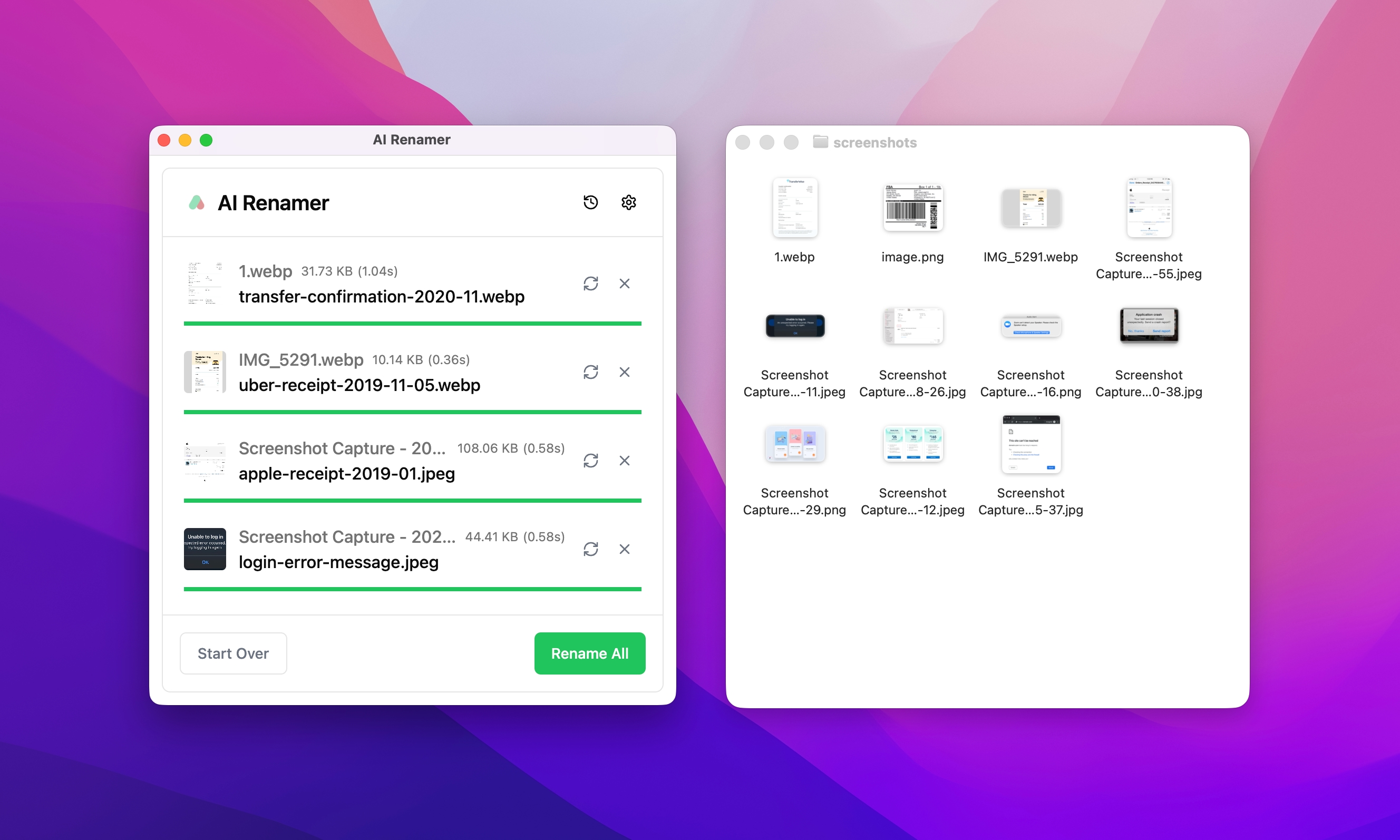 The AI scans each image and generates filenames like:
transfer-confirmation-2020-11.webpuber-receipt-2019-11-05.webpapple-receipt-2019-01.jpeglogin-error-message.jpeg
Each filename tells you exactly what the screenshot contains.
Step 4: Apply Custom Instructions
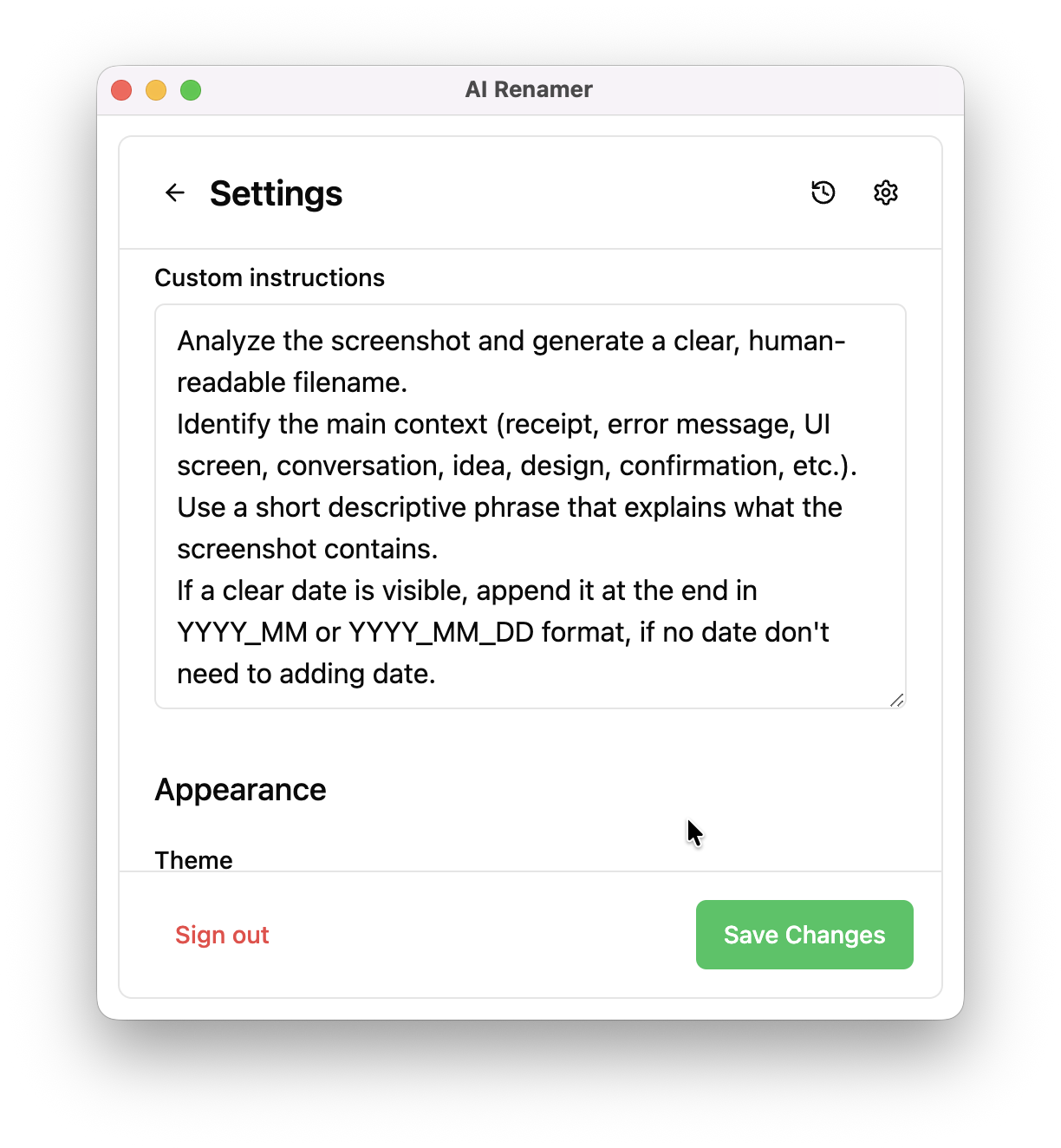 A custom instruction example:
Analyze the screenshot and generate a clear, human-readable filename. Identify the main context (receipt, error message, UI screen, conversation, idea, design, confirmation, etc.). Use a short descriptive phrase that explains what the screenshot contains. If a clear date is visible, append it at the end in YYYY_MM or YYYY_MM_DD format. If no date is visible, do not add one.
Consistency is what makes the system scale.
Step 5: Review and Apply the Changes
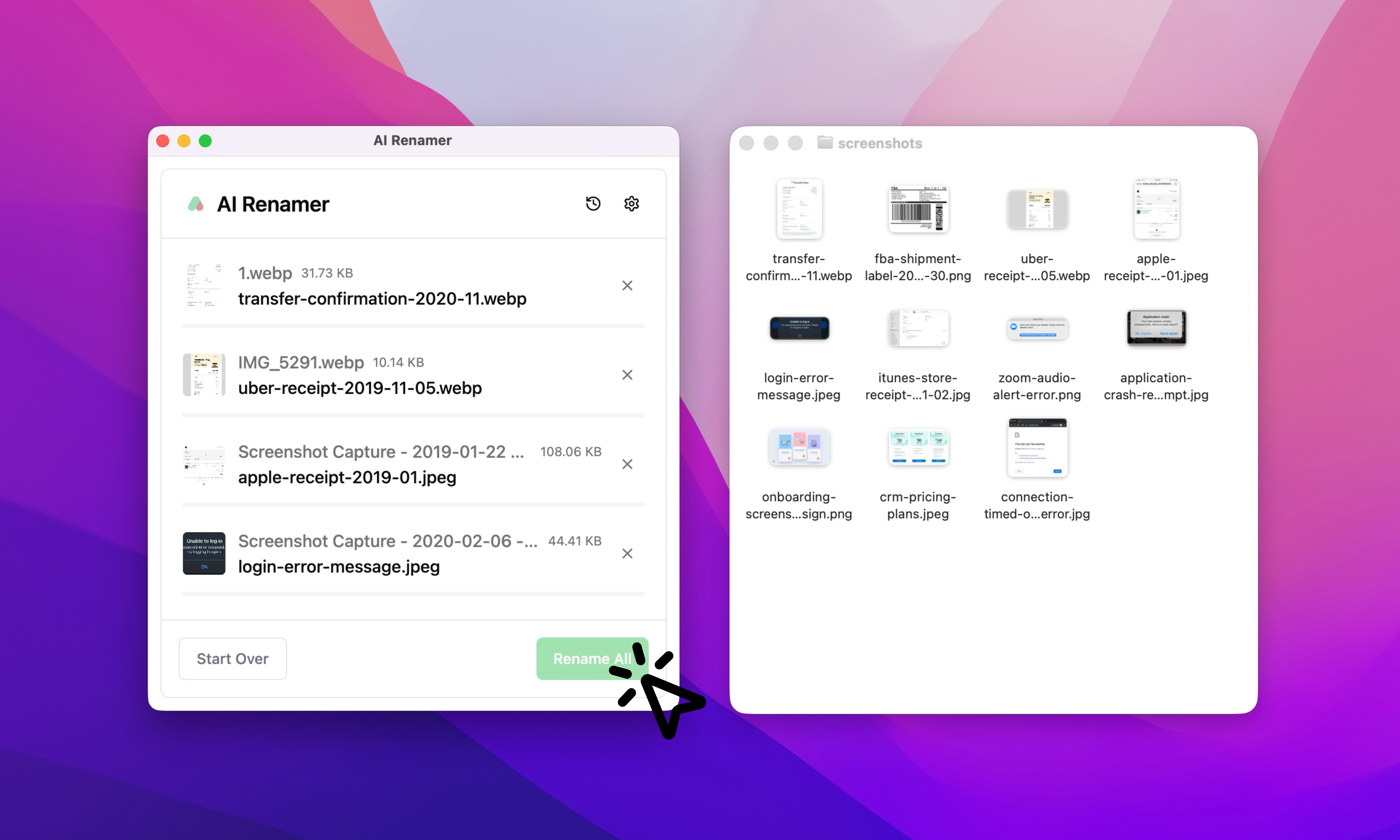 Once the preview looks right, click the Rename All.
In a single step, your screenshots are renamed with consistent, readable filenames—making your archive easier to search, share, and maintain. See real examples here:
10 Professional Use Cases for AI File Renaming Tool
What Happens After Renaming
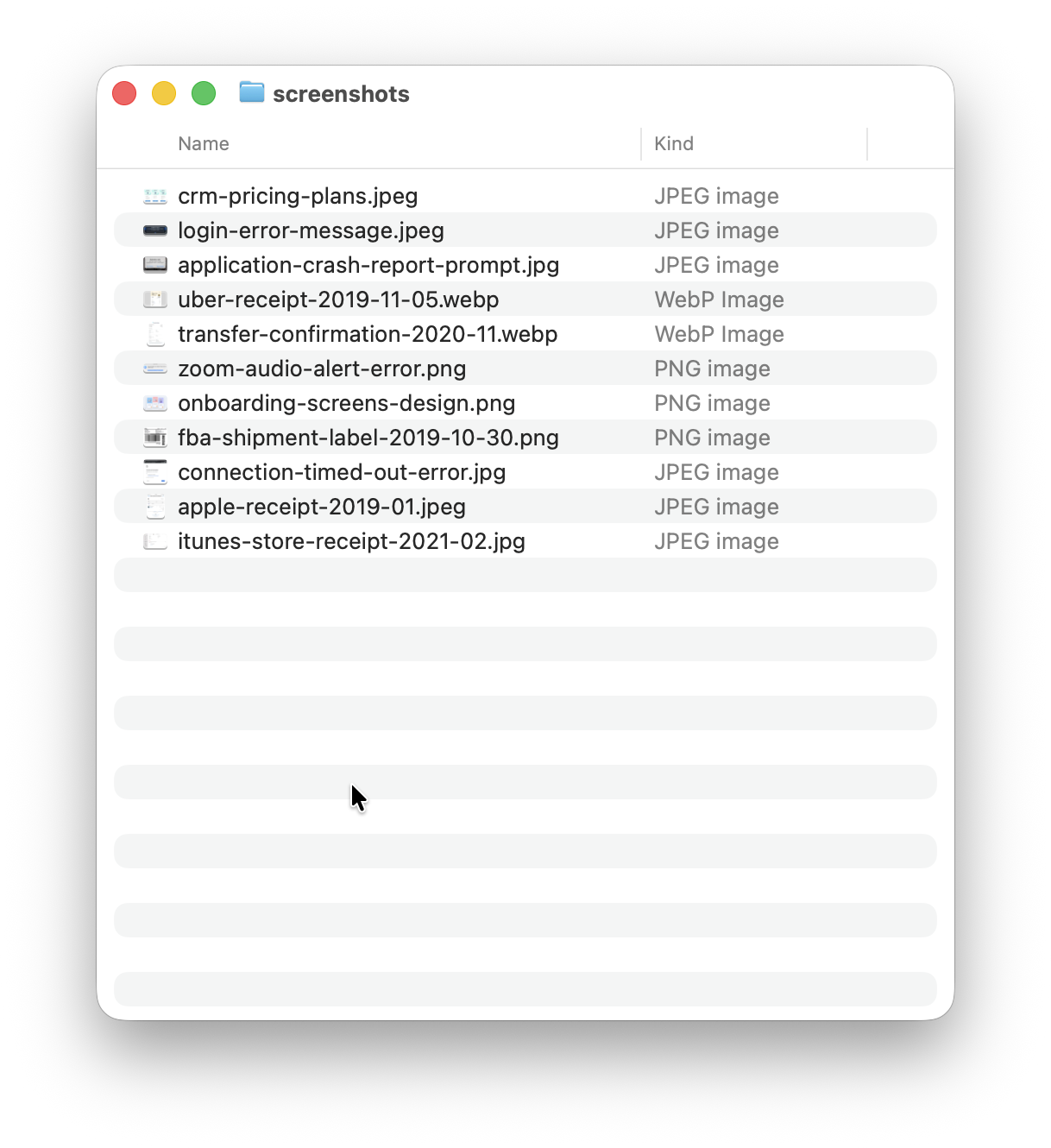 Once screenshots are renamed properly:
- search actually works
- duplicates become obvious
- deleting files feels safe
- folders become optional
At this point, you can:
- keep everything in one folder
- or split into folders like
/Receipts,/Ideas,/Errors
The key is that renaming comes first.
Privacy Matters When Renaming Screenshots
Many screenshots contain sensitive information. Receipts include payment details. Work screenshots may show internal tools, client data, or private conversations.
Uploading these files to external services is risky, and often not allowed. AI Renamer’s Local Mode is designed for these situations.
You stay in control:
- You choose the AI model provider
- You can use local AI models or your own API keys
- Files are processed directly on your device
Nothing is uploaded or stored by AI Renamer.
This makes Local Mode a safe choice for personal files, client-owned documents, and teams working under privacy or compliance requirements. You get AI-powered file renaming without sacrificing privacy.
This Works for More Than Just Screenshots
The same approach works for:
- PDFs
- Images: JPG, PNG, GIF, BMP, TIFF, WEBP
- Documents: TXT, HTML, CSS, JS, TS, MD, and other text-based files
Once you trust AI to rename files correctly, file cleanup stops being painful.
Getting Started Is Simple
AI Renamer works on both platforms. Installation takes minutes.
For Mac users, read:
How to Install AI Renamer on macOS (Step-by-Step with Screenshots)
For Windows users, read:
How to Install AI Renamer on Windows (Step-by-Step with Screenshots)
No complex setup is required.
This Is a One-Time Fix
Renaming 1,000+ screenshots sounds overwhelming. With AI, it’s a one-time task that takes minutes, not days. Once filenames make sense, everything else becomes easy:
- search
- storage
- long-term organization
Clear filenames are not a luxury.
They’re the difference between digital clutter and control.
Try It Yourself
If you want to rename thousands of screenshots:
- automatically
- accurately
- and with full privacy
AI Renamer was built for exactly this problem. Rename once. Stay organized without thinking about it.