How to Automatically Rename UI Assets for Designers Using AI

A Fast and Private Way to Batch Rename UI Assets, Icons, Screens, and Design Exports
Designers work with hundreds of assets per project, including:
- UI screens
- Icon sets
- Design system components
- App store screenshots
- Marketing visuals
- Web and mobile exports
But design tools like Figma, Sketch, and Photoshop often generate messy filenames such as:
Frame 123.pngUntitled-1.pngartboard-copy-5.pngScreenshot 2025-02-11.png
This creates friction during:
- Developer handoff
- Design system maintenance
- App store or marketing preparation
- Version tracking across iterations
If you're new to AI Renamer, start here:
In this guide, you’ll learn how to automatically rename UI assets using AI so your folders stay clean, consistent, and easy to navigate.
Why UI Assets Are Hard to Organize
Exported files frequently come with default or duplicate names like:
Frame 1.pngArtboard 5.pngicon-23.svgGroup 14 copy 2.png
Over time, this leads to:
- Multiple versions of the same screen
- Inconsistent icon names
- Mixed platform exports (iOS / Android / Web)
- Localized assets without a clear pattern
- Folders full of screenshots you don’t recognize
These issues slow down workflows and make it harder to maintain structure across large UI projects.
A dedicated AI-powered renamer fixes this by generating consistent, descriptive filenames automatically.
How AI Renamer Helps UI Designers
 AI Renamer analyzes each file and produces clear, structured filenames that align with your workflow or design system conventions.
With AI Renamer, you can:
- Batch rename entire folders of UI exports
- Apply your own naming rules with Custom Instructions
- Keep everything private using Local Mode
- Use file type, content, and metadata to improve naming accuracy
Supported Asset Formats
AI Renamer works with common design formats, including:
- Images: PNG, JPG, GIF, BMP, TIFF, WEBP
- Vector: SVG
- Documents: PDF, TXT, MD, HTML, CSS, JS, TS, and more
This makes it ideal for renaming:
- UI screen exports
- Icon libraries
- Design system component snapshots
- App store screenshots
- Web and mobile mockups
- Presentation assets
What You Can Do With AI Renamer
- Batch rename hundreds of UI assets instantly
- Use Local Mode for full privacy
- Enforce consistent naming patterns across the team
- Preview and adjust filenames before applying
- Keep projects clean without writing scripts or renaming manually
The focus is always on renaming and consistency, better organization happens naturally as a result.
How to Automatically Rename UI Assets with AI (Step-by-Step Guide)
1. Download AI Renamer
 Install AI Renamer for macOS or Windows. Setup takes under a minute.
Need help installing? Follow the step-by-step guides:
2. Choose Local Mode or Cloud Mode
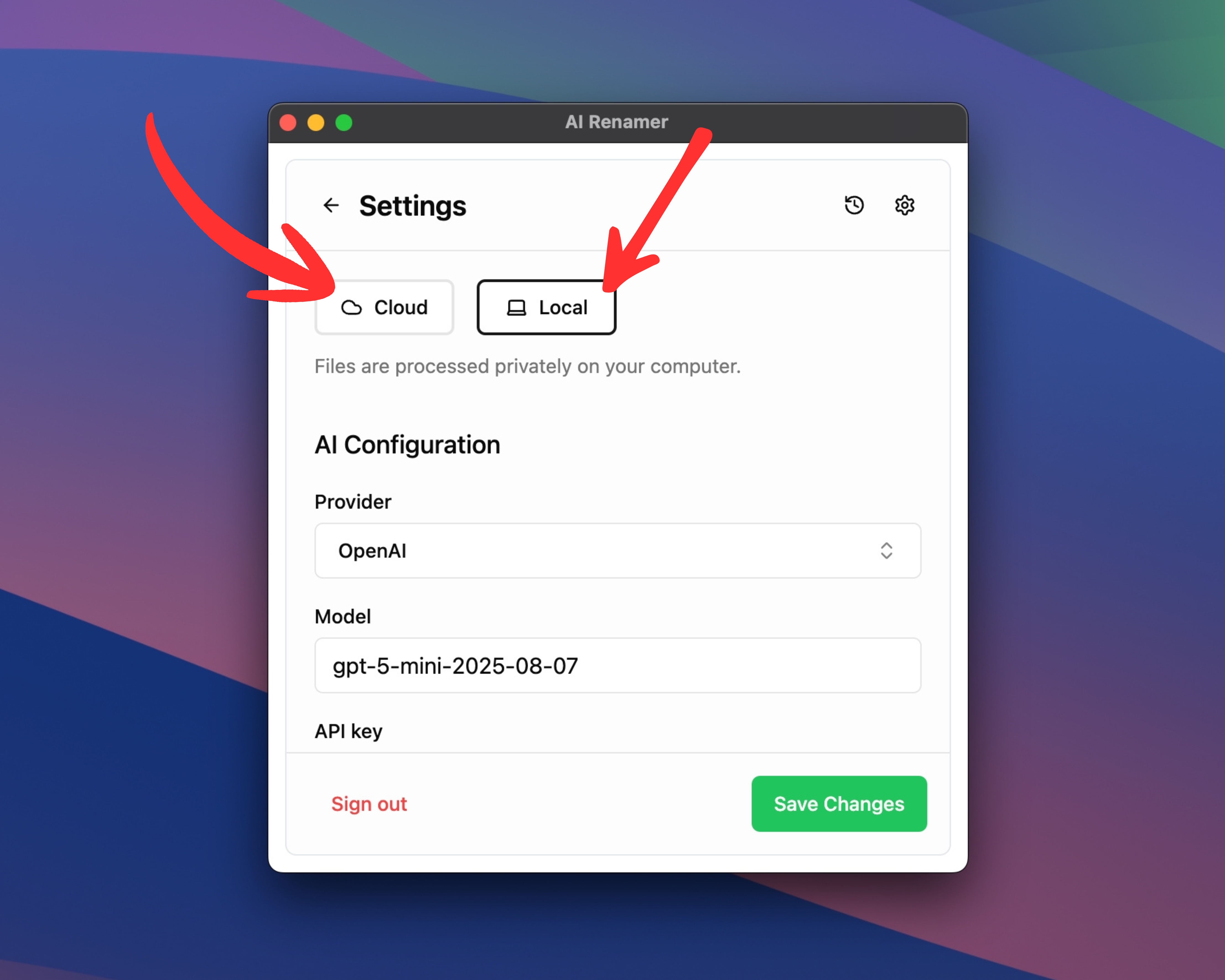 You can choose how AI Renamer processes your files:
Local Mode
- Use your own AI model via Ollama, LM Studio, or custom API keys
- Files stay on your device for maximum privacy
- No cloud file size limits
Cloud Mode
- Use built-in cloud models with prepaid credits
- 1 rename = 1 credit
- Best for convenience and quick sessions
Both modes support renaming UI assets like PNGs, JPGs, SVGs, and PDFs.
3. Add Your UI Assets
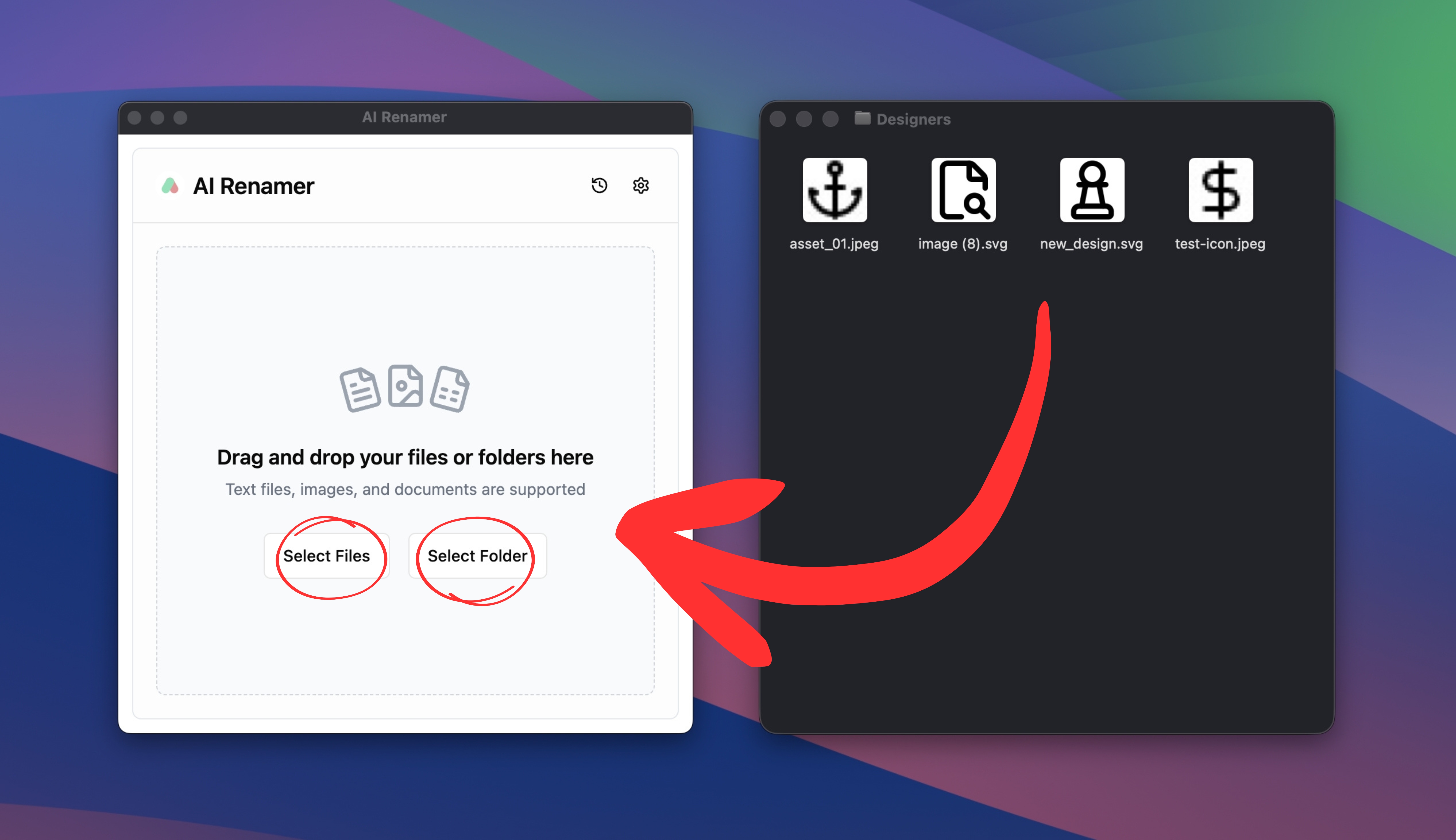 Drag and drop any folder that contains your exports:
screens/icons/store-screenshots/design-system/
AI Renamer scans the files and prepares naming suggestions based on:
- Existing filename
- File type and extension
- Optional content (for screenshots or PDFs)
- Your Custom Instructions (more on that below)
You can mix files from multiple tools (Figma, Sketch, Photoshop, etc.) in a single folder.
4. Preview the AI-Generated Names
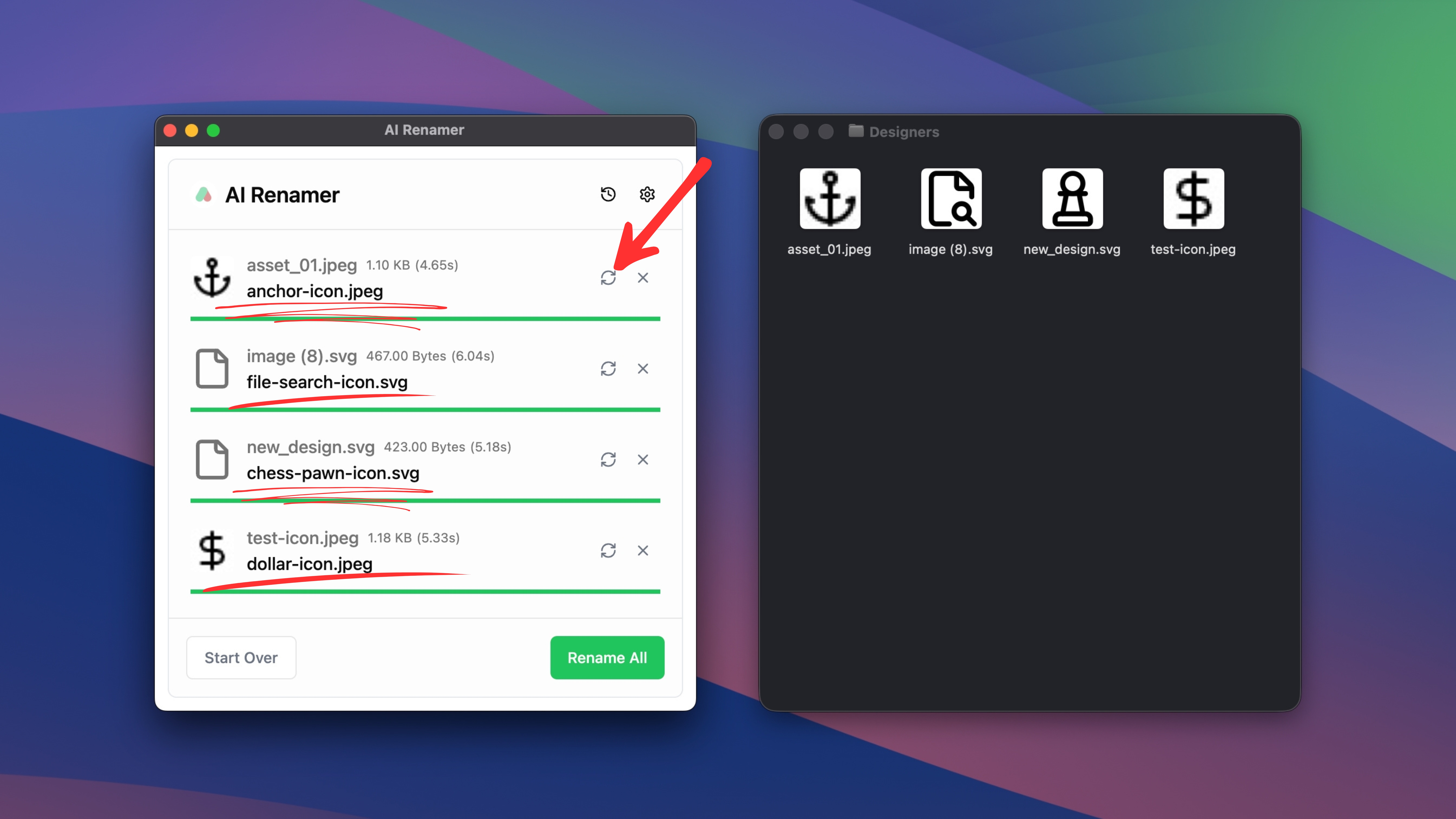 AI Renamer will suggest filenames for each asset. For example, instead of:
Frame 22.png
You might see:
home-icon.png
Instead of:
Screenshot 2025-02-11 at 14.03.51.png
You might see:
web-dashboard-analytics.png
You can:
- Scroll through the list of suggestions
- Click Regenerate to get a new suggestion for a file
This makes it safe to use even on big projects you always keep control.
5. Rename All Assets in One Click
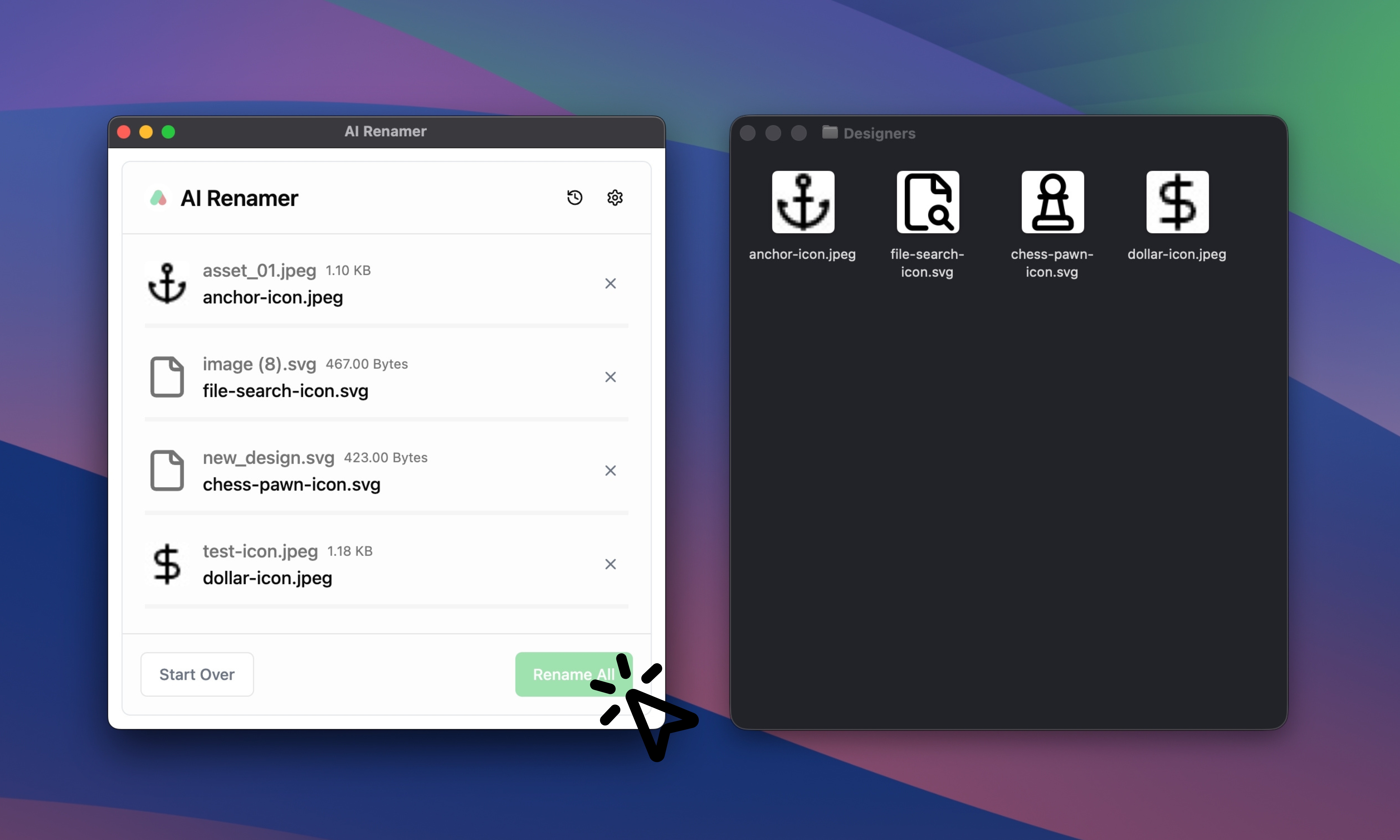 Once you’re happy with the preview:
- Click Rename All
AI Renamer will rename every selected asset at once.
You’ll instantly have:
- Clean, structured filenames
- Easier handoff to developers
- Clear differentiation between platforms, states, and versions
- Reusable assets for future projects
Using Custom Instructions for Consistent UI Asset Naming
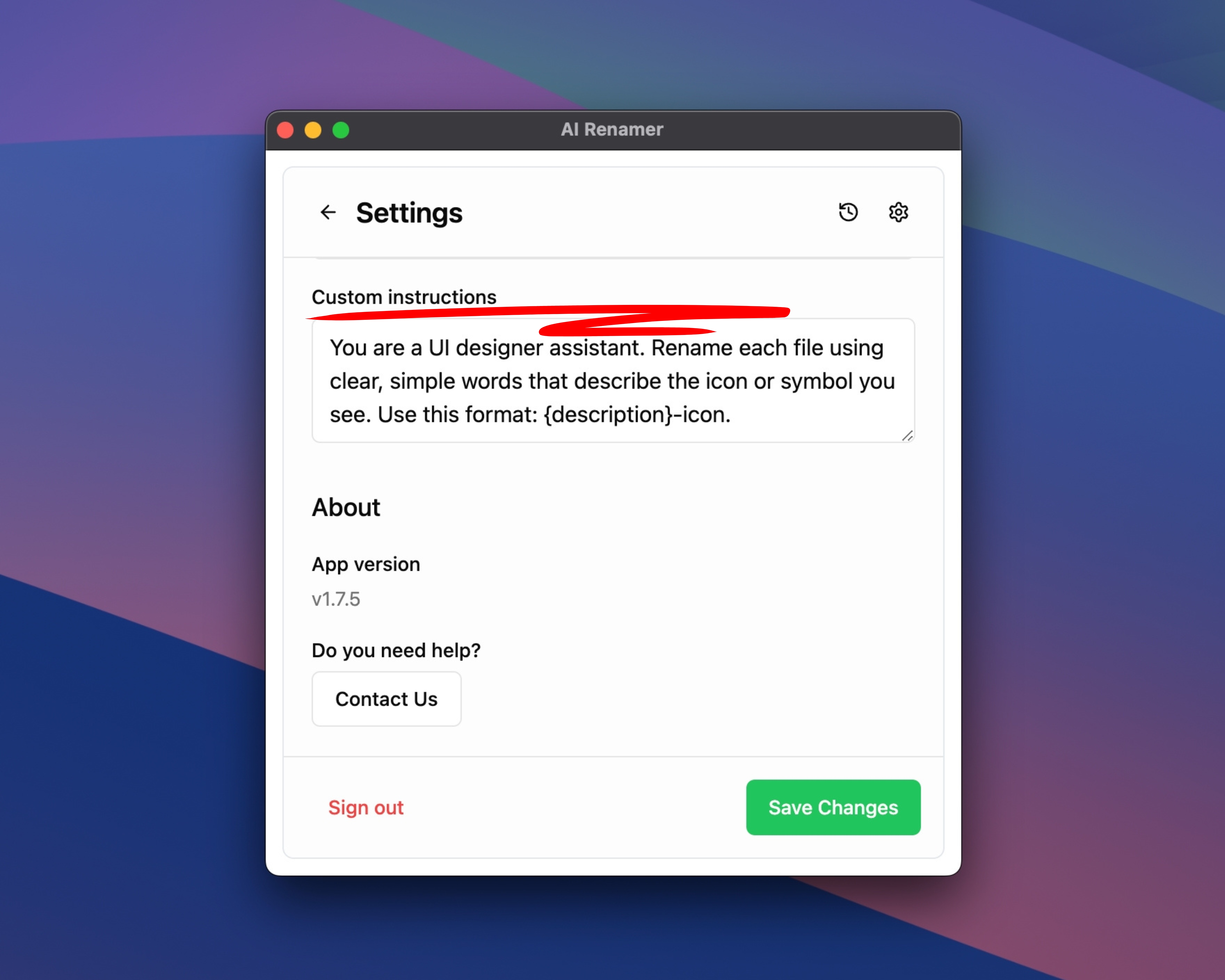 Custom Instructions let you define your preferred naming style, and AI Renamer applies it by describing what it sees in the file.
For UI assets like icons, you can keep it simple:
“You are a UI designer assistant. Rename each file using clear, simple words that describe the icon or symbol you see. Use this format: {description}-icon.”
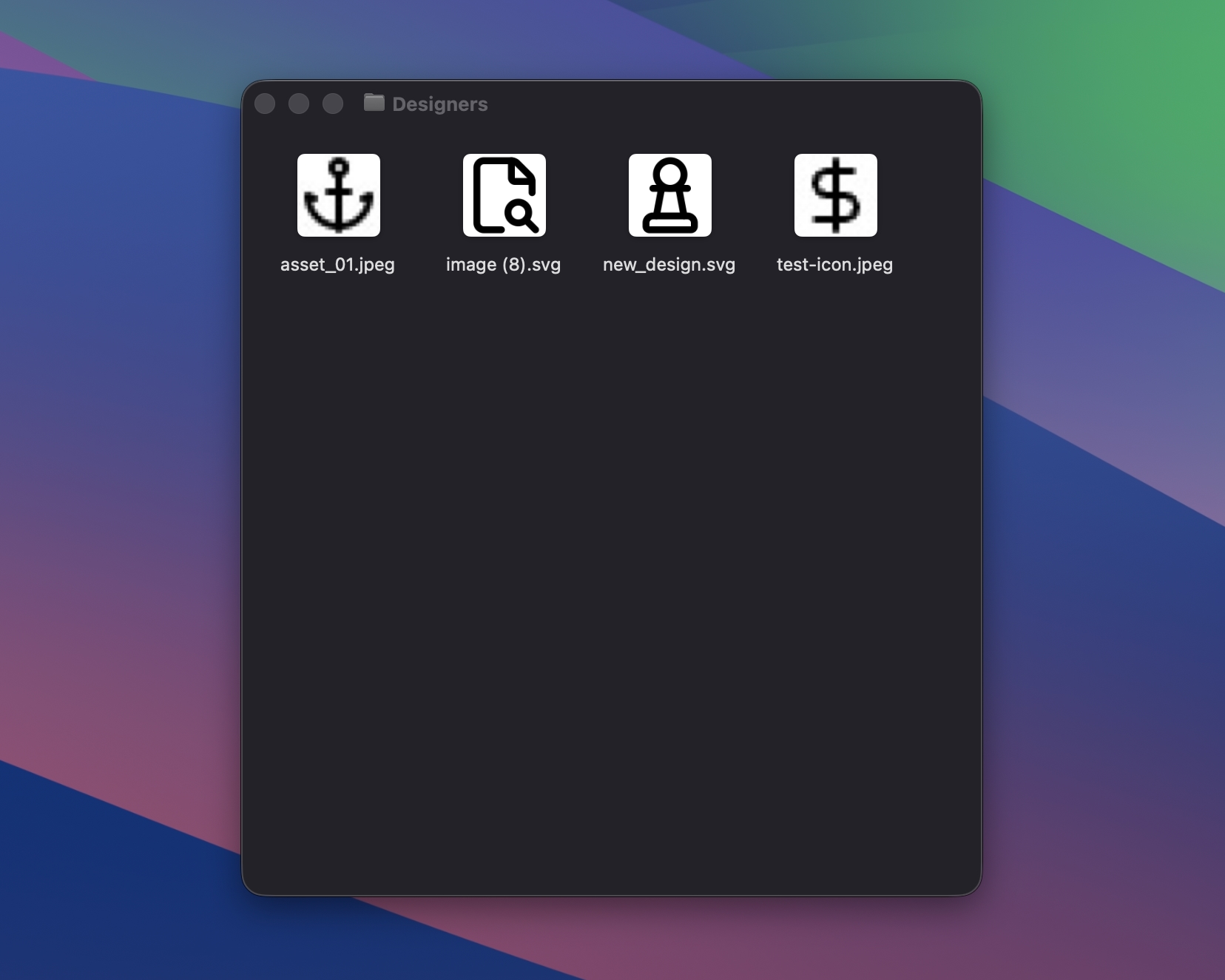
AI Renamer analyzes the visual content and turns unclear filenames like:
icon1.svgshape (2).pngnewdesign.svg
into descriptive, searchable filenames like:
shopping-cart-icon.svgscreenshot-dashboard.pngcalendar-icon.svgbutton-with-icon.png
This keeps your icon sets and asset folders clear, readable, and easy to work with without any manual renaming.
For more workflow ideas, check out:
👉 10 Professional Use Cases for AI File Renaming Tool
How to Rename UI Assets for Design Projects (Examples)
UI assets vary a lot, from simple icons to full screens. Below are a few examples that show how AI Renamer transforms unclear filenames into clean, descriptive ones designers can actually use.
Example 1: Icons
 Before:
Shape 3.png
Custom Instruction:
“Rename icons using this format: {description}-icon.
Describe the object or symbol in the image.”
After:
mail-icon.png
Example 2: App Store Screenshots
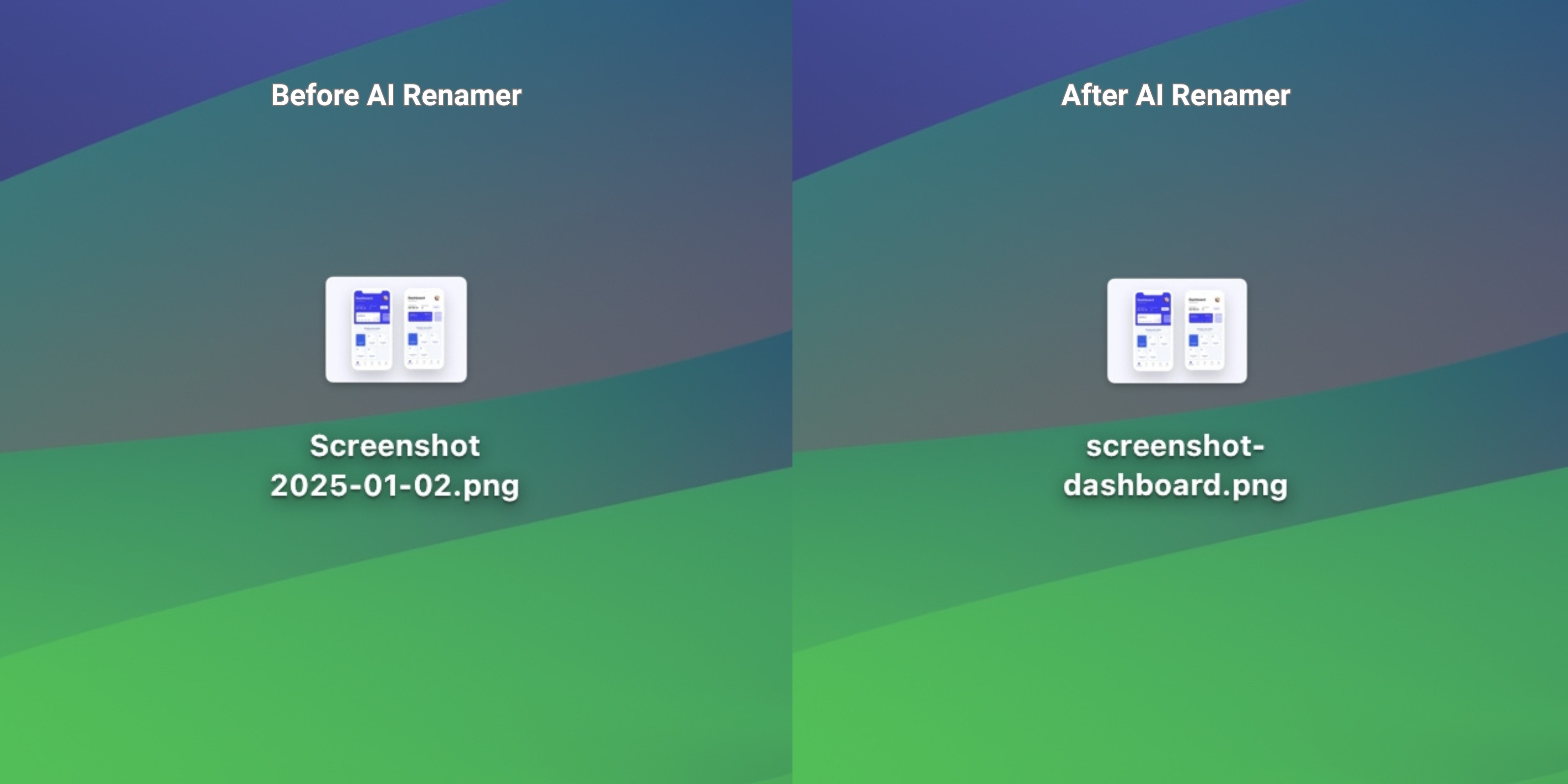 AI Renamer cannot know platform or marketing message automatically, but you can guide it using a simple rule.
Before:
Screenshot 2025-01-02.png
Custom Instruction:
“Rename using: screenshot-{description}.
Describe what appears on the screen, such as dashboard, settings, sign-up, or profile.”
After:
screenshot-dashboard.png
Example 3: Design System Components
 AI Renamer cannot infer component variant or state, but it can describe what the element looks like.
Before:
Frame 18.png
Custom Instruction:
“Describe the UI element, such as button, input, card, toggle, or icon.
Use what is visually obvious.”
After:
button-with-icon.png
Example 4: Web and Mobile Screens
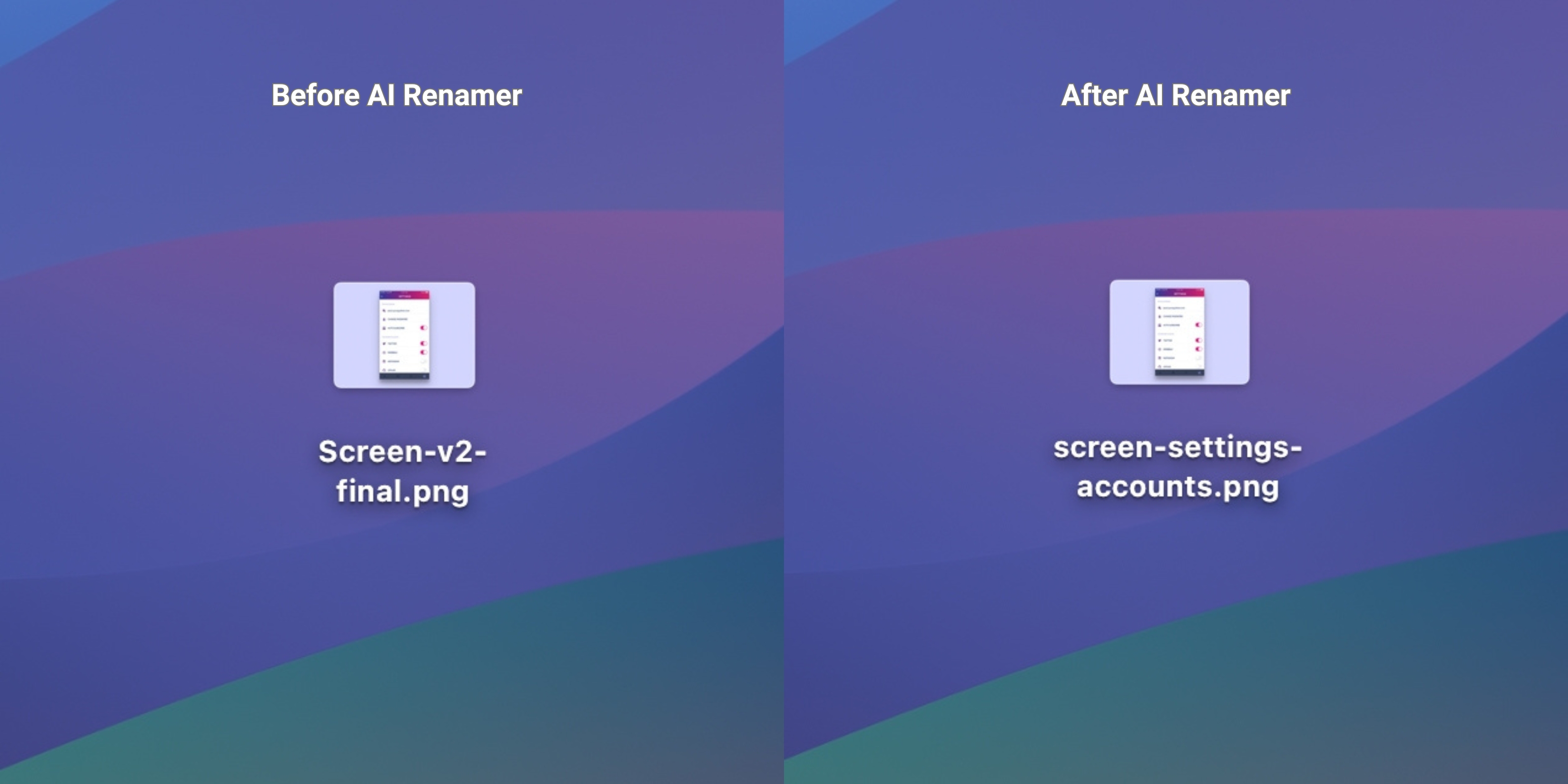 AI Renamer cannot detect platform or flow steps but can describe what appears on the screen visually.
Before:
Screen-v2-final.png
Custom Instruction:
“Rename using: screen-{description}.
Describe the page layout, such as home, analytics, settings, or messages.”
After:
screen-settings-accounts.png
Frequently Asked Questions
What types of assets can AI Renamer handle?
AI Renamer works best with:
- UI exports (PNG, JPG, WEBP, GIF, TIFF, BMP)
- SVG icons and illustrations
- PDFs (for flows, specs, or slide decks)
- Text-based assets like CSS, JS, TS, HTML, MD
You can mix these in the same batch.
Can it rename Figma files directly?
No. AI Renamer does not rename inside Figma itself.
Instead, you:
- Export your assets (screens, icons, components) from Figma, Sketch, or Photoshop
- Drag the exported folder into AI Renamer
- Apply structured names in seconds
This keeps your exported assets clean and consistent for developers and other stakeholders.
Does AI Renamer follow my design system naming?
Yes. That’s what Custom Instructions are for.
You can define your preferred naming format, and AI Renamer will follow it based on what it can detect from the file itself. For visual assets like icons or screens, it can describe what it sees (such as shopping-cart, arrow-left, home, analytics, lock, bell, user-profile).
AI Renamer cannot infer metadata that is not visible in the file, such as platform, flow steps, variants, or version numbers. These need to be added manually if required.
Is it private enough for confidential projects, and do you store my files?
AI Renamer never stores your files in any mode.
If you use Local Mode, everything runs on your device and nothing is uploaded anywhere. This is the best option for sensitive or confidential work.
If you use Cloud Mode, your files are uploaded only for processing and are deleted immediately after the rename suggestions are generated. They are never stored or reused.
Can developers use AI Renamer too?
Yes. Developers can use AI Renamer to quickly clean up filenames and keep asset folders organized without writing custom scripts.
It’s especially useful when working with:
- UI assets
- Icon sets
- Exported screenshots
- Documentation images
AI Renamer doesn’t understand your workflow or changelogs; it simply analyzes the files and generates clearer names. This makes it a practical tool for developers who want tidy project folders with minimal manual work.
Does AI Renamer support batch renaming?
Yes. Batch renaming is the core feature of AI Renamer.
You can drop in an entire:
icons/folderscreens/directorydesign-system/exportsstore-screenshots/set
…then rename all files in one go.
Ship Cleaner UI Projects With Zero Manual Renaming
If your design folders are full of Frame 23, Screenshot 2025-02-11, and Untitled-1, you’re not alone, this is normal. But it doesn’t have to stay that way.
AI Renamer gives designers, product teams, and developers a fast, private, and customizable way to:
- Batch rename UI assets
- Enforce naming conventions
- Make handoff and collaboration smoother
Instead of spending time manually fixing filenames, you can stay focused on shipping great design.
Keep your design assets perfectly named.
Batch rename components, icons, mockups, and exports automatically with AI Renamer.