How to Automatically Rename Scanned PDFs for Lawyers Using AI

A Fast and Private Way to Batch Rename Discovery, Court Filings, Exhibits, and Client PDFs
Lawyers and legal teams deal with dozens or hundreds of scanned PDFs every week: discovery packets, signed documents, pleadings, exhibits, correspondence, court notices, and intake forms.
Most of them arrive with filenames like:
scan_2025_12_03.pdfDocument (41).pdfIMG_9021.pdffinal_signed.pdf
Manually renaming these files wastes time and increases the chance of misfiling something important.
If you’re new to AI Renamer, start here:
In this guide, you’ll learn how to automatically rename scanned PDFs using AI so your legal folders stay searchable, consistent, and easy to navigate.
Why Scanned Legal PDFs Are Hard to Organize
Legal PDFs often come from scanners, mobile scan apps, email attachments, portals, and opposing counsel. That usually means:
- Missing titles
- Inconsistent naming across sources
- Mixed document types inside one batch
- Lots of “looks the same” files (especially discovery)
So you end up with folders full of:
scan001.pdfclient_docs.pdfexhibit.pdfDocument(8).pdf
This creates friction when you need to:
- Locate an exhibit quickly
- Prep for depos or hearings
- Build a filing package
- Share the right version with a client
- Keep case files consistent across staff
A dedicated AI-powered renamer removes this bottleneck by generating descriptive filenames based on what’s actually inside each PDF.
How AI Renamer Helps Lawyers
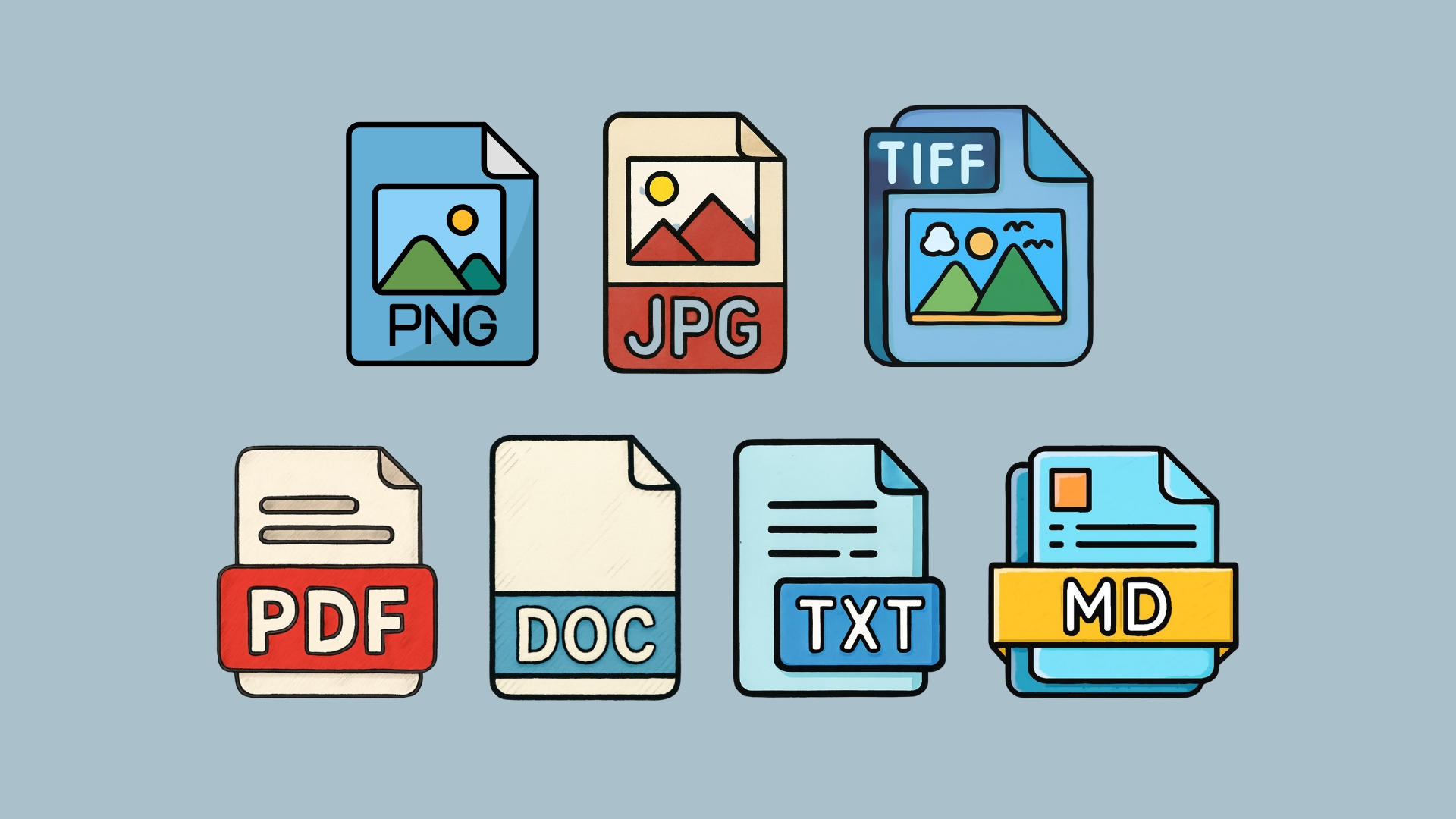 AI Renamer analyzes the content of your files and suggests filenames based on what is clearly detectable, such as document type, visible parties, dates, and key terms.
It works great for renaming:
- Scanned correspondence
- Signed agreements
- Court filings (motions, orders, notices)
- Discovery PDFs
- Exhibits and attachments
- Intake forms
- Demand letters
- Medical records (if text is readable)
- Evidence photos and scanned images (using basic visual descriptions)
What you can do:
- Batch rename hundreds of PDFs at once
- Keep everything private with Local Mode
- Use Custom Instructions for consistent naming
- Preview names before applying
- Rename based on content, not just the original filename
- Rename evidence photos and scanned images using general content descriptions
How to Automatically Rename Scanned PDFs with AI (Step-by-Step Guide)
1. Download AI Renamer
 Download the desktop app for macOS or Windows. Setup takes under a minute.
Installation guides:
2. Choose Local Mode or Cloud Mode
 Local Mode
- Use your own AI model via Ollama, LM Studio, or API keys
- Files stay on your device
- Best for confidentiality and large batches
Cloud Mode
- Use built-in models with prepaid credits
- Great for speed and convenience
Both modes support PDF renaming.
3. Add Your Scanned PDFs
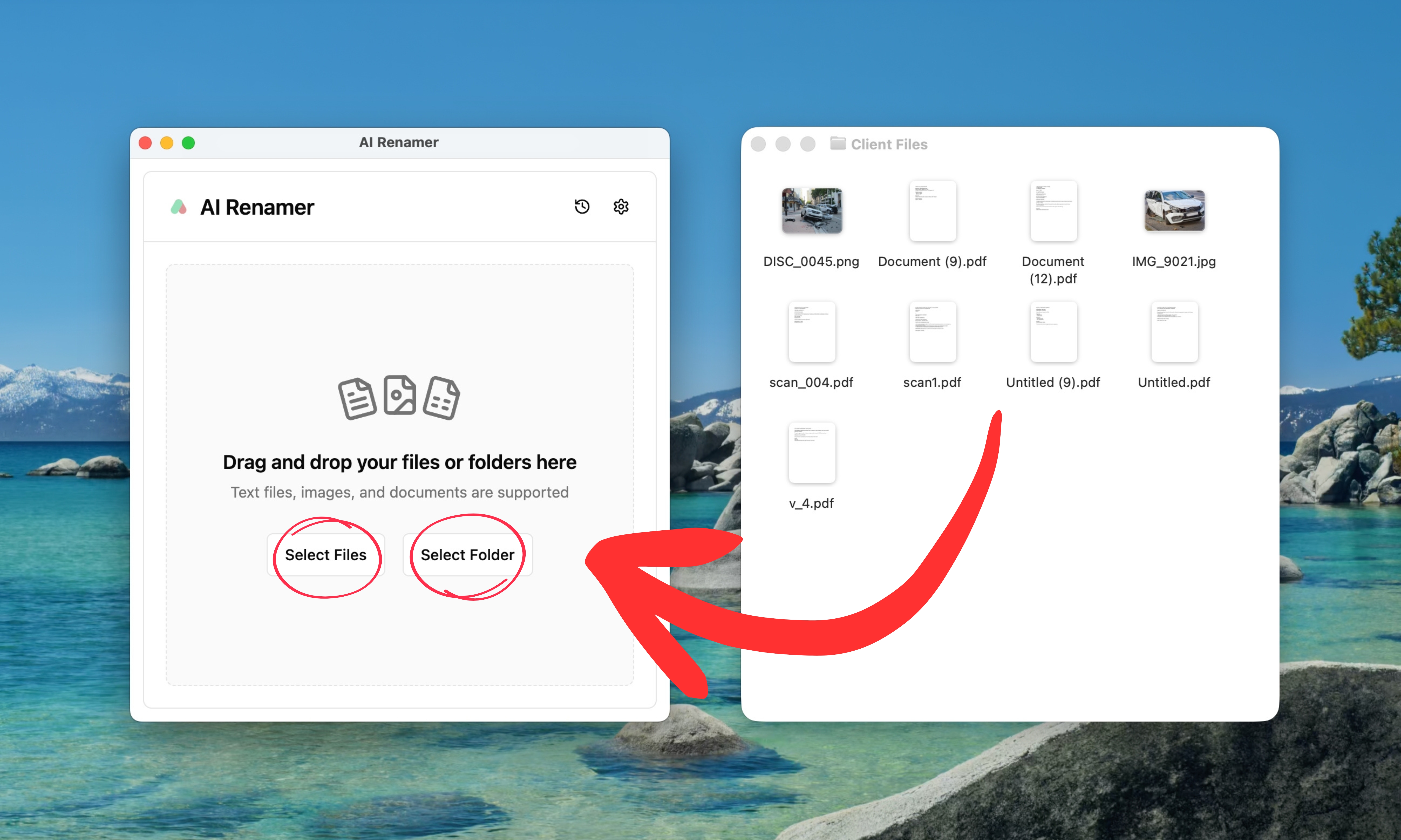 Drag and drop a folder of scanned PDFs into the app, for example:
CaseName-Discovery/Client Intake/Court Filings/Exhibits/Client Files/
AI Renamer scans the content and prepares filename suggestions.
4. Preview the AI-Generated Names
 You’ll see suggested filenames based on what the AI detects. If a name looks off, click Regenerate or edit manually.
5. Rename All PDFs in One Click
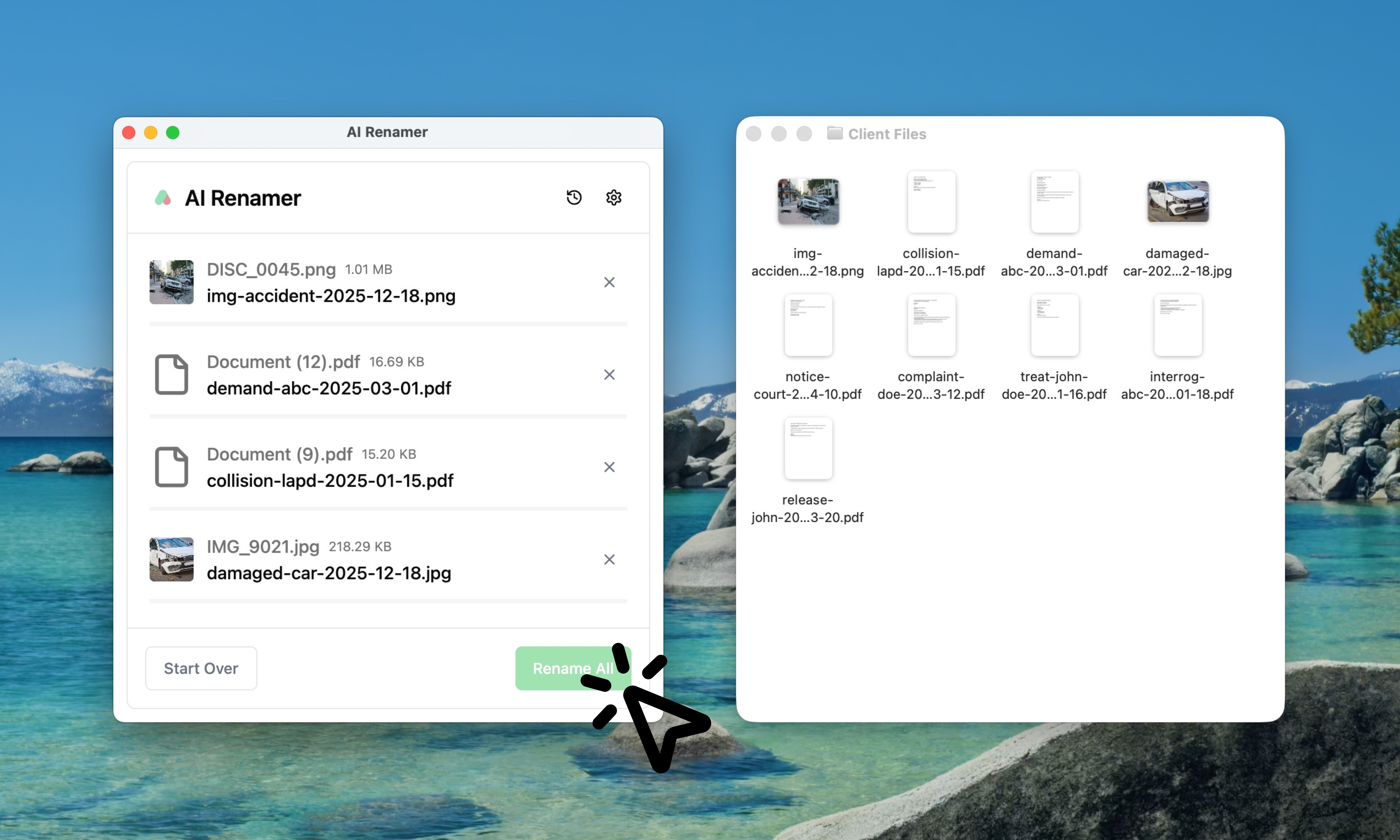 Click Rename All to apply the new names instantly.
How to Apply Consistent Naming Rules to Legal Documents
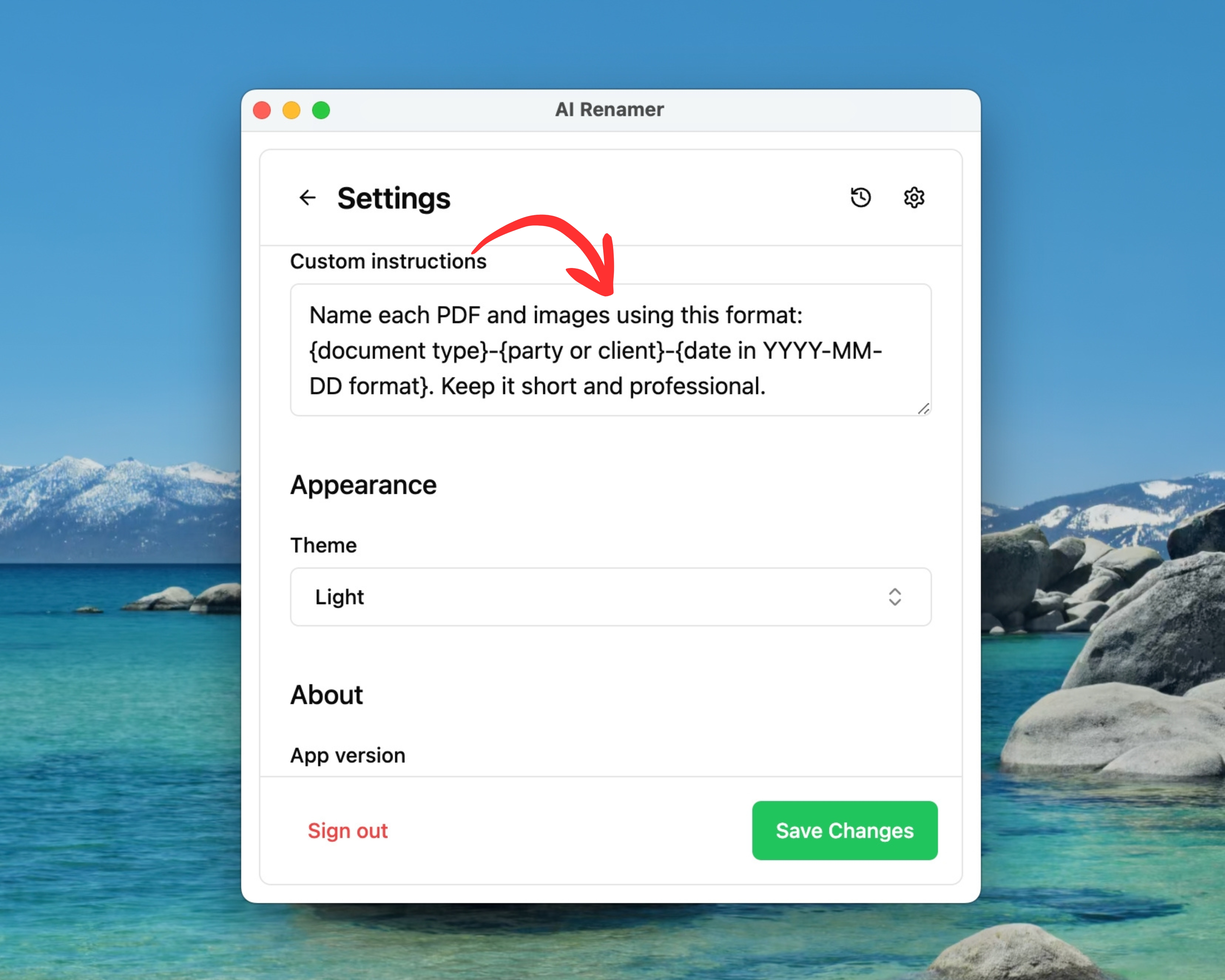
Legal teams usually want filenames that follow a consistent structure across the entire case.
Custom Instructions let you define that structure so the AI follows your convention.
Example Custom Instruction for Lawyers
You can write something like:
“Name each PDF and images using this format: {document type}-{party or client}-{date in YYYY-MM-DD format}. Keep it short and professional.”
This helps turn:
scan_003.pdfDocument (41).pdffinal_signed.pdf
into:
demand-letter-smith-2025-11-12.pdfcourt-notice-johnson-acme-2025-10-03.pdfsigned-settlement-agreement-acme-2025-09-28.pdf
AI Renamer can only use what it can read from the file. If a scan is blurry or missing text, you’ll still be able to adjust the suggestion in the preview.
For more workflow ideas, see:
👉 10 Professional Use Cases for AI File Renaming Tool
Scanned PDF Examples for Lawyers
Below are realistic examples based on common legal workflows. (These are representative filename transformations.)
Example 1: Court Notice (Scanned PDF)
 Before:
 Document (8).pdf
After: court-notice-hearing-date-2025-12-01.pdf
AI Renamer typically detects:
- “Notice” / “Order” style language
- Dates (hearing date, filing date)
- Court-related keywords
Example 2: Demand Letter
 Before:
 scan_001.pdf
After: demand-letter-property-damage-2025-10-14.pdf
AI Renamer can often detect:
- Document type cues (demand, notice,)
- Subject keywords
- Date in header or footer
Example 3: Signed Agreement
 Before:
 Untitled.pdf
After: signed-agreement-service-contract-2025-09-03.pdf
AI Renamer typically detects:
- “Agreement” / “Contract” keywords
- Signature blocks (when readable)
- Effective date or signature date
Example 4: Exhibit PDF
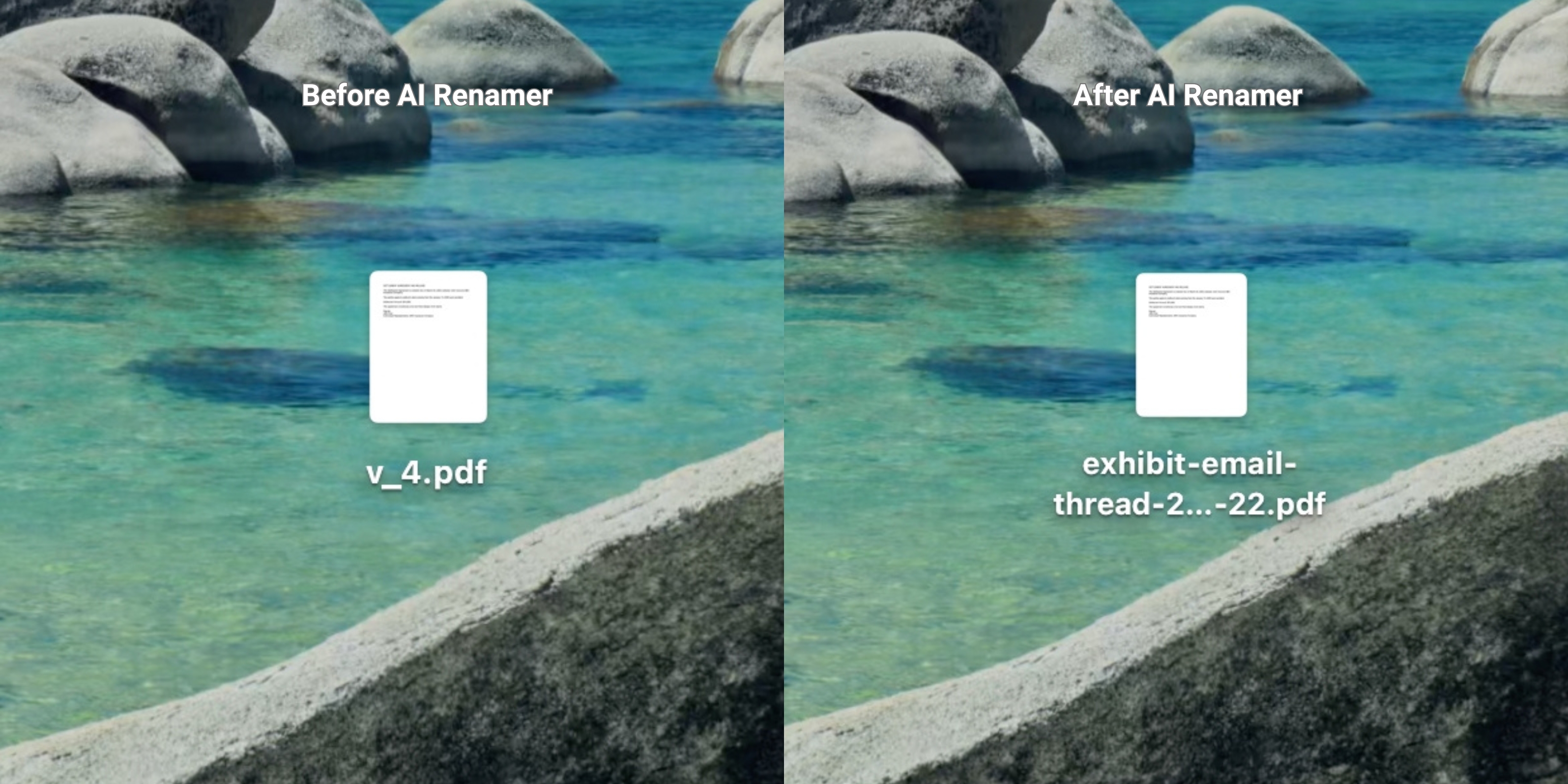 Before:
 v_4.pdf
After: exhibit-email-thread-2025-08-22.pdf
AI Renamer can often detect:
- Exhibit labels (Exhibit A/B, Attachment, etc.)
- Source type (email printout, invoice, photo scan)
- Dates inside the document
Frequently Asked Questions
Does AI Renamer work on scanned PDFs?
Yes. If the scanned PDF has readable text, AI Renamer can generate accurate names.
Is it private enough for legal documents?
Yes.
- Local Mode: processing happens on your device
- Cloud Mode: files are processed temporarily and not stored
If confidentiality is a priority, Local Mode is usually the best option.
Can it detect case numbers or party names?
Sometimes, if they’re clearly visible in the scan. If not, you can include your own structure using Custom Instructions and quickly tweak names in the preview.
Can I rename entire discovery folders at once?
Yes. Batch renaming is the core feature. Drop a folder and rename everything in one pass.
Keep Your Case Files Searchable Without Manual Renaming
If your legal folders are full of:
scan_001.pdfDocument (41).pdffinal_signed.pdf
…that’s normal. It’s how scanned legal paperwork arrives.
AI Renamer gives lawyers and legal teams a fast, private, and automatic way to batch rename scanned PDFs so your files stay clean, searchable, and consistent across every case.
👉 Try AI Renamer: airenamer.app