
AI File Renaming App Now Supports Dark Mode (Light & System Themes)

AI Renamer is designed for people who regularly work with large numbers of files, including documents, images, and mixed folders. With the new appearance settings, the app now adapts visually to different working environments while preserving the same fast, private, and controlled file renaming experience.
Users can now choose how AI Renamer looks and feels depending on their preferences, time of day, or system settings.
Choose Between Light, Dark, and System Themes
AI Renamer now offers three appearance modes, available directly from the app settings.
Light Mode
 Light mode provides a clean and bright interface that works well in office environments and daylight conditions. It is ideal for users who prefer a traditional, high-contrast layout.
Dark Mode
 Dark mode is designed to reduce eye strain during long file renaming sessions and in low-light environments. It is especially useful for lawyers reviewing documents, students organizing study materials, photographers managing image libraries, and professionals working with large folders late at night.
System Theme
AI Renamer’s system theme automatically follows your operating system’s appearance settings. This means the app matches your system without requiring manual changes by default.
Switching from System to Light Mode
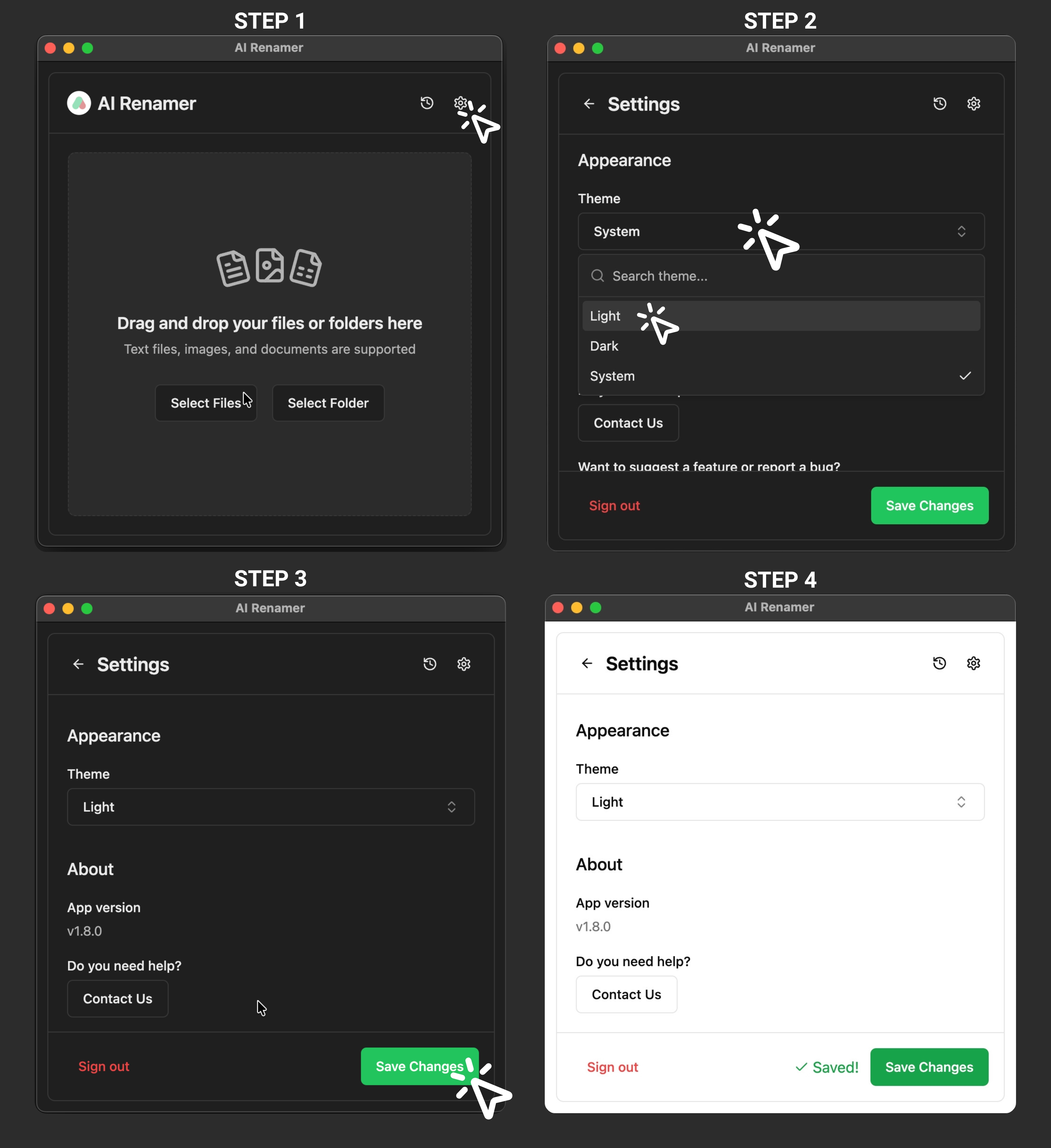
However, you can easily switch from System to Light mode directly from the app settings. The steps below show how this works in practice.
Step 1: Open Settings in AI Renamer
Launch AI Renamer and click the Settings icon in the top-right corner of the app.
Step 2: Go to Appearance Settings
In the Settings screen, navigate to the Appearance section. Under Theme, you will see the current selection set to System.
Step 3: Select Light Mode
Open the theme dropdown and choose Light. This overrides the system setting and applies light mode manually.
Step 4: Save Changes
Click Save Changes to apply the new appearance. AI Renamer will immediately switch to light mode, regardless of your operating system’s theme.
How System Theme Works in AI Renamer
When System is selected:
AI Renamer follows your operating system’s appearance settings
If your computer is in dark mode, AI Renamer opens in dark mode
If your system switches to light mode, the app updates automatically
No manual changes are required while using system theme. This ensures AI Renamer always feels native on both macOS and Windows.
Users who prefer a consistent appearance can switch to Light or Dark mode at any time using the same steps shown above.
Why Dark Mode Matters for File Renaming
 File renaming is often repetitive and time-consuming. Many people who work on a computer spend long hours sitting in front of a screen, often in fixed positions that put strain on the eyes, neck, and shoulders.
Extended screen exposure, especially during detailed tasks like reviewing file names and previews, can increase eye fatigue and reduce focus over time. This becomes more noticeable when working late at night or in low-light environments.
Common workflows include:
- Legal documents and case files
- Lecture notes, research papers, and assignments
- Photo collections and creative assets
- Client documents and project folders
- Marketing materials and media files
When these files are renamed manually, users are required to stay focused on the screen for much longer periods, carefully reviewing and editing each file name one by one.
AI Renamer shortens this process by automatically generating descriptive file names in batches, reducing the amount of time users need to spend staring at the screen. Combined with dark mode, this creates a more comfortable experience by lowering visual strain during long file organization sessions.
Small improvements in comfort and ergonomics, such as reducing screen glare and shortening repetitive tasks, can have a meaningful impact on daily productivity and long-term eye comfort.
New to AI Renamer?
If you are just getting started, this short guide explains what the app does and how it works.
Download and Install AI Renamer on macOS and Windows

AI Renamer is a desktop app available for both macOS and Windows. Setup takes under one minute.
Installation guides:
👉 How to Install AI Renamer on macOS
👉 How to Install AI Renamer on Windows
Once installed, you can choose Light, Dark, or System appearance mode from the settings.
File Types Supported by AI Renamer
Dark mode works across all supported file formats, including:
- PDFs
- Images such as JPG, PNG, GIF, BMP, TIFF, and WEBP
- Text-based files like TXT, HTML, CSS, JS, TS, and MD
Only the appearance changes. File analysis, previews, and renaming behavior stay the same.
Looking for Practical Workflow Ideas?
AI Renamer is used by professionals, students, and creators across many industries.
For real-world examples, check out:
👉 10 Professional Use Cases for AI File Renaming Tool
Included in AI Renamer v1.8.0
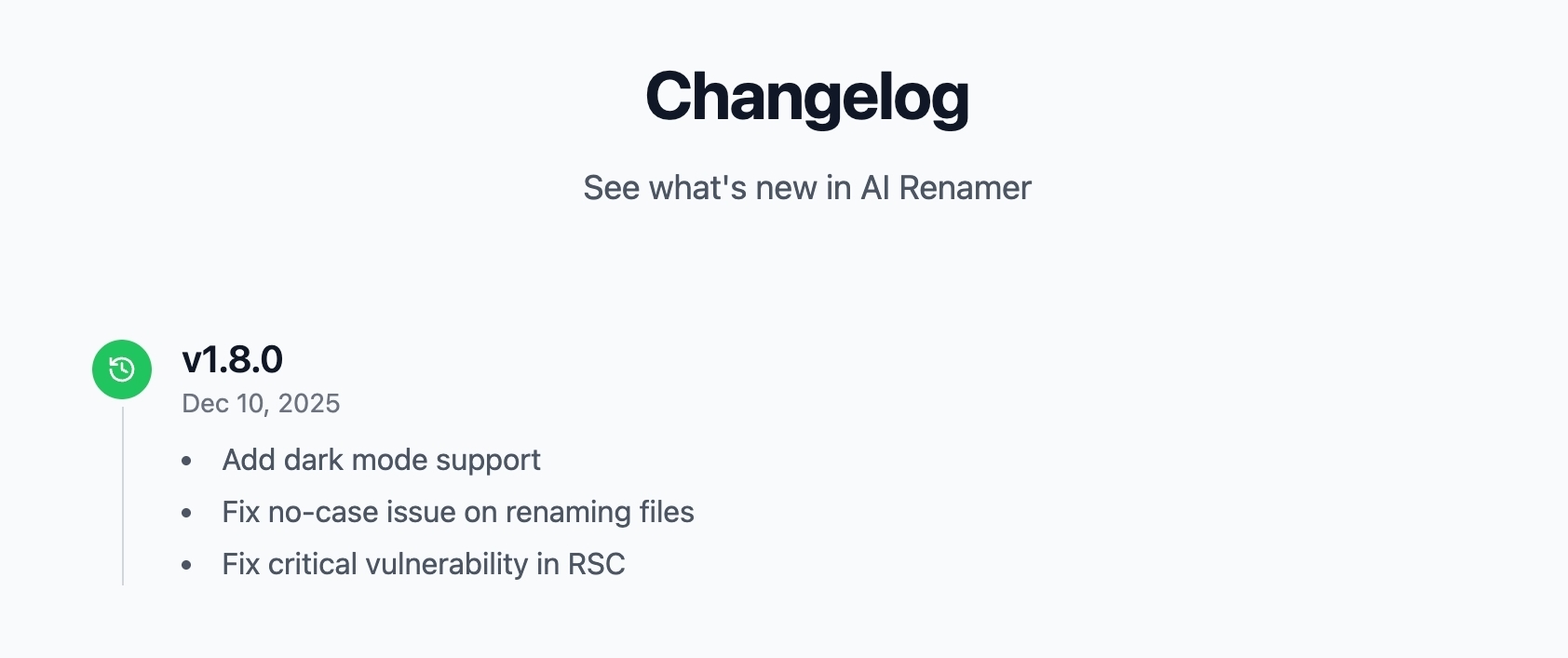 This release includes:
- Dark mode, light mode, and system theme support
- A fix for the no-case issue during file renaming
- A security patch for a critical RSC vulnerability
Try Dark Mode in AI Renamer
If you already use AI Renamer, update to v1.8.0 and select your preferred appearance mode from the settings.
If you are new, you can download AI Renamer here: