How to Rename Files Offline with Ollama and LM Studio
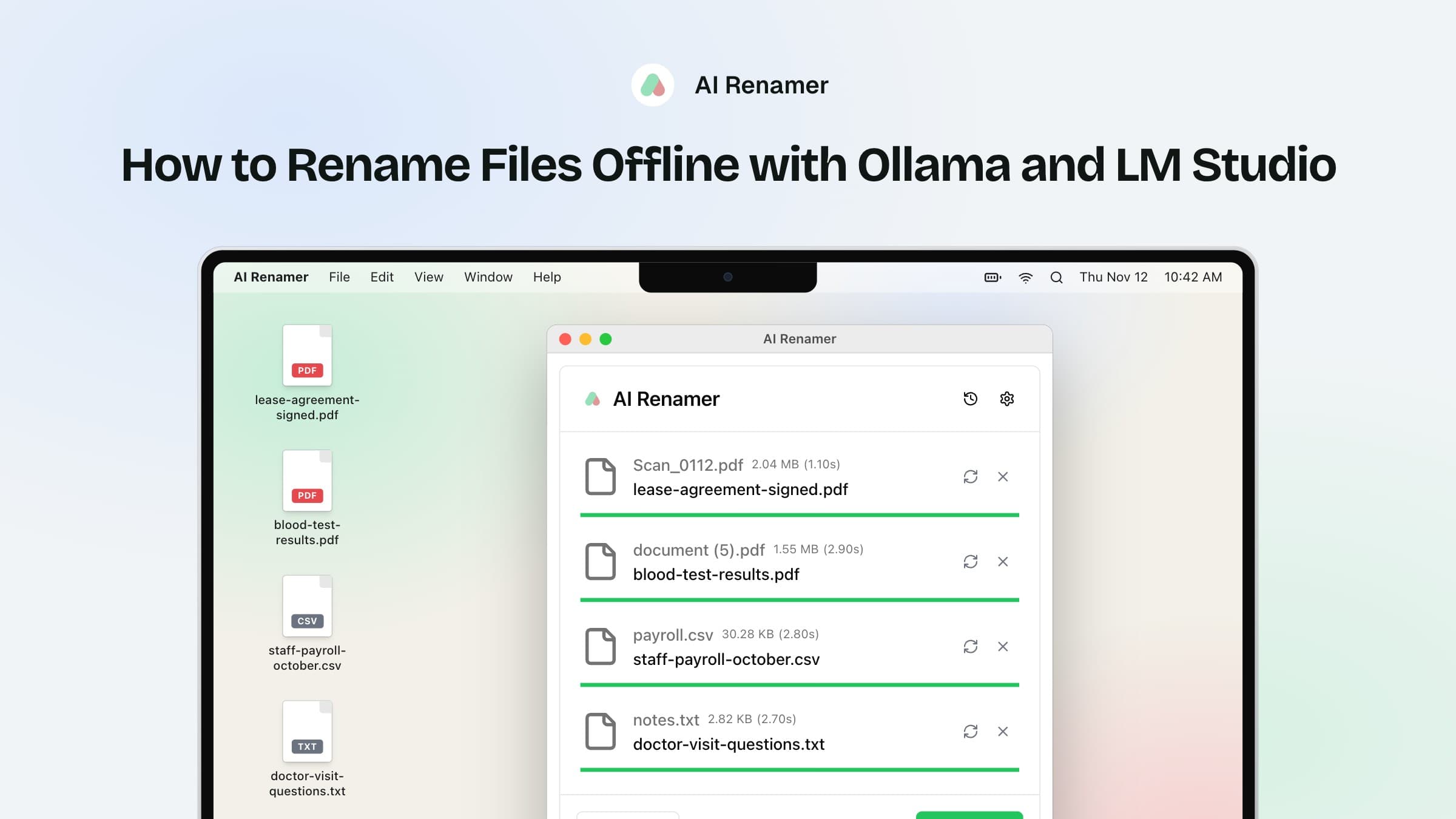
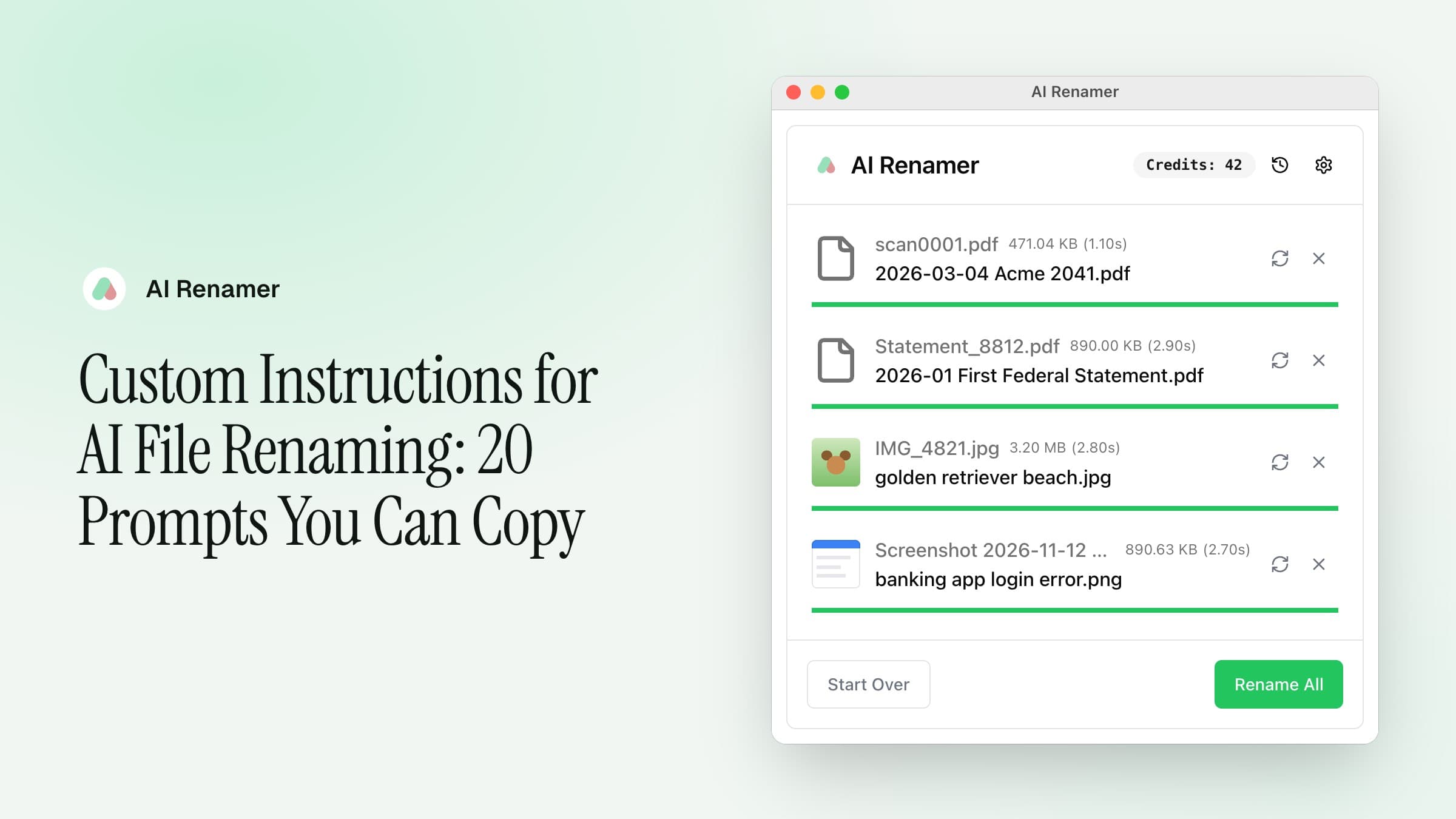
A signed lease, a blood test report and a payroll export are sitting in Downloads as Scan_0112.pdf, document (5).pdf and payroll.csv. You want them named by what's in them, and you don't want to upload any of them to get there.
In local mode, AI Renamer hands each file to a model running on your own computer: Ollama at 127.0.0.1:11434, or LM Studio at 127.0.0.1:1234. Both addresses point at your own machine, so the file never goes through our servers. Local mode doesn't use credits, and cloud mode's file size limits don't apply. Version 1.9.0, out today, adds a Test Connection button that checks the setup before you rename anything.
What you need
- Ollama or LM Studio, installed and running. Ollama is at ollama.com and LM Studio at lmstudio.ai, and both are free to download.
- A model. AI Renamer's default for Ollama is
llava:13b, which reads pictures as well as text. LM Studio has no default, so you type the name of the model you loaded. - The Local Model Package, a one-time $19 purchase. Until you have it, the button at the bottom of Settings reads Buy Local Model Package instead of Save Changes. You need the internet to sign in and buy it, but not to rename.
Set it up
- Open Settings and stay on the AI tab.
- Set Processing to Local. The note under it changes to "Files are processed privately on your computer."
- Set Provider to Ollama or LM Studio.
- Type the model name, or keep
llava:13bfor Ollama. - Press Test Connection, then Save Changes.
With LM Studio, start its server first: open the Developer tab in LM Studio and turn the server on.
The Provider list also has OpenAI, Google AI Studio and OpenRouter. They use your own API key, but they send each file to that company, so they aren't offline. Custom sends it to whatever address you type in.
Reading the Test Connection result
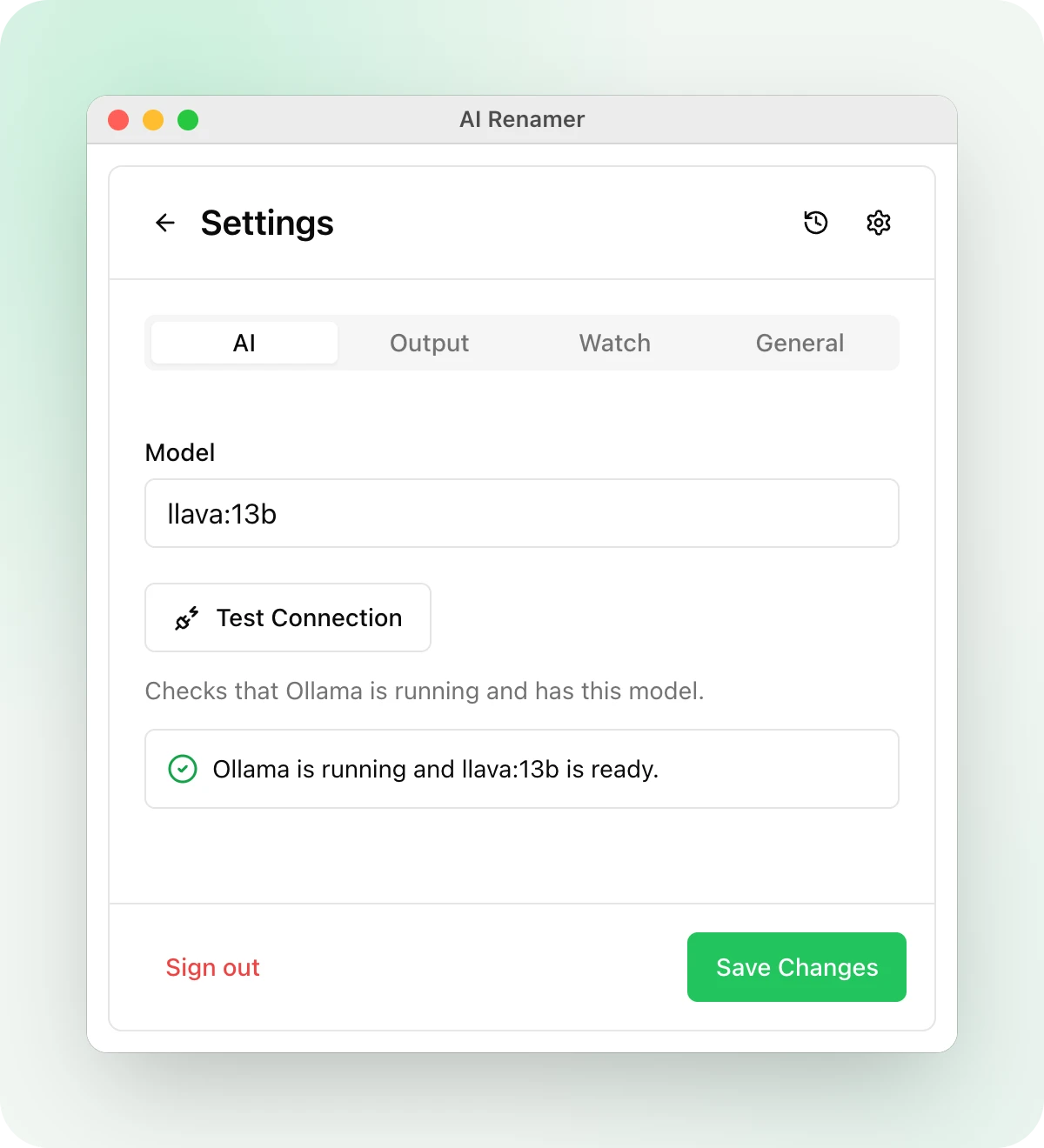
Test Connection checks that Ollama or LM Studio is running and has the model you typed. Each answer tells you what to do next.
"Ollama is not running." Open the Ollama app, or run ollama serve in a terminal, then test again. With LM Studio, the message sends you to the Developer tab to start the server.
"Ollama is running but has no models yet." The result shows ollama pull llava:13b with a copy button. Paste it into a terminal, wait for the download to finish, and test again. LM Studio asks you to download a vision model in LM Studio and load it.
"Ollama is running, but llava:13b is not downloaded." The model you typed isn't on your computer. The result gives the ollama pull command for it, and below that, every model you do have as a button. Click one and it goes into the Model field and gets tested right away. Press Save Changes to keep it. Ollama reads a name without a tag as :latest, so llava and llava:latest count as the same model. When a model isn't loaded in LM Studio, you get the same buttons, without a command.
"Ollama is running. Enter a model name, or pick one of these." The Model field is empty. You get the same buttons and the same fix.
"LM Studio asks for an API token." AI Renamer can't send a token yet, so turn off Require API Token in LM Studio's server settings.
"Ollama is running and llava:13b is ready." You're set. Save Changes, close Settings and drop your files on the window.
Photos and scans need a vision model
When the test passes with Ollama, AI Renamer also asks Ollama whether the model can read images. If it can't, a warning says images will fail, while text files and PDFs with text still work.
Each kind of file reaches the model differently. A text file goes as its text, and so does a PDF with text in it. A photo goes as a picture, and so does a scanned PDF with no text in it, because the app turns its first page into an image. A text-only model can name text files and text PDFs, but not photos or scans. LM Studio models aren't checked for this, so with LM Studio, load a vision model if you rename pictures or scans.
Your settings still apply
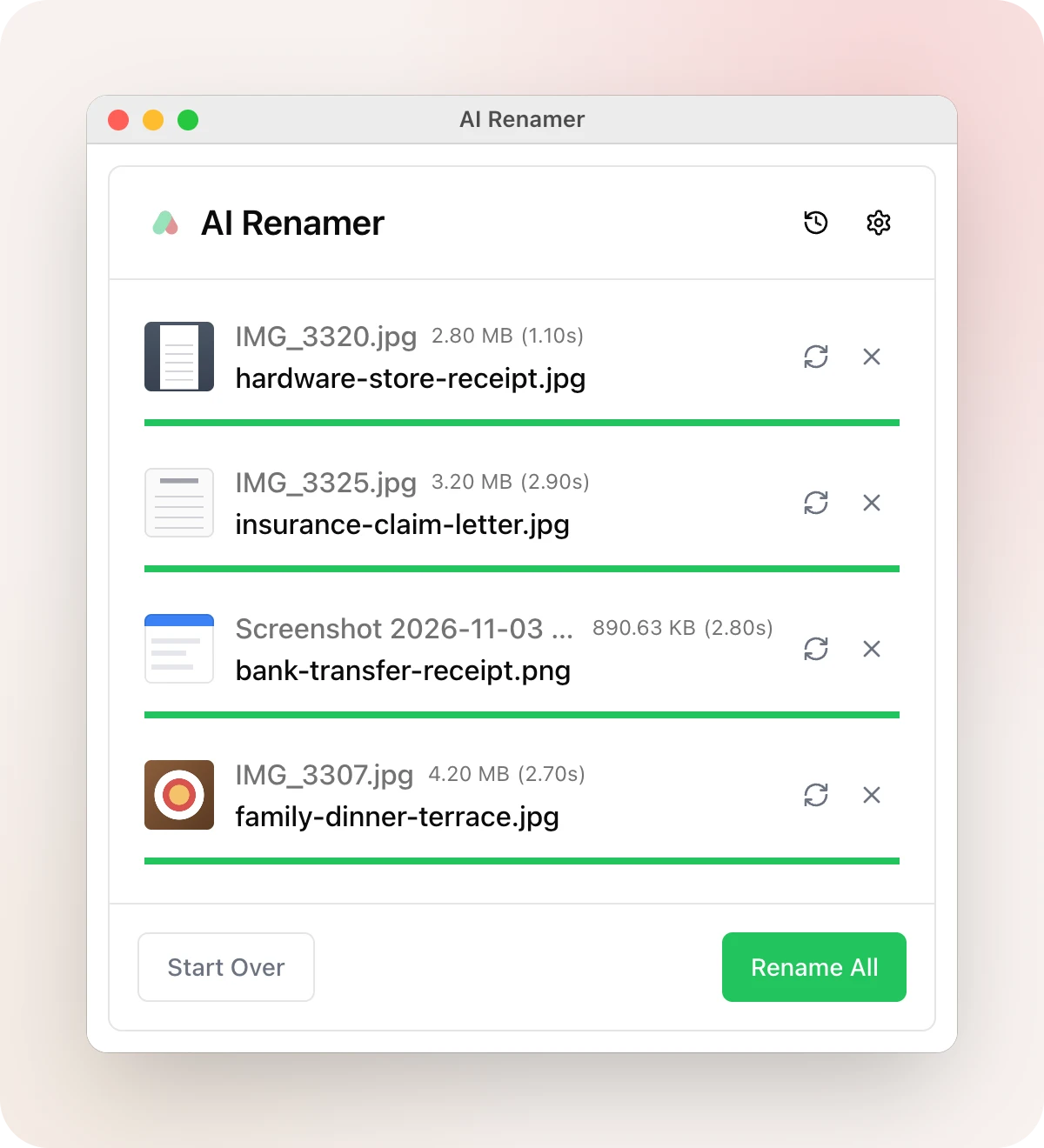
Case style, Max. number of characters, output language, Rename based on and custom instructions on the Output tab all work the same with a local model. The app applies the case style and the character limit itself after the model answers, so a local model can't go past them.
Local mode also tells the model a little more than cloud mode does: a photo's EXIF data, and when the file was created and last modified. That helps when you ask for the date a photo was taken. With Rename based on set to File name only, none of it is sent.
Nothing on disk changes until you press Rename All, so try a few files first.
Watch a folder with a local model
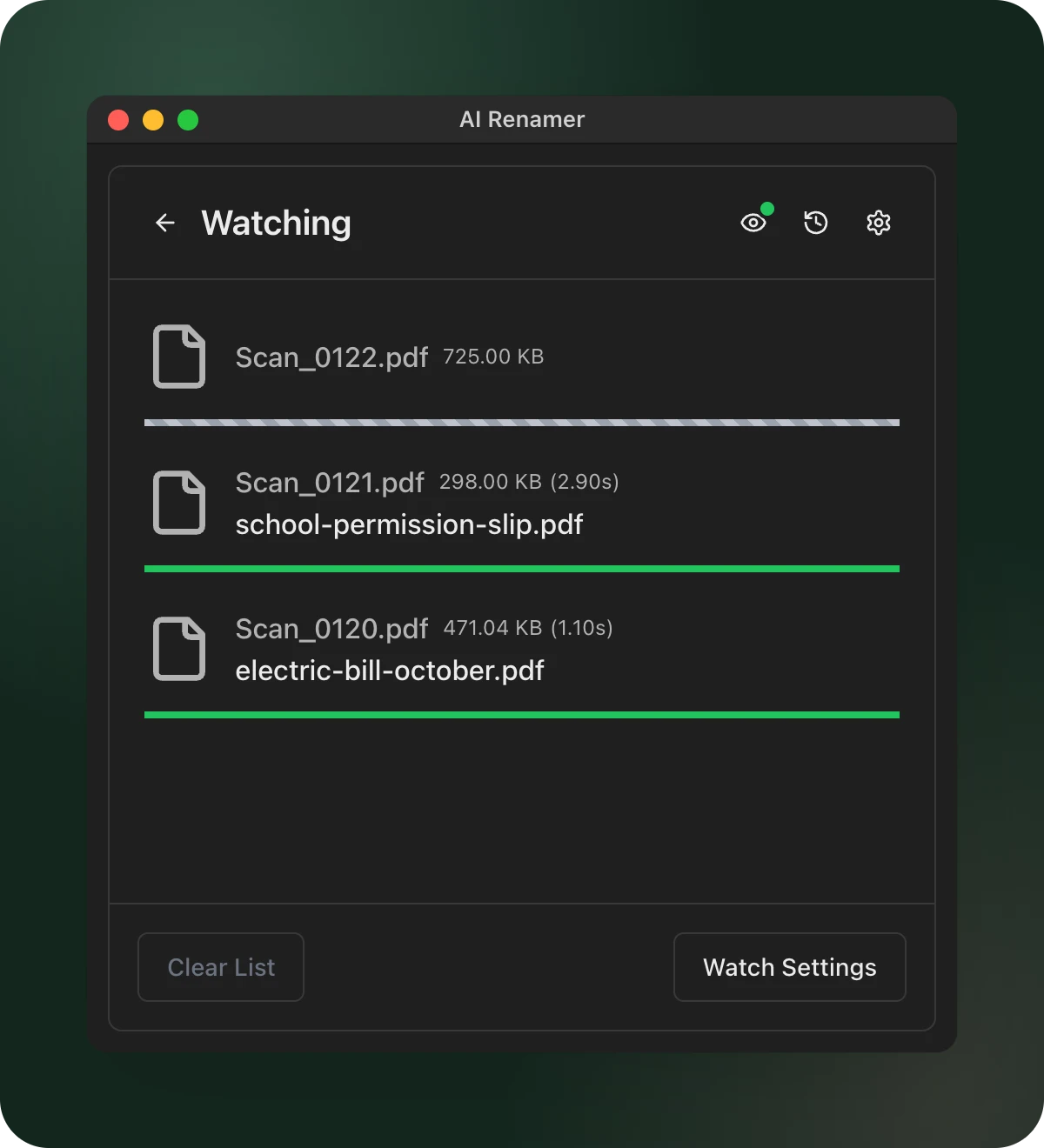
Watch Folder, also new in 1.9.0 and still in beta, uses the same settings. Add your scanner's folder on the Watch tab, and each new scan is renamed by the model on your computer as it arrives, as long as AI Renamer is open.
The offline renaming page has the short version and answers a few common questions about local mode.
Install Ollama, run ollama pull llava:13b, and press Test Connection.
AI Renamer is available for Mac and Windows at airenamer.app.