How to Automatically Rename PDFs for HR Professionals Using AI

A Fast and Private Way to Batch Rename HR PDFs Like Resumes, Offer Letters, Policies, and Onboarding Forms
HR professionals deal with a constant flow of PDF documents every day, from resumes and offer letters to onboarding forms and policy updates. HR teams handle a constant flow of PDFs:
- Resumes and candidate packets
- Offer letters and signed agreements
- Onboarding checklists and forms
- Employee handbooks and policy updates
- Performance reviews and goal documents
- Benefits and enrollment paperwork
- Training certificates and compliance docs
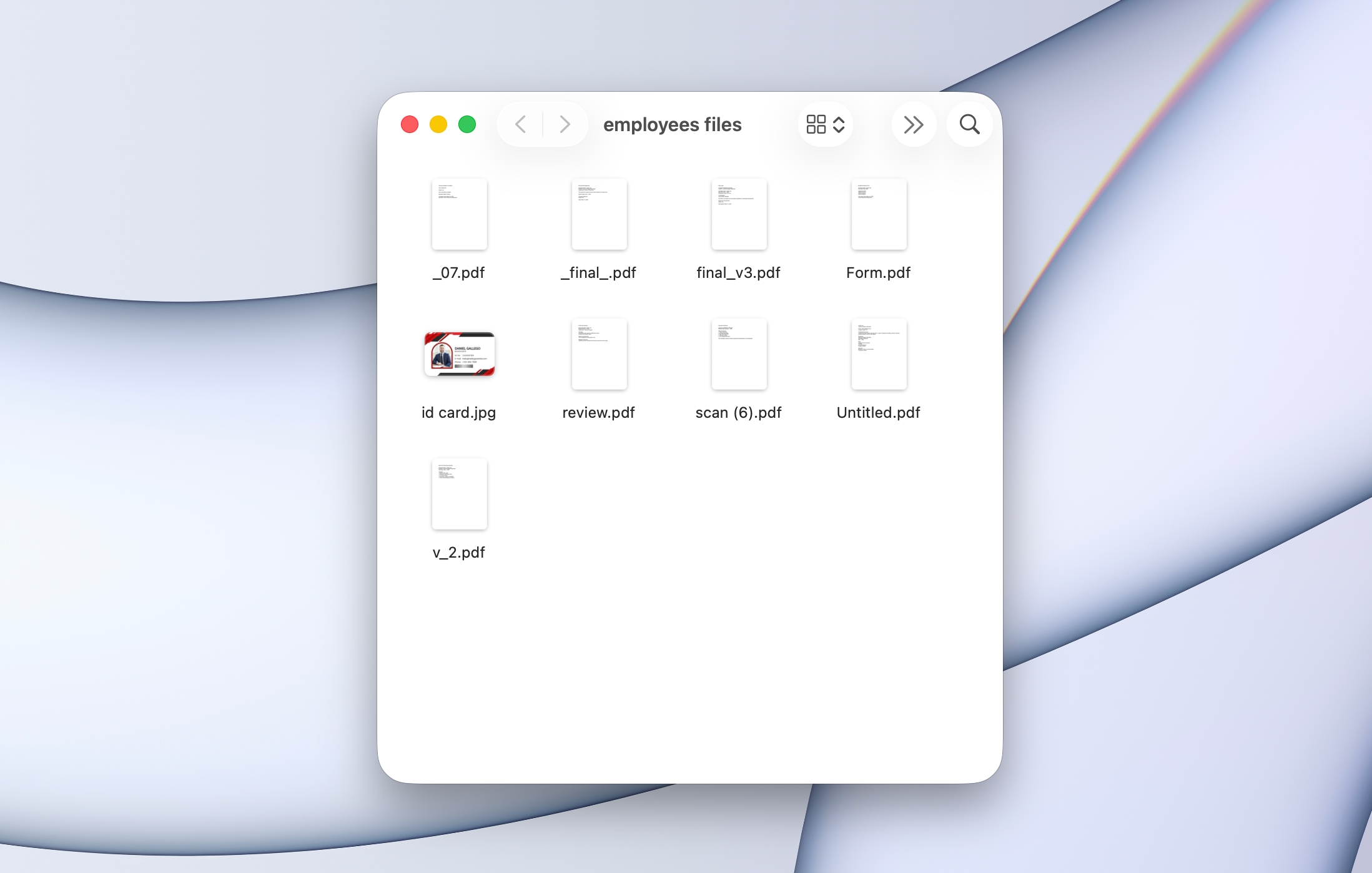
But most of those files arrive with filenames like:
Document (21).pdfscan_2025_03_14.pdfresume-final-v2.pdfSigned.pdfNew Hire Packet.pdf
Manually renaming HR documents takes time, breaks your workflow, and increases the risk of misfiling something sensitive.
If you’re new to AI Renamer, start here:
In this guide, you’ll learn how to automatically rename HR PDFs using AI so your folders stay searchable, consistent, and easy to navigate.
Why HR PDFs Are Hard to Organize
HR documents usually come from many sources:
- Email attachments
- Applicant tracking system exports
- E-signature tools
- Scans from mobile apps
- Shared drives and team uploads
- Vendors and benefits providers
So you end up with lots of duplicates and unclear names:
Doc_2025_04_12.pdfCandidatePacket.pdfBenefits_Enrollment_Form.pdfI9_Scan_003.pdfPerformanceReview_Template_Final.pdfPolicy_RemoteWork_Updated.pdfBackgroundCheckReport.pdf
This creates friction when you need to:
- Find the latest signed offer letter
- Pull a policy document fast during a question
- Confirm onboarding completion
- Organize candidate files by role and stage
- Prepare documents for audits and compliance reviews
- Keep employee records consistent across the team
A dedicated AI-powered PDF renamer removes this bottleneck by generating descriptive filenames based on what’s inside each PDF.
How AI Renamer Helps HR Professionals
 AI Renamer reads the text inside your PDFs and suggests clear filenames based on what it detects, such as document type, role, dates, and key terms.
It Works Great For Renaming:
- Resumes and CVs
- Offer letters and employment agreements
- Employee handbooks and policy PDFs
- Onboarding forms (I-9, W-4, internal forms)
- Performance review documents
- Training certificates
- Benefits documents and enrollment forms
- Signed acknowledgements and templates
What You Can Do:
- Batch rename hundreds of HR PDFs at once
- Keep everything private using Local Mode
- Apply consistent naming patterns
- Preview filenames before applying changes
- Rename based on content, not the original filename
The focus is always on renaming first. Cleaner HR folders follow naturally.
How to Automatically Rename HR PDF Files with AI (Step-by-Step Guide)
1. Download AI Renamer
 Install the desktop app for macOS or Windows. Setup takes under a minute.
Need help installing?
2. Choose Local Mode or Cloud Mode
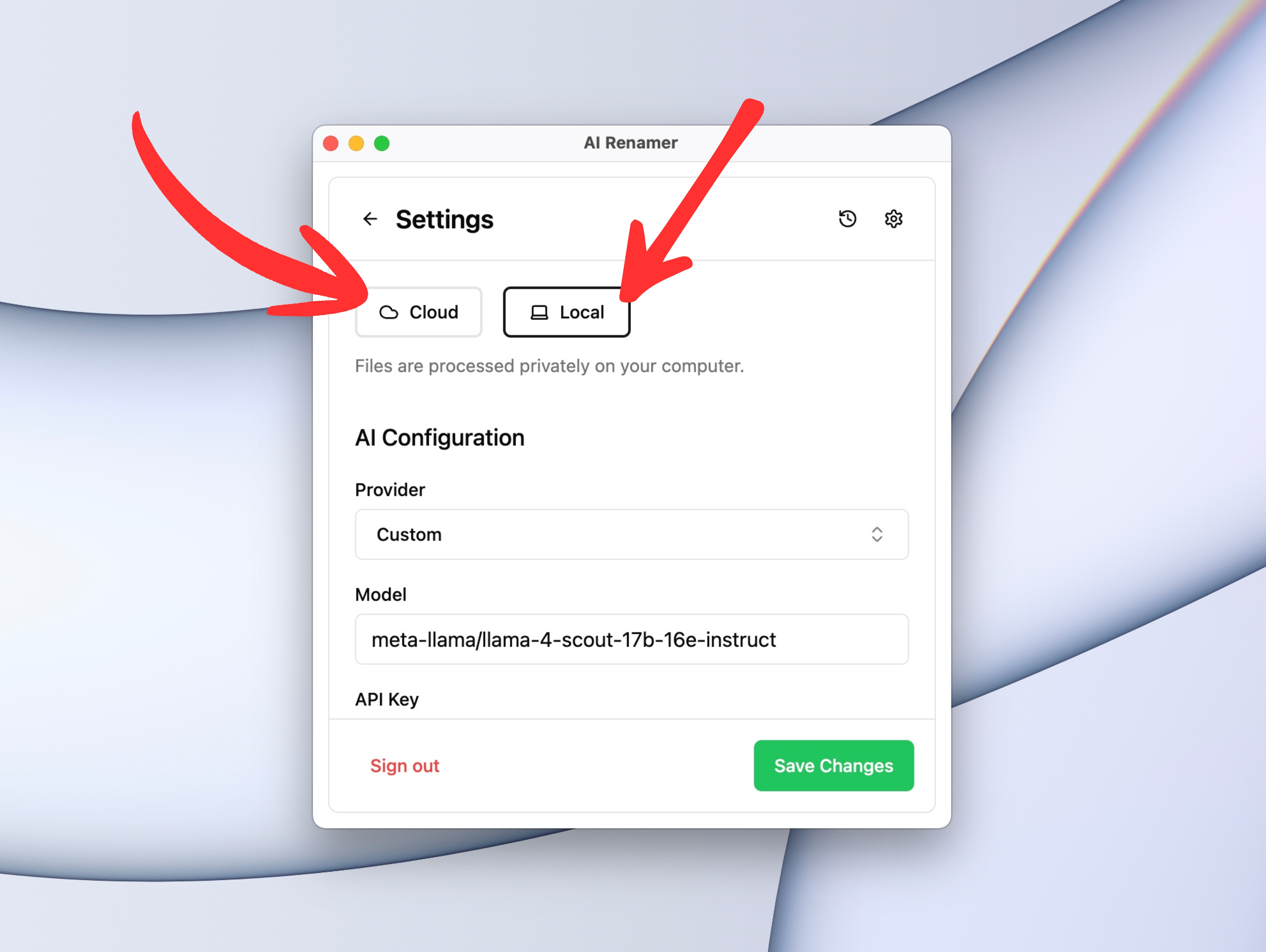 Local Mode
- Uses your own AI model (Ollama, LM Studio, or API keys)
- Files stay on your device
- Best for privacy, sensitive employee data, and unlimited renaming
Cloud Mode
- Uses built-in AI models
- Fast and convenient
- Uses prepaid credits (1 rename = 1 credit)
Both modes fully support PDF renaming.
3. Add Your HR PDF Files
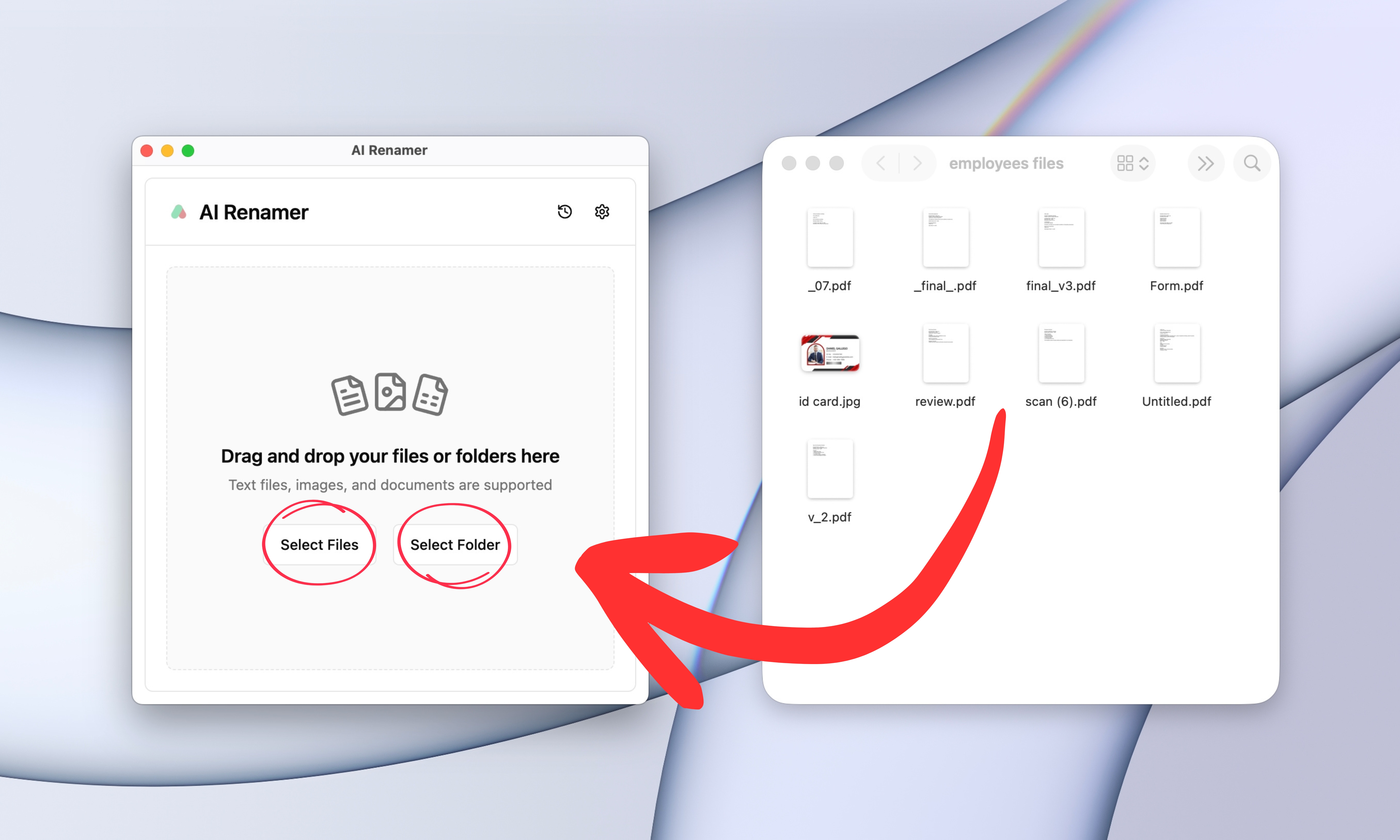 Drag and drop any folder that contains your HR PDFs, for example:
Candidates/Offer Letters/Onboarding/Policies/Performance Reviews/Training Certificates/
AI Renamer scans each PDF and prepares filename suggestions based on what it can read inside the file.
4. Preview the AI-Generated Names
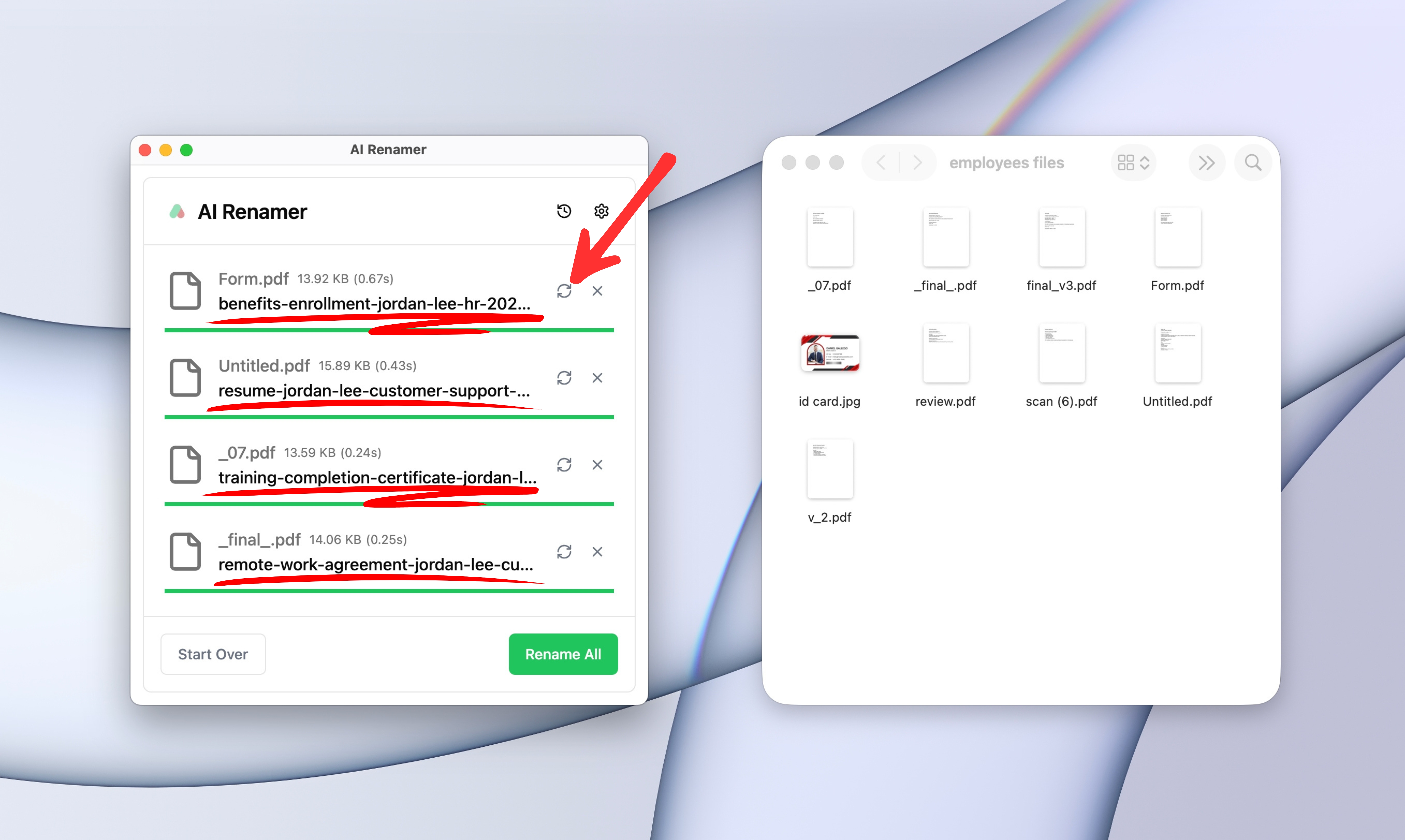 AI Renamer generates a suggested filename for each PDF. If a name doesn’t fit what you want, you can:
- Click Regenerate for a new suggestion
- Keep everything consistent before applying changes
5. Rename All PDFs in One Click
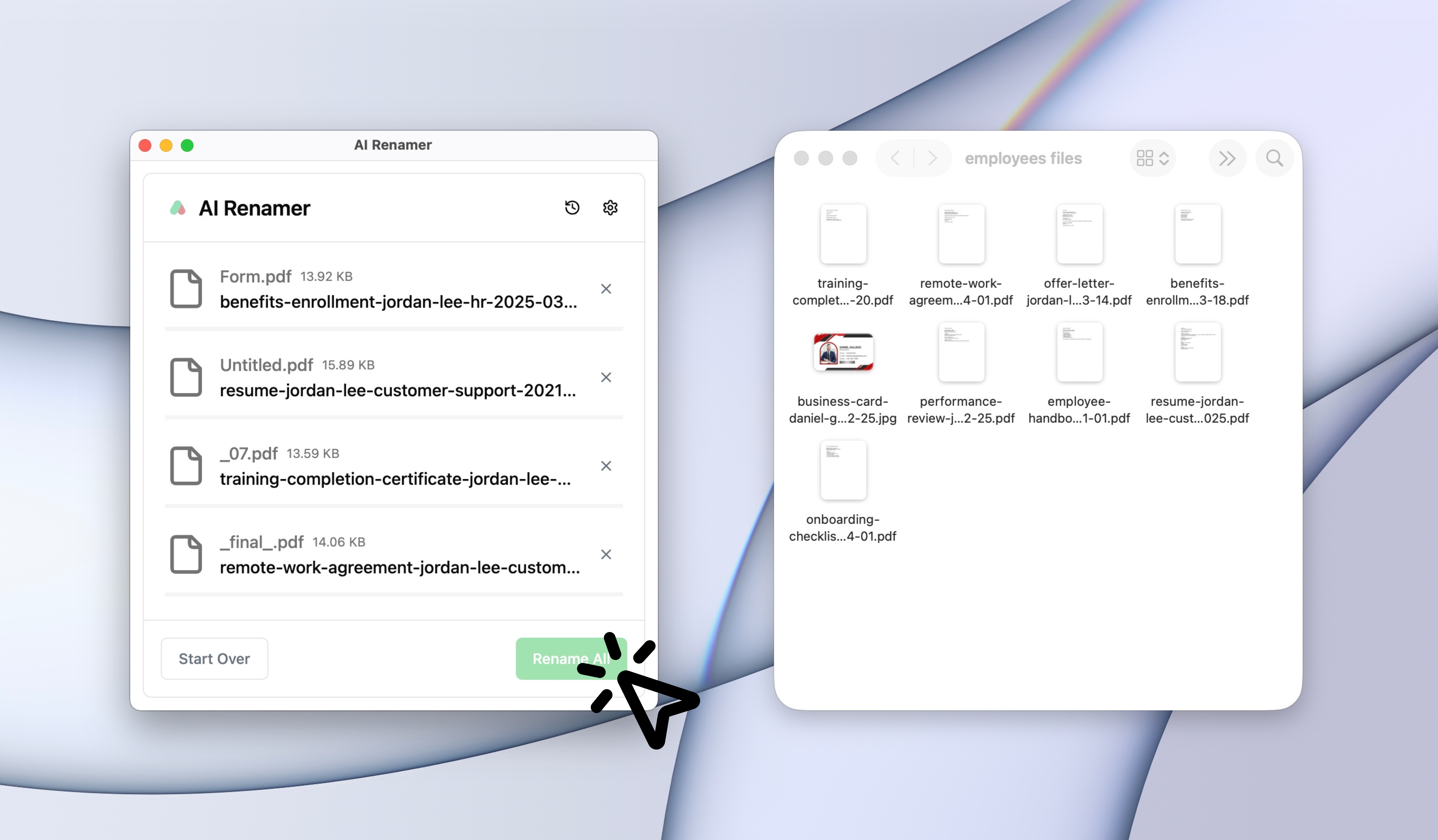 Once the preview looks right, click Rename All.
Your HR folders become clean and searchable instantly.
Using Custom Instructions for Consistent HR Document Naming
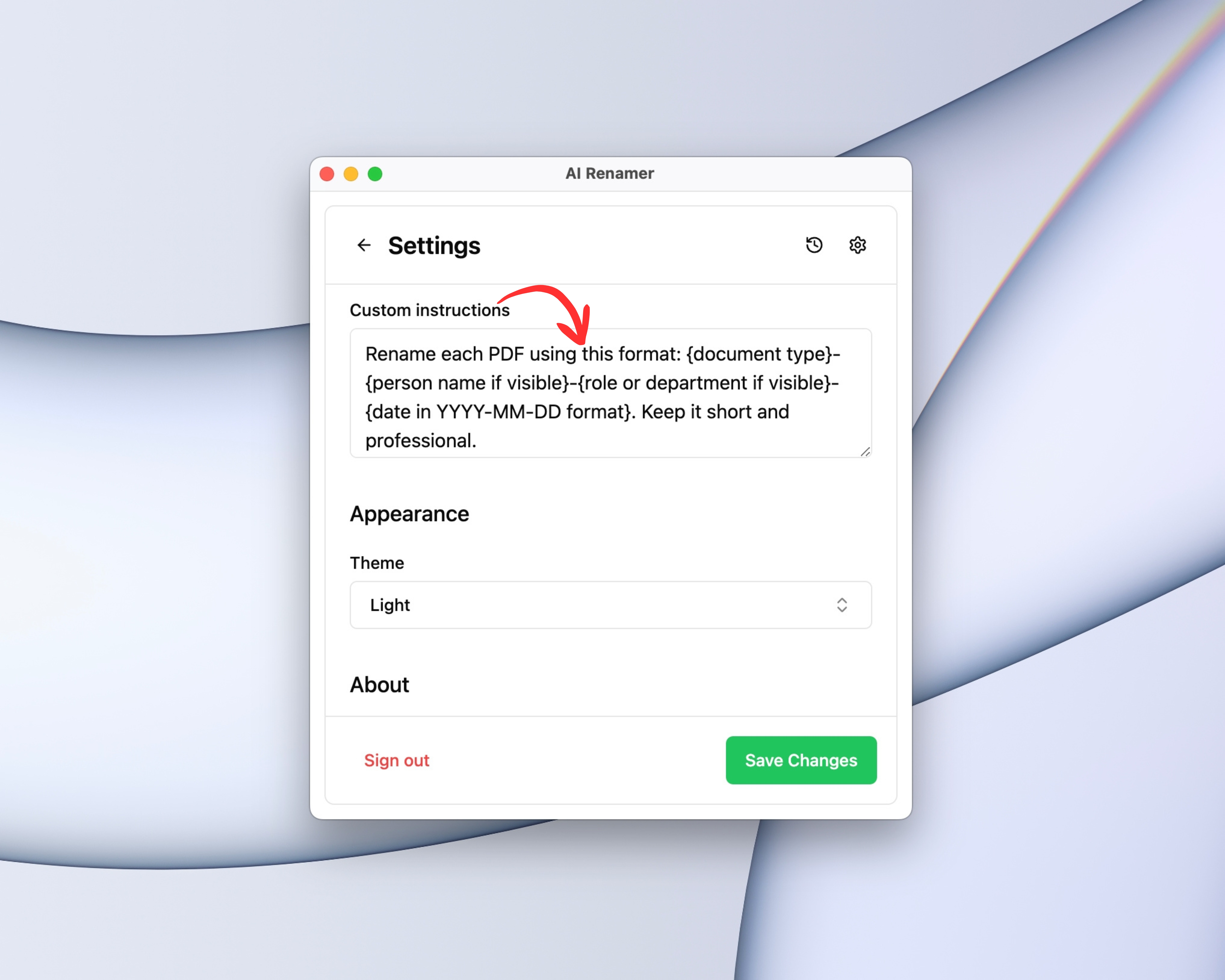 HR teams often need filenames that follow a predictable structure across roles, regions, and employee lifecycle stages.
Custom Instructions let you define a naming format the AI will follow for every file in the batch. For more workflow ideas, see:
👉 10 Professional Use Cases for AI File Renaming Tool
A Practical Naming Format For HR
Here are a few common patterns that work well:
{doc type}-{employee or candidate name}-{role}-{date}{doc type}-{department}-{topic}-{effective date}{doc type}-{candidate name}-{stage}
Example Custom Instruction for HR
Paste something like this:
“Rename each PDF using this format: {document type}-{person name if visible}-{role or department if visible}-{date in YYYY-MM-DD format}. Keep it short and professional.”
This helps turn:
Signed.pdfDocument (21).pdfscan_2025_03_14.pdf
into filenames like:
offer-letter-jordan-lee-sales-associate-2025-03-14.pdfemployee-handbook-policy-update-2025-01-01.pdfperformance-review-q2-2025.pdf
AI Renamer can only use what it can read.
HR PDF Examples (Before and After)
Below are realistic examples based on common HR workflows.
Example 1: Resume PDF
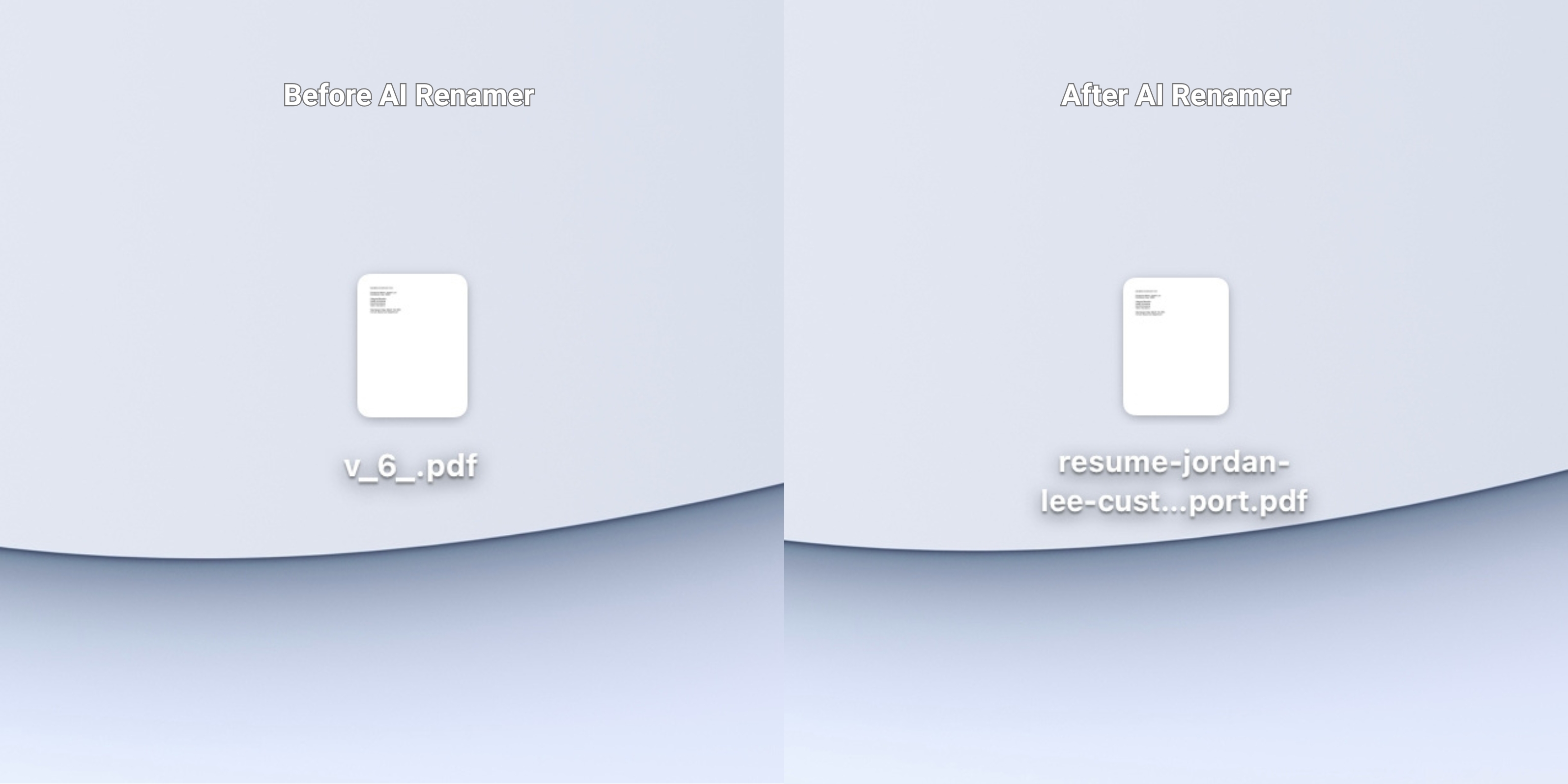 Before:
 v_6_.pdf
After: resume-jordan-lee-customer-support.pdf
AI Renamer may detect:
- Resume layout and keywords
- Candidate name (if clearly visible)
- Role keywords (if clearly stated)
Example 2: Offer Letter
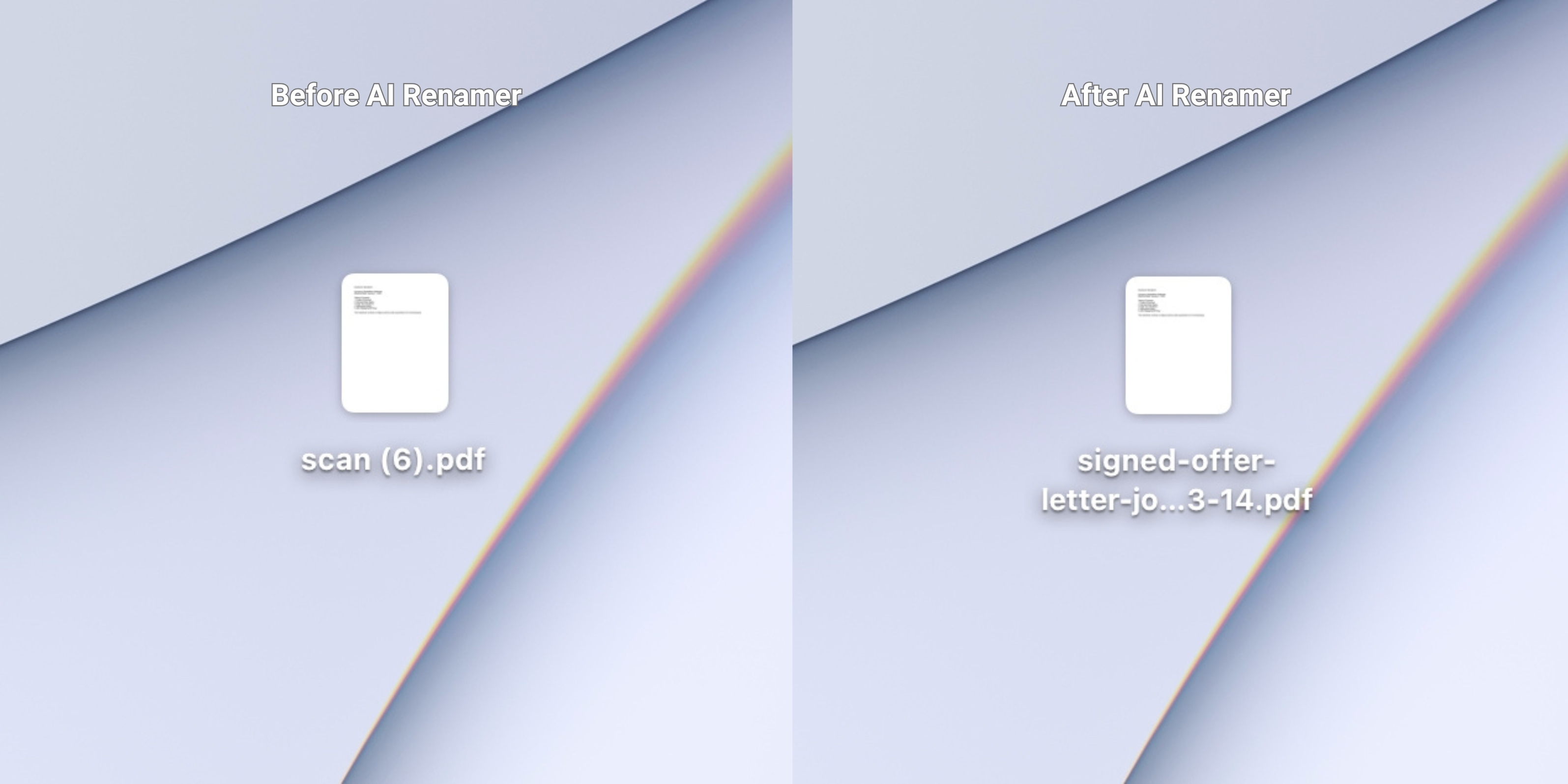 Before:
 scan (6).pdf
After: signed-offer-letter-jordan-lee-2025-03-14.pdf
AI Renamer typically identifies:
- Offer letter phrasing
- Dates and document type
Example 3: Employee ID Cards
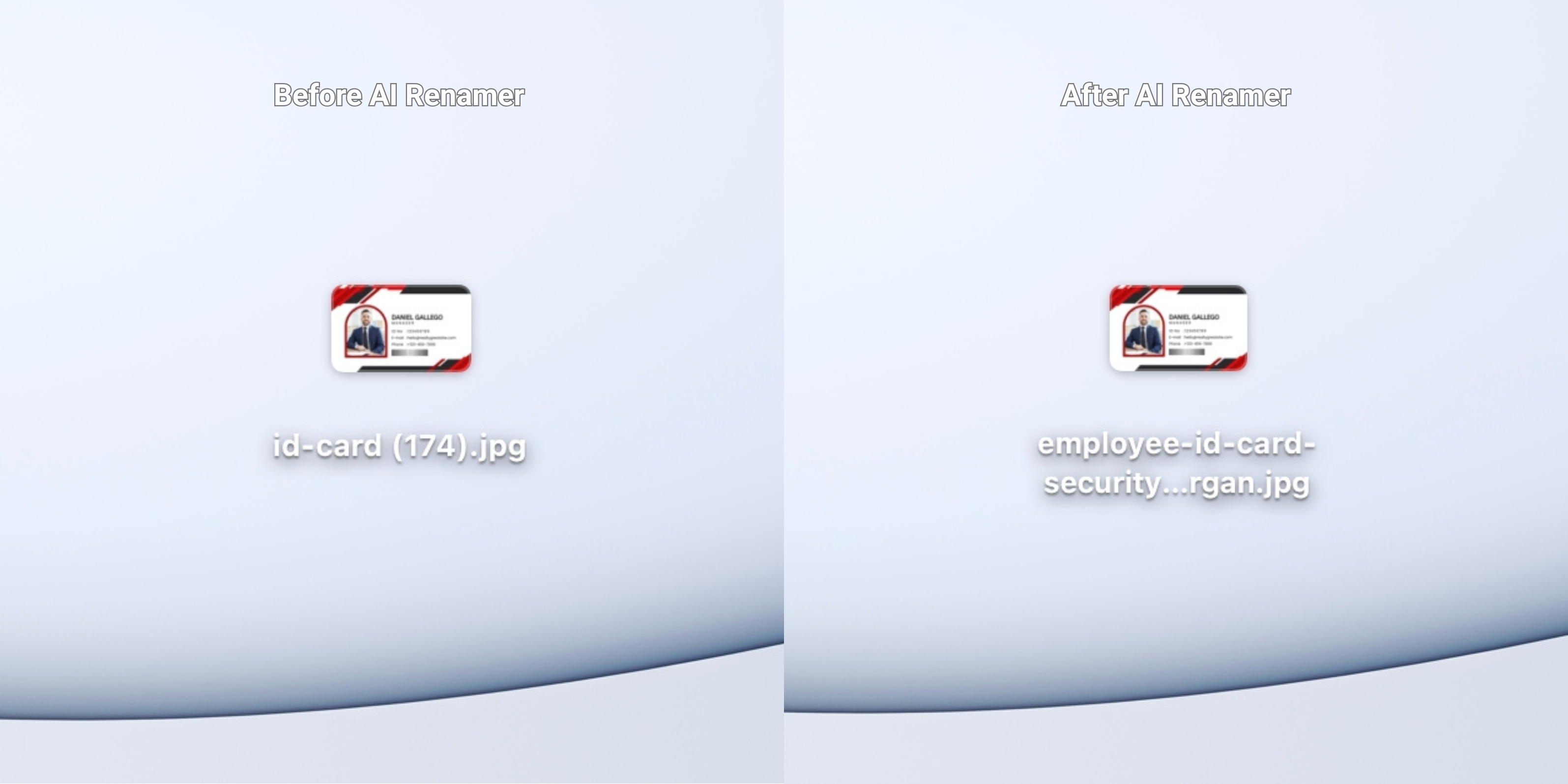 Before:
 id-card (174).jpg
After: employee-id-card-security-officer-alex-morgan.pdf
The AI looks for:
- ID card–style layout and keywords
- Employee name
- Job title or role
- Department references (if visible)
Example 4: Policy Document
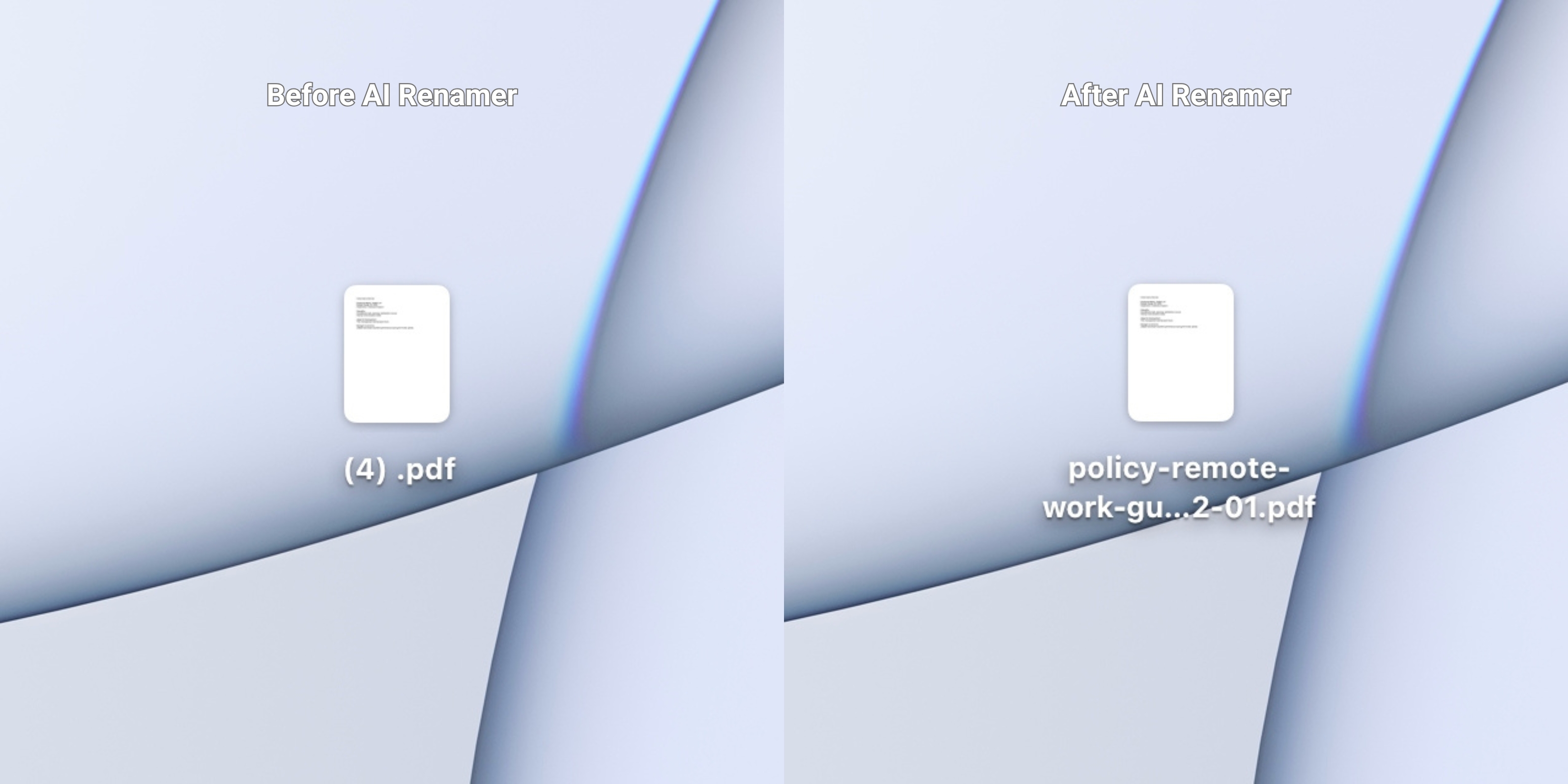 Before:
 (4) .pdf
After: policy-remote-work-guidelines-2025-02-01.pdf
AI Renamer may detect:
- Policy titles and headings
- Effective dates
- Topic keywords (remote work, PTO, travel, expense)
Example 5: Performance Review
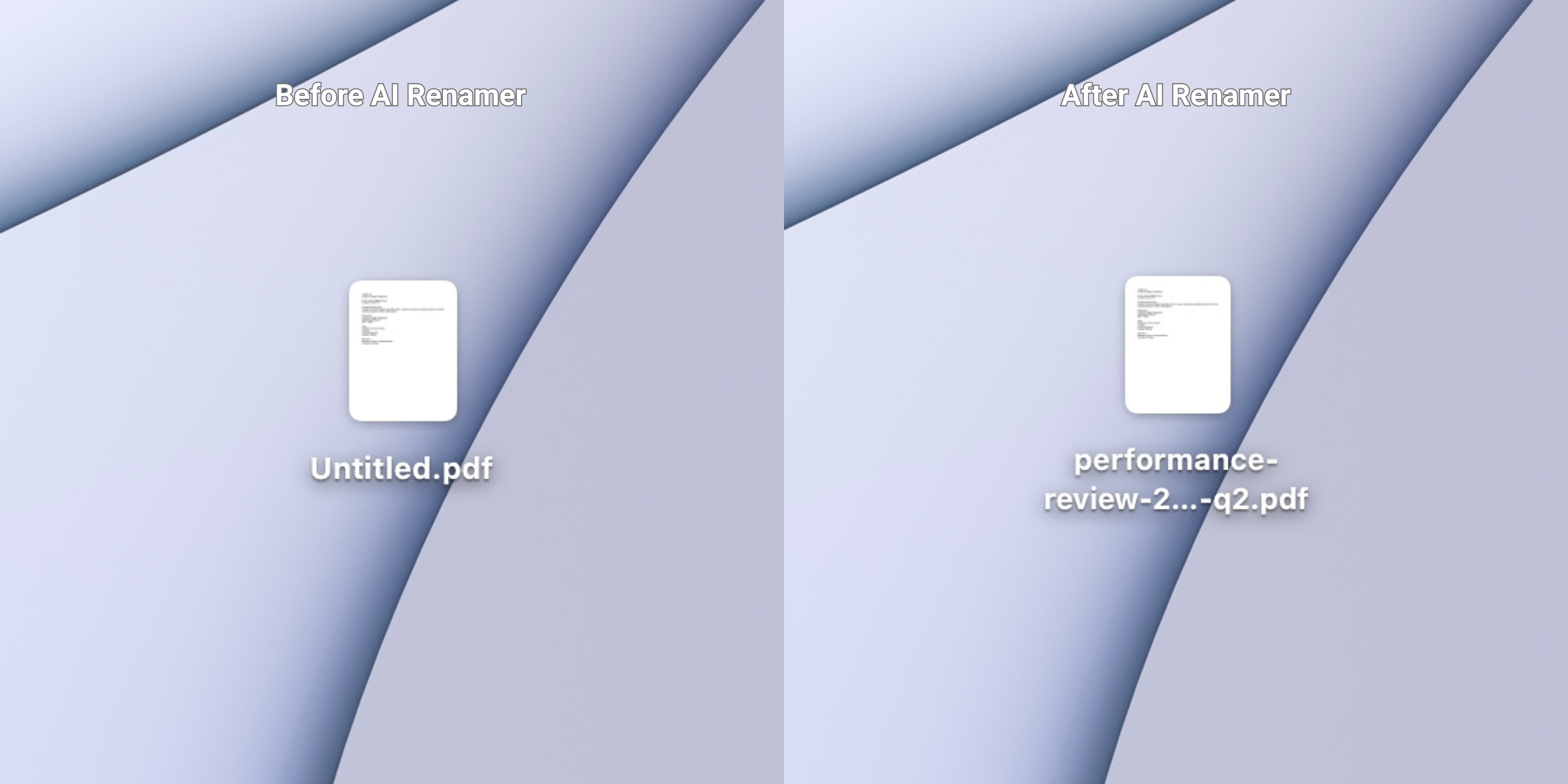 Before:
 Untitled.pdf
After: performance-review-2025-q2.pdf
AI Renamer typically identifies:
- “Performance review” language
- Review period dates
- Standard HR template terms
Frequently Asked Questions
How does AI Renamer rename HR PDFs?
It reads the text inside the PDF and generates a descriptive filename based on what it can detect, such as document type, dates, and keywords.
Is it private enough for HR documents?
Yes.
- Local Mode: processing stays on your device
- Cloud Mode: files are processed temporarily and not stored
If confidentiality is a priority, Local Mode is usually the best option.
Does it work on scanned HR PDFs?
Yes, as long as the text is readable. If the scan is blurry or the text is not selectable, results may be less accurate.
Can I batch rename a whole folder of HR PDFs?
Yes. Batch renaming is the core feature. Drag in a folder and rename everything in one pass.
Keep HR Folders Clean Without Manual Renaming
If your HR documents look like this:
Document (21).pdfUntitled.pdffinal-v2.pdfscan_2025_03_14.pdf
You’re not doing anything wrong. That’s just how HR files arrive.
AI Renamer gives HR teams a fast, private, and automatic way to batch rename PDFs so your folders stay consistent, searchable, and easy to manage. For HR professionals managing employee records, onboarding files, and compliance documents, clean filenames make daily work faster and safer.
👉 Try AI Renamer: airenamer.app