How to Automatically Rename Images for Social Media Creators Using AI

A Fast and Private Way to Batch Rename Social Media Images, Memes, Screenshots, and Content Assets
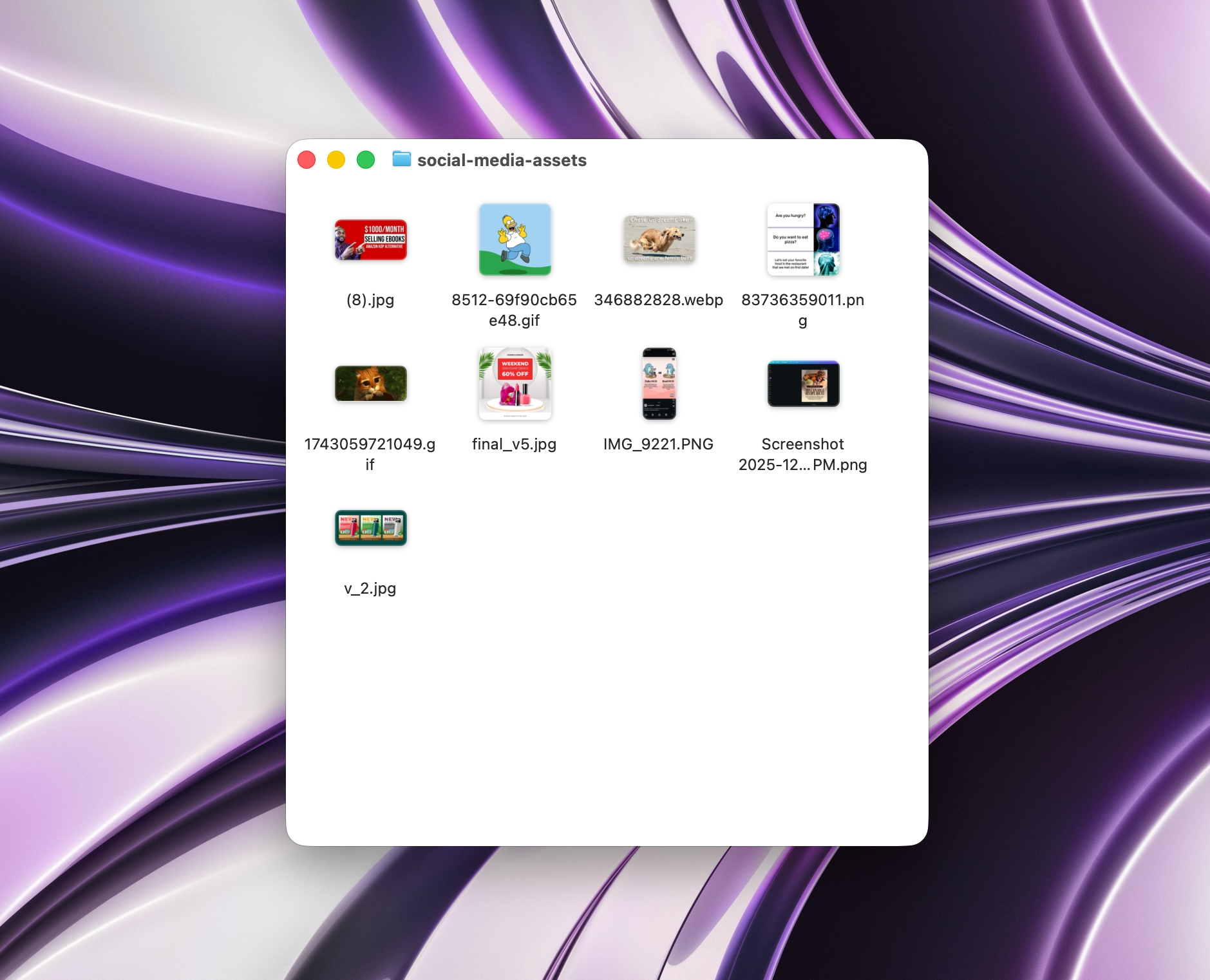
Social media creators deal with hundreds of images every week:
- Instagram posts and carousels
- TikTok thumbnails and drafts
- X (Twitter) memes and screenshots
- YouTube thumbnails
- Brand assets and collaborations
- Canva and Photoshop exports
But most files arrive with names like:
IMG_5401.PNGScreenshot 2025-03-11 at 14.22.08.pngfinal_final_v3.pngUntitled design (7).jpg
Manually renaming these files breaks your creative flow and makes it harder to reuse content later.
If you’re new to AI Renamer, start here:
In this guide, you’ll learn how to automatically rename images using AI so your social media assets stay clean, searchable, and organized with zero manual work.
Why Social Media Images Are Hard to Organize
Social content usually comes from many sources:
- Phone camera exports
- Screenshots
- Canva or Figma designs
- Meme templates
- Downloads from collaborators or brands
That’s why folders quickly fill up with filenames like:
IMG_20250310_183212.jpgScreenshot (12).pngexport_2.pngUntitled-1.webp
This causes friction when you try to:
- Reuse old content
- Find a specific meme or post
- Organize content by platform or campaign
- Share files with brands or editors
- Build a clean content archive
An AI-powered image renamer fixes this by turning meaningless filenames into clear, descriptive ones automatically.
How AI Renamer Helps Social Media Creators
 AI Renamer analyzes the visual content of each image and generates filenames based on what it sees.
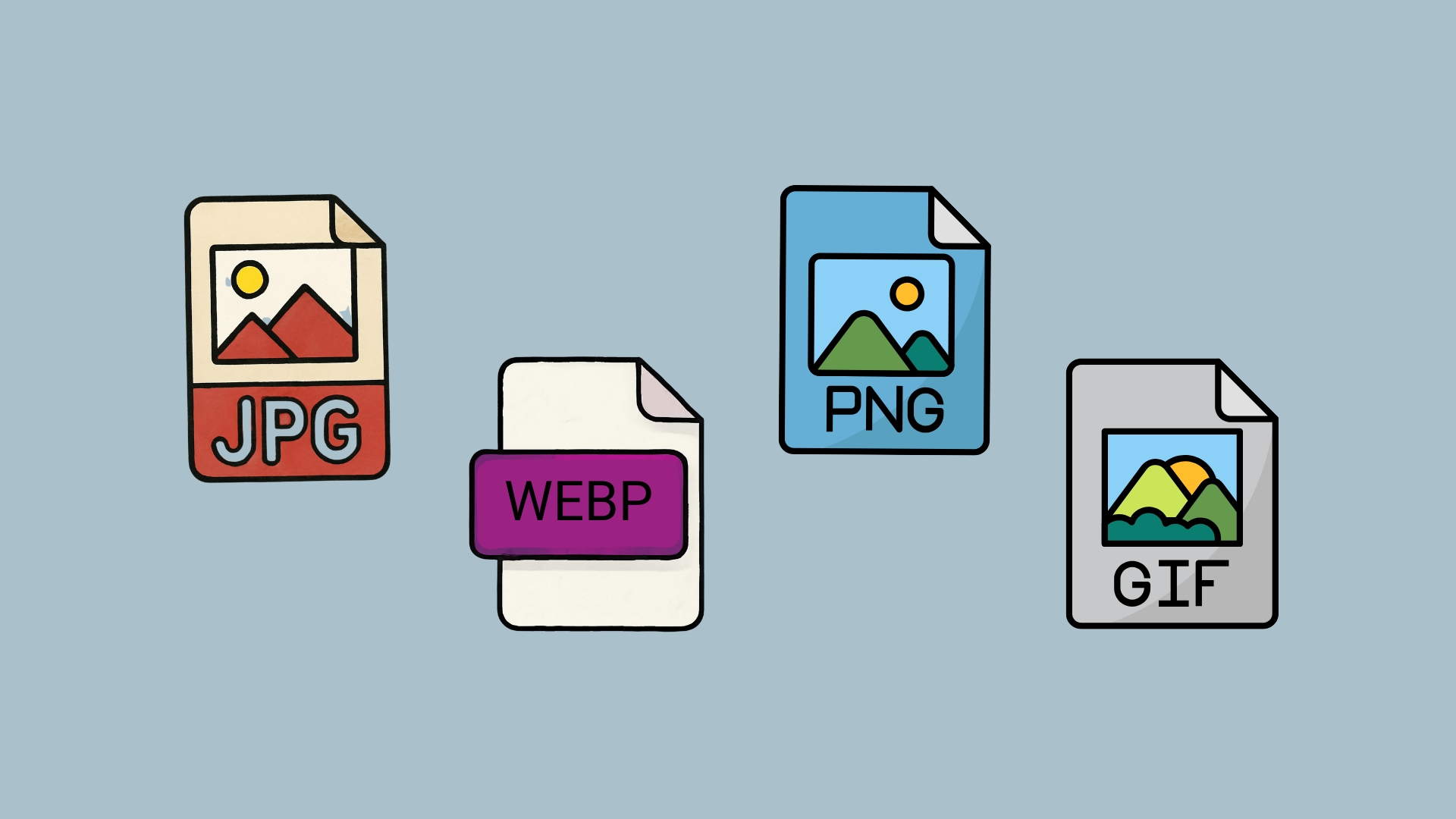
Supported Image Formats
- JPG / JPEG
- PNG
- GIF
- WEBP
- BMP
- TIFF
It works great for renaming:
- Social media posts
- Memes and reaction images
- Screenshots
- Thumbnails
- Canva exports
- Story assets
- Promotional visuals
What You Can Do With AI Renamer
- Batch rename hundreds of images at once
- Keep everything private using Local Mode
- Use Custom Instructions to control naming style
- Preview filenames before applying
- Rename images based on visible content, not just metadata
The focus is always on renaming first. Better organization comes naturally after.
How to Automatically Rename Images with AI (Step-by-Step Guide)
1. Download AI Renamer
 Download the desktop app for macOS or Windows. Setup takes under one minute.
Installation guides:
2. Choose Local Mode or Cloud Mode
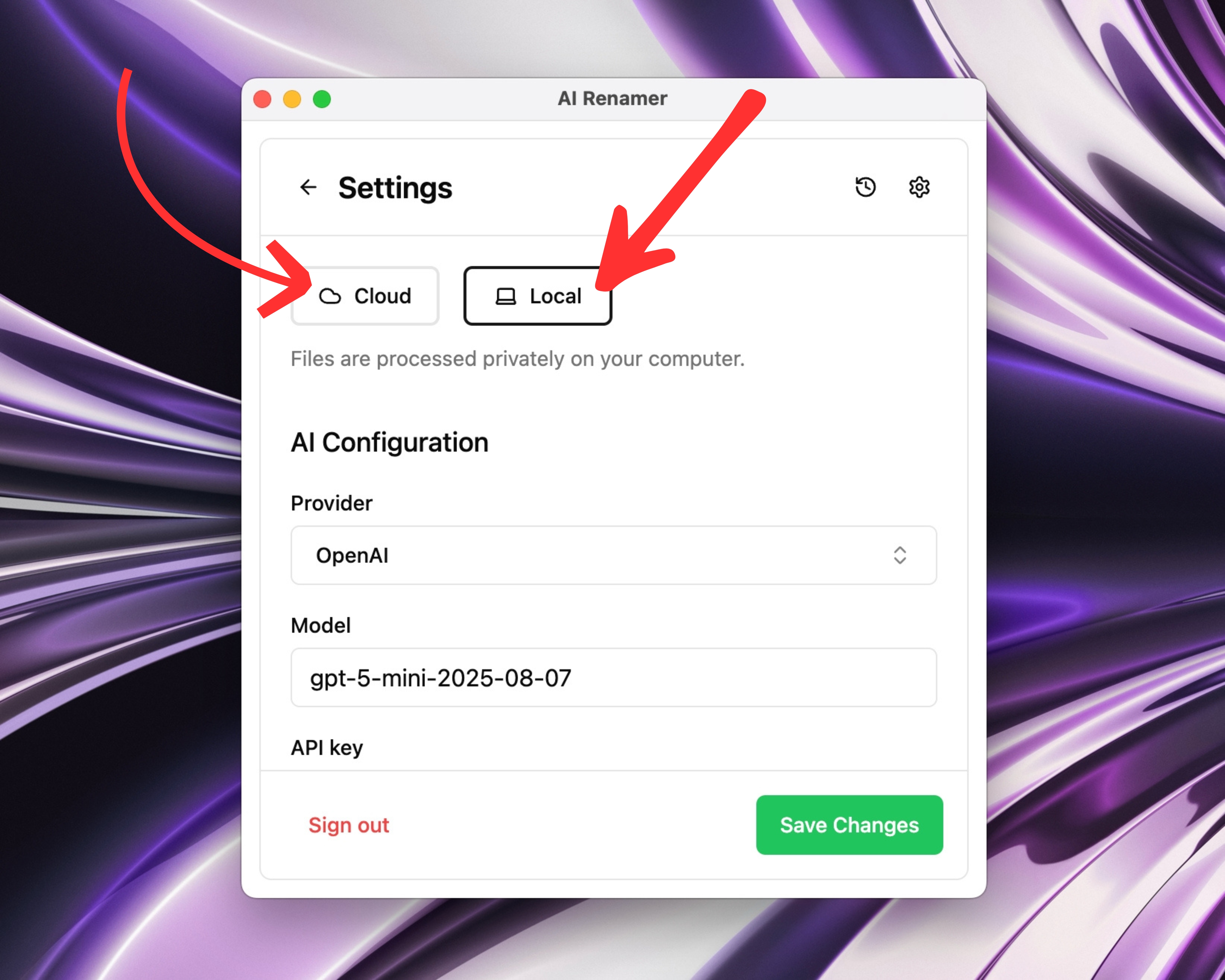 Local Mode
- Uses your own AI model (Ollama, LM Studio, or API)
- Files never leave your device
- Best for privacy and unlimited renaming
Cloud Mode
- Uses built-in AI models
- Fast and convenient
- Uses prepaid credits (1 rename = 1 credit)
Both modes fully support image renaming.
3. Add Your Image Files
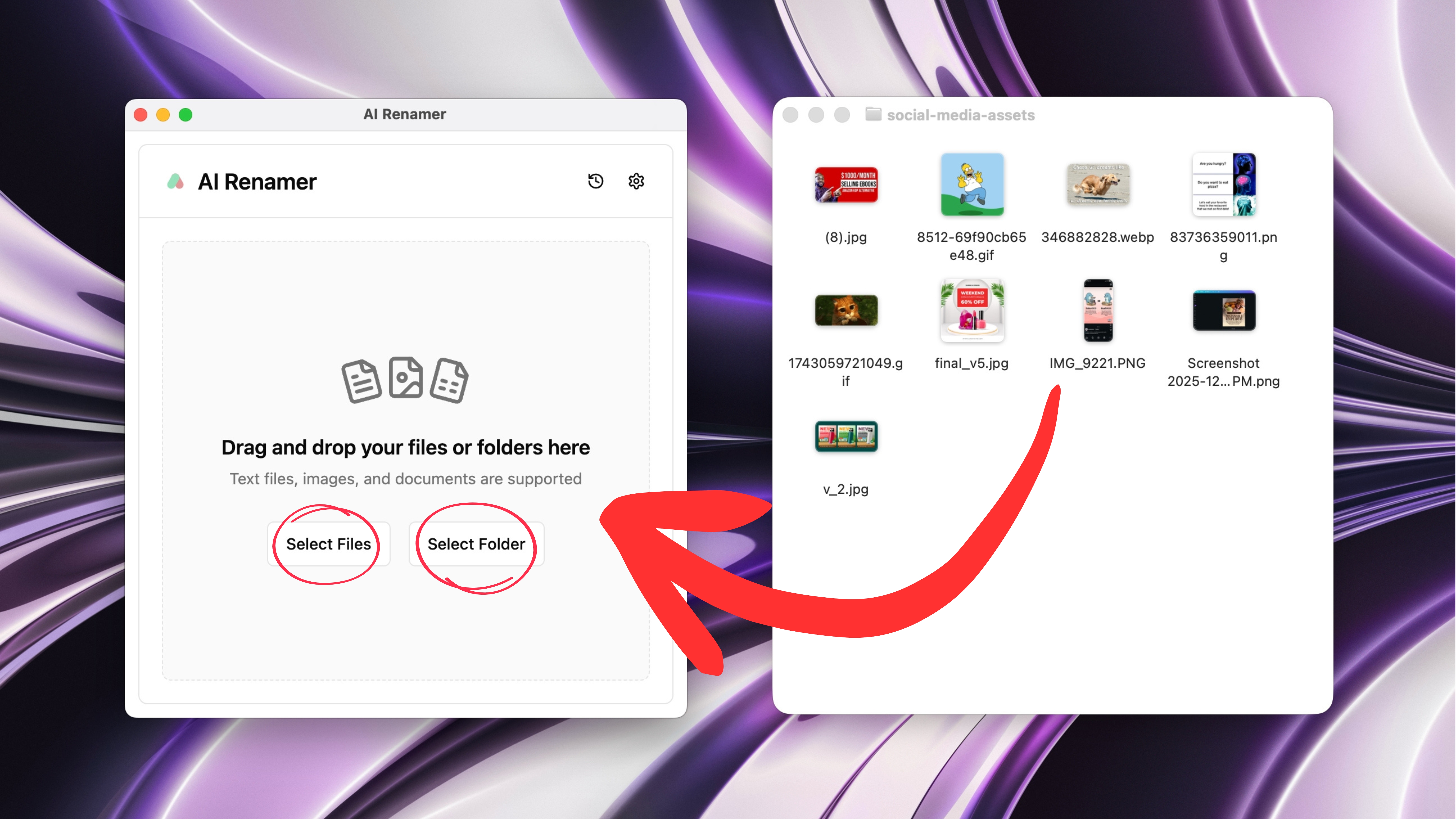 Drag and drop any folder containing your images:
instagram-posts/social-media-assets/memes/thumbnails/screenshots/brand-collabs/
AI Renamer scans each image and prepares filename suggestions by analyzing:
- Objects and scenes
- Text visible in the image (when clear)
- General context (meme, screenshot, post, graphic)
4. Preview the AI-Generated Names
 AI Renamer suggests descriptive filenames like:
Before:
IMG_5401.PNGScreenshot (9).png
After (preview):
instagram-post-coffee-morning-quote.pngmeme-cat-laptop-work.png
You can:
- Click Regenerate for new suggestions
- Confirm everything before renaming
5. Rename All Images in One Click
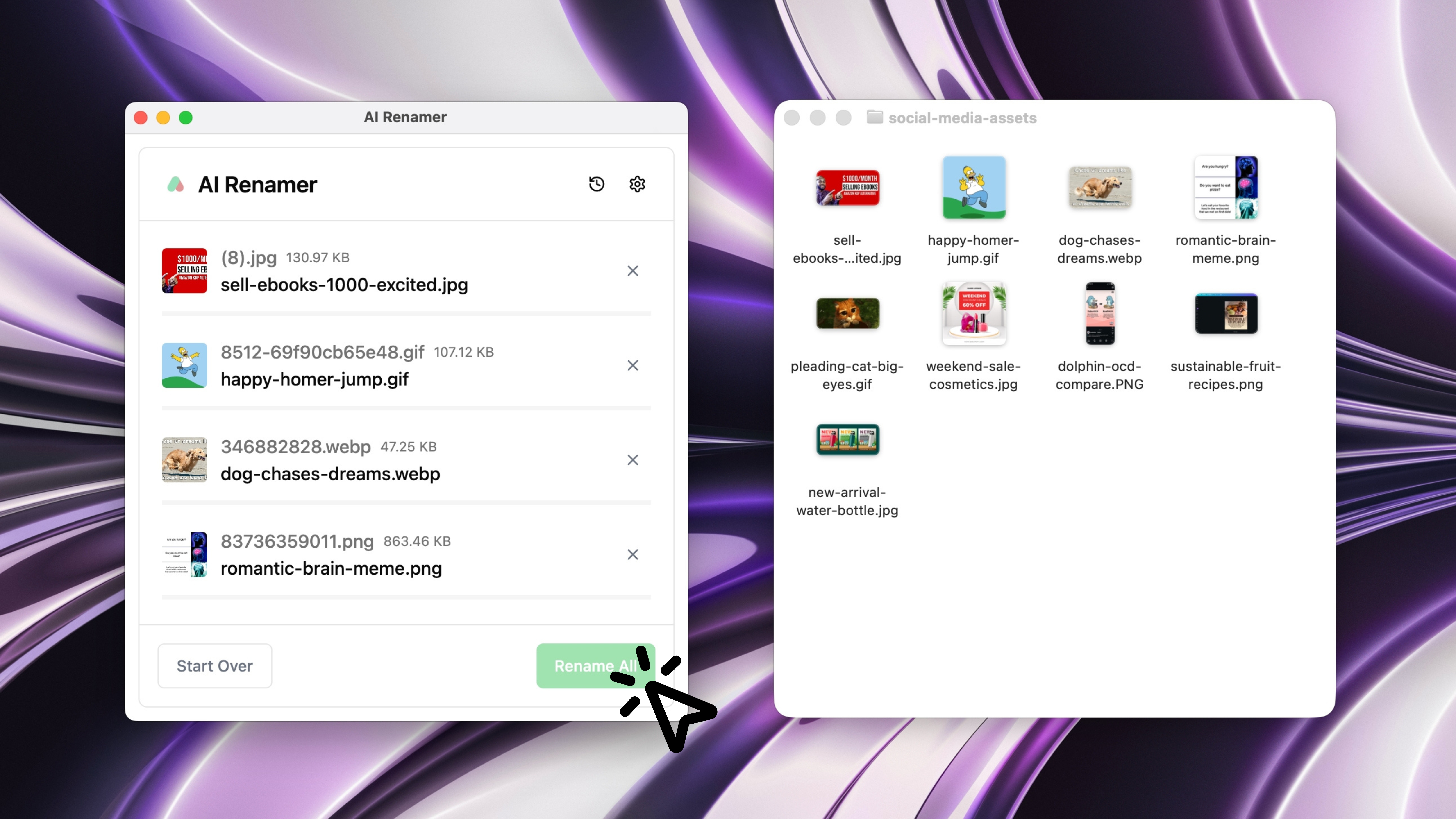 Click Rename All to instantly apply the new filenames.
Your folders become clean, searchable, and reusable immediately.
How to Create Consistent Filenames for Social Media Content
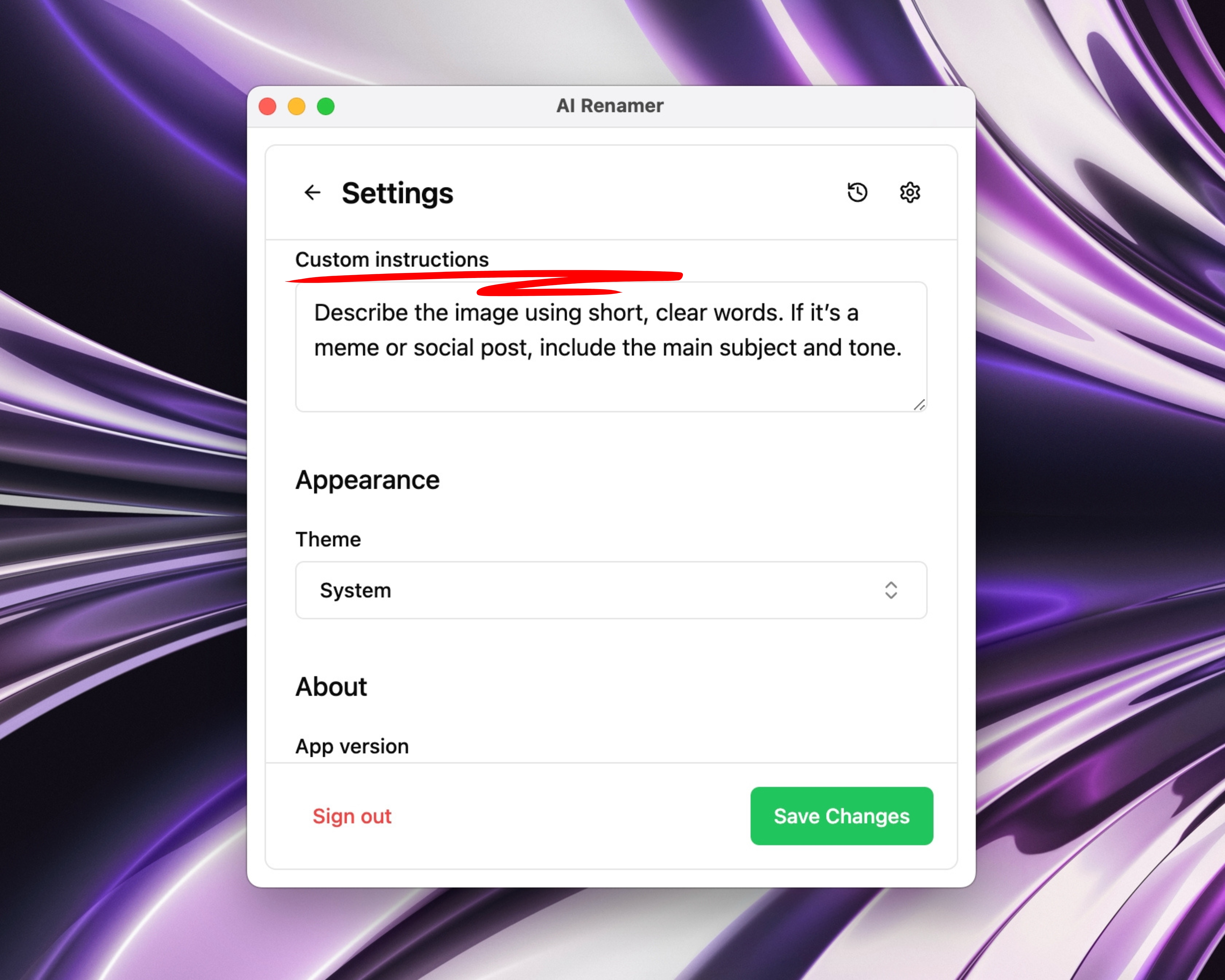 Custom Instructions let you control how images are named.
Example Custom Instruction for Creators
You might write:
“Describe the image using short, clear words.
If it’s a meme or social post, include the main subject and tone.”
AI Renamer then transforms:
Untitled-3.pngexport_final.png
into:
dog-motivation.pngcarousel-product-launch.png
This is perfect if you:
- Schedule content in advance
- Reuse posts across platforms
- Archive memes and screenshots
- Share files with editors or brands
For more workflow ideas, check out:
👉 10 Professional Use Cases for AI File Renaming Tool
Image Examples for Social Media Creators
Below are realistic examples based on common creator workflows.
Example 1: Meme Image
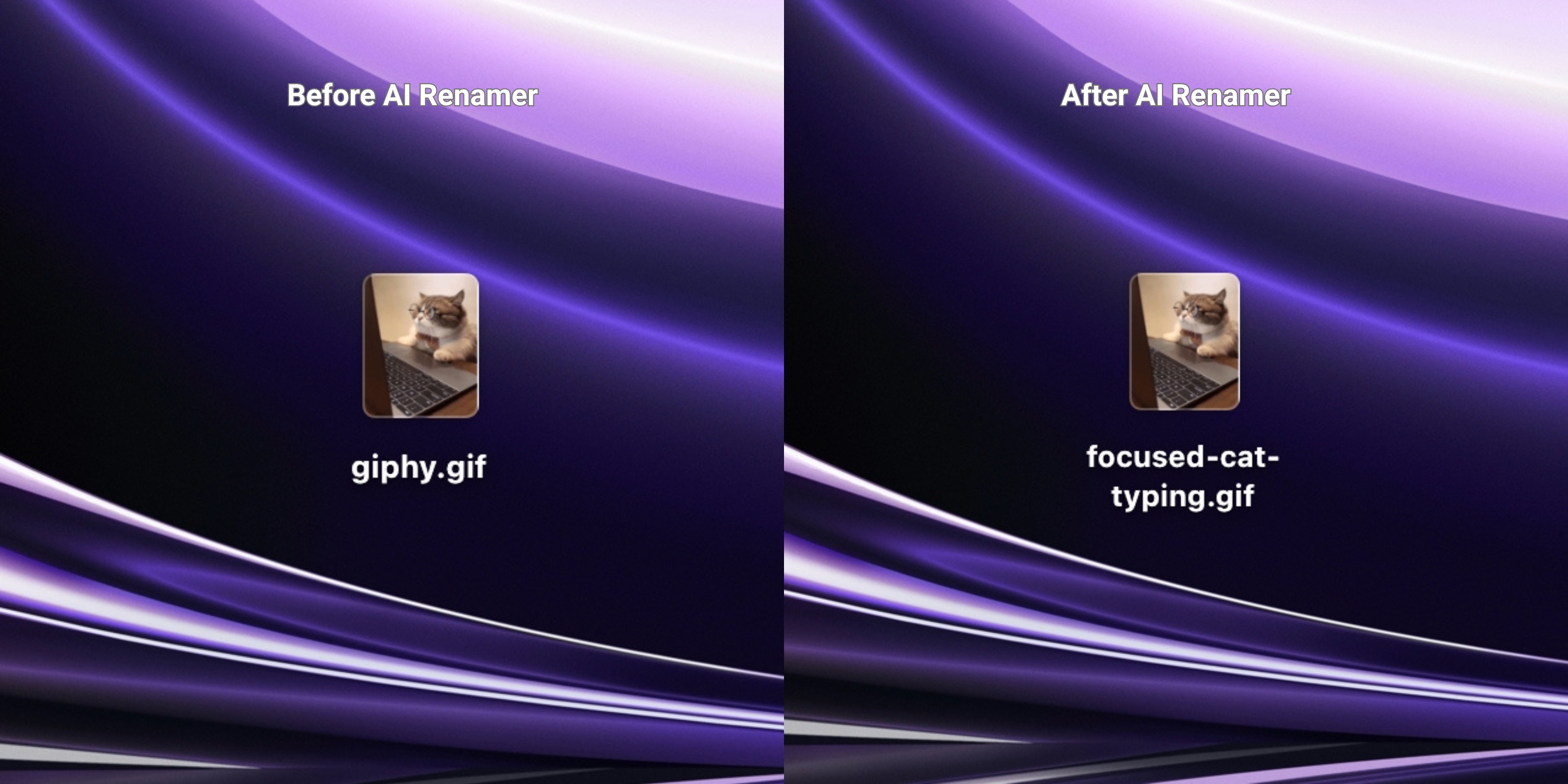 Before:
giphy.gif
After:
focused-cat-typing.gif
AI Renamer detects:
- Animal (cat)
- Context (laptop, running etc.)
- Meme-like composition
Example 2: Instagram Post
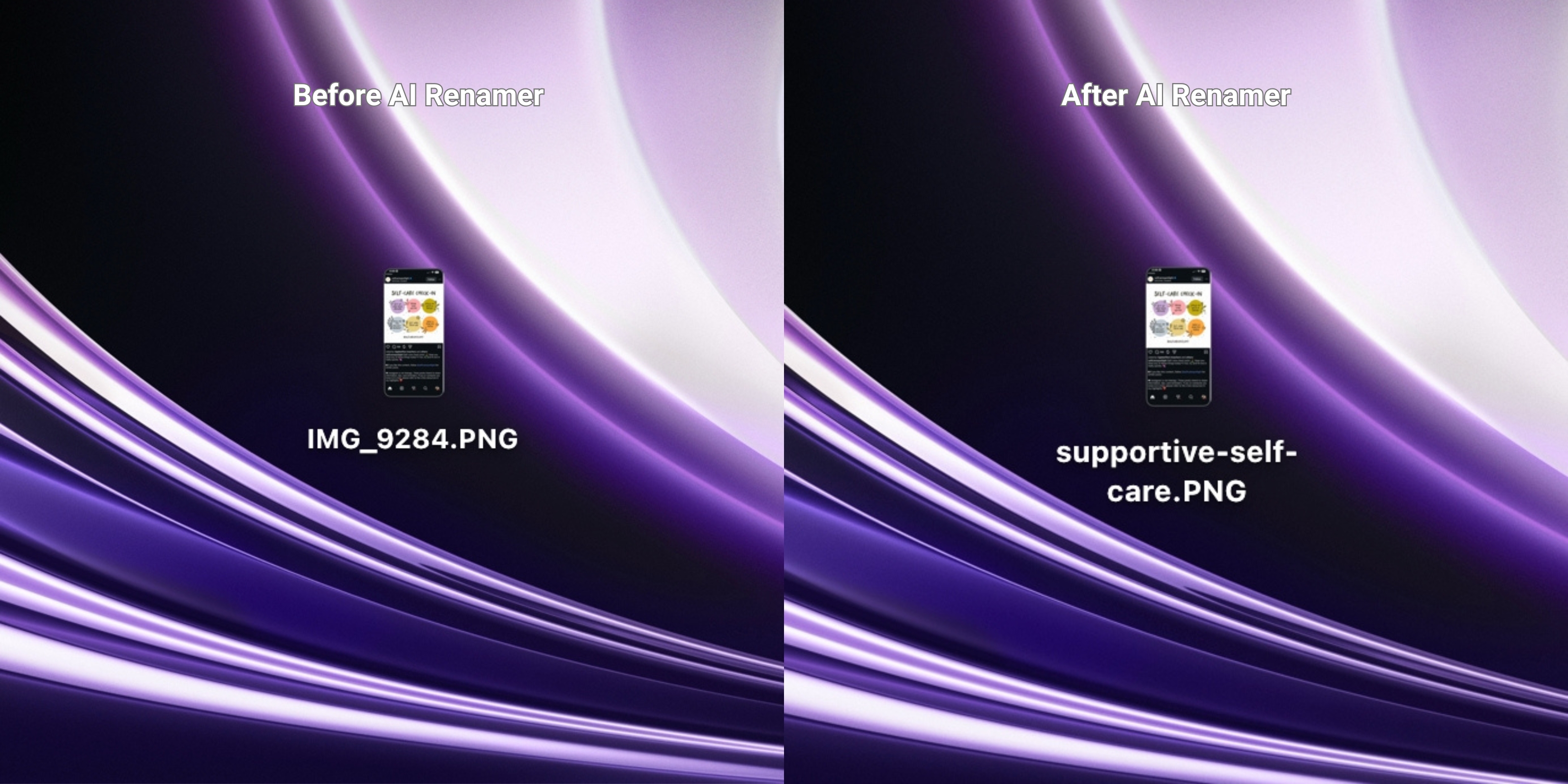 Before:
IMG_9284.PNG
After:
supportive-self-care.PNG
AI Renamer detects:
- Text-based graphic
- Social post layout
- Topic keywords
Example 3: Screenshot
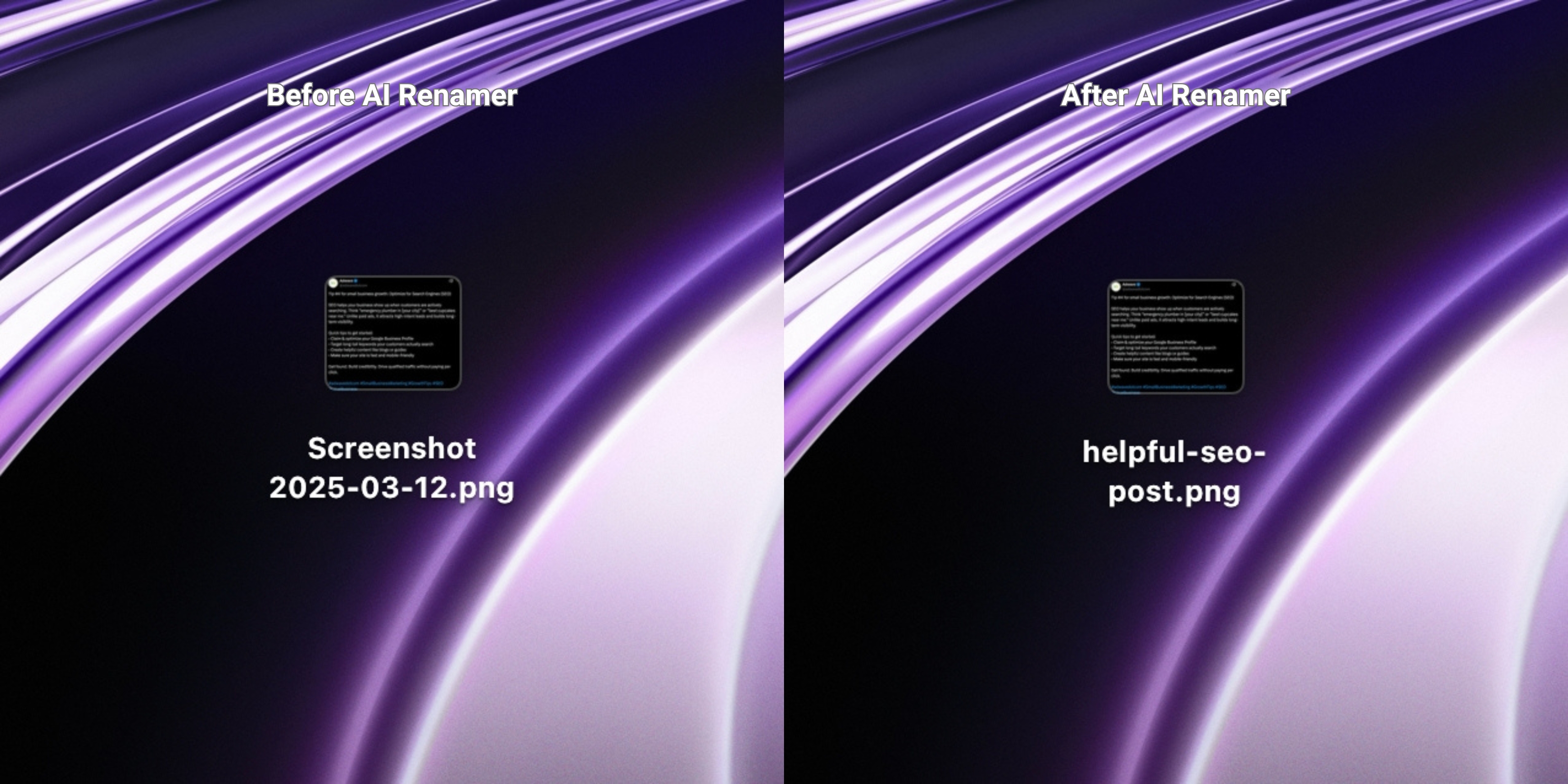 Before:
Screenshot 2025-03-11.png
After:
helpful-seo-post.png
AI Renamer detects:
- UI-like screenshot
- Text-heavy content
- Platform context when obvious
Example 4: Thumbnail or Promo Image
 Before:
new_desing.jpeg
After:
excited-woman-thumbnail.jpeg
AI Renamer detects:
- Thumbnail-style layout
- Large text areas
- Promotional visuals
Frequently Asked Questions
Does AI Renamer work for memes and GIFs?
Yes. AI Renamer supports both animated GIFs and regular image memes (JPG, PNG, WEBP).
Does it recognize specific people or accounts?
No. AI Renamer only uses general descriptions. It does not identify individuals or private identities.
Is it private?
Yes.
- Local Mode: everything stays on your device
- Cloud Mode: files are processed temporarily and never stored
Can I batch rename hundreds of images?
Yes. Batch renaming is the core feature. Drop entire folders and rename everything in one pass.
Keep Your Social Media Assets Clean With Zero Manual Renaming
If your folders are full of:
IMG_5401.pngfinal_final_v3.pngScreenshot (14).png
…you’re not doing anything wrong. That’s just how content creation works.
But it doesn’t have to stay messy.
AI Renamer gives social media creators a fast, private, and automatic way to:
- Batch rename images
- Organize content libraries
- Reuse old posts easily
- Stay focused on creating, not organizing
Clean filenames make content creation smoother.
👉 Try AI Renamer: airenamer.app