How to Automatically Rename Photos for Home Inspectors Using AI

A Fast and Private Way to Batch Rename Home Inspection Photos (Without Manual Work)
Home inspectors take hundreds of photos per inspection:
- Exterior walls, rooflines, gutters, grading
- Electrical panels, outlets, breakers
- HVAC units, water heaters, plumbing fixtures
- Attics, crawlspaces, basements
- Before/after repair documentation
But cameras and phones save everything like:
IMG_2048.jpgDSC_0032.JPGPXL_20260103_142233.jpgScreenshot 2026-01-03.png
Manually renaming photos after a long inspection day is brutal.
In this guide, you’ll learn how to automatically rename home inspection photos using AI so your folders become searchable, consistent, and easy to use in reports.
If you’re new to AI Renamer, start here:
Why Home Inspection Photos Get Messy So Fast
Inspection photos pile up fast because they come from:
- Phone camera roll exports
- DSLR camera dumps
- Team members sending photos via text/email
- Drone photos (roof, chimney, exterior)
- Notes app screenshots
- Client-provided images
- Contractor follow-up photos
So you end up with:
- Photos out of order
- Multiple “IMG_####” sequences across jobs
- Duplicate names like
(1)and(2) - Pain when you need “that one electrical panel shot” later
A dedicated AI photo renamer fixes this by generating descriptive filenames based on what’s in the image (and your naming rules).
How AI Renamer Helps Home Inspectors
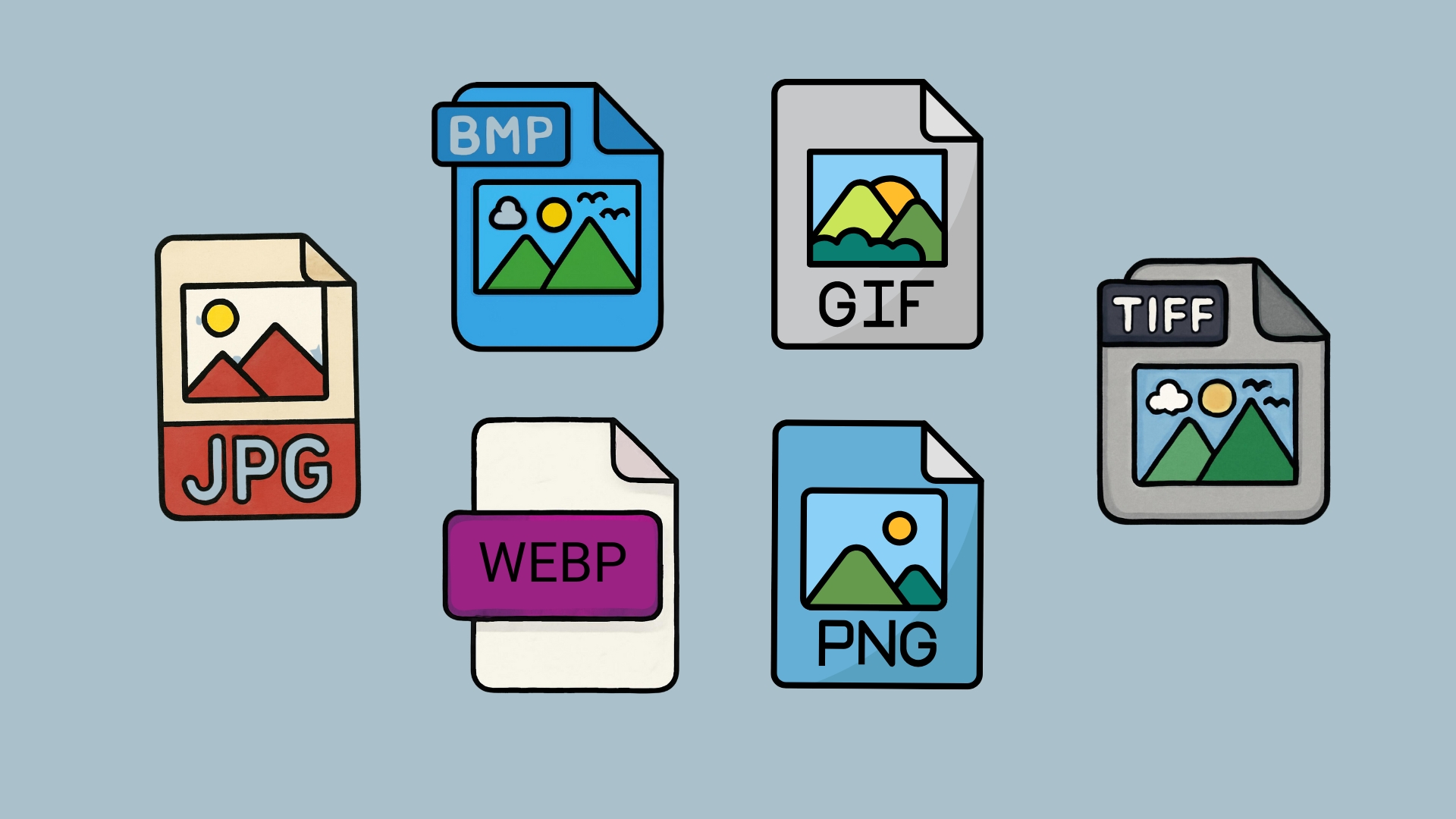 AI Renamer analyzes each photo and suggests clear filenames that describe what’s visible.
With AI Renamer, you can:
- Batch rename hundreds of inspection photos at once
- Rename based on visual content
- Use Custom Instructions to follow your preferred structure
- Keep everything private using Local Mode
- Preview names before applying them
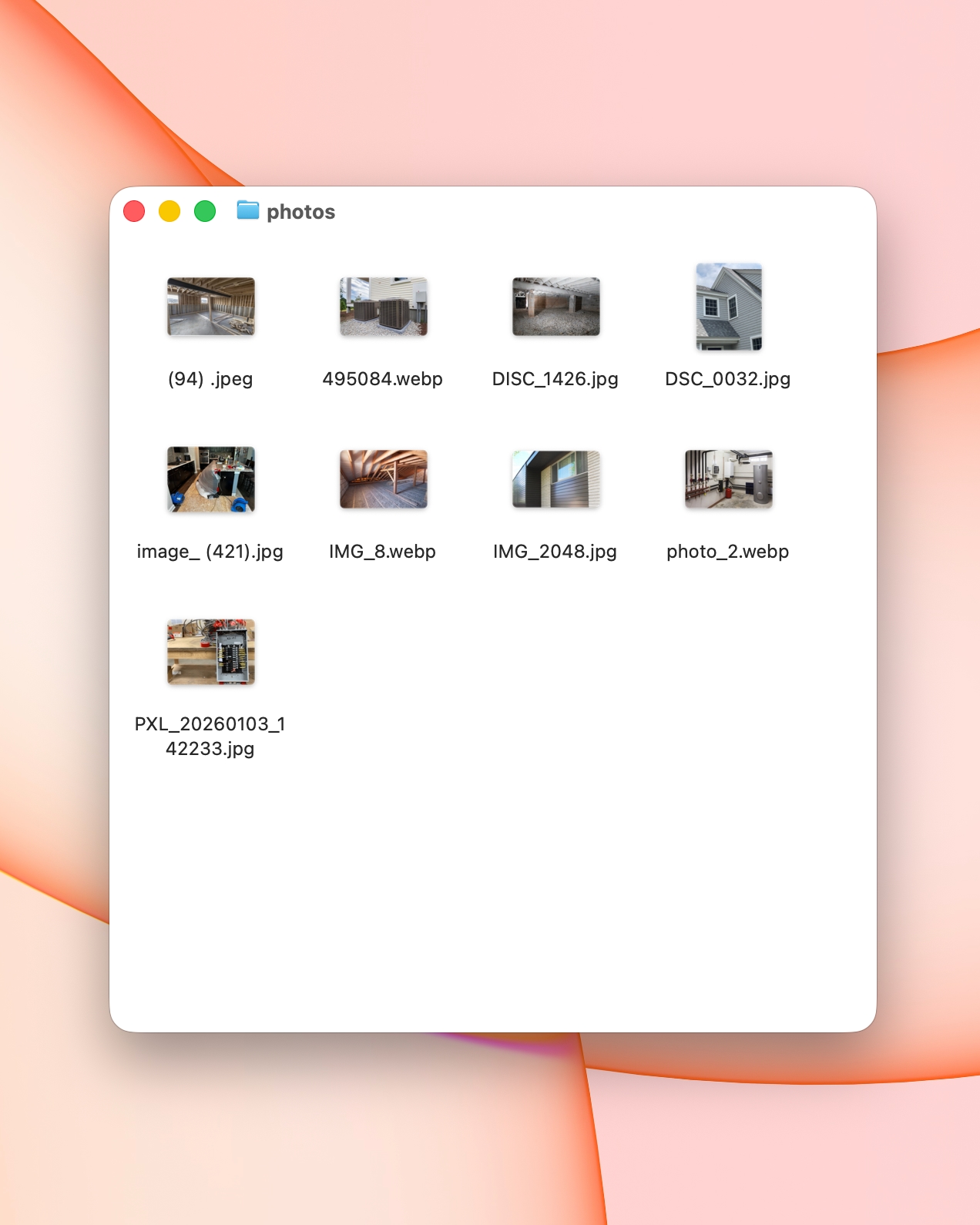
Supported Formats (Perfect for Inspection Work)
- JPG / JPEG
- PNG
- GIF
- WEBP
- BMP
- TIFF
This makes it ideal for renaming:
- Job-site photos
- Defect photos
- Drone images
- Screenshot references
- Repair verification photos
How to Automatically Rename Home Inspection Photos with AI (Step-by-Step)
1. Download AI Renamer
 Download the desktop app for macOS or Windows:
Need step-by-step help?
2. Choose Local Mode or Cloud Mode
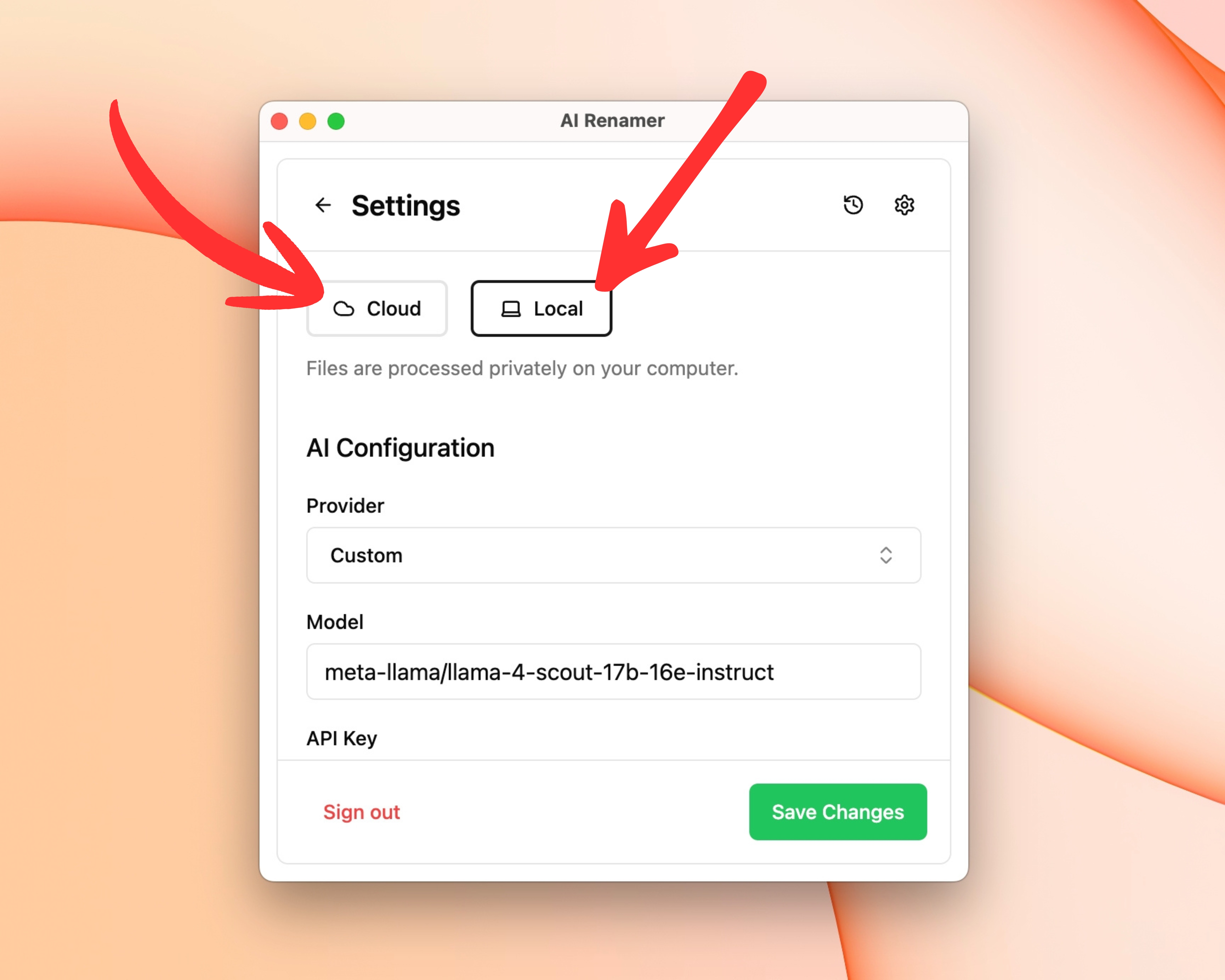 Local Mode (recommended for home inspections)
- Photos stay on your computer (privacy-friendly)
- Unlimited renaming (no credits)
- Best for client data and large photo batches
Cloud Mode
- Uses built-in AI models with prepaid credits
- 1 rename = 1 credit
- Great for quick cleanups
3. Add Your Home Inspection Photo Folder
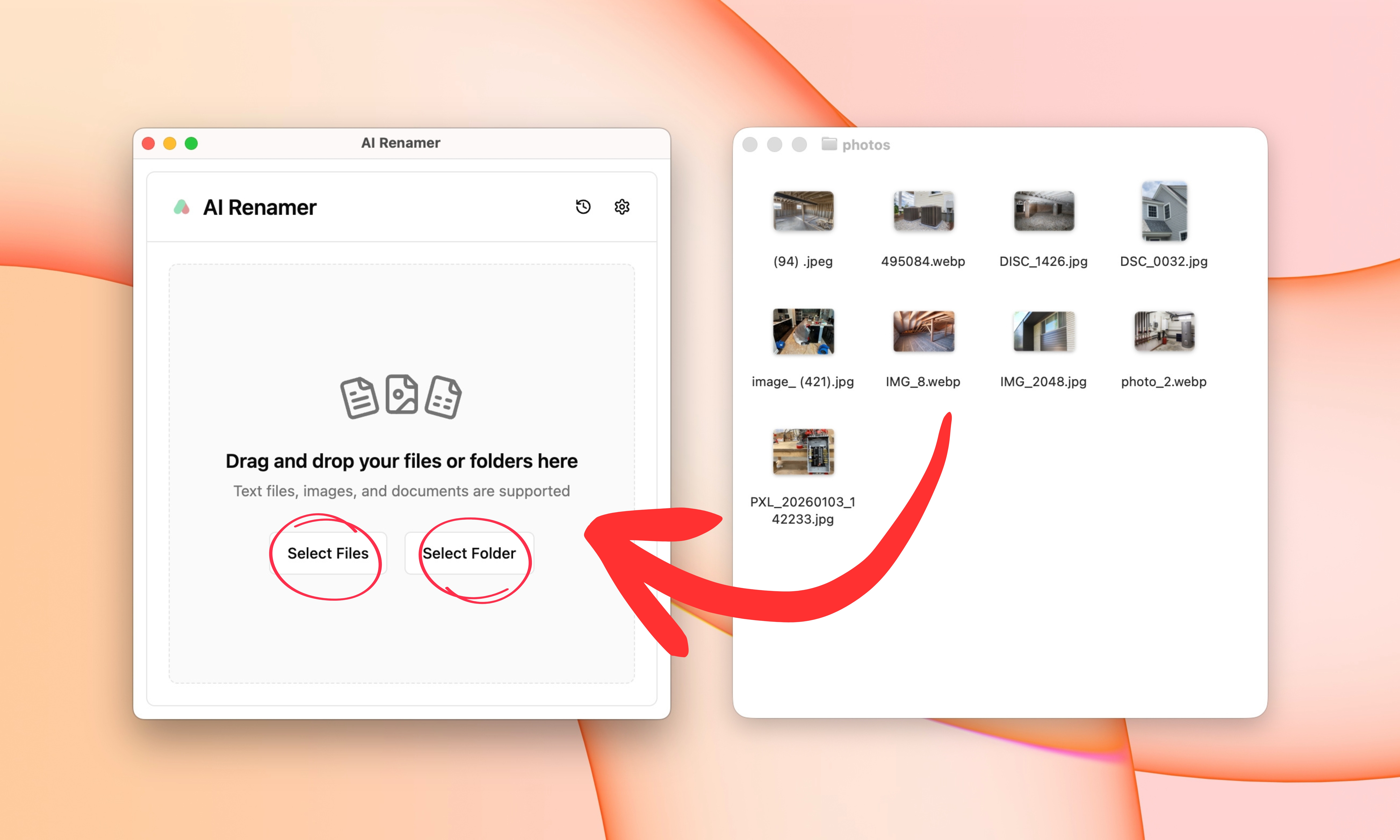 Drag and drop a folder like:
2026-01-03_Inspection_123_Main_St/Roof_Drone_Photos/Electrical/Plumbing/
AI Renamer will scan the images and prepare rename suggestions based on what it can detect visually.
4. Preview the AI-Generated File Names
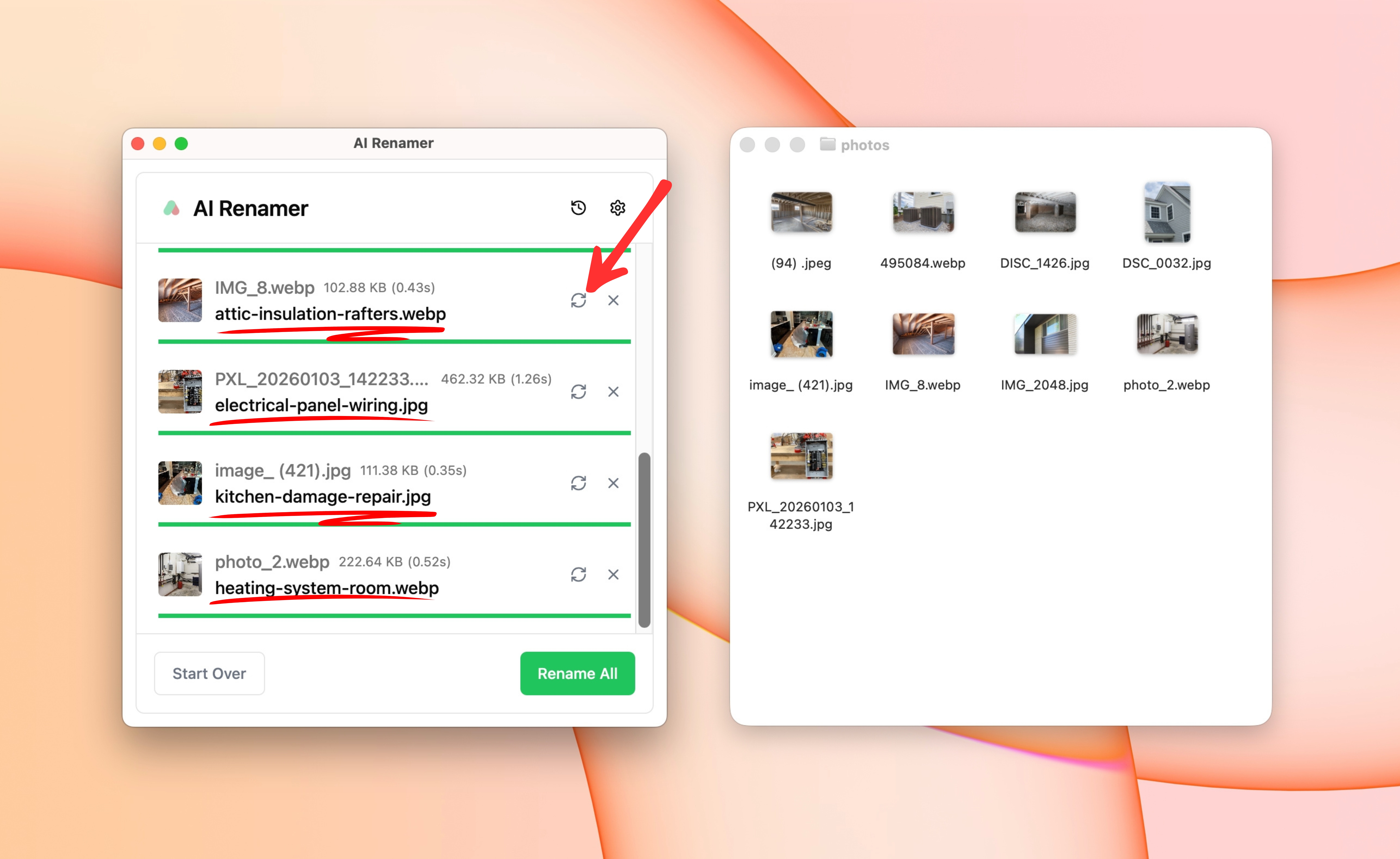 Before anything changes, you’ll see a preview list.
Instead of:
IMG_4829.jpgDSC_1044.JPGPXL_20260103_142233.jpg
You might see:
metal-box-with-wires.jpgpipe-under-sink-closeup.jpgwall-outlet.jpg
AI Renamer uses only what is visually obvious in the image.
It does not identify systems, defects, or compliance issues.
If something looks too generic or too detailed, you can:
- Click Regenerate
- Adjust your Custom Instructions
5. Rename Everything in One Click
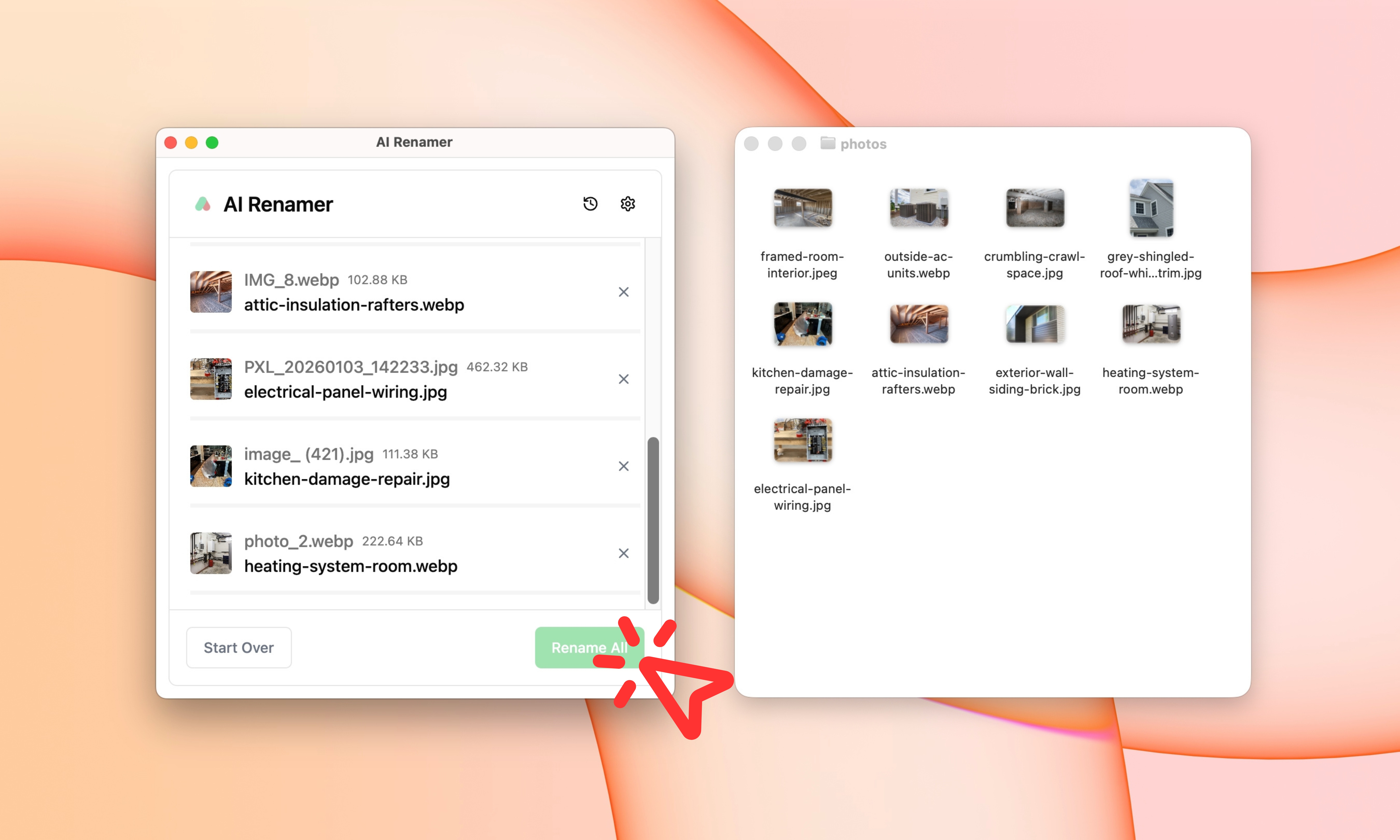 When the preview looks good:
- Click Rename All
Your inspection photos become:
- easy to search
- easier to attach to reports
- easier to share with clients or contractors
- easier to revisit months later for follow-ups
The Best Naming Conventions for Home Inspection Photos
The best inspection naming conventions usually include:
- Area / system (kitchen, roof, HVAC, electrical)
- Item (panel, outlet, water heater, furnace)
- Issue / context (corrosion, leak, missing cover, cracked tile)
Practical Naming Patterns Home Inspectors Use
location-visible-objectobject-closeupmaterial-object-context
Examples:
pipe-under-sink.jpgmetal-box-with-wires.jpgexterior-roof-surface.jpgvertical-metal-tank.jpgwall-opening-closeup.jpg
💡 These filenames are descriptive, neutral, and safe.
Inspectors can later reference them inside reports where professional judgment belongs.
Using Custom Instructions for Consistent Home Inspection Naming
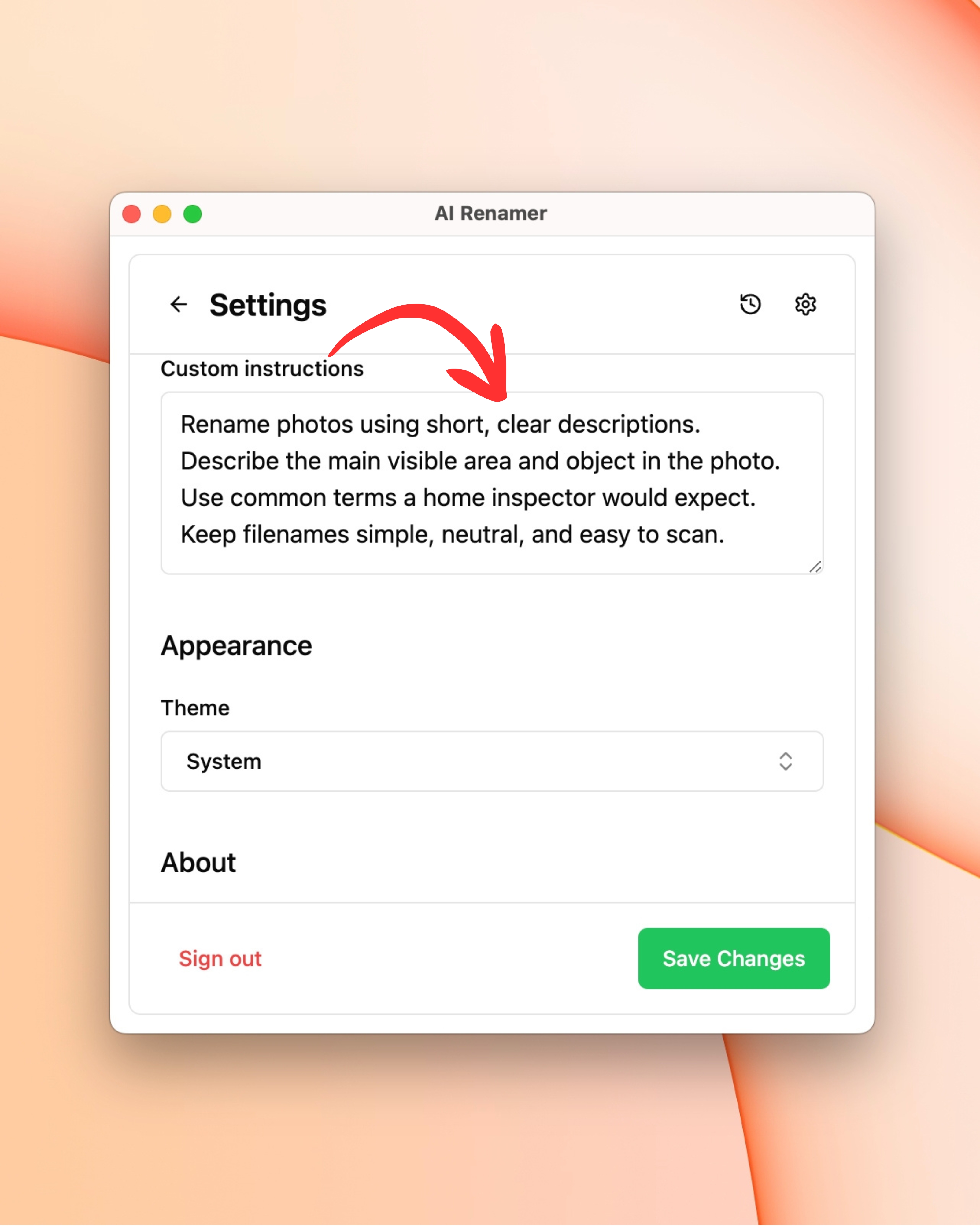 Custom Instructions let you enforce a consistent style across every inspection batch.
For more workflow ideas, see:
Custom Instructions let you enforce a consistent style across every inspection batch.
For more workflow ideas, see:
👉 10 Professional Use Cases for AI File Renaming Tool
Example Custom Instruction (Simple + Reliable)
Paste this:
Rename photos using short, clear descriptions.
Describe the main visible area and object in the photo. Use common terms a home inspector would expect. Keep filenames simple, neutral, and easy to scan.
Before and After Examples for Home Inspectors
These examples show realistic transformations
Example 1: Utility Area Photo
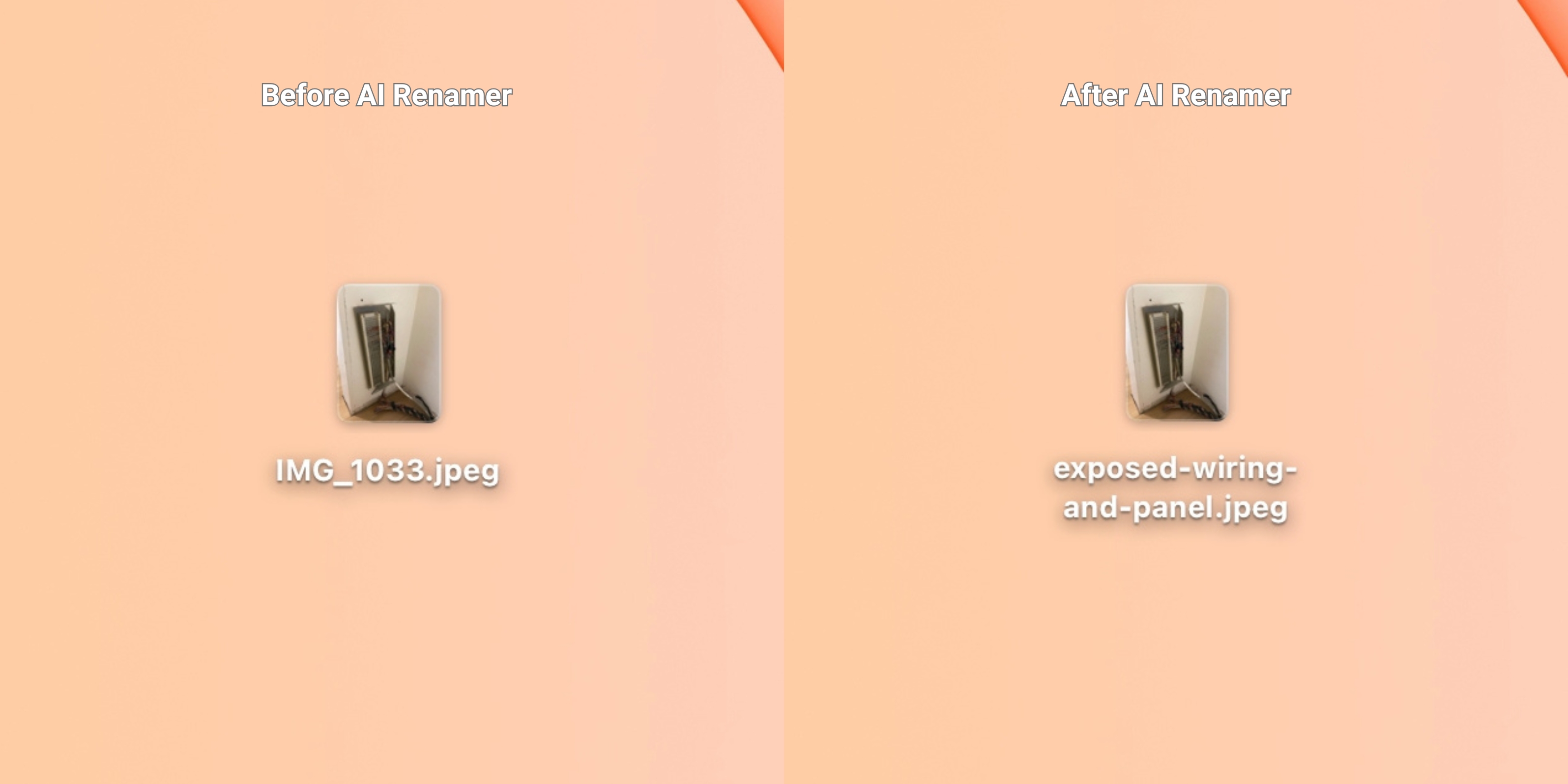 Before:
IMG_1033.jpeg
After:
exposed-wiring-and-panel.jpeg
AI Renamer detects:
- box-like object
- visible cables
Example 2: Under-Sink Photo
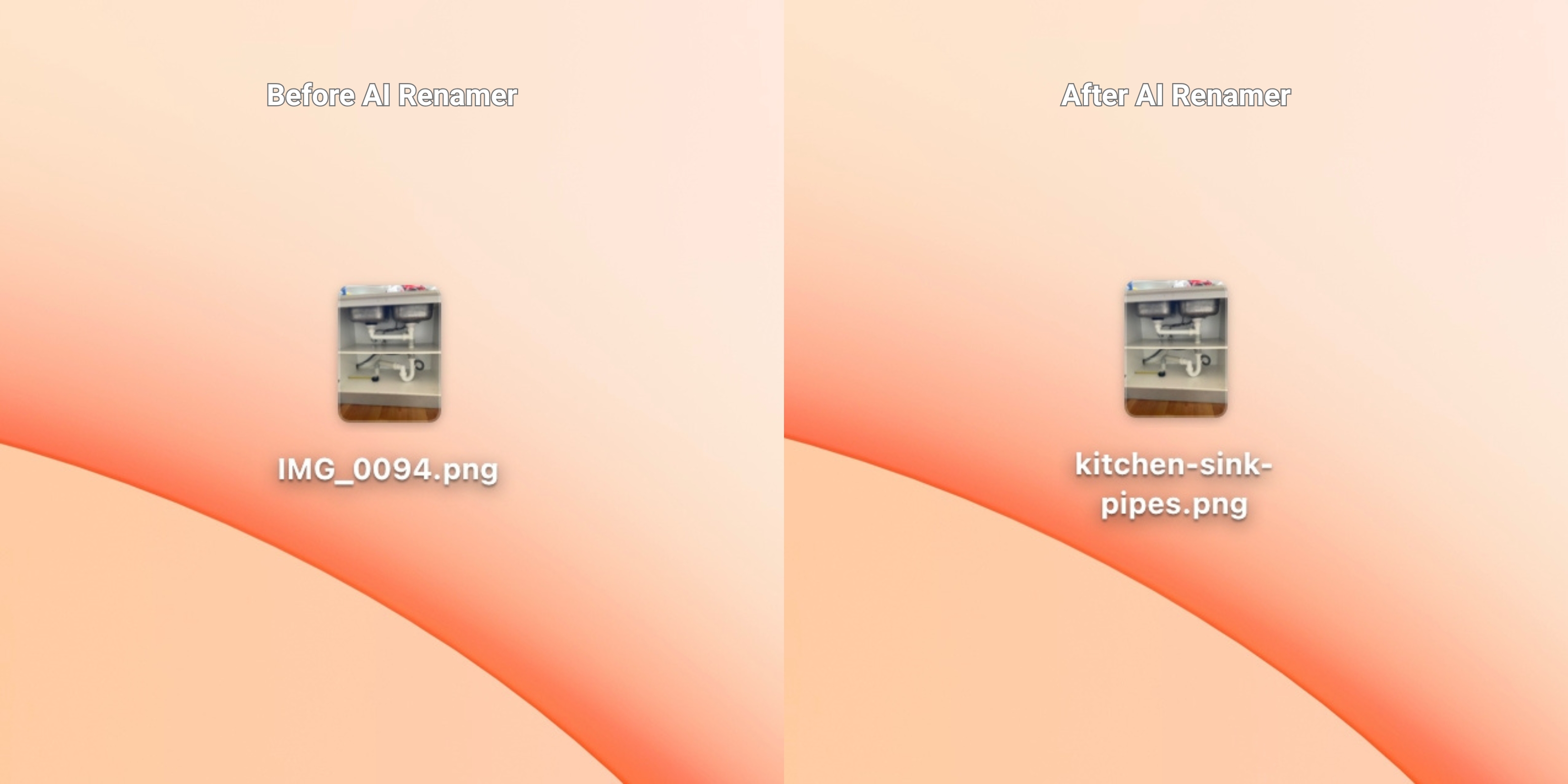 Before:
IMG_0094.png
After:
kitchen-sink-pipes.jpeg
AI Renamer detects:
- pipes
- cabinet interior
- under-sink context
Example 3: Exterior Surface Photo
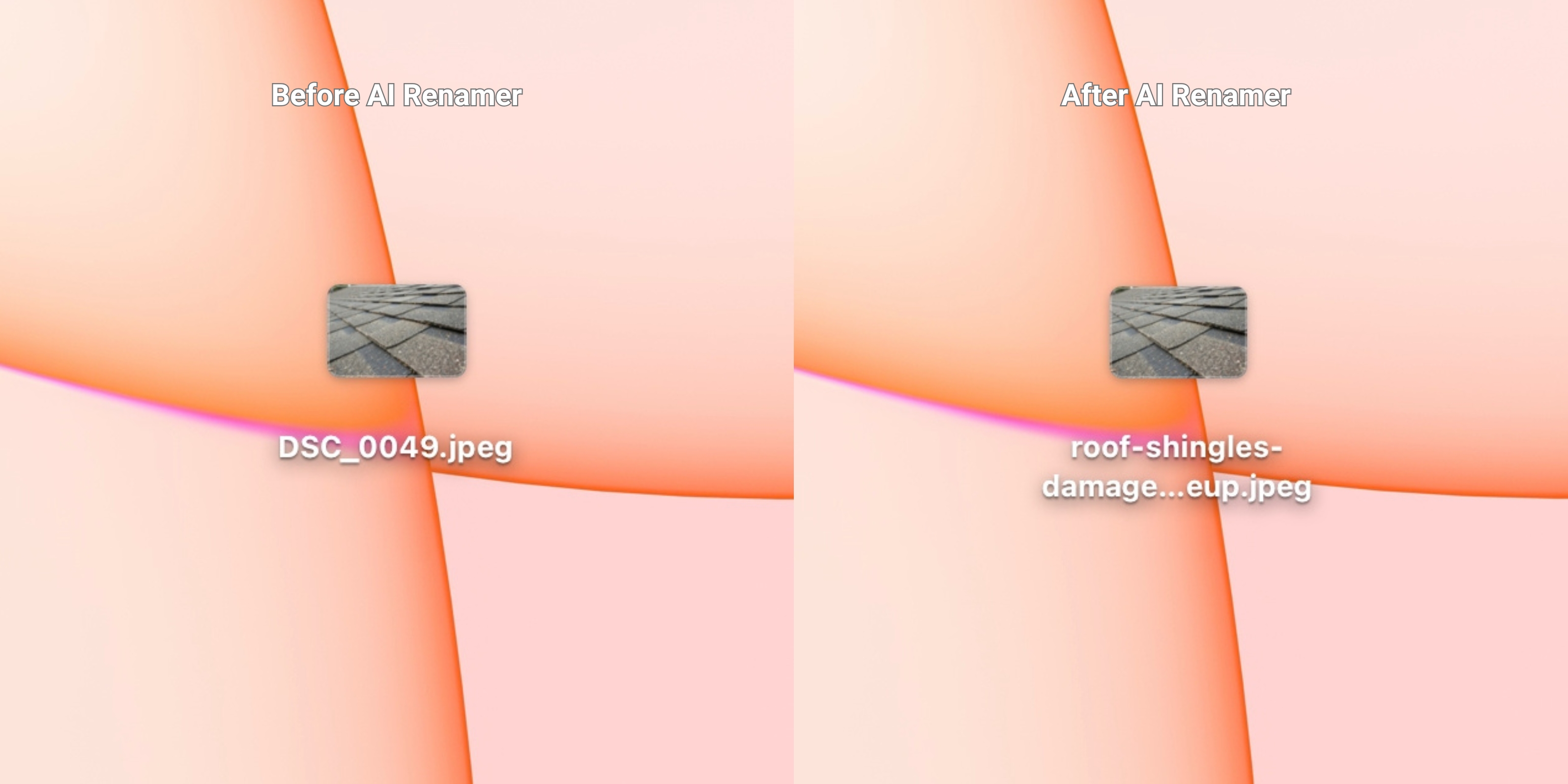 Before:
DSC_0049.jpeg
After:
roof-shingles-damage-closeup.jpeg
AI Renamer detects:
- roof-like surface
- outdoor angle
- surface texture
Example 4: Utility Tank Photo
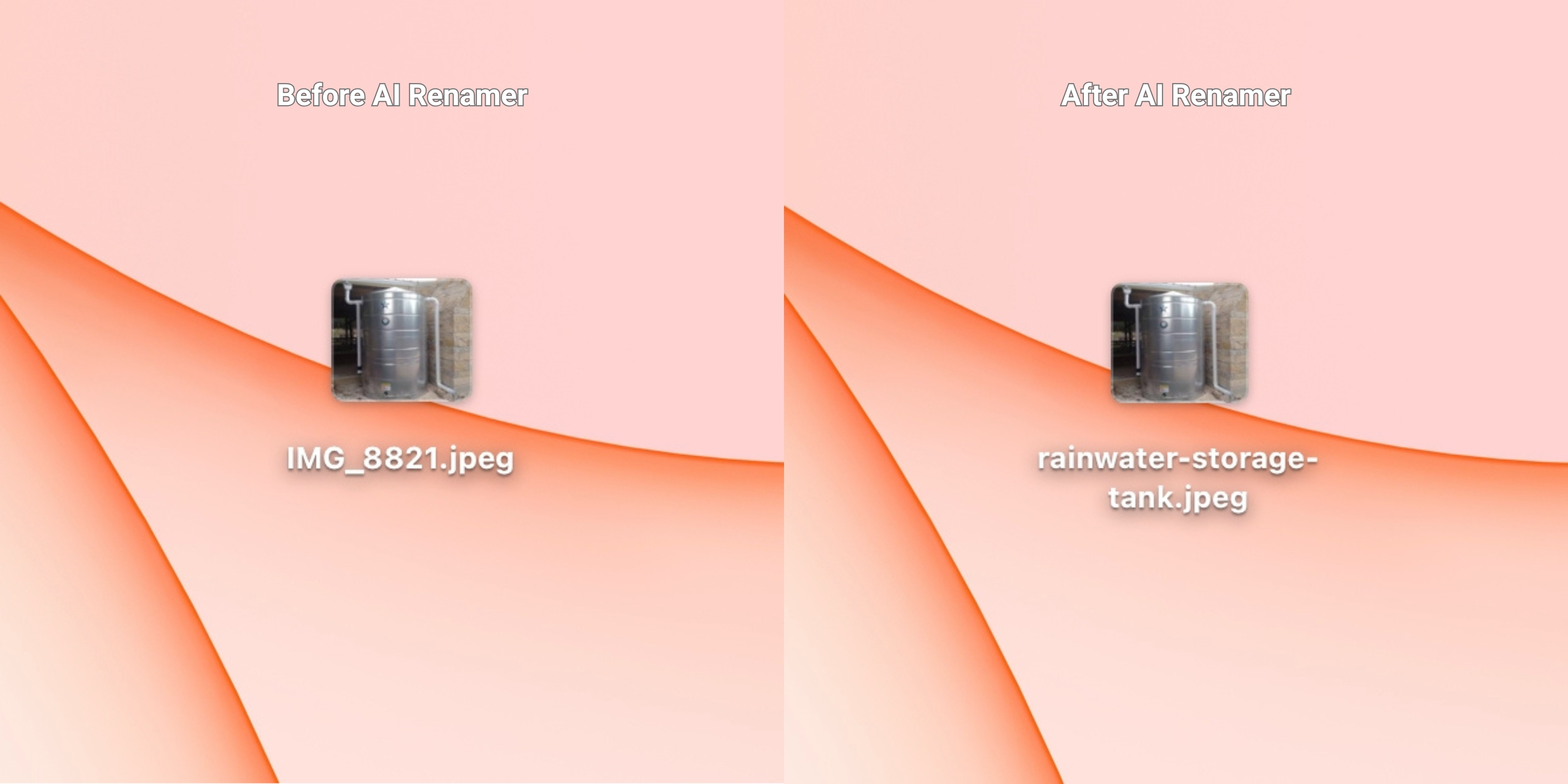 Before:
IMG_8821.jpeg
After:
rainwater-storage-tank.jpeg
AI Renamer detects:
- tank-shaped object
- metal surface
Frequently Asked Questions
Does AI Renamer identify defects, leaks, or compliance issues?
No. AI Renamer does not diagnose or label problems. It only generates neutral, visual descriptions of what appears in the photo. Professional interpretation belongs in your inspection report, not the filename.
Will it recognize specific brands or model numbers?
Sometimes it can read visible text if it’s clear, but don’t rely on that.
Is it private enough for client jobs?
Yes.
- Local Mode: everything stays on your device (best for privacy)
- Cloud Mode: files are processed temporarily and not stored
Can I batch rename hundreds of photos per inspection?
Yes. Batch renaming is the core workflow. Drop a folder, preview, and rename in one pass.
Keep Home Inspection Photo Evidence Organized Without Manual Renaming
If your inspection folder looks like:
IMG_2048.jpgDSC_0031.JPGPXL_20260103_142233.jpg
…you’re not doing anything wrong. That’s how job-site photos arrive.
AI Renamer gives home inspectors a fast, private, and customizable way to batch rename photos so every inspection stays clean, searchable, and easier to report.
Batch rename inspection photos in minutes.
👉 Try AI Renamer: airenamer.app