How to Automatically Rename PDFs for Students Using AI

A Fast and Private Way to Batch Rename Lecture Notes, Assignments, Research Papers, and Study Materials
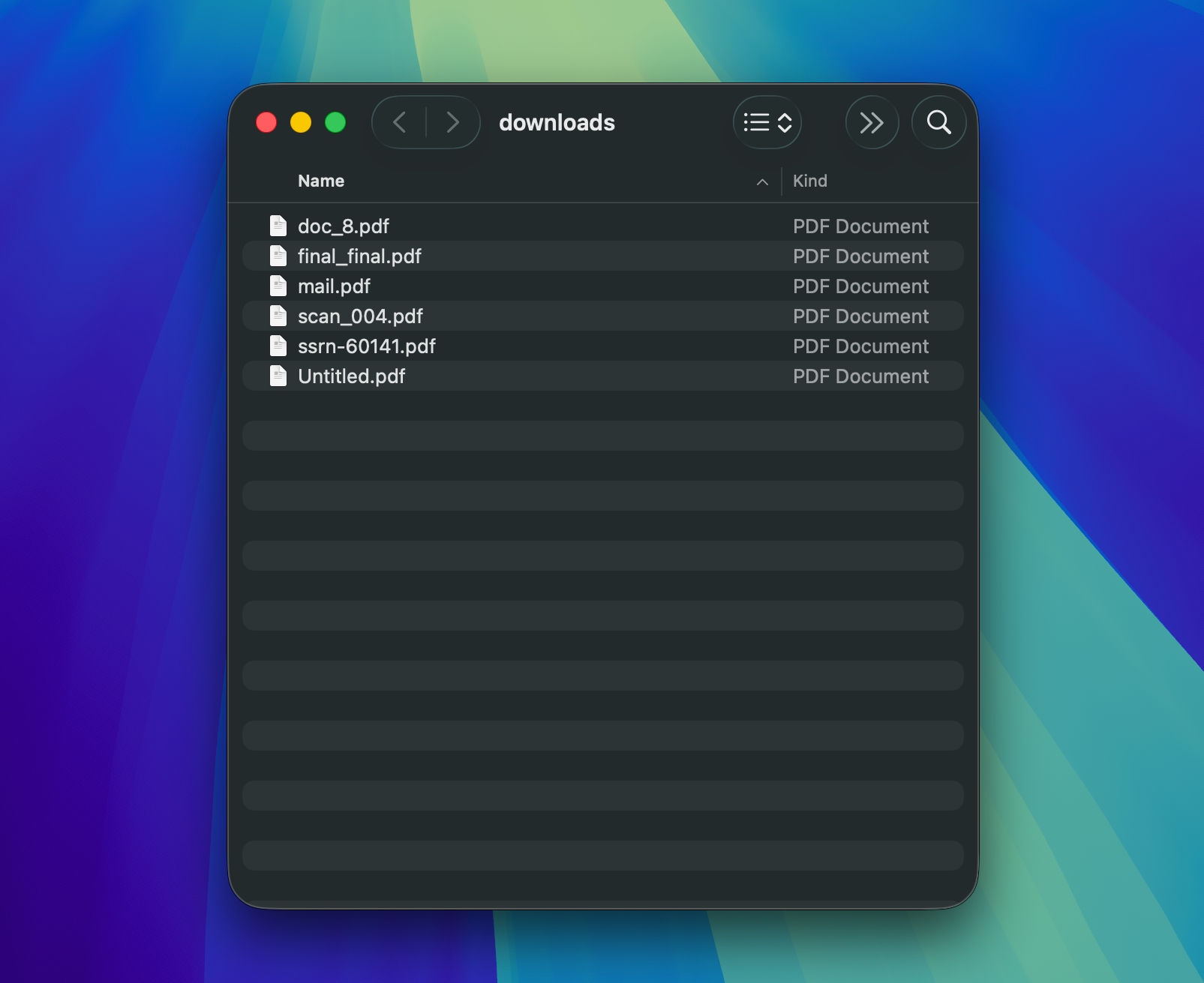
Students work with dozens of PDF files every week: lecture slides, assignments, readings, lab reports, exam materials, and research papers. Most of these files arrive with messy names like scan_04.pdf, Lecture1_final.pdf, or Document(23).pdf.
Manually renaming everything slows you down and breaks your study flow. In this guide, you will learn how to automatically batch rename PDFs using AI so you can keep your files consistently named with no manual work.
If you're new to AI Renamer, check out our quick overview: What is AI Renamer?
Why Students Struggle With PDF Filenames
Academic PDFs often have unclear names, such as:
doc_2025_11.pdfscan_004.pdflecture_notes.pdfslides_week3.pdf
This creates friction when you try to:
- Find assignment instructions
- Sort lecture notes
- Prepare for midterms and finals
- Review research sources
- Manage group project files
- Keep course folders clear
An AI-powered batch renamer removes this friction instantly.
How AI Renamer Helps Students
 AI Renamer reads the text inside your PDFs and automatically generates descriptive filenames.
You can batch rename PDFs like:
- Lecture notes
- Assignments
- Research papers
- Textbook chapters
- Syllabi
- Lab reports
- Slide decks
- Scanned documents
What AI Renamer can do
- Batch rename entire folders
- Use Local Mode for complete privacy
- Apply consistent naming patterns
- Preview names before renaming
- Detect titles, topics, course codes, dates, and keywords
- Produce clear filenames that make academic workflows faster
The focus is always on renaming. Better organization simply happens as a result.
How to Automatically Rename PDFs With AI (Step-by-Step Guide)
1. Download AI Renamer
 Install the AI Renamer for macOS or Windows. Setup takes under a minute.
Need help?
Install the AI Renamer for macOS or Windows. Setup takes under a minute.
Need help?
2. Choose Local Mode or Cloud Mode
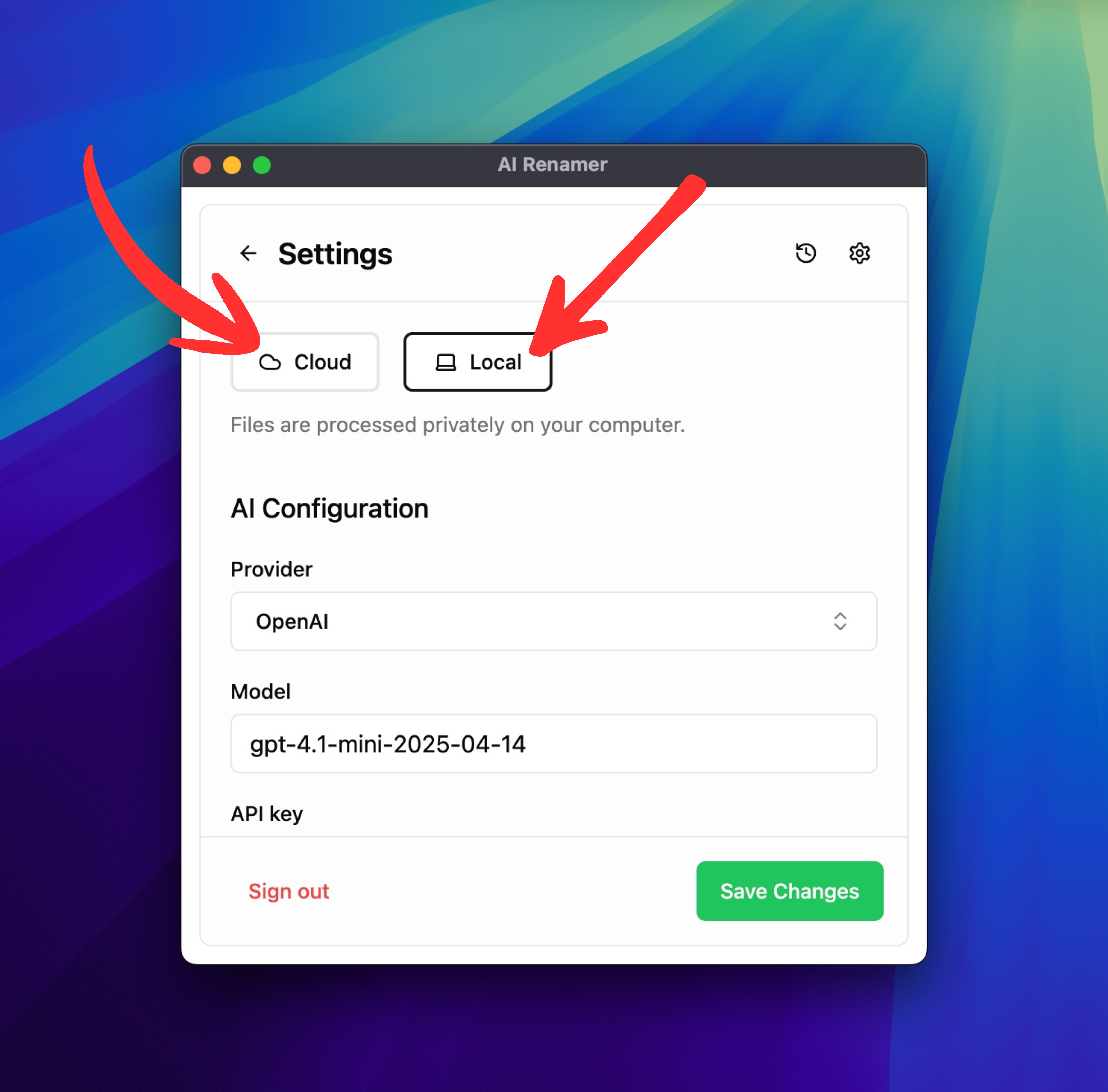 Local Mode
Use your own AI model via Ollama, LM Studio, or API keys.
Your PDFs stay on your device for complete privacy.
Cloud Mode
Use fast, built-in models with prepaid credits.
Great for convenience and quick renaming sessions.
Both modes support PDF batch renaming.
3. Add Your PDF Files
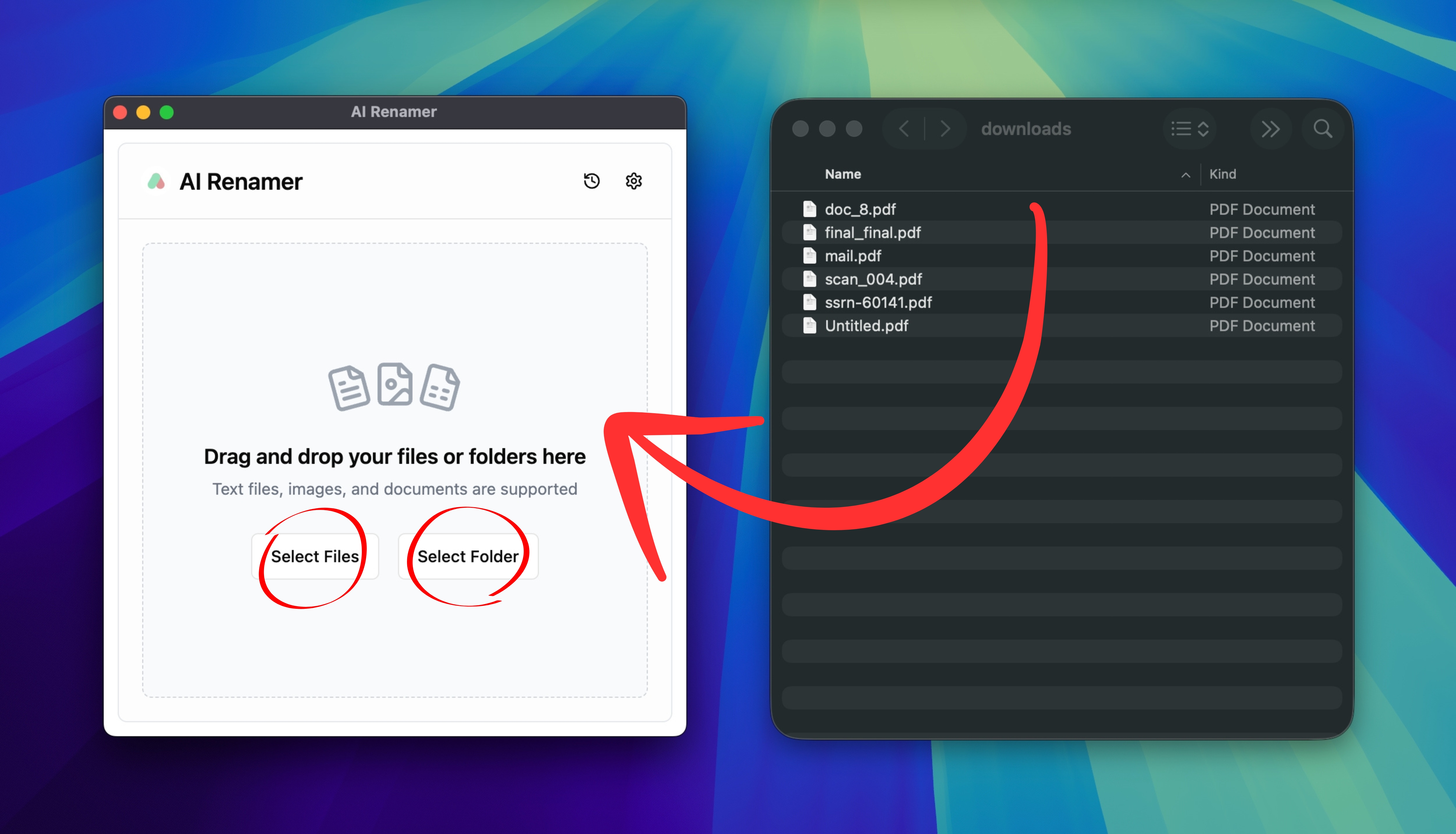 Drag and drop any folder with PDFs.
AI Renamer analyzes each file and prepares naming suggestions.
4. Preview the AI-Generated Names
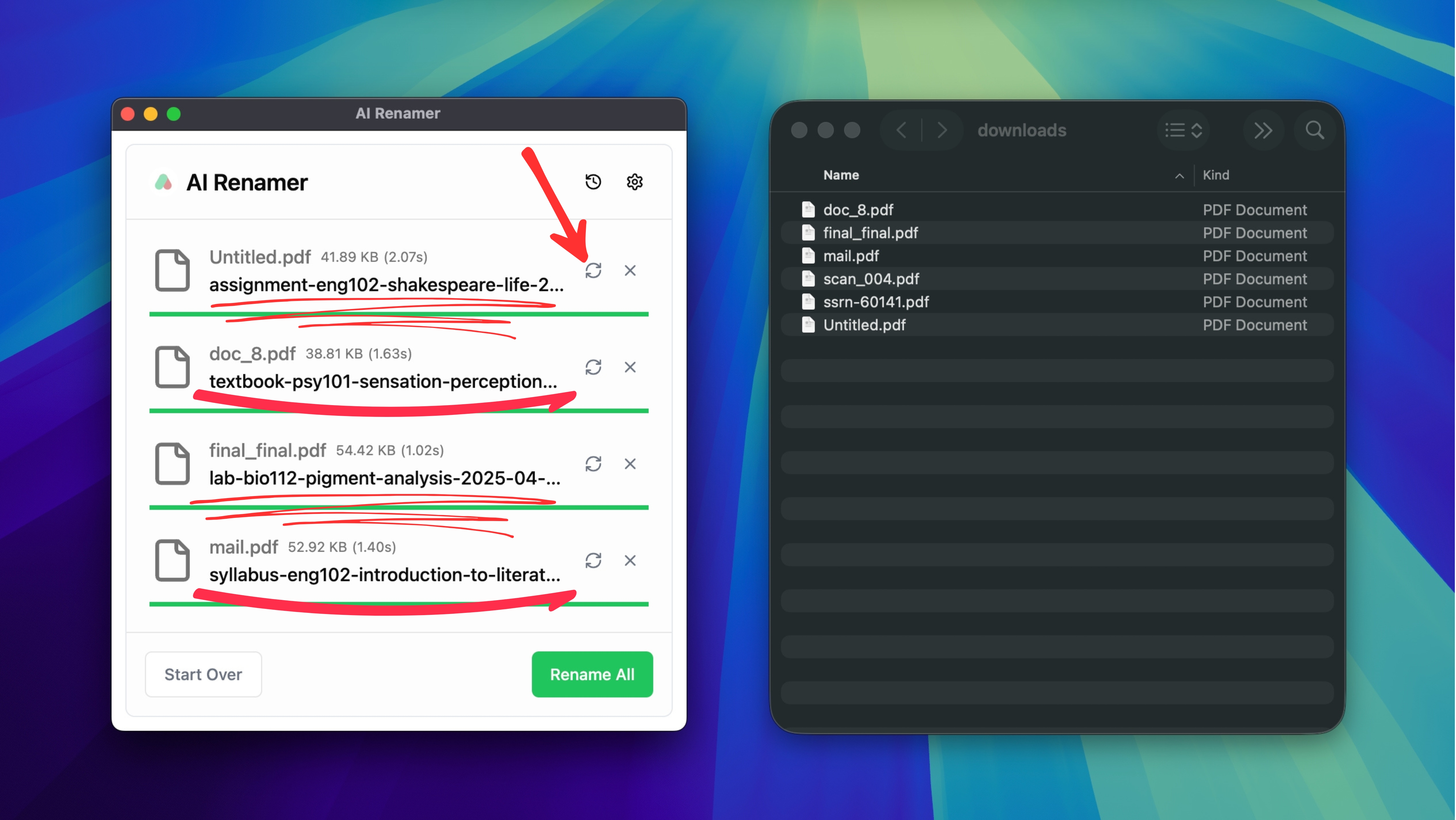 AI Renamer suggests filenames based on:
- Document title
- Topic or subject
- Course name or code
- Dates
- Keywords inside the file
If a suggestion does not match what you want, click Regenerate.
5. Rename All PDFs in One Click
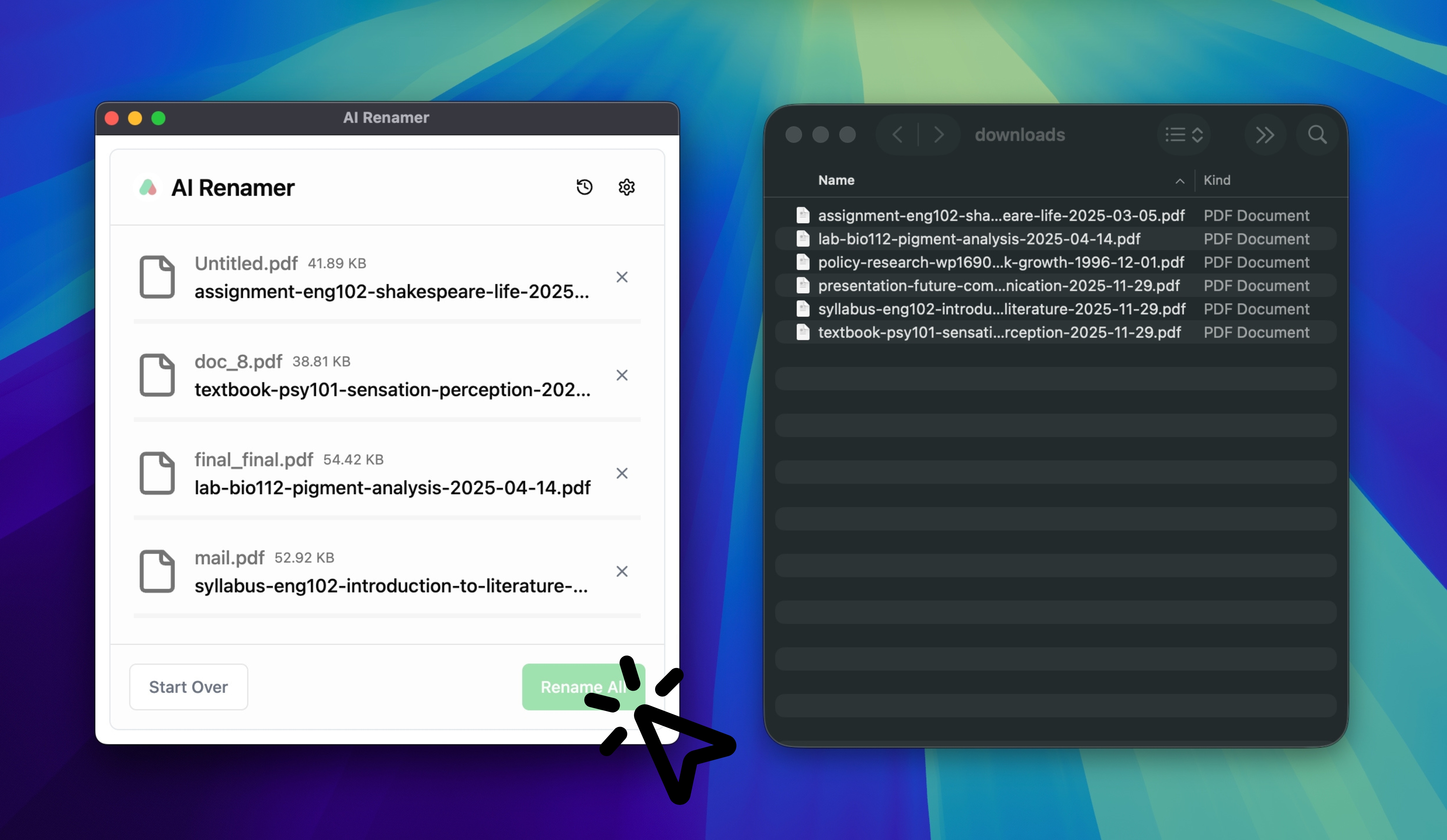 When the names look correct, click Rename All.
Your PDFs get accurate, clear filenames instantly.
Staying organized becomes effortless because every file is already properly named.
Using Custom Instructions for Consistent Academic Naming
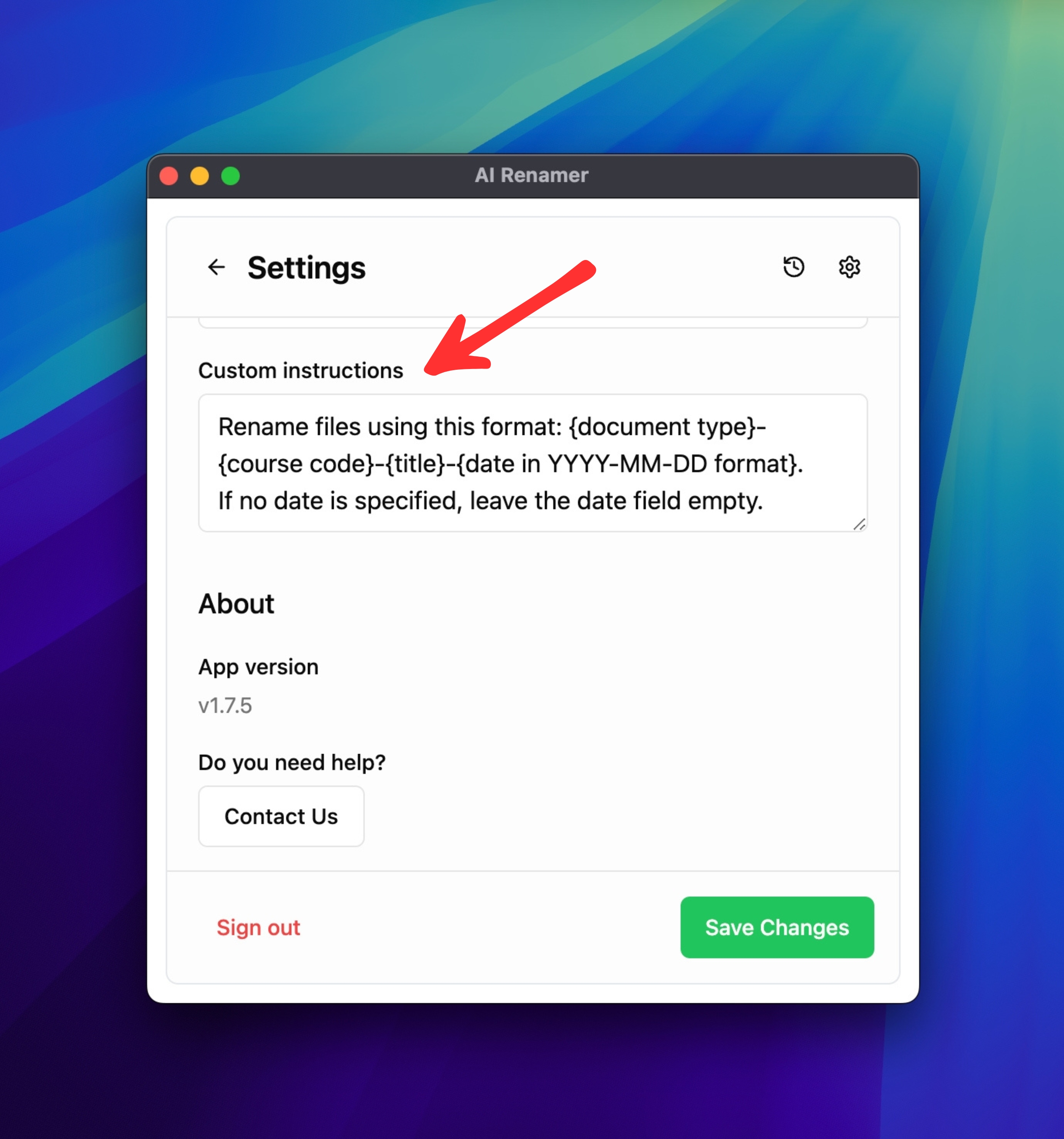 Custom Instructions let you define your own naming rules.
This ensures every rename follows your preferred structure.
For example:
{course code}-{topic}-{date}
Instruction example:
"Rename files using this format: {document type}-{course code}-{title}-{date in YYYY-MM-DD format}. If no date is specified, leave the date field empty."
Before and after example:
Before:
scan_004.pdf
LectureNotes(3).pdf
After:
CS101-IntroToAlgorithms-2025-02-12.pdf
BIO204-GeneticsLecture3-2025-01-20.pdf
This is ideal for multi-semester workflows, Notion or Obsidian setups, and sharing clean files with classmates.
For more workflow ideas, check out 10 Professional Use Cases for AI File Renaming Tool, covering accountants, photographers, lawyers, creators, students and more.
How to Rename Student PDFs Using AI (Examples)
AI Renamer can detect document types such as assignments, lecture notes, syllabi, presentations, lab reports, and research papers by reading the text inside the file. It focuses on identifying the title, course code, topic, and academic context.
Example 1: Lecture Notes
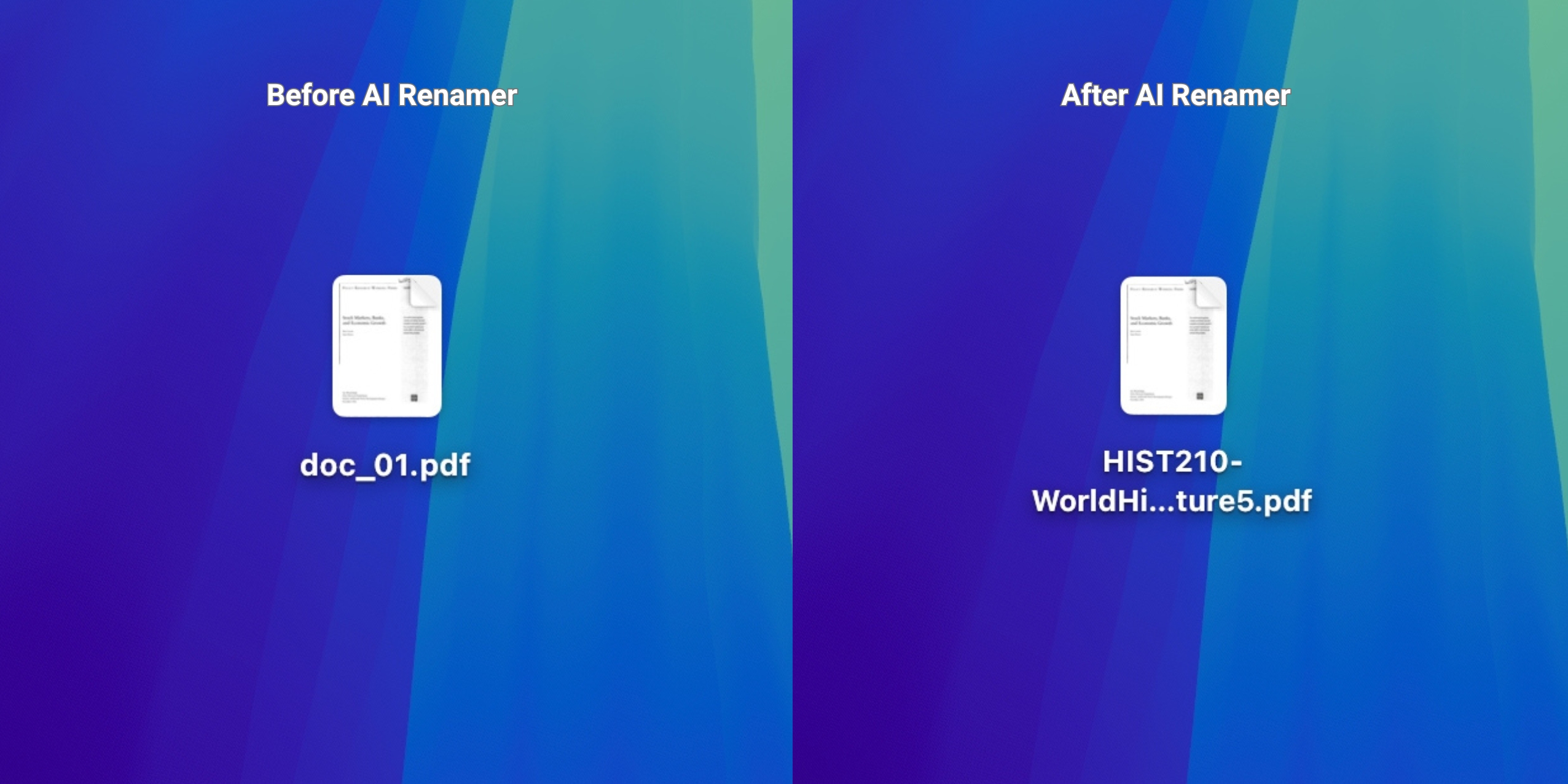 Before:
 doc_01.pdf
After: HIST210-WorldHistoryLecture5.pdf
AI Renamer identifies:
- Lecture topic
- Course name
- Subject area
Example 2: Assignment PDF
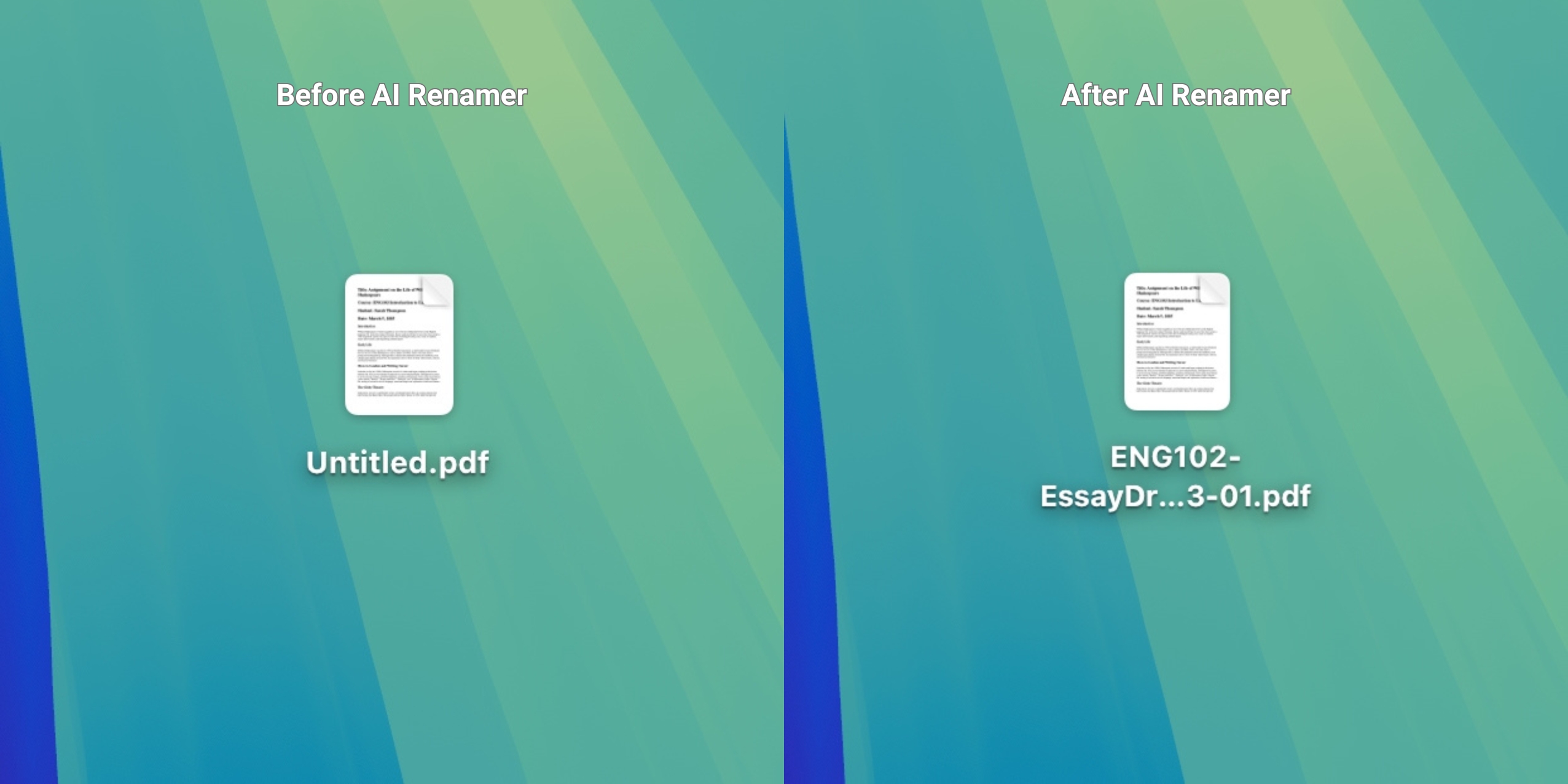 Before:
 Untitled.pdf
After: ENG102-EssayDraft1-2025-03-01.pdf
AI Renamer identifies:
- Assignment type
- Course keyword
- Date
Example 3: Presentation PDF
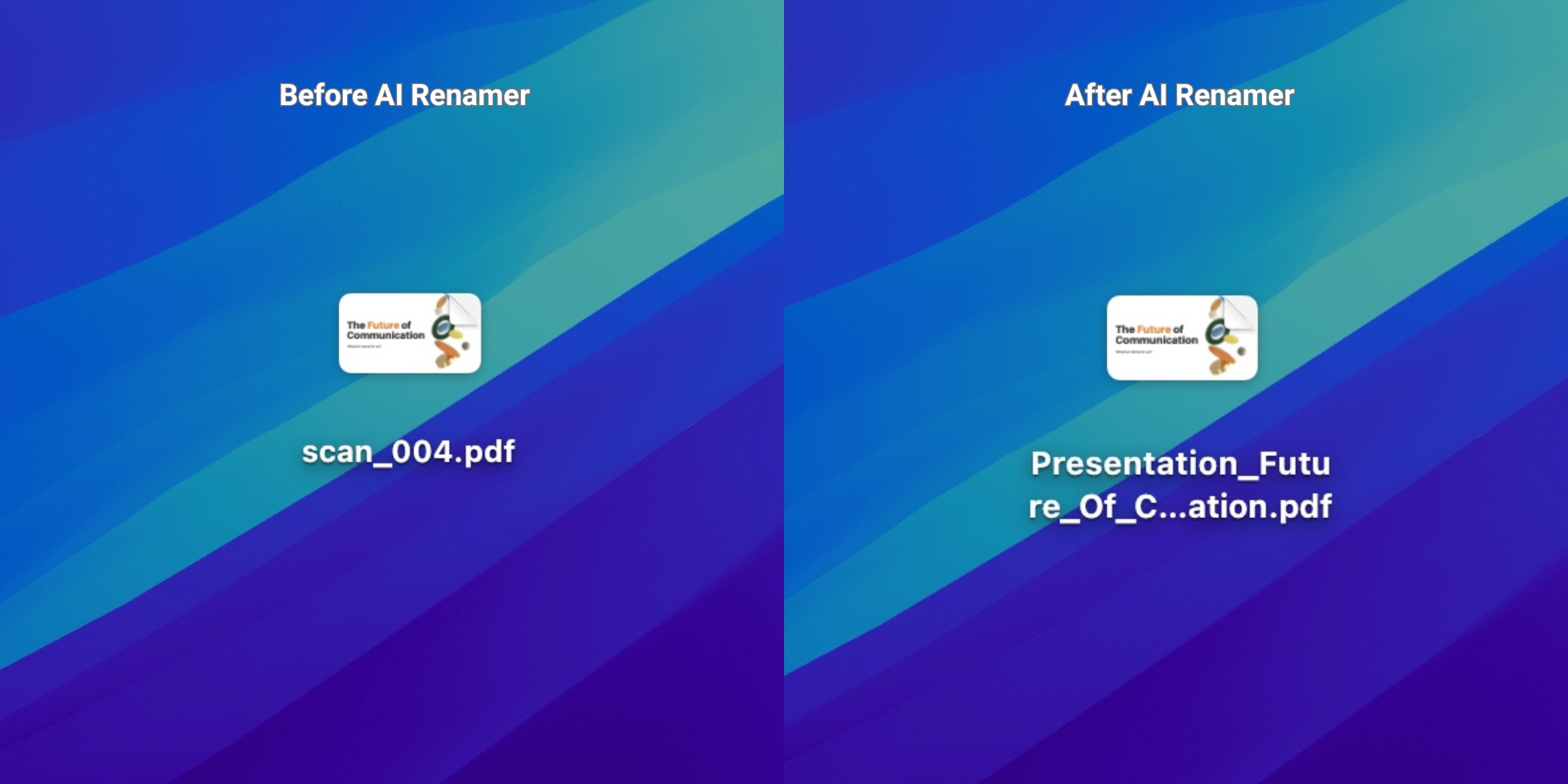 Before:
 scan_004.pdf
After: Presentation_Future_Of_Communication.pdf
AI Renamer identifies:
- Presentation topic
- Main subject
- Keywords inside the document
- General academic category
Example 4: Research Paper
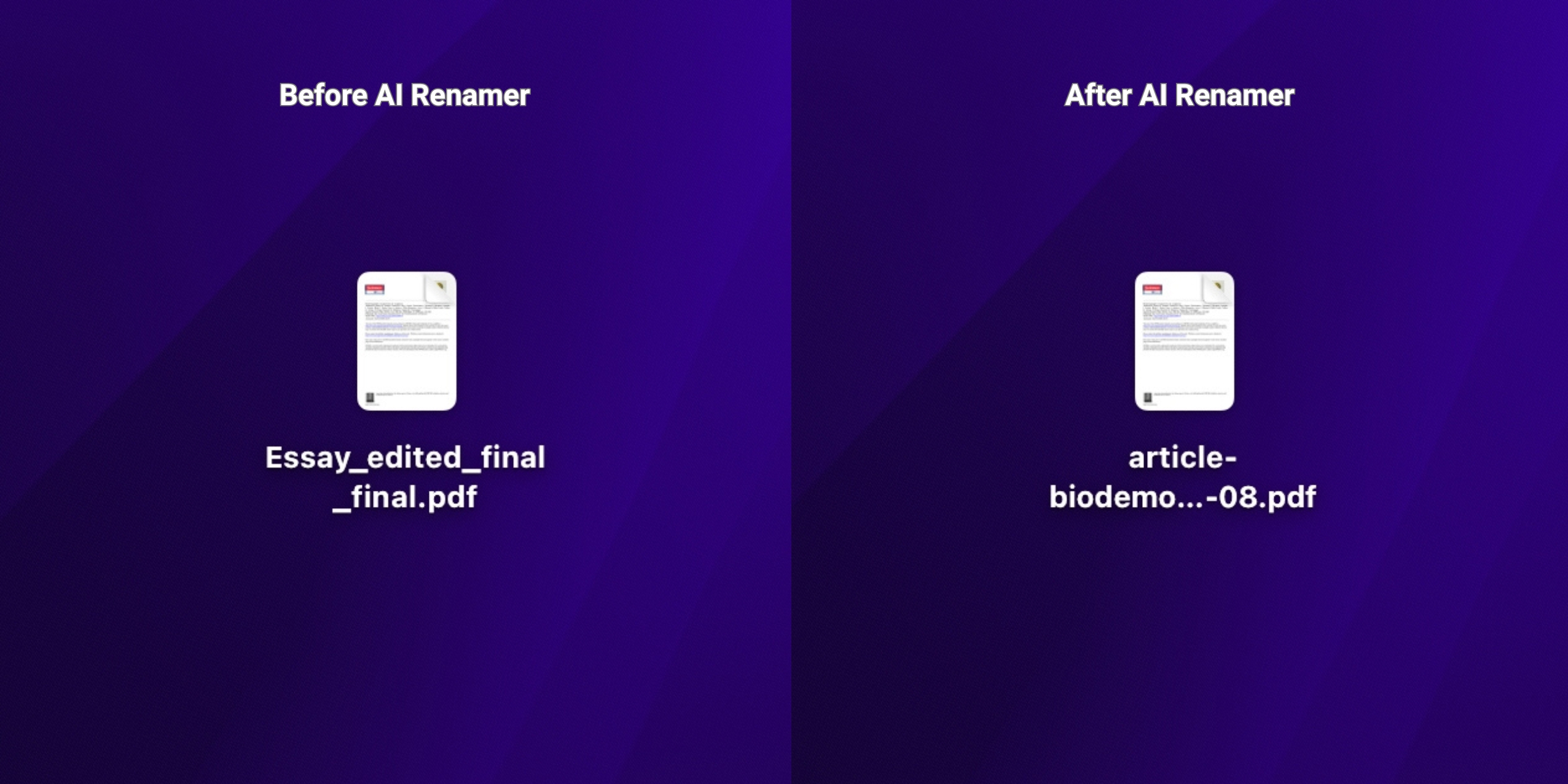 Before:
 Essay_edited_final_final.pdf
After: article-biodemographic-longevity-1998-05-08.pdf
AI Renamer detects:
- Research paper title
- Topic keyword
- Academic subject
Frequently Asked Questions
Does AI Renamer work on scanned PDFs?
Yes. If the text is readable, AI Renamer can batch rename it accurately.
Is it private?
Yes. Local Mode keeps all files on your device. This is especially useful for students who want to rename assignments, research papers, and lecture notes offline without uploading anything.
Can it batch rename multiple PDFs at once?
Yes. Batch renaming is the core feature of AI Renamer and works for assignments, syllabi, lecture notes, lab reports, presentations, and research papers.
Does it work with long textbooks or complex PDFs?
Yes. Cloud Mode has file size limits, but Local Mode has no limit and can rename long textbook chapters or multi-page study materials.
Can AI rename PDF lecture notes automatically?
Yes. AI Renamer can read the content inside lecture note PDFs, detect the topic and course information, and generate clear, accurate filenames automatically. This saves students time and keeps their study materials consistently named.
Does it work offline for privacy?
Yes. Local Mode allows students to rename all their academic PDFs offline. Nothing is uploaded, which is ideal for sensitive assignments, research papers, and classroom documents.
If you receive dozens of readings, assignments, and project files every week, AI Renamer gives you a fast, private, and automatic way to batch rename everything.
Clear filenames make academic work smoother and searching for files much easier.
Rename assignments, lecture notes, and study materials instantly. Download AI Renamer and simplify your semester.