How to Automatically Rename PDFs for Accountants Using AI

A Fast And Private Way To Batch Rename Invoices, Statements, Receipts, And Tax Forms
Accountants handle dozens of PDF files every day. Invoices, bank statements, receipts, and tax forms all arrive with messy filenames like scan_2025_01.pdf or Document (14).pdf. Renaming them manually takes time and breaks your workflow.
If you're new to AI Renamer, check out our quick overview: What is AI Renamer?
In this guide, you will learn how to automatically rename PDFs using AI so you can organize financial documents in seconds.
Why PDFs Are Hard to Organize
Most financial PDFs arrive with names that mean nothing.
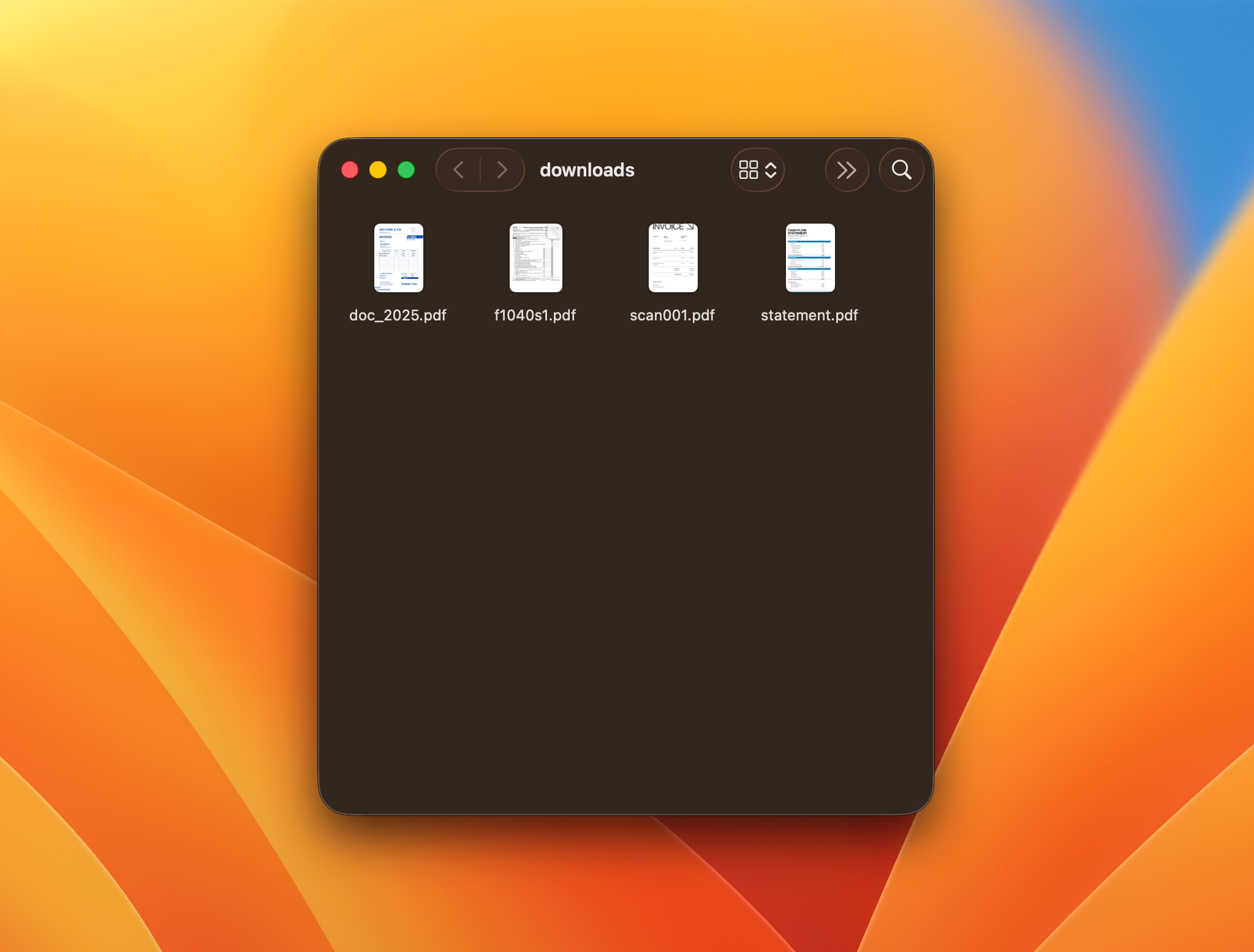
You get files like:
scan001.pdfdoc_2025_11.pdfstatement.pdfDocument (8).pdf
This slows down every task:
- Month-end close
- Client onboarding
- Audit preparation
- Filing tax documents
- Reconciling accounts
- Reviewing receipts and expenses
A dedicated PDF renamer powered by AI removes this bottleneck.
How AI Renamer Helps Accountants
 AI Renamer analyzes the text inside your PDFs using AI models and generates descriptive filenames.
What it can rename:
- Invoice PDFs
- Bank statements
- Receipts
- Tax forms
- Scanned documents
- Contracts
- Reports
What you can do:
- Batch rename hundreds of PDFs
- Keep everything private with Local Mode
- Use content-aware naming
- Apply your own naming patterns
- Preview and confirm before renaming
How to Automatically Rename PDF Files with AI (Step-by-Step Guide)
1. Download AI Renamer
 Install the AI Renamer for macOS or Windows. Setup takes under a minute.
Need help installing? Follow our step-by-step guides: • How to Install AI Renamer on macOS
• How to Install AI Renamer on Windows
2. Choose Local Mode or Cloud Mode
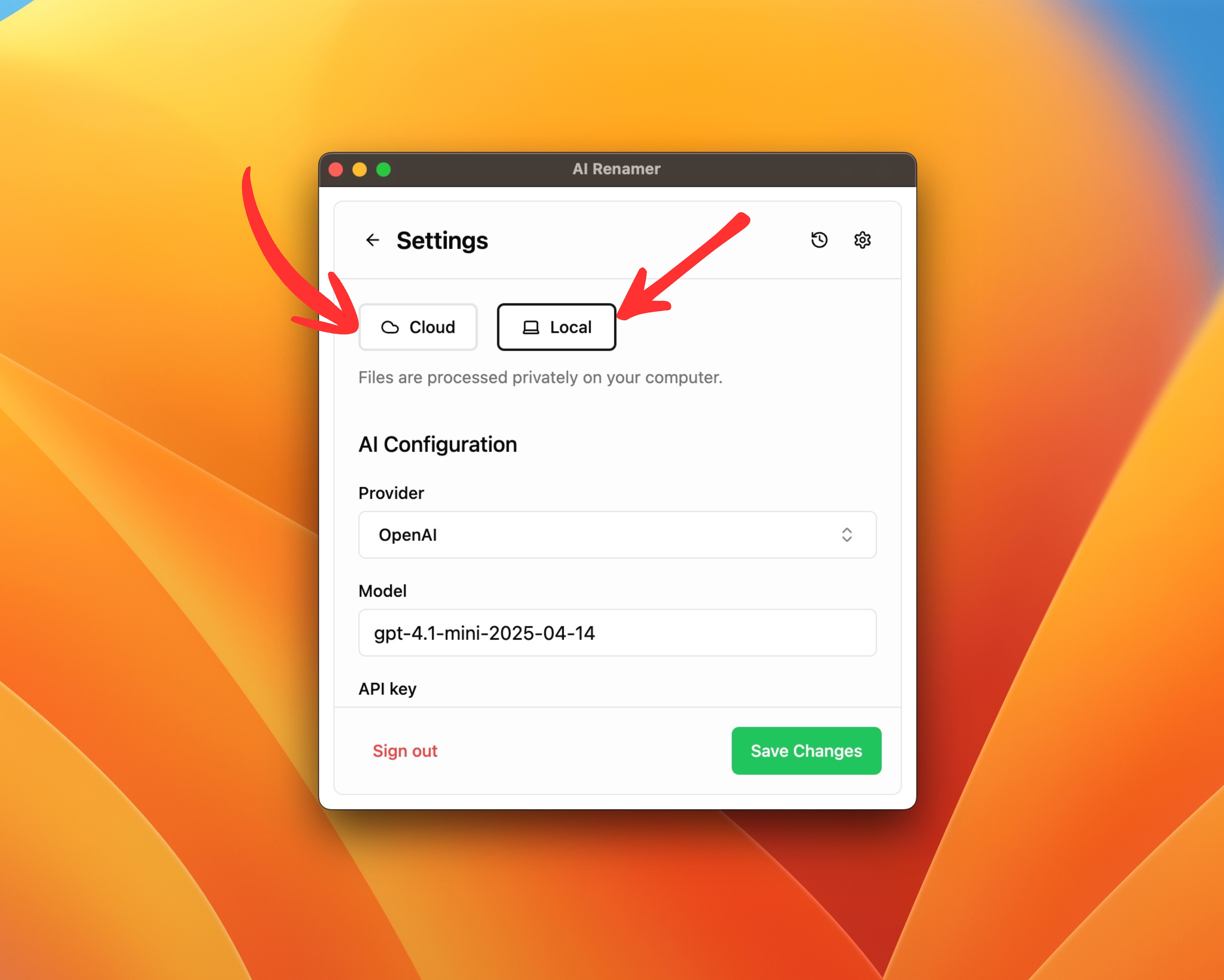 Local Mode
Use your own AI model via Ollama, LM Studio, or API keys.
Best for privacy because files stay on your device.
Cloud Mode
Use the built-in cloud models with prepaid credits.
Best for speed and convenience.
Both modes support PDF renaming.
3. Add Your PDF Files
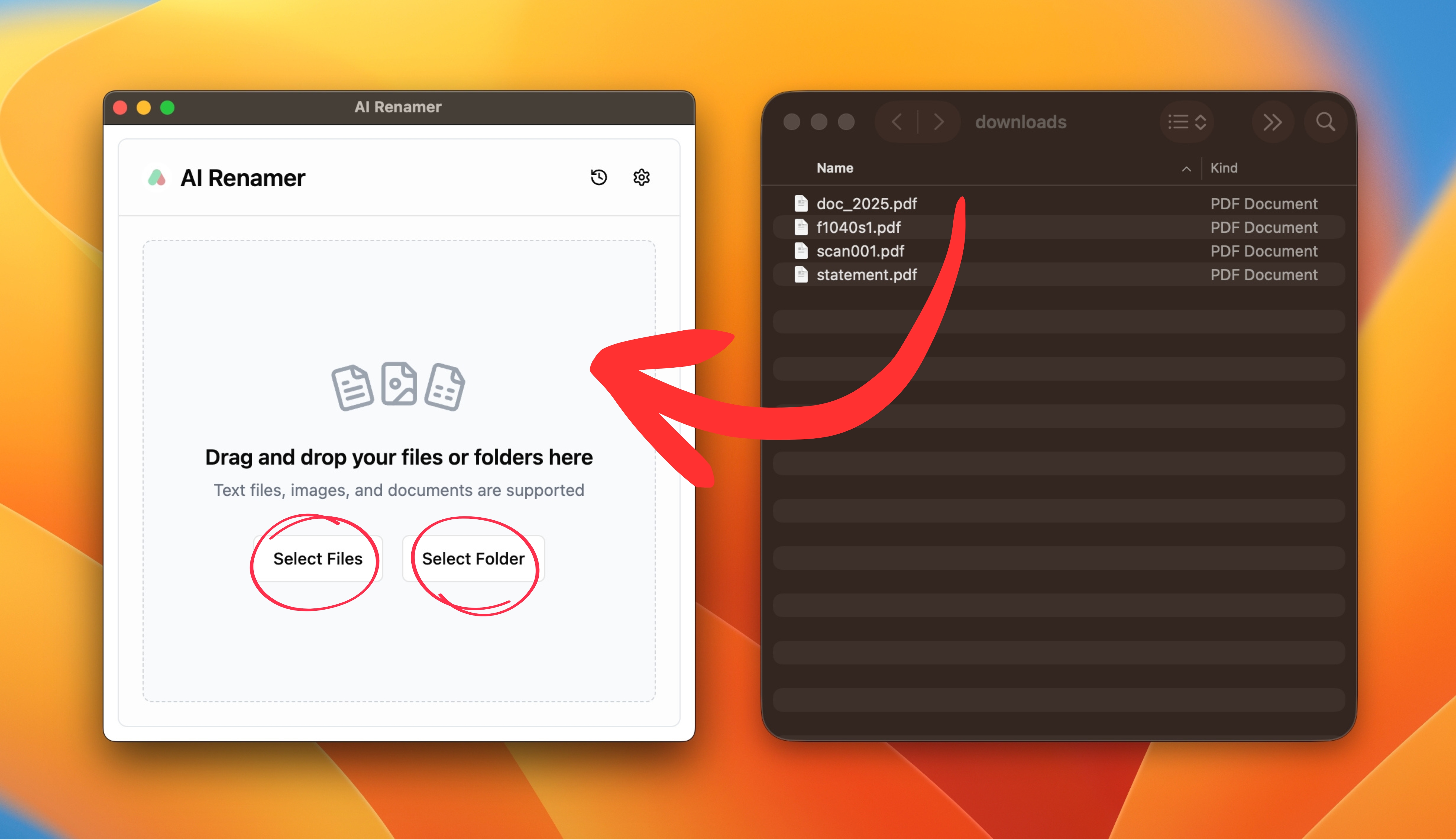 Drag and drop a folder of PDFs into the app.
AI Renamer automatically scans the file content and prepares naming suggestions.
Drag and drop a folder of PDFs into the app.
AI Renamer automatically scans the file content and prepares naming suggestions.
4. Preview the AI-Generated Names
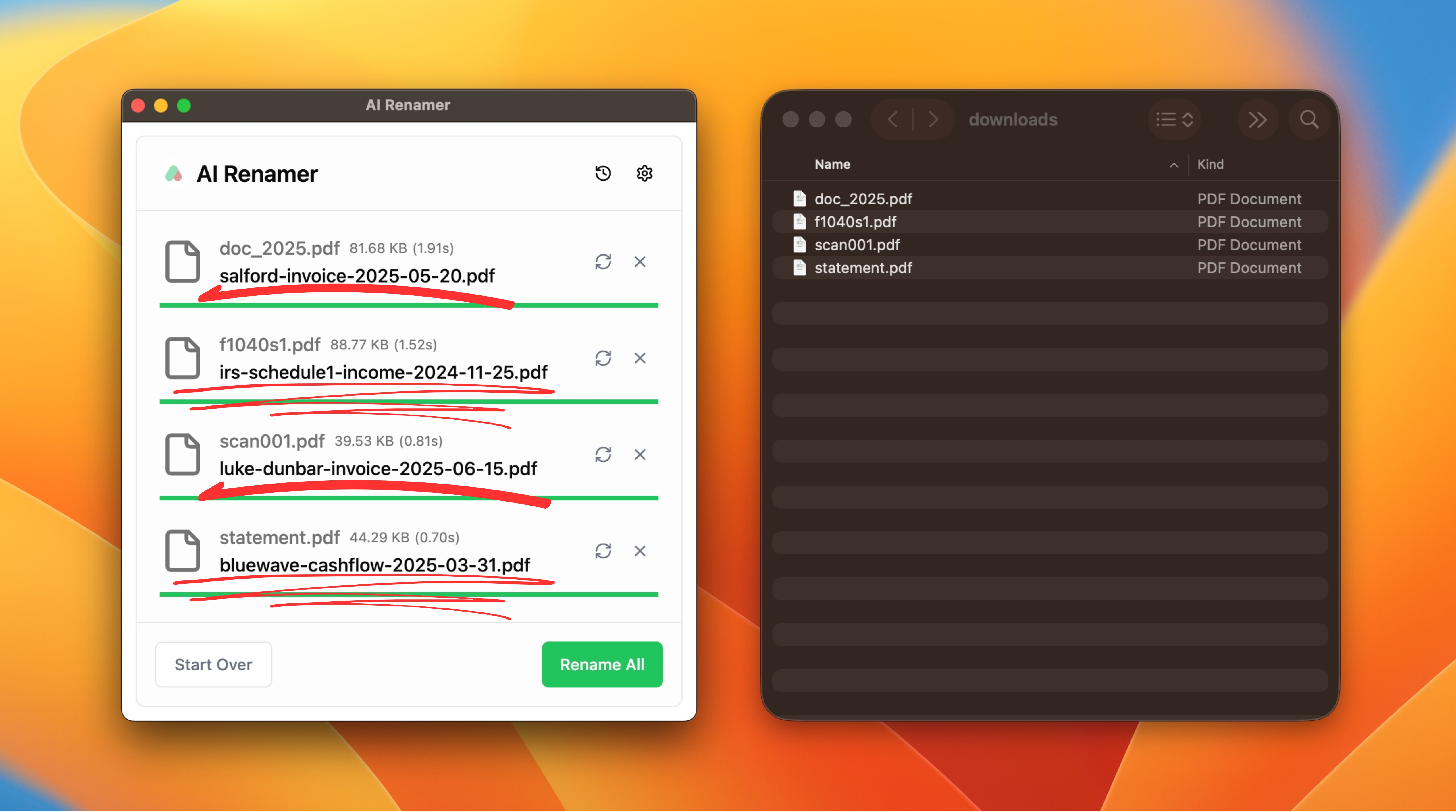 AI Renamer generates a suggested filename for each PDF based on its content. If a name doesn’t fit what you want, you can click Regenerate to get a new suggestion.
5. Rename All PDFs in One Click
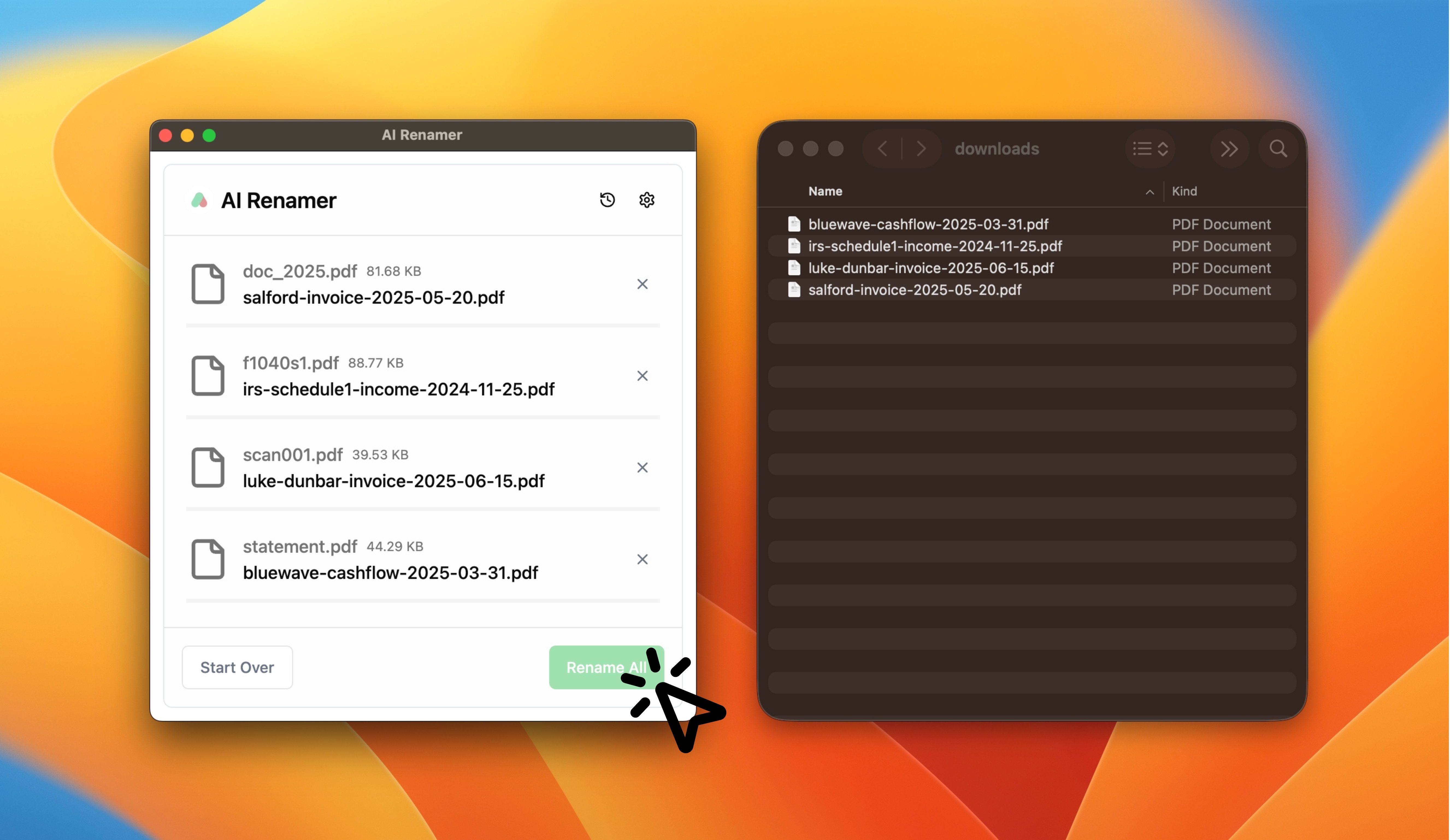 Once the names look good, click Rename All to apply them instantly.
Using Custom Instructions for Consistent PDF Naming
 If you want even more control over how your PDFs are named, you can create your own pattern using Custom Instructions. This feature lets you define a naming format that AI Renamer will follow for every file in the batch.
For example, if you want your files to follow a structure like:
client - file title - date
you can write a simple instruction such as:
“Name each file using this format: {client}-{title}-{date in YYYY-MM-DD format}.”
AI Renamer will generate names that match your pattern based on what it detects inside each PDF.
Before and After Example
Before:
scan_001.pdf
Document (14).pdf
Custom Instruction Used:
“Use this format: {client}-{title}-{date in YYYY-MM-DD format}.”
After:
ABC-Corp-Invoice-2025-01-12.pdf
IRS-TaxForm-W9-2024-03-10.pdf
You can capture a screenshot of your Custom Instructions box and the before/after rename preview to show how it works.
For more workflow ideas, check out 10 Professional Use Cases for AI File Renaming Tool, covering accountants, photographers, lawyers, creators, students and more.
How to Rename Accounting PDFs Using AI (Examples)
Example 1: Invoice PDF
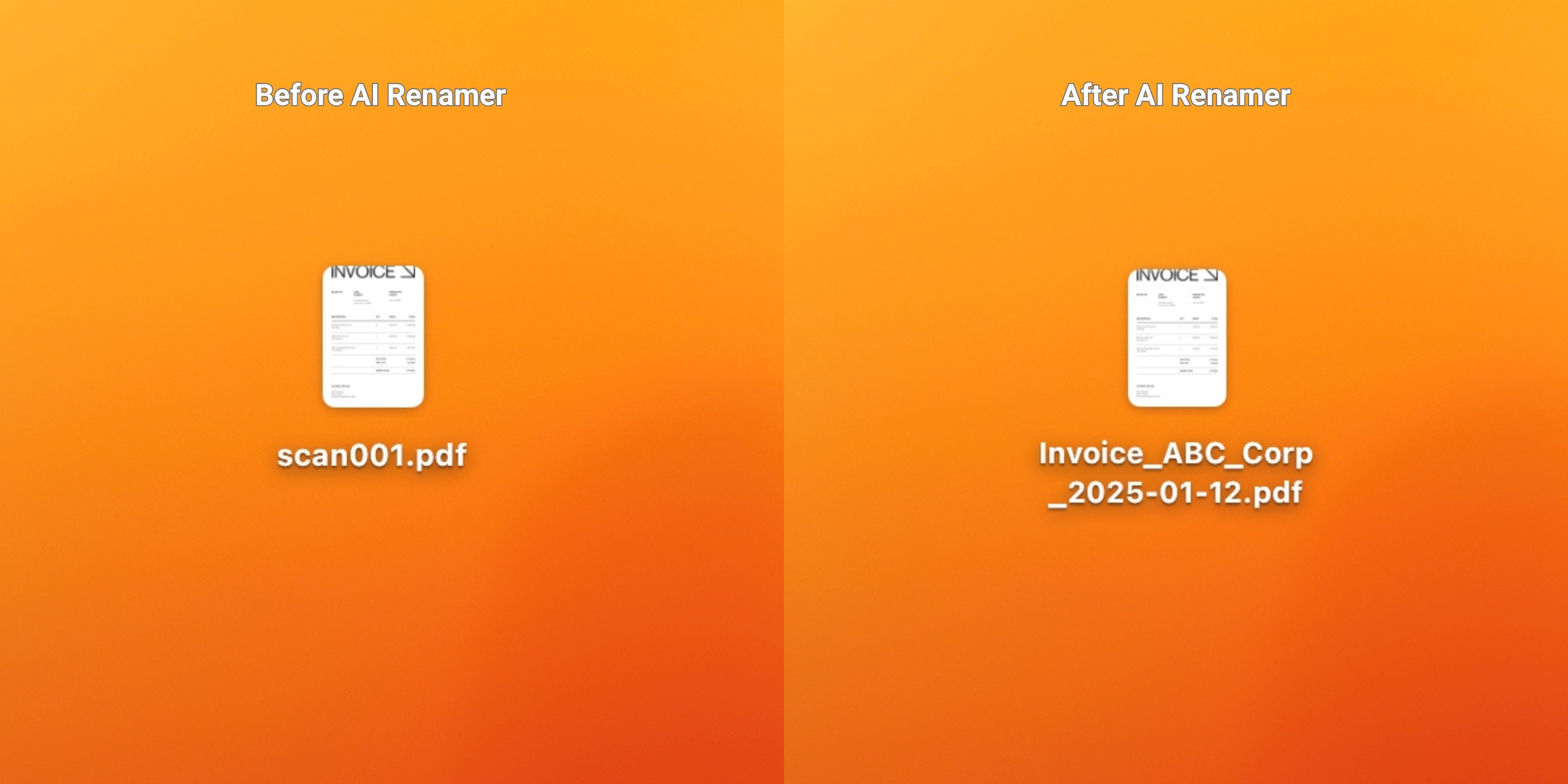
Before: scan_001.pdf
After: Invoice_ABC_Corp_2025-01-12.pdf
AI Renamer typically detects:
- Vendor or client name
- Invoice date
- Document type
Example 2: Bank Statement PDF
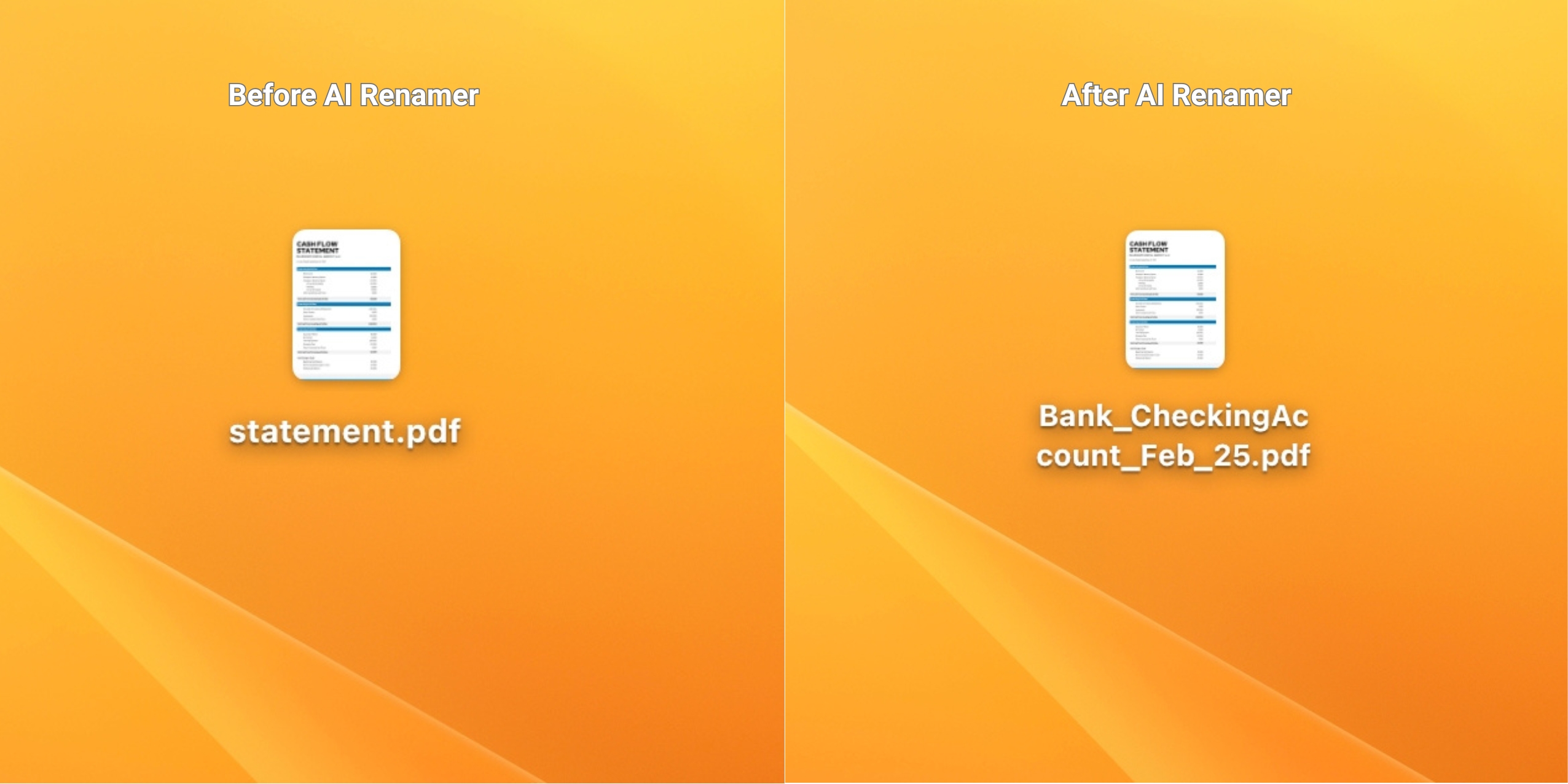
Before: statement.pdf
After: BankStatement_CheckingAccount_2025-02.pdf
AI Renamer can read:
- Account type
- Month or cycle period
- Institution name (if visible)
Example 3: Tax Form PDF
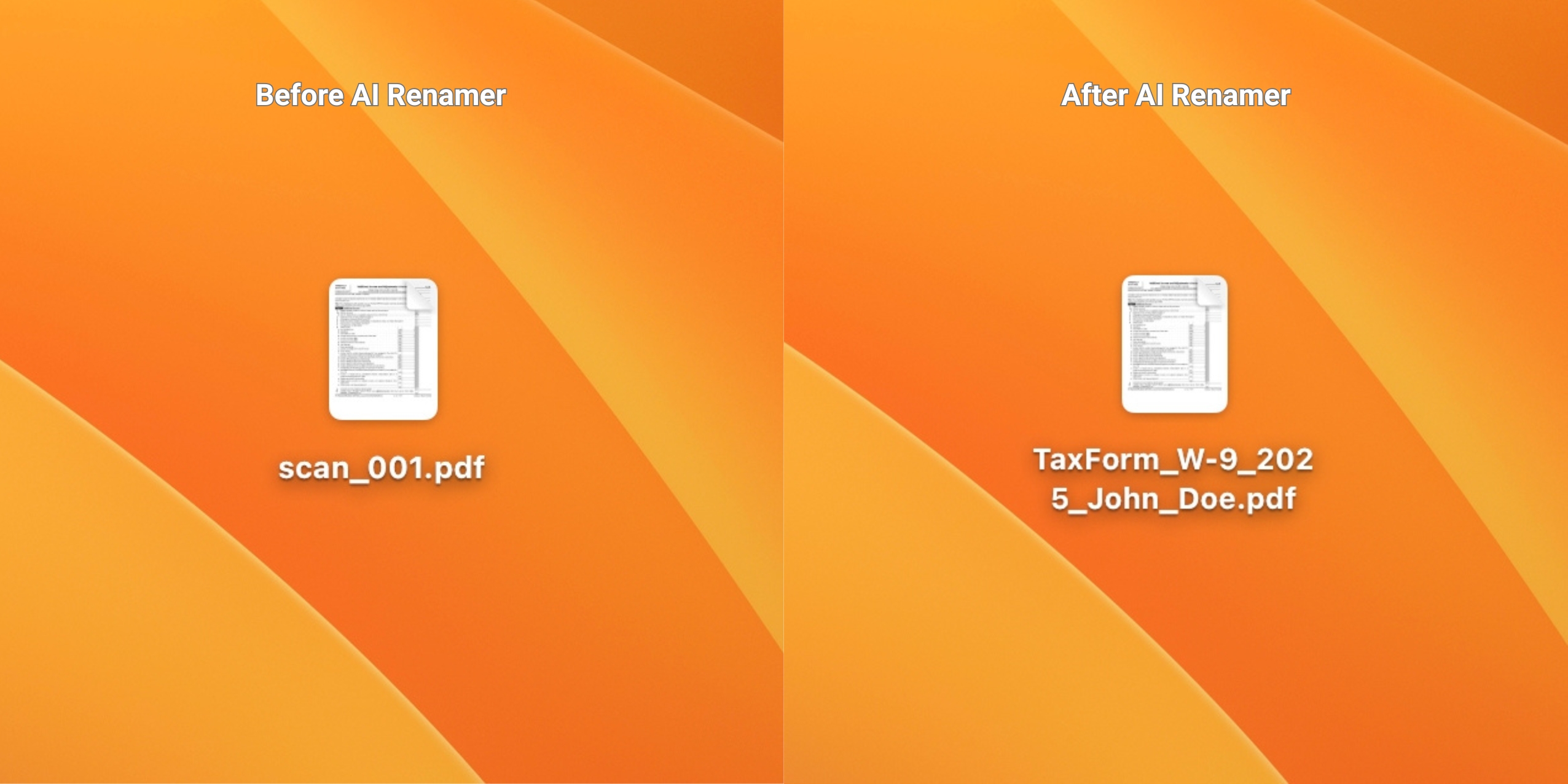
Before: Document (14).pdf
After: TaxForm_W-9_2024_John_Doe.pdf
AI Renamer can identify:
- Form type (W-9, 1099, etc.)
- Year
- Taxpayer name (if visible)
Frequently Asked Questions
How does AI rename PDF files?
It reads the text inside the PDF and creates descriptive names based on dates, clients, vendors, and document type.
Does it work on scanned PDFs?
Yes. If the text is readable, AI Renamer can name it accurately.
Is it private?
Yes. Local Mode keeps all PDF files on your device.
How can AI rename scanned invoices?
AI Renamer analyzes the text extracted from scanned invoices and identifies key details such as vendor name, invoice number, amount, and date. It then generates a clear and consistent filename automatically.
Does AI Renamer work with confidential financial documents?
Yes. Local Mode ensures that all processing happens offline on your device, making it safe for sensitive documents like invoices, tax forms, bank statements, and audit files.
If you work with PDFs every day, automating the file naming process can save hours every week. AI Renamer gives accountants a fast and private way to clean up invoices, statements, receipts, and tax forms in seconds.
Batch rename invoices, receipts, and financial PDFs in seconds. Download AI Renamer and speed up your workflow.