How to Automatically Rename AI-Generated Images Using AI
A Fast and Private Way to Batch Rename AI-Generated Images
If you generate images with AI regularly using tools like Midjourney, Leonardo, Seedream, Nano Banana, or Stable Diffusion you probably have folders full of files like:
image_0.png000123.webpfinal.pngseedream_output_42.pngmj_2025_03_14_182233.pngChatGPT Image Jan 10, 2026, 08_58_57 PM.jpg_a8f606bf-2a4f-49ca-ba40-9f57d3efd12a_2.jpeg
AI image generators are great at creating visuals, but terrible at naming files.
If you experiment with prompts, styles, or variations, things get messy fast. Manually renaming images kills momentum and makes it harder to reuse or compare results later.
In this guide, you’ll learn how to automatically rename AI-generated images using AI so your folders stay clean, searchable, and easy to work with without manual effort.
If you’re new to AI Renamer, start here:
Why AI-Generated Images Get Messy So Fast
AI image workflows create chaos by default.
Images usually come from many sources:
- Midjourney downloads
- Leonardo AI exports
- Seedream batches
- Nano Banana generations
- Stable Diffusion local outputs (local UIs like ComfyUI)
- Prompt experiments and variations
- Style or model comparisons
Each tool saves files differently, and none of them optimize filenames for humans.
This leads to problems like:
- Hundreds of images with no meaningful names
- No easy way to find a specific idea or variation
- Lost context when revisiting older generations
- Datasets that are impossible to search or reuse
- Duplicate images that all look similar in file explorers
An AI-powered image renamer fixes this by generating filenames based on what’s actually visible in the image, not the tool that produced it.
How AI Renamer Helps AI Image Workflows
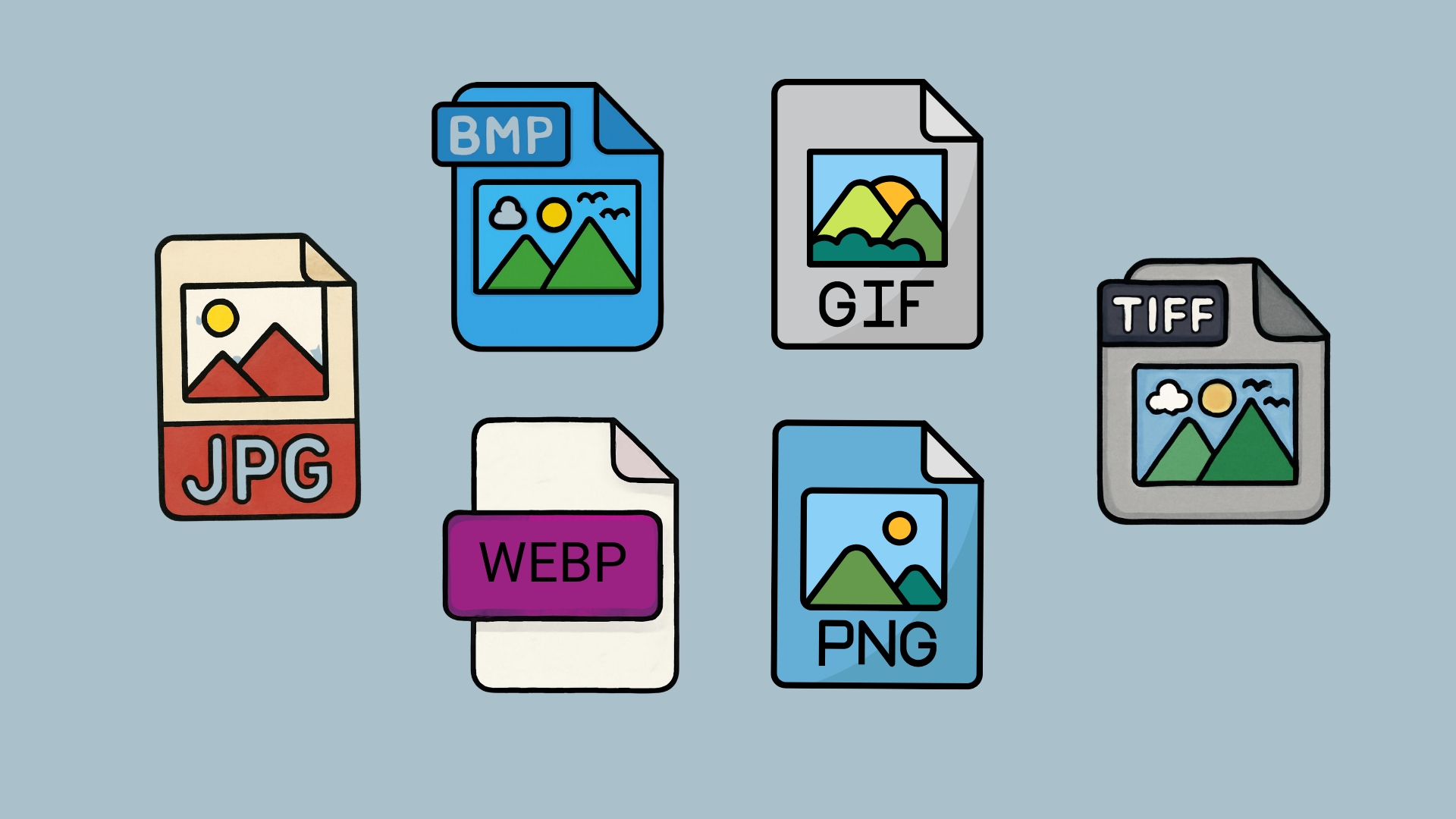 AI Renamer analyzes the visual content of AI-generated images and suggests descriptive filenames automatically.
With AI Renamer, you can:
- Batch rename hundreds of AI-generated images at once
- Rename images based on visual content, not prompts or metadata
- Keep everything private using Local Mode
- Apply consistent naming rules with Custom Instructions
- Preview every filename before applying it
It doesn’t matter whether the image came from Midjourney, Leonardo, Seedream, Nano Banana, or Stable Diffusion, AI Renamer works on the files themselves.
Supported Image Formats
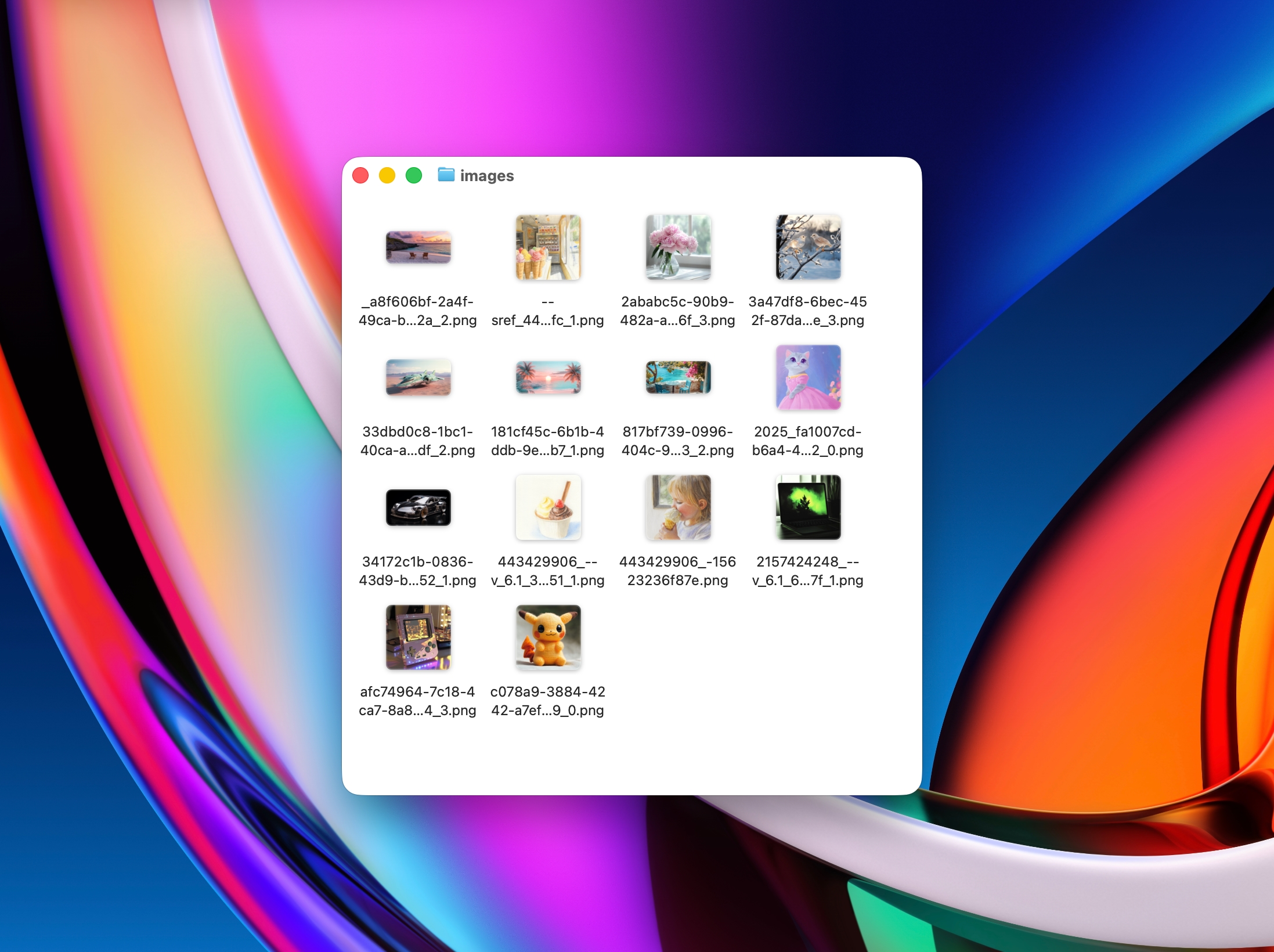
AI Renamer supports all common AI image outputs:
- JPG / JPEG
- PNG
- WEBP
- GIF
- BMP
- TIFF
This makes it ideal for:
- AI art experiments
- Prompt testing and iteration
- Concept art and mood boards
- Wallpaper generation
- Dataset building
- Style exploration and comparisons
How to Automatically Rename AI-Generated Images with AI
1. Download AI Renamer
 Download the desktop app for macOS or Windows:
Need help installing?
2. Choose Local Mode or Cloud Mode
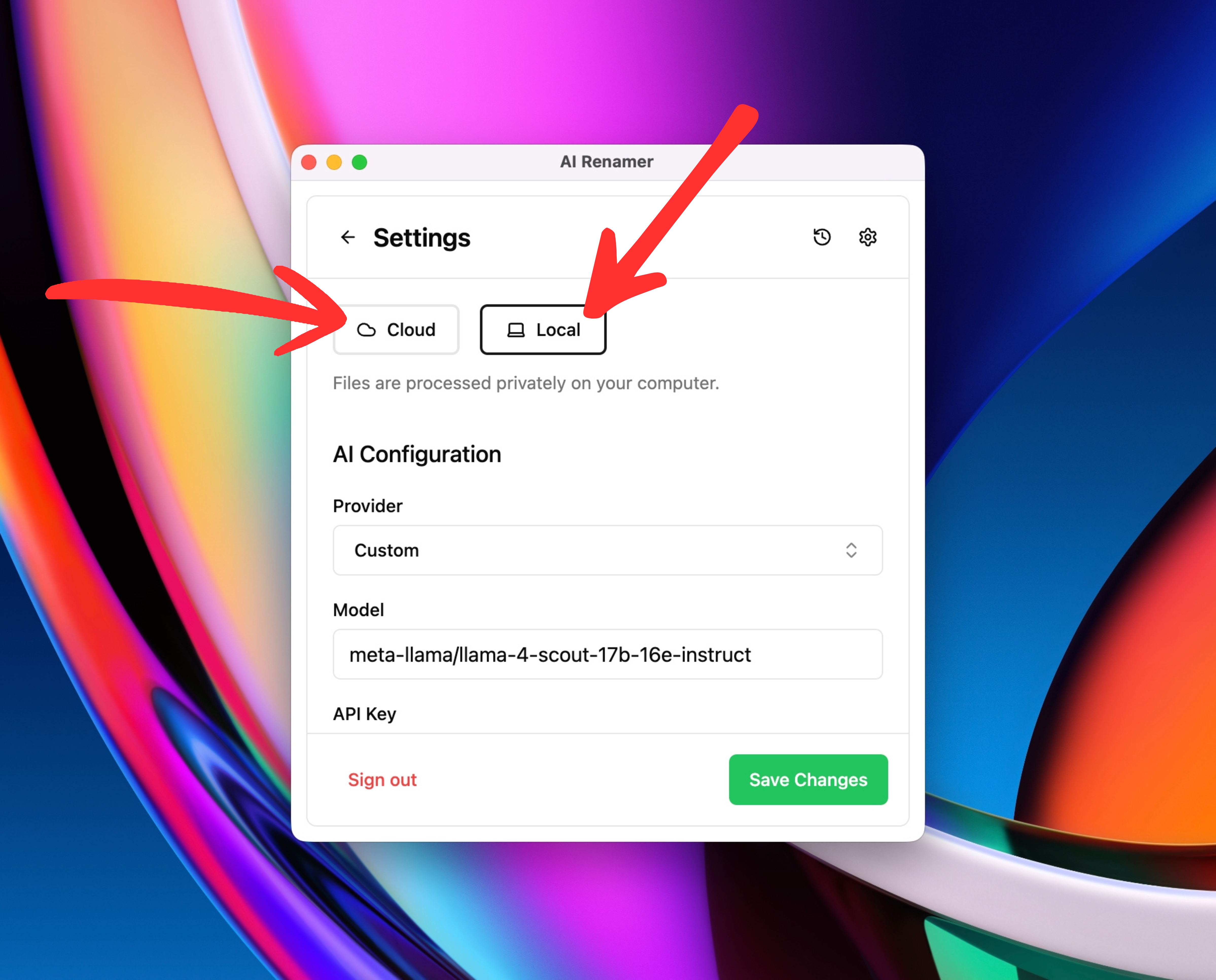 Local Mode (recommended for AI enthusiasts)
- Runs fully on your device
- Unlimited renaming
- No file size limits
- Best for large batches and privacy
Cloud Mode
- Uses built-in AI models
- 1 rename = 1 credit
- Great for quick cleanup sessions
Both modes fully support AI-generated images.
3. Add Your AI Image Folder
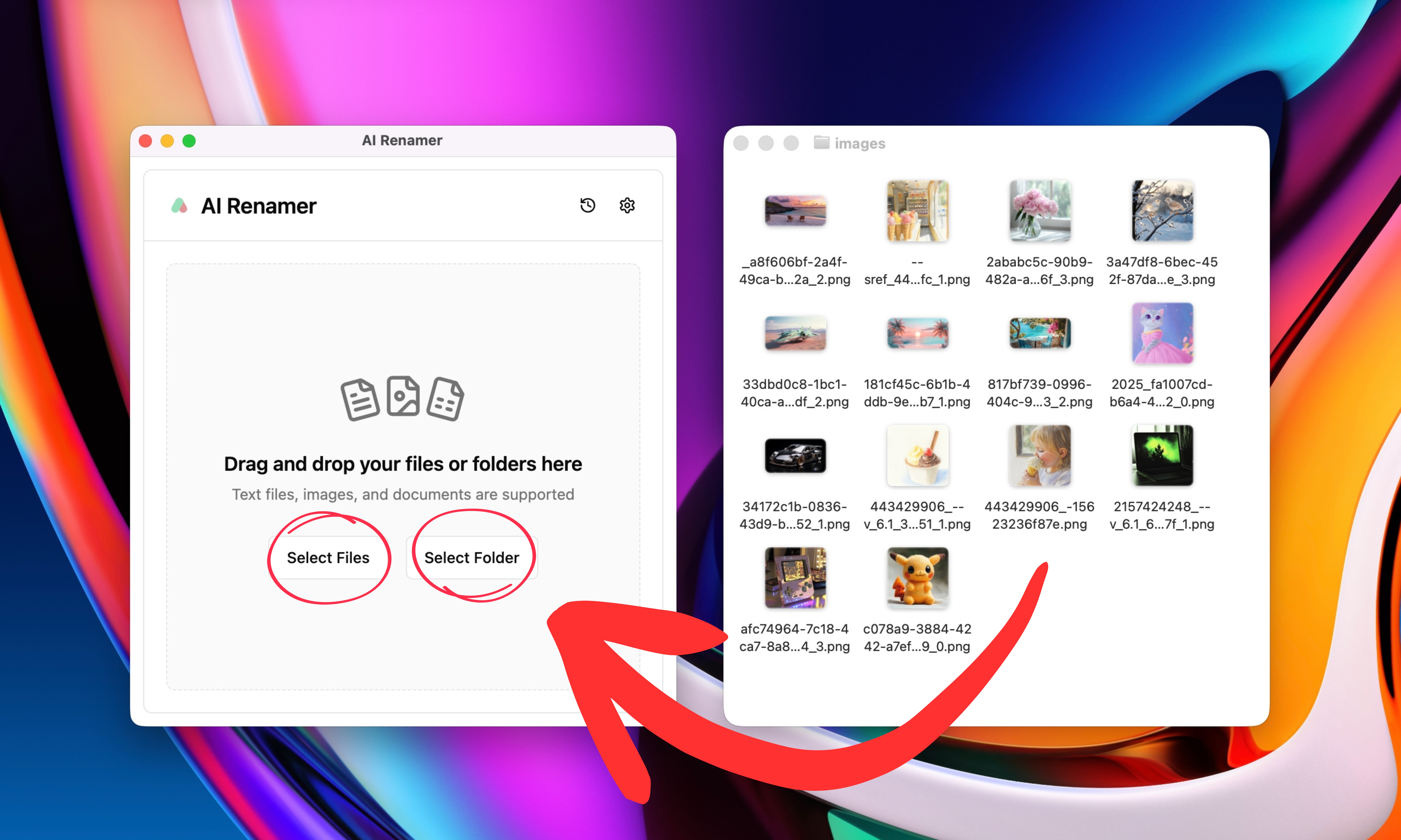 Drag and drop folders like:
midjourney_outputs/leonardo_exports/seedream_outputs/nano-banana/stable_diffusion_generations/
AI Renamer scans each image and prepares filename suggestions based on what it can see visually.
4. Preview the AI-Generated Filenames
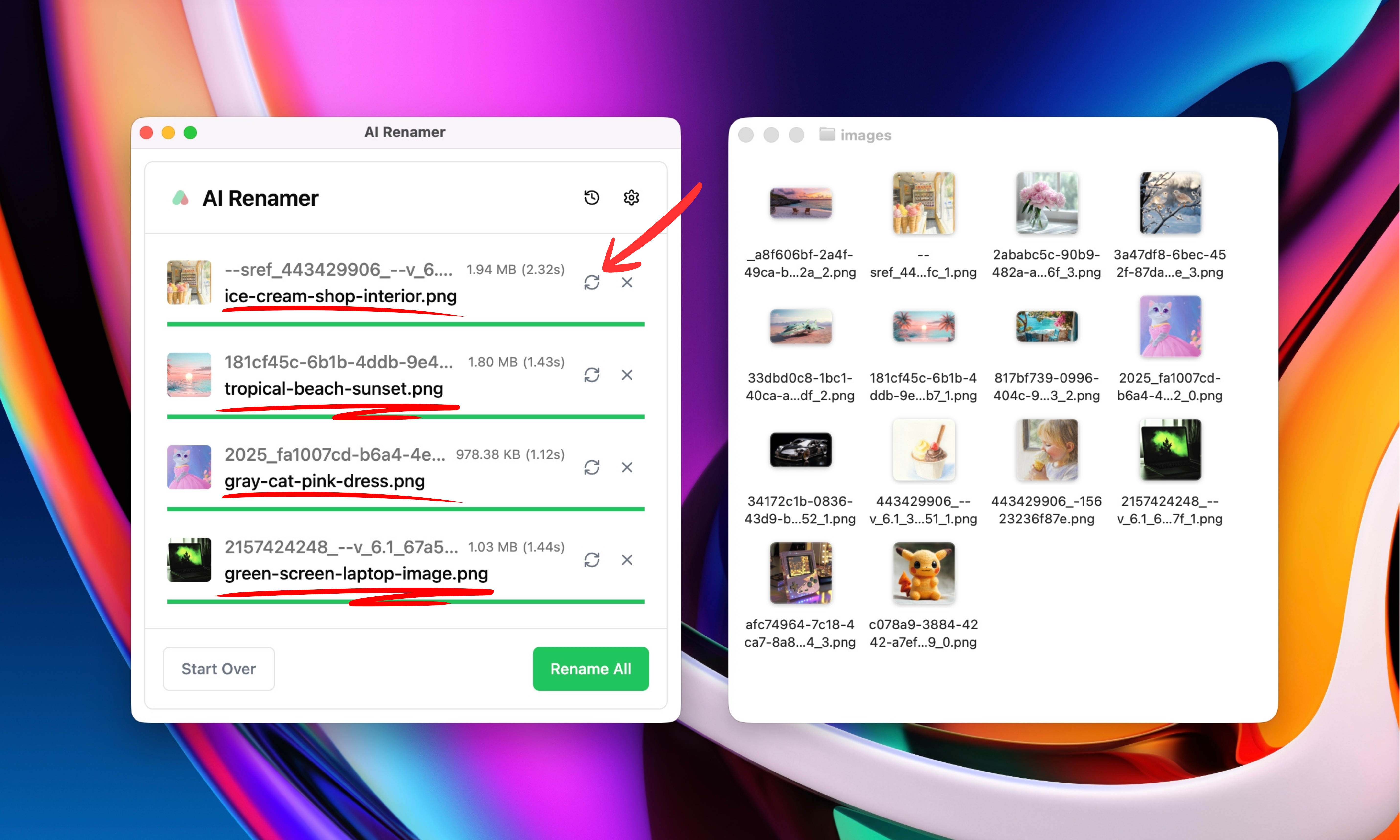 Before:
image_003.pngsd_out_17.webpfinal-final.png
After (preview):
futuristic-city-neon-night.pngportrait-woman-cyberpunk-style.webpabstract-colorful-gradient.png
If something looks off, you can:
- Click Regenerate
- Adjust your Custom Instructions
- Review everything before applying changes
5. Rename Everything in One Click
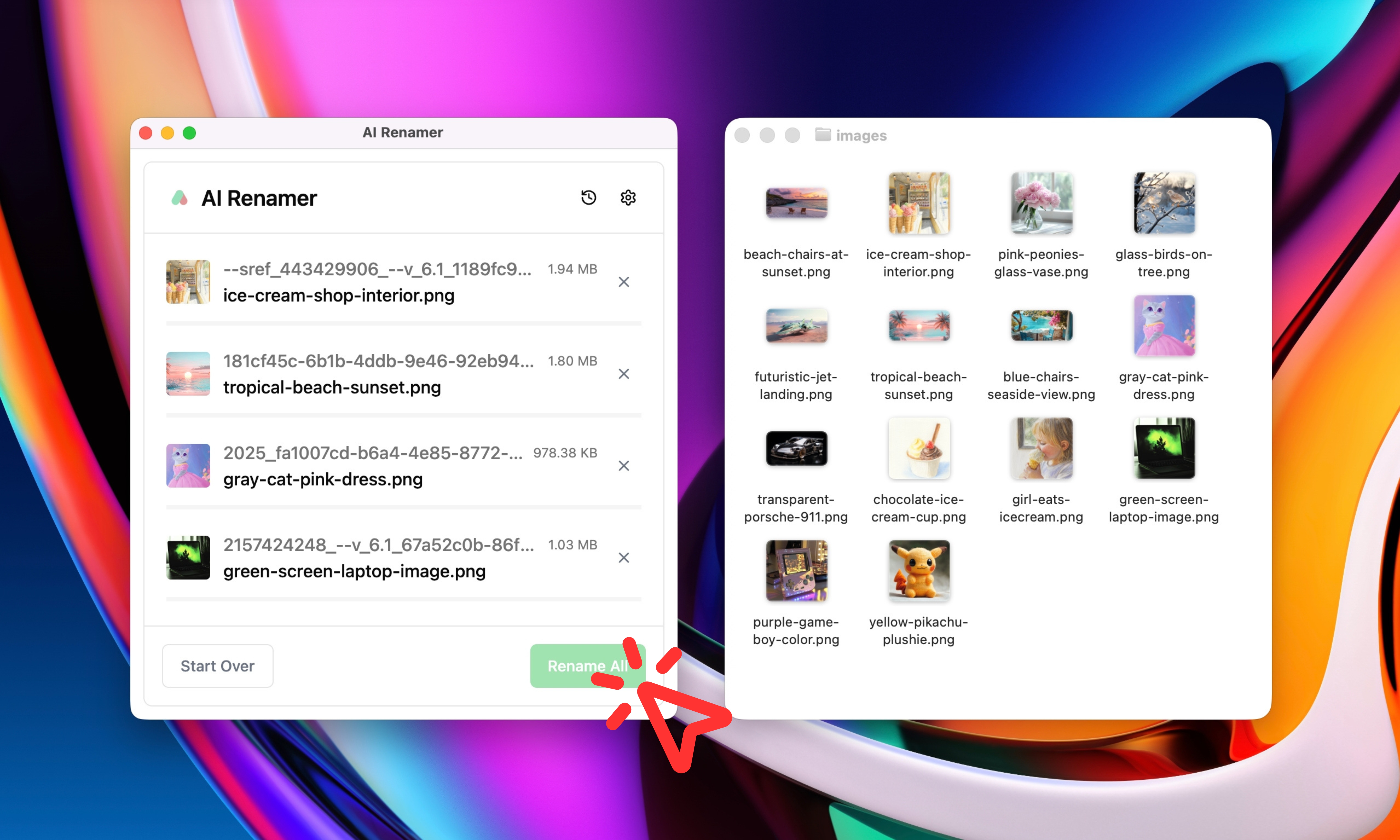 Click Rename All.
Your AI image folders instantly become:
- searchable
- reusable
- easier to compare
- easier to archive
- ready for datasets or sharing
The Best Naming Conventions for AI-Generated Images
There’s no single perfect naming system, but the best ones follow three rules:
- Describe what’s visible, not the prompt
- Keep filenames short and neutral
- Stay consistent across batches
Naming Patterns That Work Well
subject-style-contextobject-environment-moodscene-theme-timecategory-main-feature-color
Examples:
robot-portrait-studio-lighting.pngfantasy-landscape-mountains-sunset.webpabstract-geometric-colorful-pattern.pngspace-nebula-purple-stars.png
Using Custom Instructions for AI Image Naming
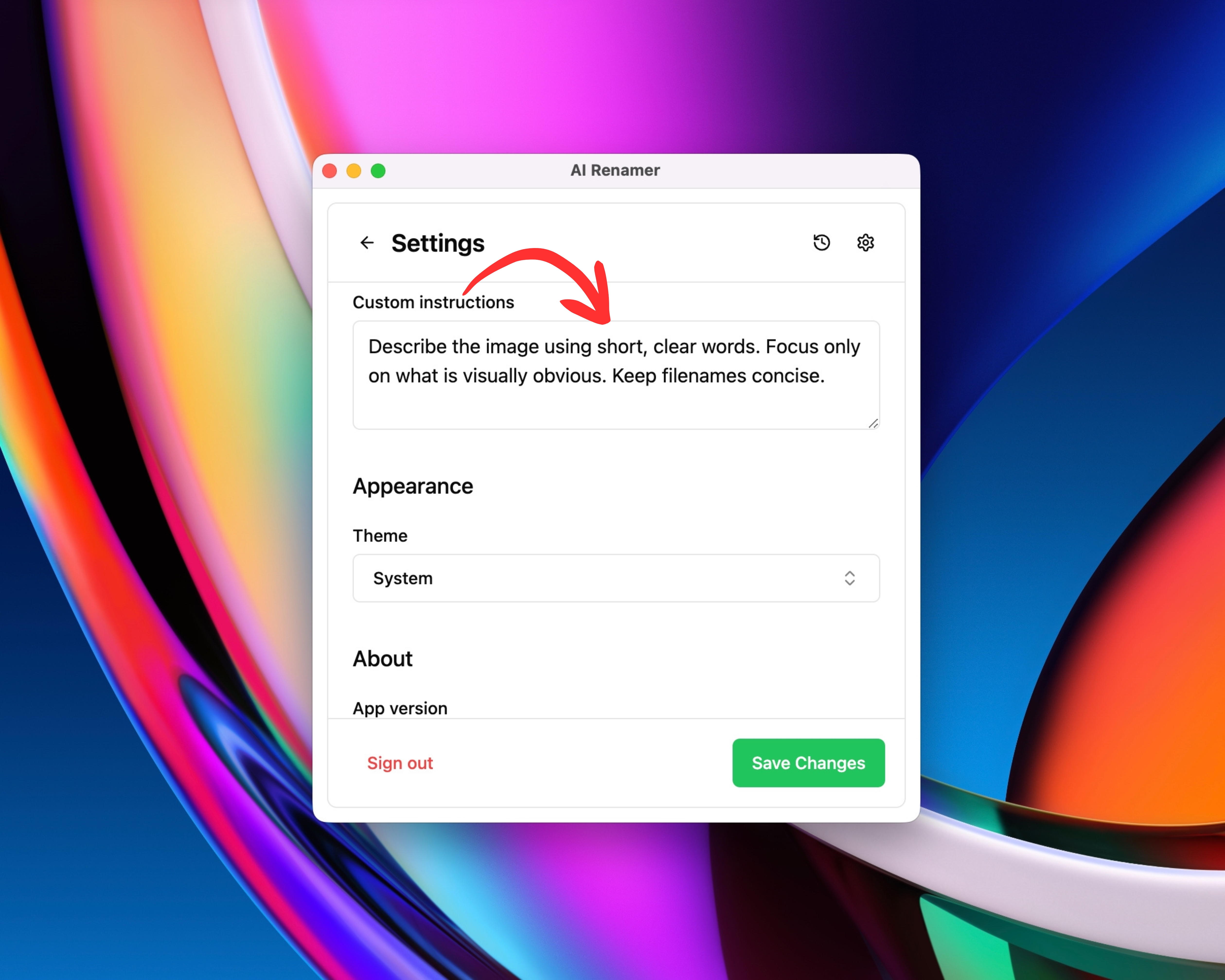 Custom Instructions let you control how AI Renamer names your images.
For more workflow ideas, see:
Custom Instructions let you control how AI Renamer names your images.
For more workflow ideas, see:
👉 10 Professional Use Cases for AI File Renaming Tool
Example Custom Instruction (Safe and Reliable)
Paste this:
Describe the image using short, clear words. Focus only on what is visually obvious. Keep filenames concise.
This avoids hallucinated details and keeps filenames accurate.
Before and After Examples (AI-Generated Images)
Example 1: Character Portrait
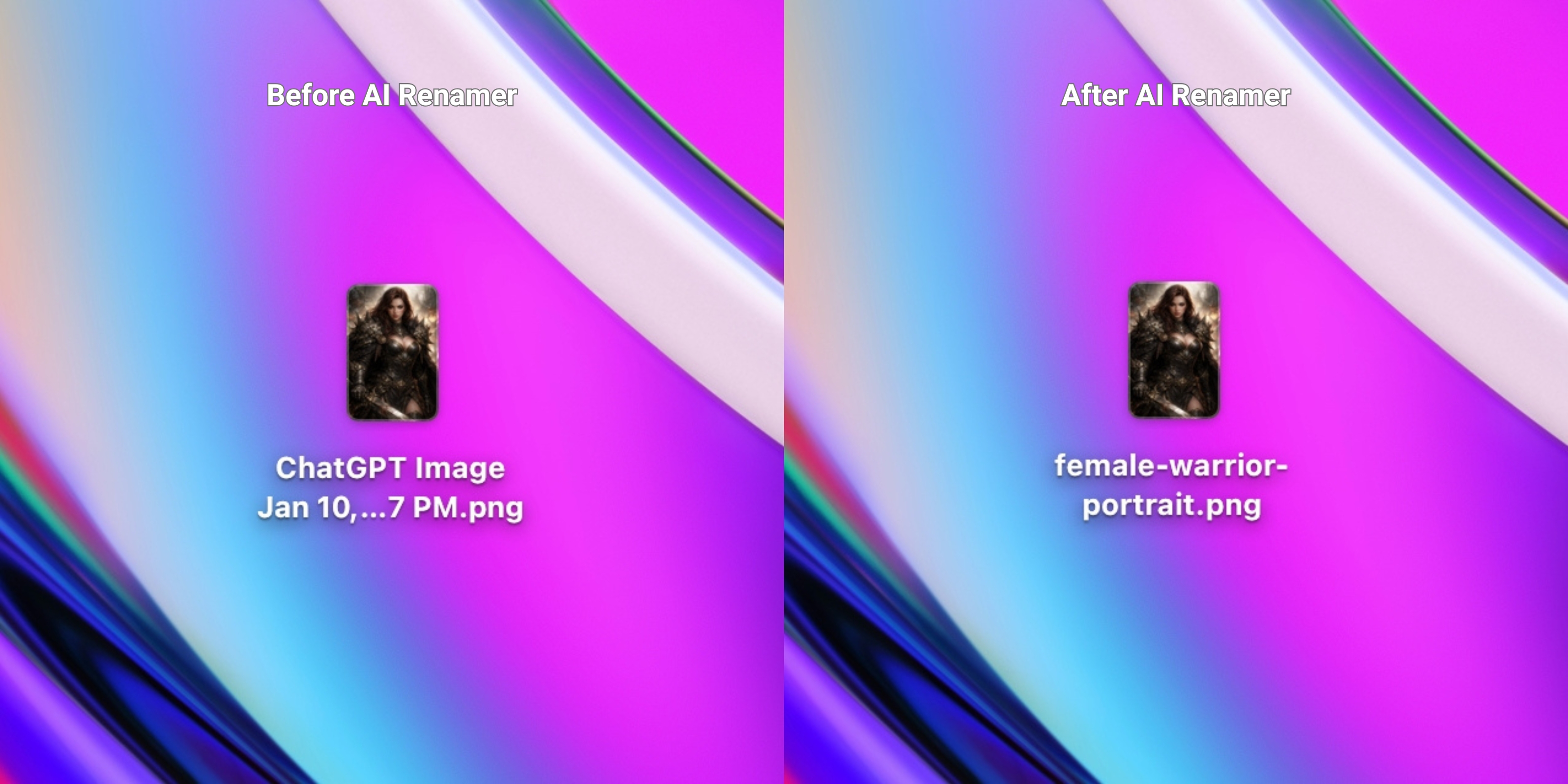 Before:
 ChatGPT Image Jan 10, 2026, 08_58_57 PM.png
After: female-warrior-portrait.png
Example 2: Landscape Scene
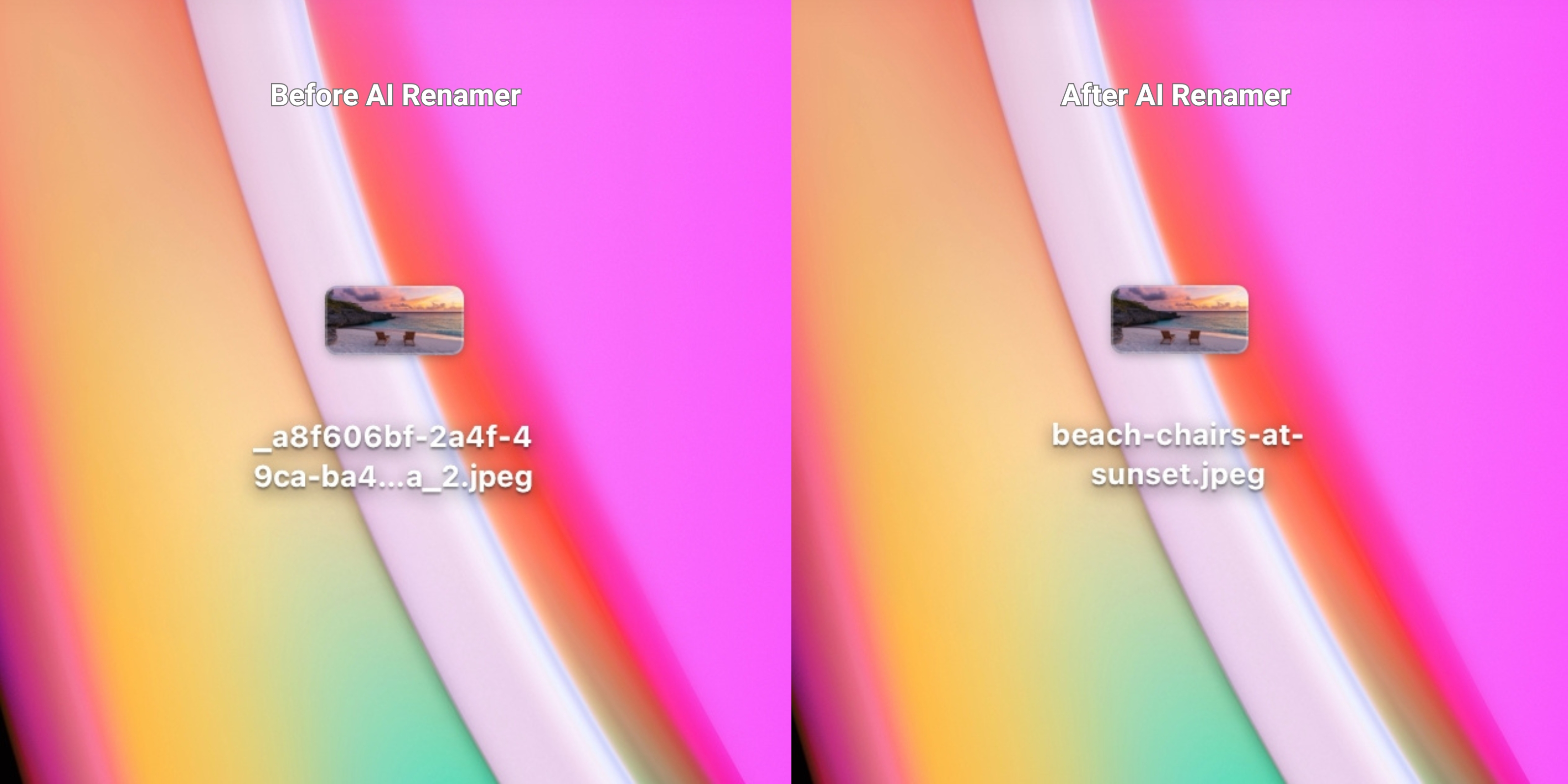 Before:
 _a8f606bf-2a4f-49ca-ba40-9f57d3efd12a_2.jpeg
After: beach-chairs-at-sunset.jpeg
Example 3: Product Style Render
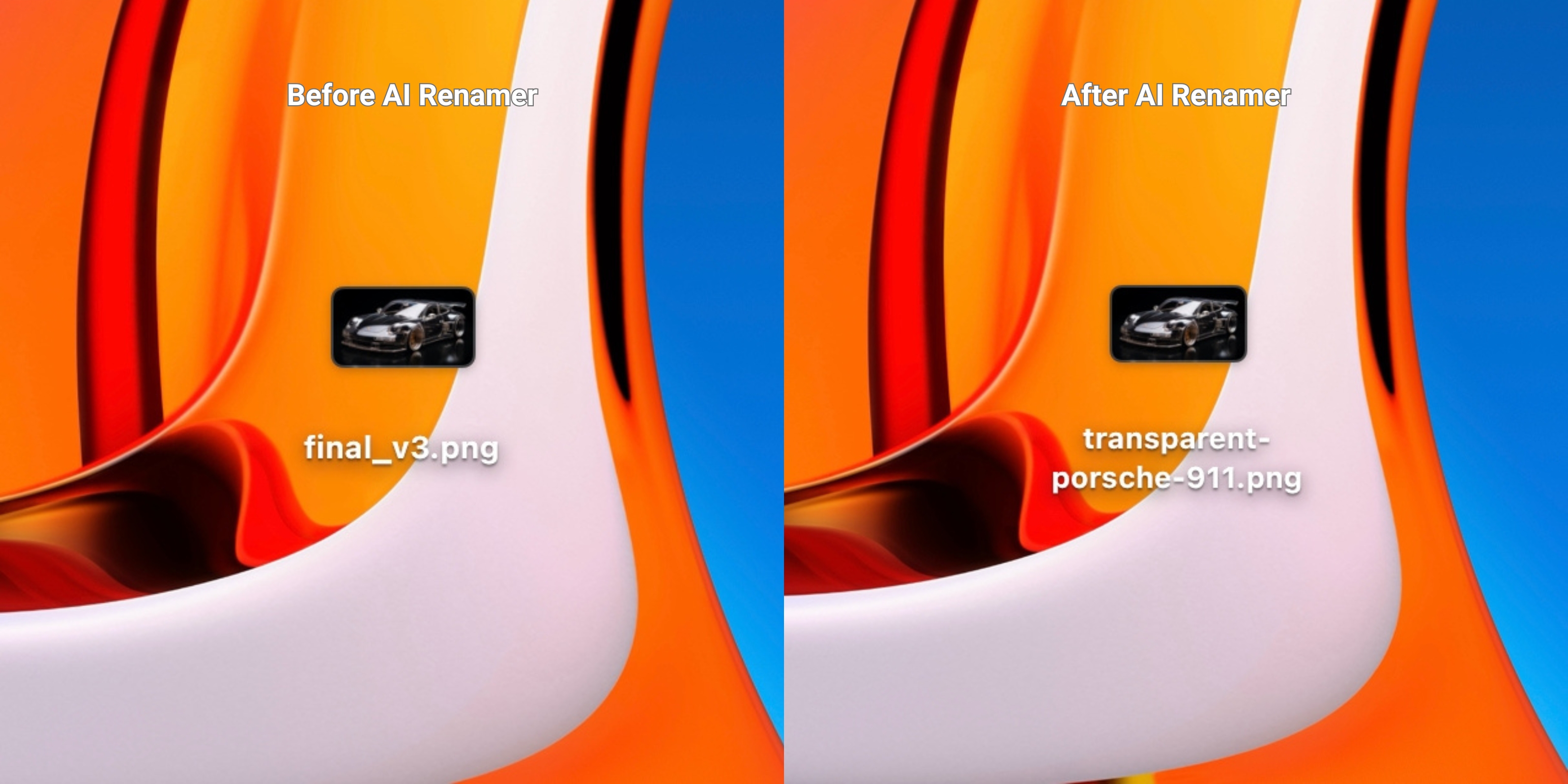 Before:
 final_v3.png
After: transparent-porsche-911.png
Example 4: Abstract Space Wallpaper
 Before:
 image_92.png
After: galaxy-stars-purple-haze.png
AI Renamer uses only what is visible in the image.
It does not identify prompts, creators, or AI models.
Frequently Asked Questions
Does AI Renamer read prompts?
No. Filenames are generated from visual content only.
Is it private for local AI workflows?
Yes. Local Mode keeps everything on your device.
Can I batch rename thousands of AI-generated images?
Yes. Batch renaming is the core feature.
Does it work with Midjourney, Leonardo, Seedream, Nano Banana, and Stable Diffusion outputs?
Yes. AI Renamer works with image files regardless of how they were generated.
As long as the files are in a supported image format in JPG, PNG, GIF, BMP, TIFF, or WEBP. AI Renamer can analyze them and generate descriptive filenames.
It doesn’t matter whether the images come from Midjourney, Leonardo, Seedream, Nano Banana, Stable Diffusion, or any other AI image tool. AI Renamer works directly on the image files themselves.
Keep Your AI Image Library Clean Without Manual Renaming
If your folders are full of:
image_00103.pngChatGPT Image Jan 10, 2026, 08_58_57 PM.jpgoutput (43).png_a8f606bf-2a4f-49ca-ba40-9f57d3efd12a_2.jpeg
You’re not doing anything wrong that’s how AI tools export files.
AI Renamer gives AI creators and enthusiasts a fast, private, and automatic way to batch rename AI-generated images so your work stays searchable, reusable, and organized.
Rename AI-generated images in minutes.
👉 Try AI Renamer: https://airenamer.app